How do you search by location on Instagram?
Instagram removed the Places tab from search in 2026, so you can no longer filter search results by location inside the app. But the location pages themselves still exist, and two routes to them still work: tap the location tag on a post to open that place’s page, or go straight to the location page on the web (instagram.com/explore/locations/…) — which is also where you find the location ID for plugins and the API.
| Feature | Status | Best Used For |
|---|---|---|
| Location tag link (tap the place name on a post) | Still works | Finding other photos taken at that exact spot |
| Location page on the web (instagram.com/explore/locations/…) | Still works — even logged out | Browsing a place’s Top/Recent photos from a computer |
| Location ID (the number in that URL) | Still works | WordPress plugins and embed tools that ask for it |
| “Places” search tab | Removed in 2026 | — (see what replaced it below) |
Instagram’s location search is one of the best scouting tools we have, but because it relies entirely on user input rather than embedded GPS data, finding what you need requires knowing how the system’s quirks actually work.
Because a lot of my feed revolves around travel photography, I rely heavily on Instagram’s location features. I use them to scout shooting locations, check real-time weather or crowds, and find other photographers working in the same area.
But the system is far from perfect. The biggest hurdle is that Instagram ignores an image file’s actual EXIF GPS metadata. Instead, the location relies entirely on what the user types in when they hit “Publish.” That creates a few friction points:
- Current Location vs. Shot Location: If I’m sitting on my couch in Virginia posting a photo I took yesterday in D.C., Instagram will suggest locations based on my living room, not the camera’s original coordinates.
- No Master List: Instagram doesn’t force users to pick from an official list of real places. People can and will make up locations like “My Favorite City” or use the location tag as a brand mention.
- Hashtag Substitution: Many users skip the location field entirely and just dump places into their hashtags.
Because of this, you often have to experiment with location pages and hashtags to find what you’re looking for.
What happened to searching by location? (The places tab is gone)
Until 2026, the most straightforward method was the built-in search: tap the magnifying glass to open Explore, type a place name, and switch to the Places tab to filter the results to actual map locations.
Instagram quietly removed that tab (and the location filter with it) in 2026, without any official explanation. Searching a place name now returns a mix of accounts, hashtags, and an AI-generated summary — there’s no longer a clean way to get from the search bar to a location’s photo feed. The likeliest reading is that Meta is steering location discovery toward its newer Map feature, which shows tagged posts on an actual map where it’s available.
Jumping through the location tag
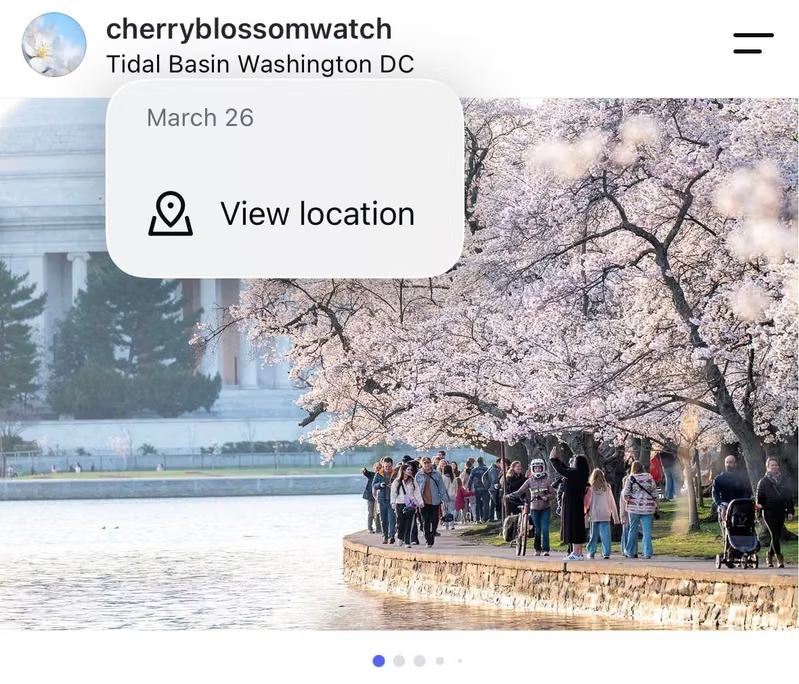
With search gone, this is now the main way to reach a location page inside the app — and it still works, though the route has changed. If you’re looking at a photo and want to see what else has been shot there, tap the location text directly under the username. (Be precise — if you tap the username by mistake, it routes you to their profile instead.)
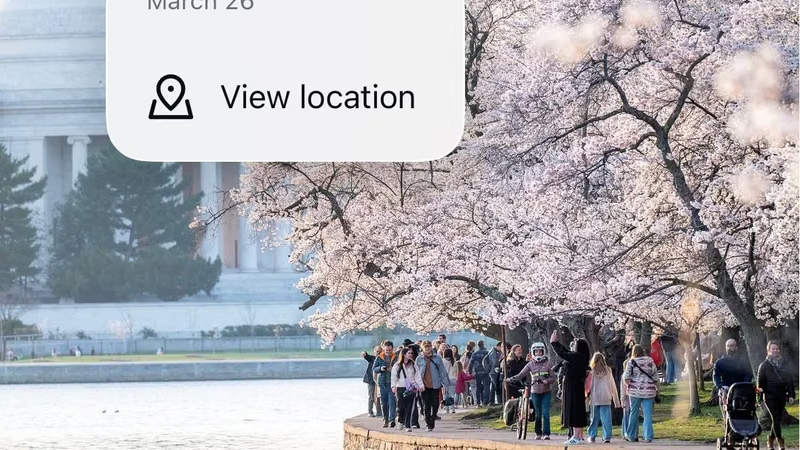
A small popover appears with the post date and a View location button. Tap that, and instead of the old dedicated place page, Instagram now opens its Map, with the location as a pin.
Tap See more under the pin and a panel slides up with the location’s name, post count, and the familiar Top and Recent photo grids. So the place page still exists — it just lives inside the Map now.
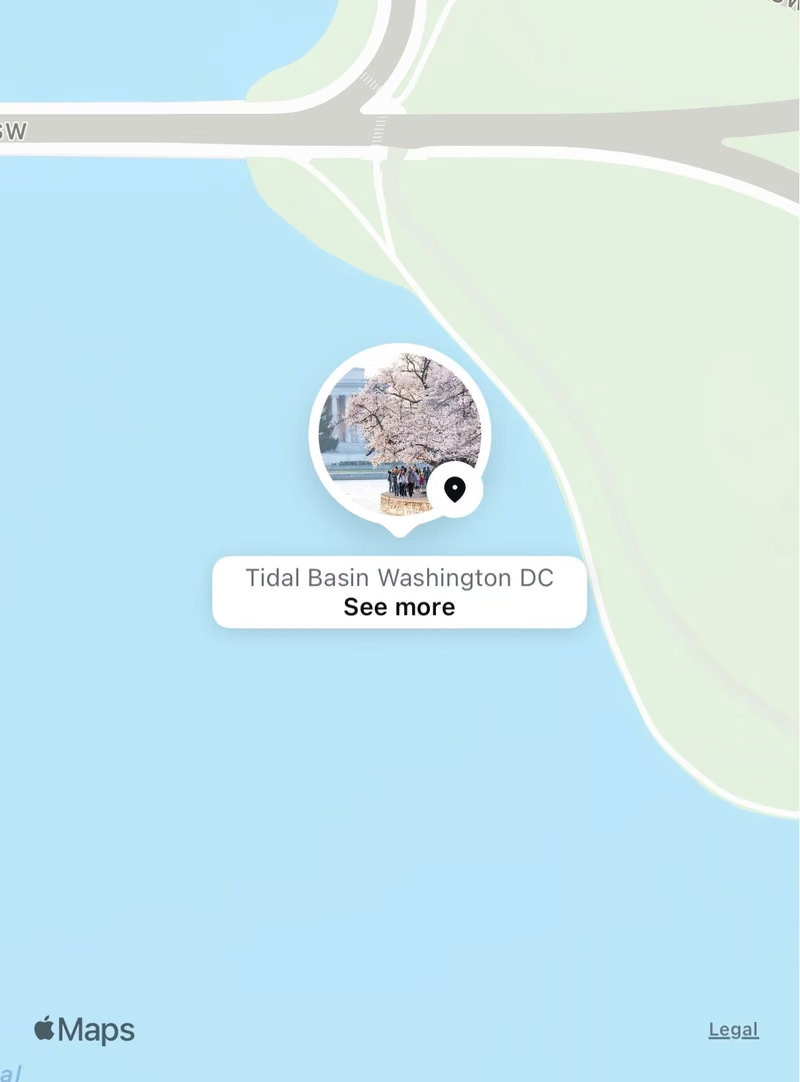
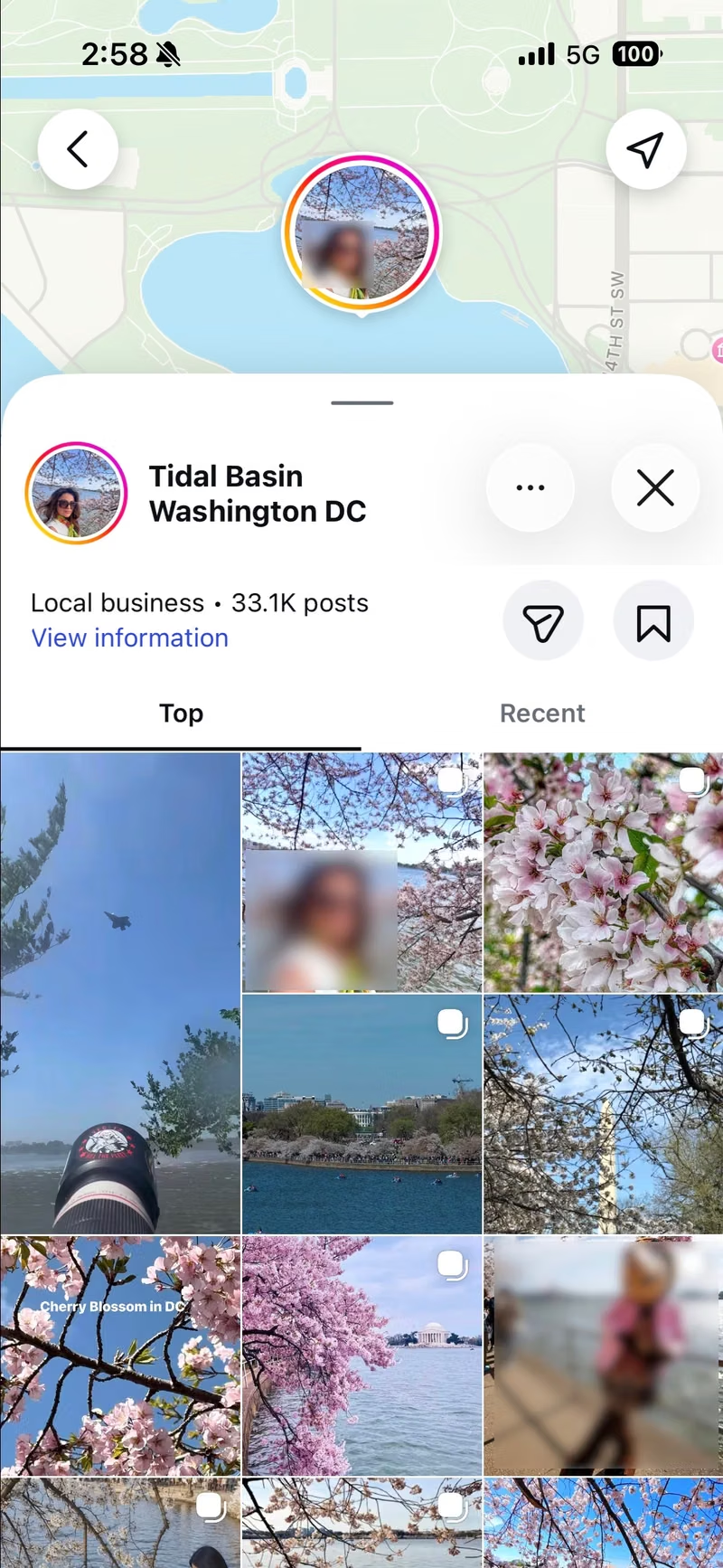
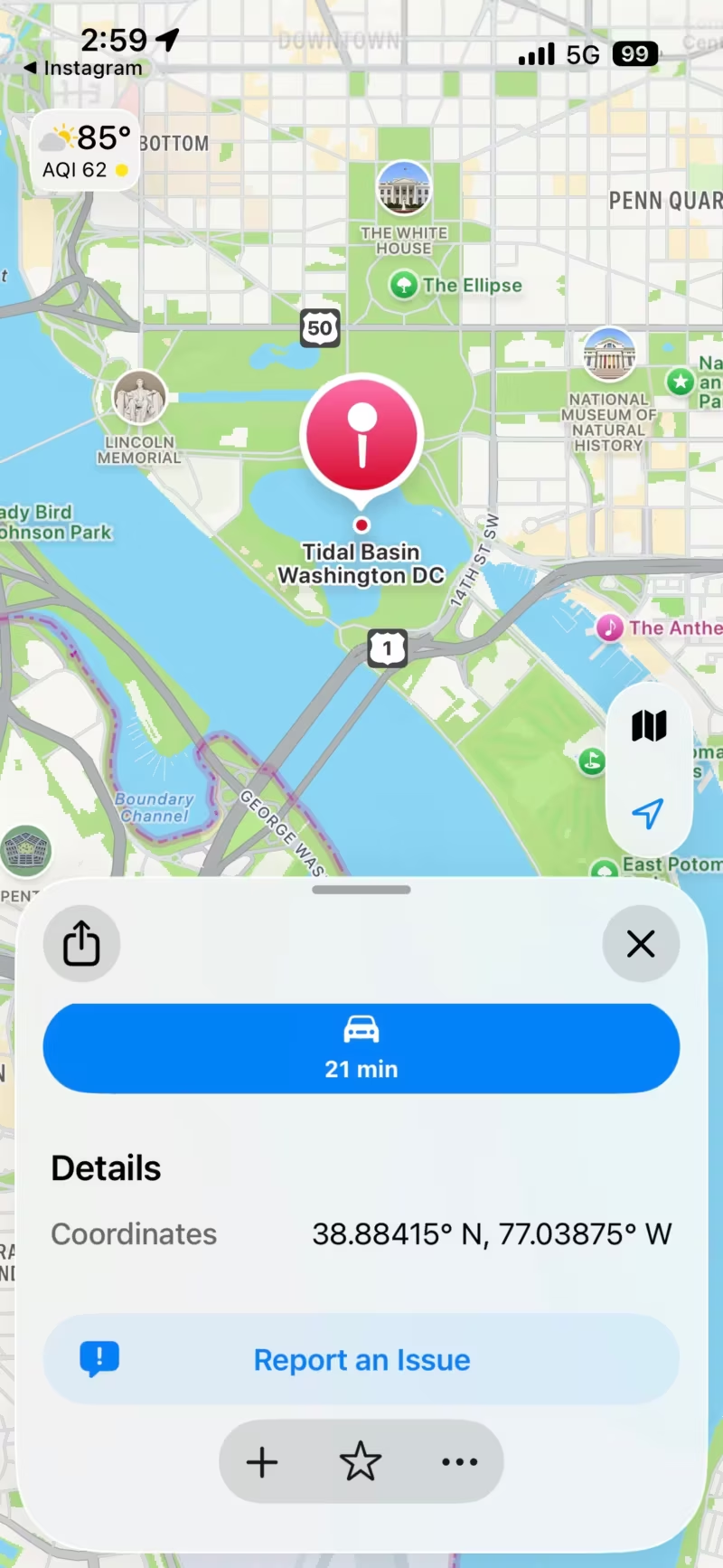
Two details worth knowing. The Map asks about device location and friend sharing, but you don’t need to turn either on — the location pin and its photo grids work fine with device location off. And tapping View information on the panel hands you off to Apple Maps with the spot’s coordinates, which is handy if you’re actually trying to get there.
Going straight to a location page on the web
The location pages are still fully alive on Instagram’s website — they even work logged out. Every registered place has a page at an address like instagram.com/explore/locations/212988663/new-york-new-york/, with the place’s Top and Recent photos and an “In the area” view.


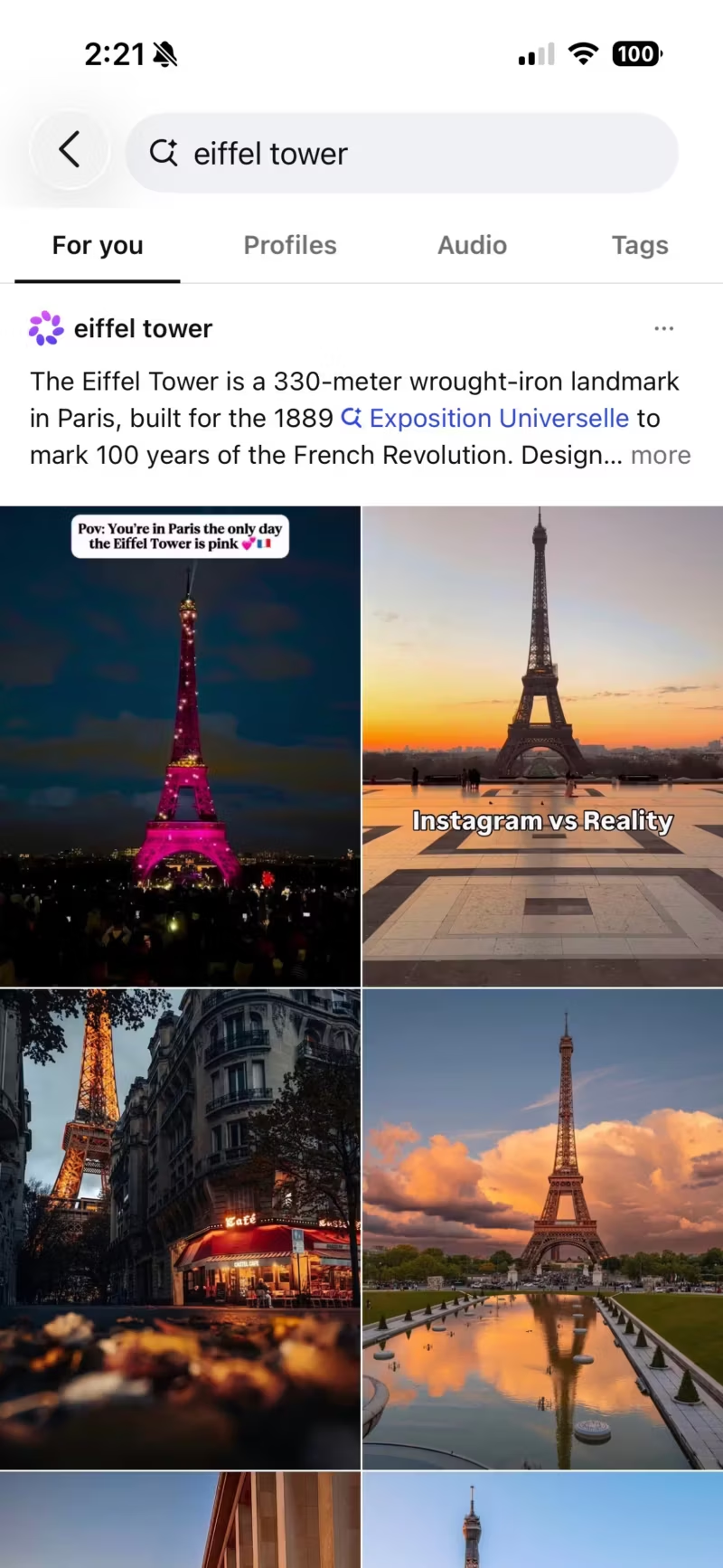
The catch is getting to that page now that in-app search won’t take you there. Two routes work: jump through a location tag on any post (above), or use a regular web search as the front door — searching Google for site:instagram.com/explore/locations “eiffel tower” turns up the location page directly. Once you’re on it, you can browse freely — and the page’s URL contains the location ID, which brings us to the next section.
How to find an Instagram location ID
If you manage a WordPress site and use plugins to pull an Instagram feed onto your pages, you’ve probably encountered a setting asking for an “Instagram Location ID.”
Under the hood, every registered map location on Instagram is assigned a unique numerical ID. Finding it isn’t completely obvious, but here is the easiest way to pull it manually using a desktop browser.
1. Log in on desktop
Go to instagram.com from your computer. Strictly speaking, you don’t even need to log in for this — location pages load even when you’re logged out — but there’s no harm in it either.
2. Search for the location
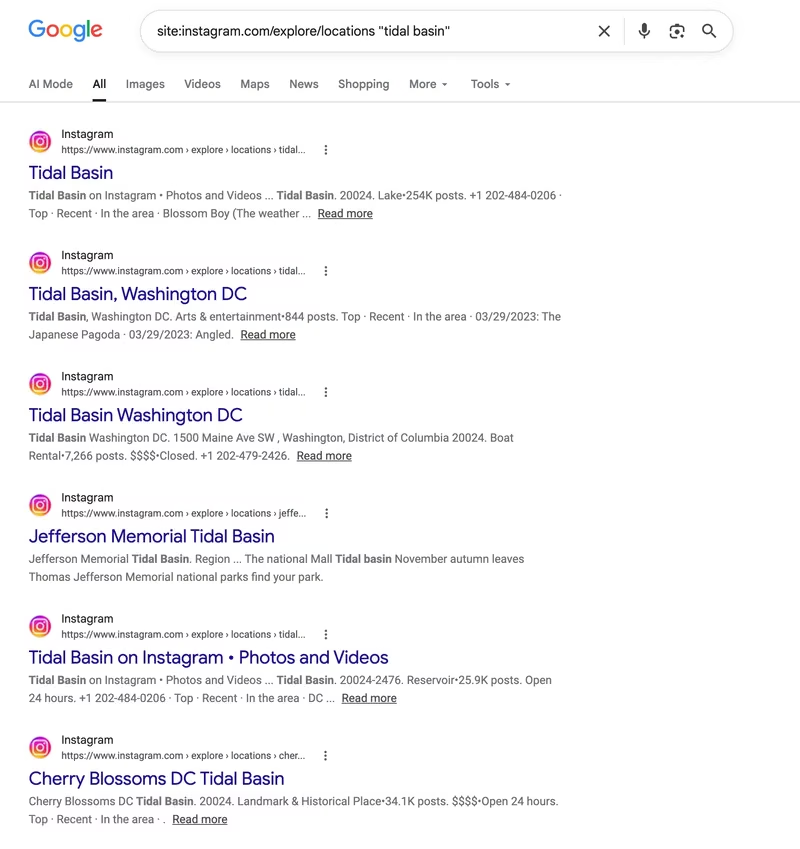
Instagram’s own search bar won’t get you there anymore — on the desktop site, it now only surfaces accounts, with no place results at all. So skip it and use Google instead: search site:instagram.com/explore/locations plus the place name in quotes, and the location pages come right up.
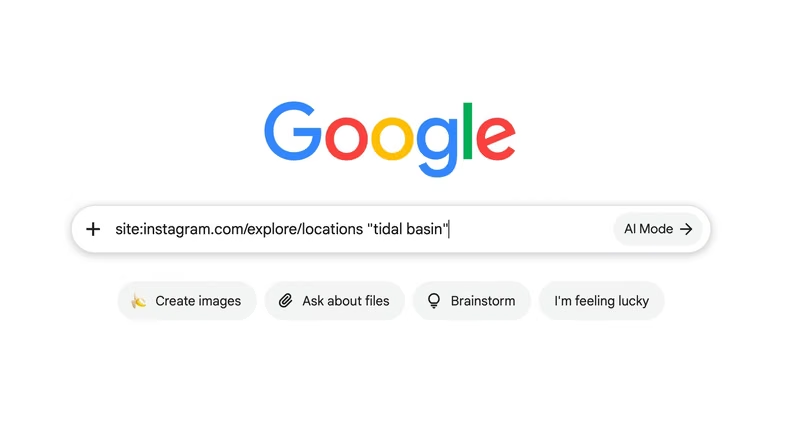
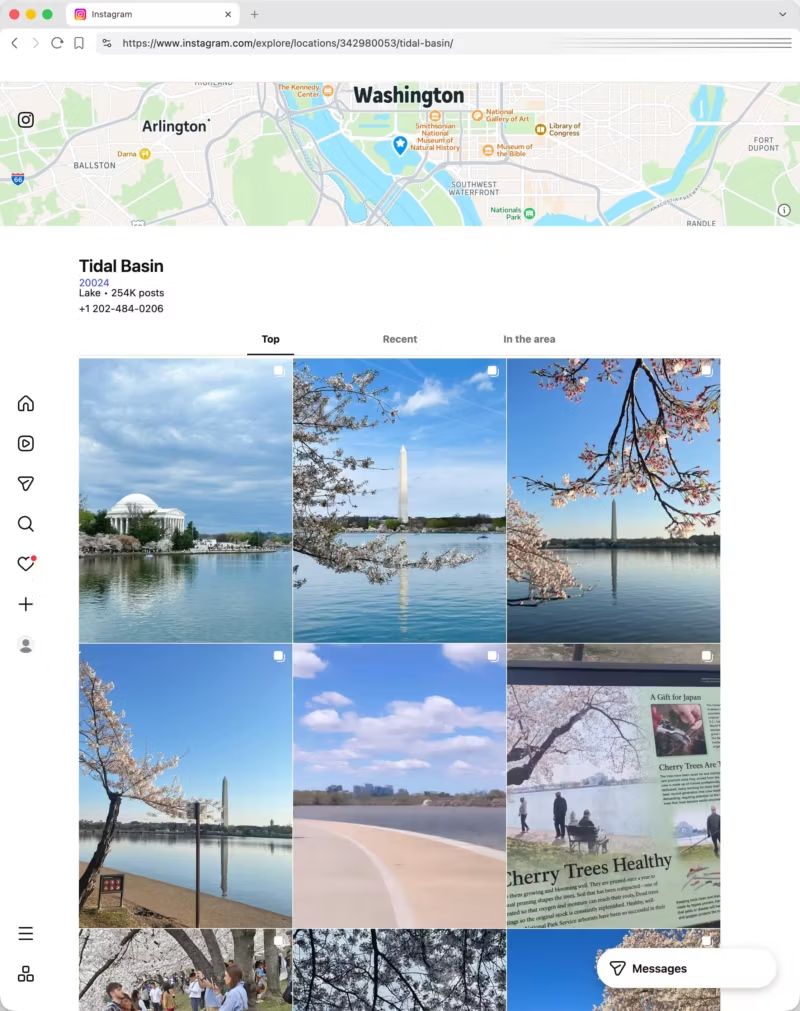
For example, searching site:instagram.com/explore/locations "tidal basin" returns the Tidal Basin location page as the first result.
Using Instagram’s locations directory
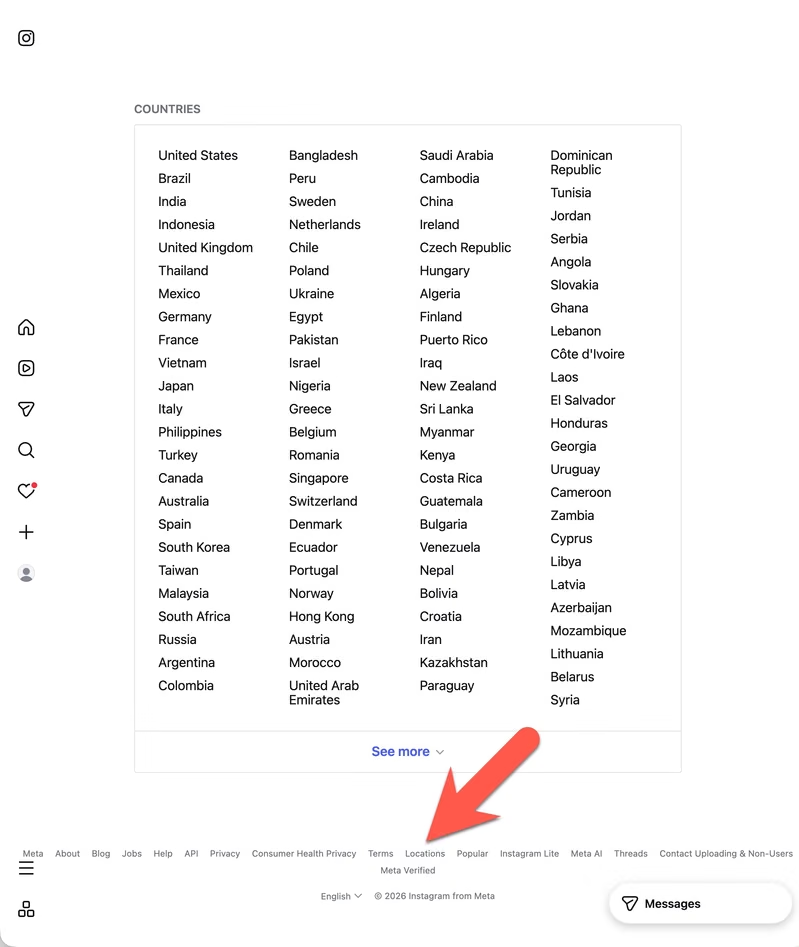
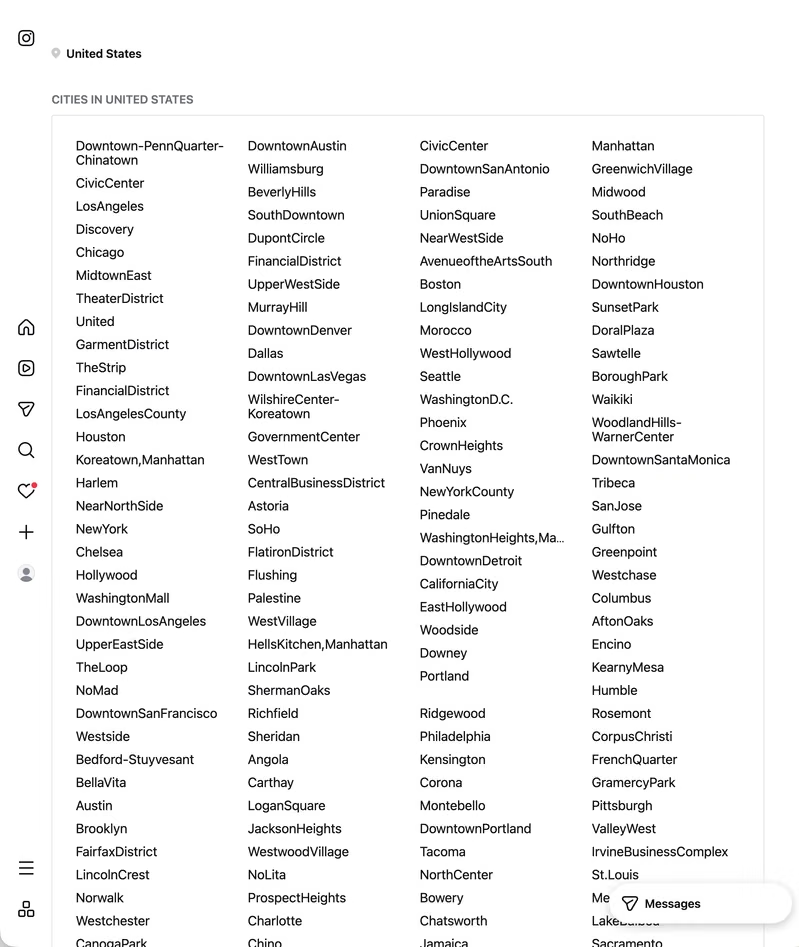
There’s also a Locations directory linked in the footer of Instagram’s website that you can browse by country and city. But it’s pretty flawed, and I don’t find it useful.
For one thing, it’s not sorted in any usable way within a group. For another, it’s full of user-generated errors, misspellings, and yes, spam. It’s there if you want it, but I’d recommend the Google route if you want to get there faster.
3. Open the location page
Click through from the Google results — or from the Locations directory — and you land on the dedicated page for that place.
4. Copy the URL string
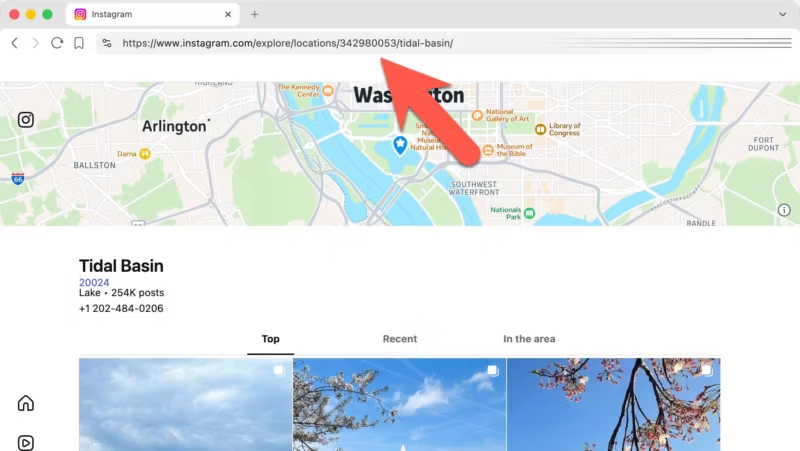
Look at your browser’s URL bar. You need the string of digits sitting between `/explore/locations/` and the name of the place.
5. Paste into your plugin
Just copy those numbers and drop them directly into whatever widget or plugin you’re configuring.
Using Instagram’s API
A reality check if you’re coming at this as a developer: the current Instagram API has no location features at all. The old API that powered location feeds is long gone.
In Meta’s current Instagram Platform, the objects are comments, media, hashtags, and users — and the only search the whole API offers is hashtag search.1 There’s no way to look up a location, search for one, or pull a feed of photos tagged at a place.
That has two practical consequences.
First, any tool or plugin offering an Instagram location feed is working from the public location pages, not an official API — which is why those features tend to be scarce and fragile.
Second, the manual method above isn’t just a workaround; it’s now the method. The numeric ID identifies the place on those public pages, and it’s what any tool that asks for a location ID is keyed to.
More Instagram guides for photographers
- Instagram photo sizes: what to upload for the sharpest results
- How to post seamless panoramas on Instagram
- Posting to Instagram directly from Lightroom
- How to archive Instagram posts (instead of deleting them)
- Instagram Platform API reference (Meta developer documentation [↩︎]


