I’ve recently been scanning some old Kodak reference guides in order to have them more readily available. Some of these are 70 or more years old, but they still contain a real wealth of useful information. After all, as much as things have changed with digital cameras, there’s still an enormous amount of photography knowledge and skills that carry over regardless of the technical capabilities of the actual camera.
There are several pain points in a book scanning workflow, but one that’s fairly easily solved is to create a Mac Quick Action to combine PDFs into a single file. I scan these reference guides in chunks (a filesize limitation related to the ScanSnap scanning software I’m using).
It’s easy enough to open Adobe Acrobat, open the Combine tool, select the files, and then save the result. And that’s what I had been doing.
But it’s even quicker and easier with a Quick Action. And it only takes moments to set it up so that it’s available for every time after that.
Steps to create a Mac Quick Action to combine PDFs
Here’s how I’ve done it. There are plenty of ways this can be customized for your own workflow, but this should give a useful foundation to build on.
I’m going to assume here that if you’re trying to do this, you probably also have at least passing familiarity with how the step-by-step workflow of Automator actions work. So I’ll just cut to the chase.
Obviously, you want to start by creating a Quick Action.

Once that’s started, you can save and rename it to whatever you like.


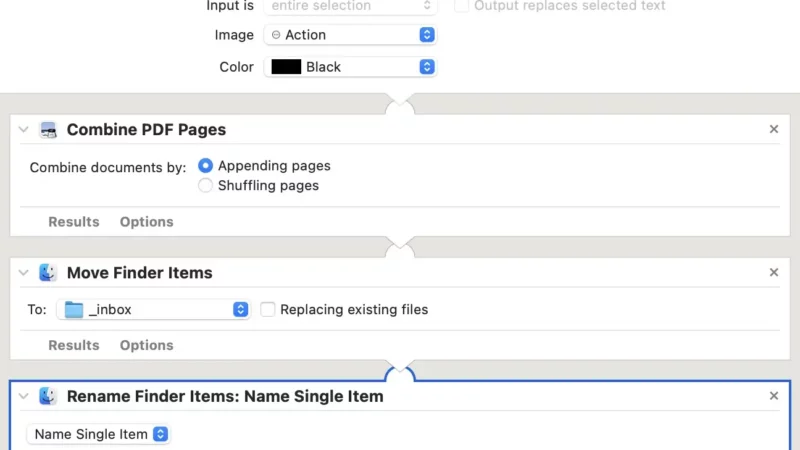
Here’s the end result of the one I’m using, which clearly shows each step and its settings.
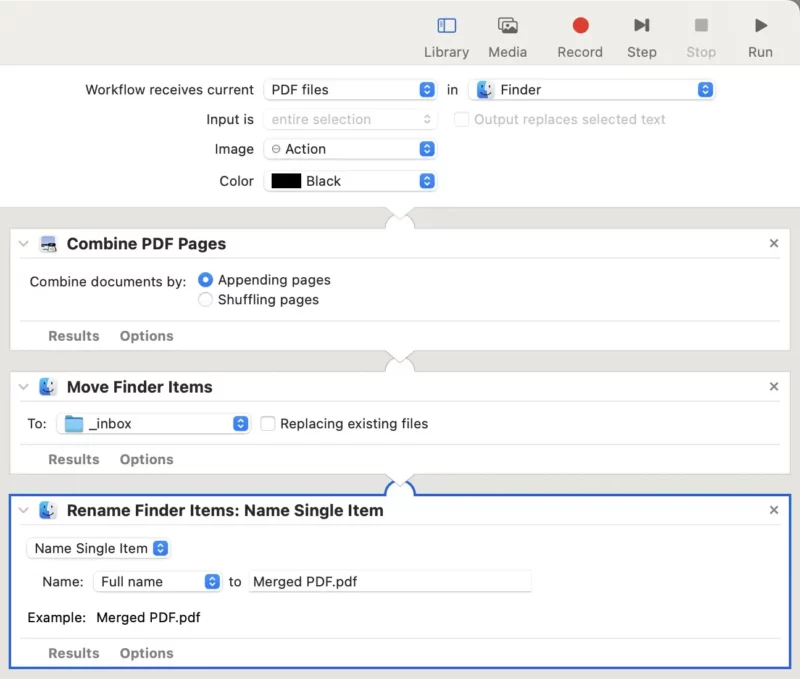
Once that’s created, it should show up automatically under Quick Actions when you right-click on the files in Finder.
Simply select the PDFs you want to combine and then run the quick action. It’s worth noting that there’s nothing in this version of the workflow to allow for reordering the files. That would be possible, but again makes things more complicated than I need. The simple solution I use is to name the files sequentially beforehand so that they list in order in Finder.
Once it runs, it will produce a single PDF file that, in this case, is named Merged PDF.pdf. I then simply rename that in Finder. There are ways you can adjust the output filename, such as adding a date and time or sequence, but this simple approach is working well for what I need.
Things worth knowing
- To keep the files in order, I name each chunk sequentially (eg. pt1.pdf, pt2.pdf, and so on).
- I’d probably prefer that it ask me for a filename upon saving, just to streamline things that little bit more. And while there are ways to implement that, it’s just adding complications I don’t want–I’m aiming for good enough, not perfection.


