
A lot of the time, you use the crop tool in Lightroom Classic, you might just be visually eyeballing it to what looks about right. About where to set the crop boundaries. Or create visual balance with subject centered or in the left third, or what have you. Or you might be cropping something out of the image. Cropping is also the first step of resizing an image in Lightroom.
But there are also times you might want more control and precision.
Perhaps you want to use a 4:5 aspect ratio for a perfect print on 8×10″ paper. Or you might want to put your subject exactly in the left third to allow copy space for a magazine editor. Or maybe you want to go even fancier and use some of the classic photography composition techniques like the Rule of Thirds or the Golden Ratio to steer the viewer’s focus to a particular part of the frame.
Now that Photoshop CC also uses Lightroom Classic’s crop method, these crop overlays now also work in Photoshop. To cycle through them in Photoshop, you use the same keyboard shortcut as in Lightroom Classic (O). The available overlays are mostly the same, with a few different options.
Lightroom’s crop overlays can help
There is a series of built-in crop overlays that serve as useful guides when you’re cropping images. They’re not necessarily front-and-center, but once you know they’re there they can come in very handy to make more precise composition adjustments.
How to change Lightroom crop overlays
The crop overlays are available when you’re using the crop tool in the Develop module.
With the crop tool active, you can cycle through the different options by pressing O (for overlay). You won’t see the option unless you’re using the crop tool.
And you have some options for controlling how the crop overlays behave.
Firstly, you can choose which overlays are available when you cycle through by going to:
Crop Guide Overlay > Choose Overlays to CycleSecondly, you can also choose when the tool overlays display. When you’re using the crop tool you have a “Tool Overlay” option that appears to the bottom left of the image where you can choose Never, Always, or Auto. The last one, Auto, displays the overlay only when you’re actually dragging the crop boundaries but hides automatically the rest of the time. You can get to the same functions from the top menu:
Tools > Tool OverlayOverlay styles
These are the styles of overlay that are available in Lightroom Classic.
Aspect Ratio overlay
The Aspect Ratio option is especially useful if you’re trying to compose the image for a particular size of paper for printing or for something like video or a particular space on a webpage or social media channel.
These are different from setting the crop aspect ratio, which you do in the right panel. These are simply guides to help.
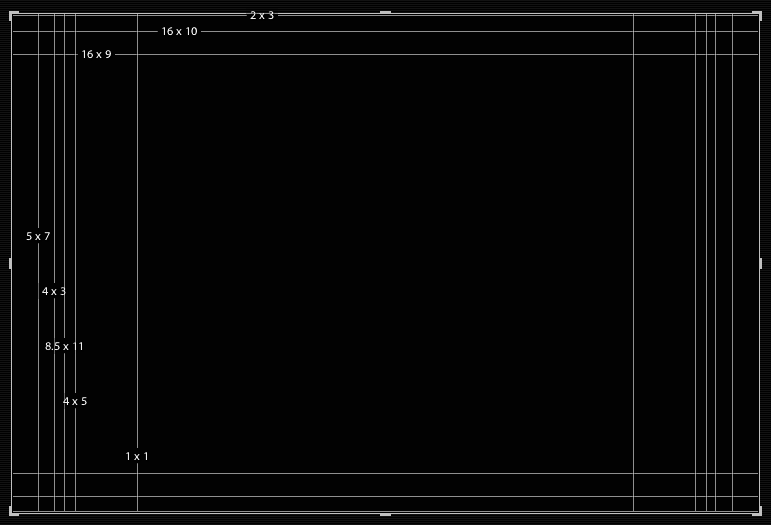
Rotate by pressing SHIFT+O.
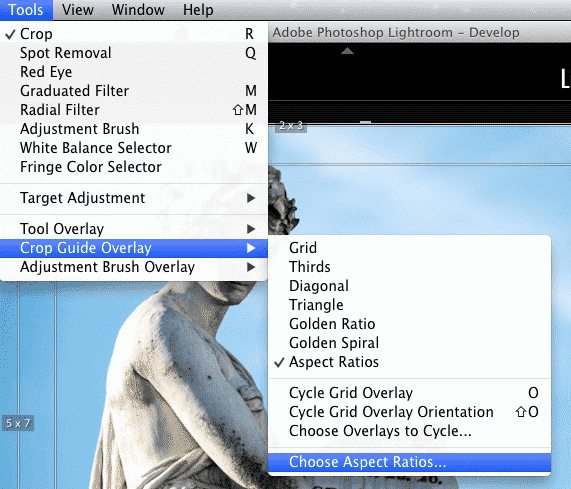
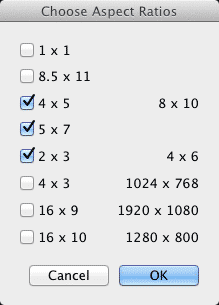
You can also choose which aspect ratios display. Go to Tools > Crop Guide Overlay > Choose Aspect Ratios …
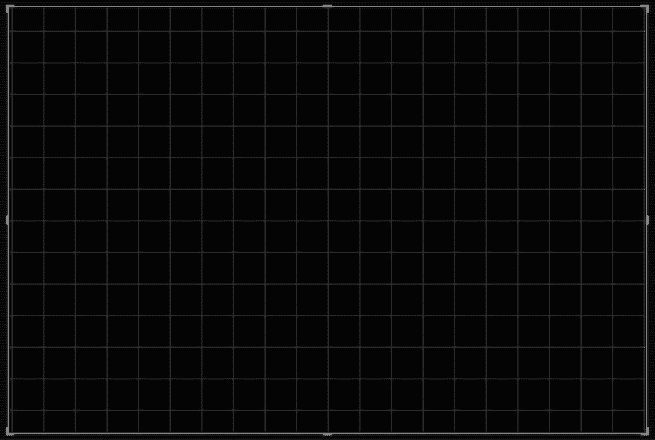
Basic grid pattern overlay
Rule of Thirds overlay

Golden Ratio overlay
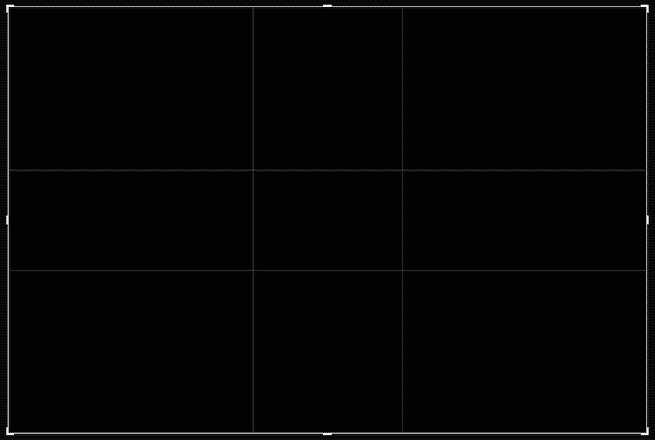
Golden Spiral overlay
This one is obviously asymmetrical. That’s why you can also rotate it.
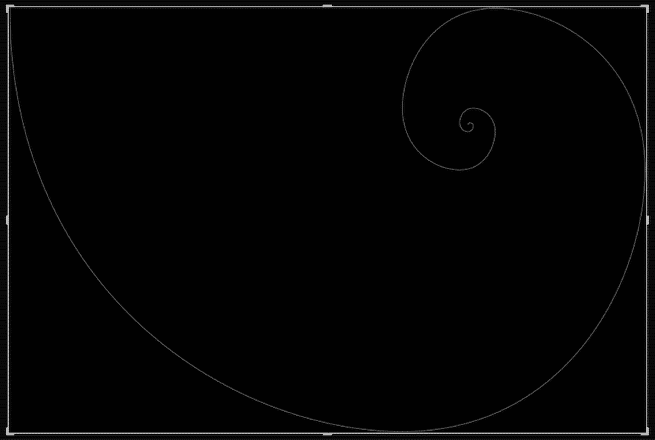
Rotate by pressing SHIFT+O. Each press rotates 90 degrees.
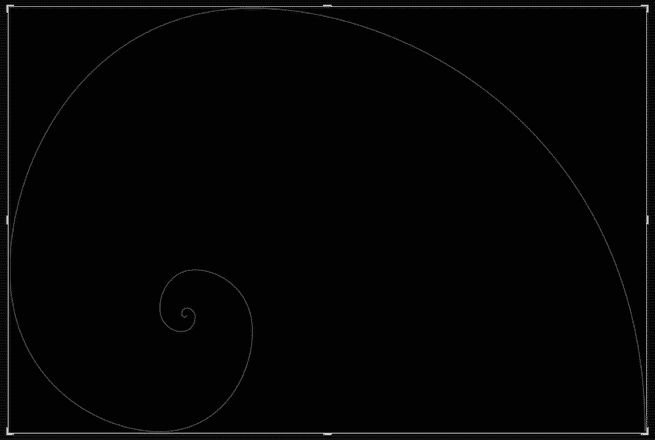
Golden Triangle overlay
Again, it’s asymmetrical, so you can rotate it.
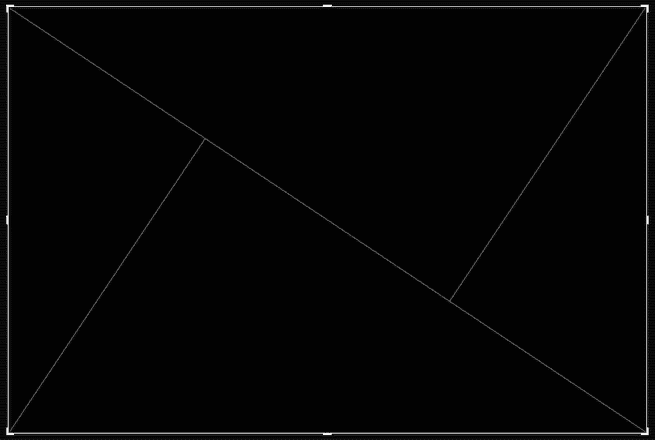
Rotate by pressing SHIFT+O. Each press rotates 90 degrees.
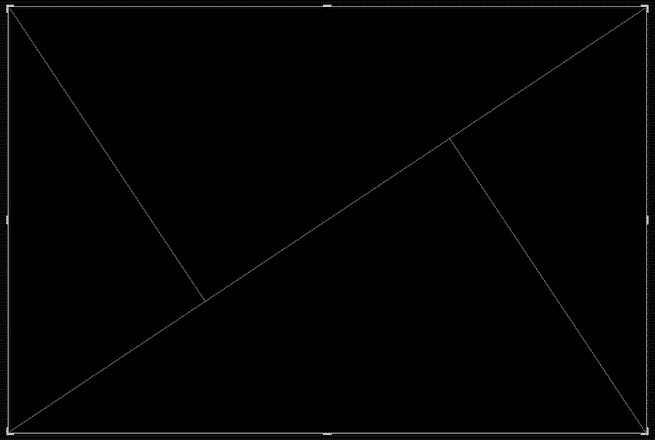
Diagonal overlay

What about custom overlays
You can also take this principle up a notch with custom overlays. That works a little differently, and I’ve put together a separate guide on Lightroom’s custom overlay feature.


