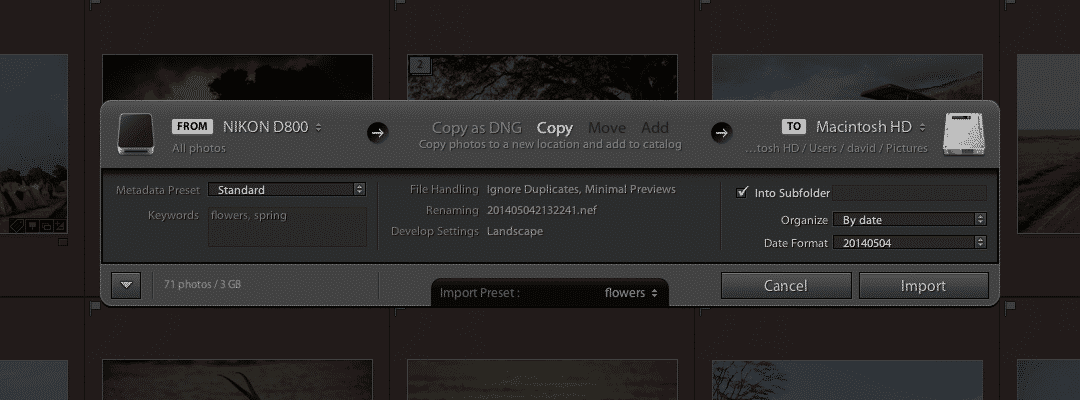
Importing images into Lightroom can feel like it takes forever — and it’s genuinely one of the slower parts of the process. But it’s doing more than just copying files.
Behind the scenes, it reads image data from your memory card, creates a new catalog record for each image, applies any develop and metadata presets you’ve specified, and builds previews so you have something usable to work with in the Library and Develop modules. All of that adds up.
If you’re importing a few dozen images, the wait is rarely a problem. But with hundreds or thousands of files — especially on a deadline — it’s worth knowing which parts of the process you can trim. Here are the most effective ways to speed things up.
Only Build the Previews You Need
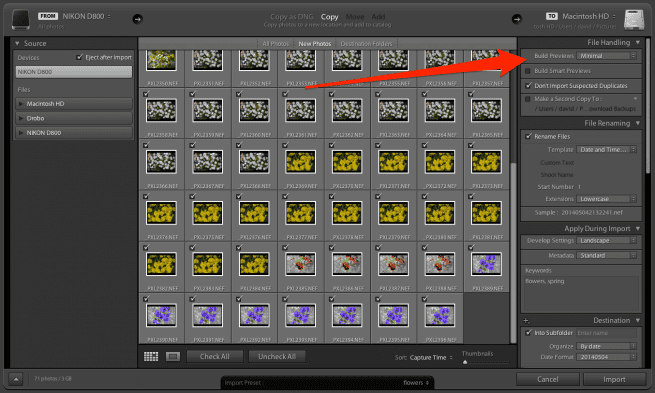
Preview building is the most time-consuming part of import and the easiest one to defer. In the File Handling panel on the right side of the import dialog, the Build Previews dropdown gives you four options. Choosing Minimal tells Lightroom to skip preview rendering entirely during import — your images land in the catalog almost immediately, and Lightroom builds previews on demand as you open individual images instead.
For a timelapse shoot with thousands of frames you’ll likely never inspect individually, Minimal is the right call. For a regular shoot where you’ll be culling straight away, Embedded & Sidecar is only slightly slower and gives you much better-looking initial thumbnails — it uses the JPEG preview already baked into each raw file by the camera rather than rendering from scratch.
Either way, you can always build Standard or 1:1 previews later via Library > Previews for the images that actually matter.
Use Import Presets (and the Compact View)
Setting up your import options from scratch every time is its own kind of friction. Lightroom lets you save all your right-panel import settings — file handling, develop preset, metadata preset, file renaming, and destination — as a named Import Preset. The Copy/Move/Add choice is saved too; source selections and checked thumbnails aren’t, since those change with every import.1
To create one: configure everything the way you want it, then click the Import Preset dropdown at the very bottom of the import dialog and choose Save Current Settings as New Preset. It’s worth creating a few variants — one for importing from a memory card, one for files already on disk, for instance.
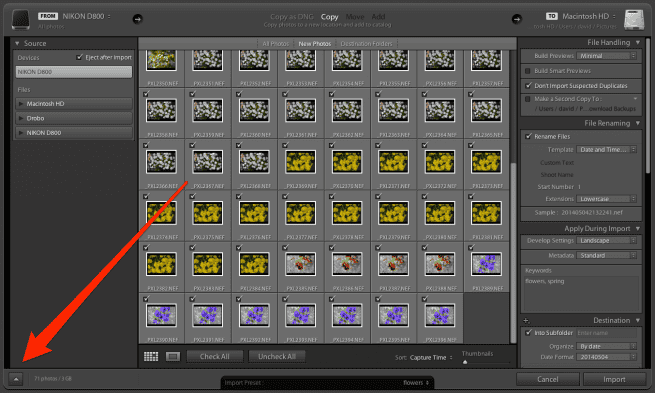
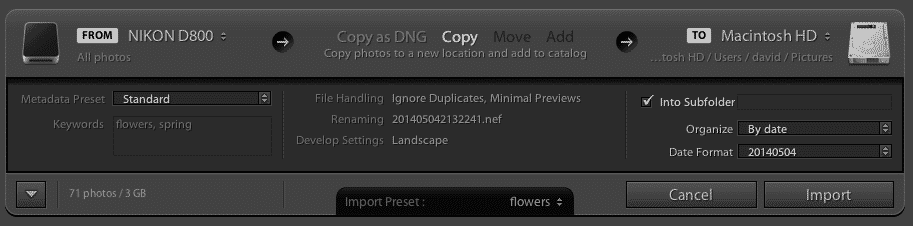
Once you have presets saved, you can skip the full import dialog entirely. Click the arrow button in the bottom-left corner of the import dialog to switch to the compact view. It strips out the thumbnail grid and most panels, shows just the essentials, and — crucially — doesn’t read thumbnails from the card. On a large card, that thumbnail-reading phase alone can take a meaningful amount of time.
In compact view, choose your preset from the dropdown, add any shoot-specific keywords, name the destination subfolder, and hit Import. That’s the whole process.
Bonus tip: by default, Lightroom automatically switches your Library view to the Current/Previous Import collection when an import finishes — even if you’ve moved on to editing something else. That interruption is a minor but real annoyance.
You can disable it inPreferences > General > Import Optionsby uncheckingSelect the 'Current/Previous Import' collection during import.
Other Ways to Speed Up Importing
These are hardware and workflow changes rather than Lightroom settings, but they can make a bigger difference than any setting tweak.
- Use a card reader, not a USB cable. Connecting your camera directly via USB is slower and less reliable than using a dedicated card reader. A card reader that supports USB 3.0 (or USB-C/Thunderbolt on newer Macs) can transfer files significantly faster than an older reader or a camera connection. The bottleneck is often the reader, not the card.
- Get a faster memory card. If your cards are a few years old, current cards are likely faster — both read and write. For import purposes, read speed is what matters. A faster card paired with a fast reader compounds the gains.
- Cull before you import. Reducing the number of images going into Lightroom is one of the most effective time-savers. I do my first pass in Photo Mechanic, which is famous for its speed — it uses embedded camera previews to display images almost instantly, making it far faster for initial culling than Lightroom. I select the keepers there and drag only those into Lightroom. Yes, it’s two applications instead of one, but the net time saving is substantial. Photo Mechanic isn’t cheap, but if you shoot high volumes and time matters, it’s worth evaluating. There’s a free trial available.
- Import from multiple memory cards at once. With the right card reader, you can import from multiple memory cards simultaneously in Lightroom. It’s a bit of a hidden trick but a genuine time-saver on multi-card shoots.
Notes & References:
- Bampton, 2015, p. 49. [↩︎]
Found this helpful? Personalize your search results.


