A WebP file (.webp) is an image format developed by Google for the web. (For how WebP sits alongside JPEG, HEIC, TIFF, PNG and AVIF, see my guide to image file formats for photographers.)
It makes files that are substantially smaller than a JPEG or PNG at the same visual quality, which is why so many websites now serve it — and why you end up with a .webp when you save a picture from a web page.
WebP is now supported by all the major current browsers, and most image apps open it. WordPress and many (but not all) social media services support it, too. And if you do run into trouble, converting to JPEG is easy and takes seconds.
In short: WebP is a delivery format for websites, not something cameras shoot or you’d archive in. If you’re not running a website, you’ll likely never have to deal with creating WebP files. But a common place where people do run into it is in downloading an image from a website (i.e.,right-clicking). More and more, you’ll end up downloading a WebP (or AVIF) file. And I have information just a little further down this page on how to convert them easily and quickly.
WebP at a glance
| WebP | |
|---|---|
| Stands for | Web Picture format (Google, 2010; based on the VP8 video codec) |
| What it’s for | Images on websites — replaces JPEG and PNG with smaller files |
| Size vs JPEG | Often around 25–35% smaller at equal quality; varies by image and settings |
| Lossy or lossless? | Both; supports transparency and animation |
| Opens in | All current browsers; macOS Preview and Windows Photos; Lightroom, Photoshop, GIMP, Affinity |
| Created by | Photoshop/GIMP export, XnConvert, ImageMagick, cwebp, and automatically by WordPress optimization plugins and CDNs |
| Limits | 8-bit color only, 16,383 px maximum dimension; not accepted by most photo-sharing services |
| Successor | AVIF compresses better and supports 10-bit/HDR — see my AVIF explainer |
How to open or convert a WebP file
To open: drag it into any browser, or open it in Preview (macOS), Photos (Windows 10/11), Lightroom, Photoshop, or GIMP. To convert to JPEG or PNG: open it in Preview or Photos and export/save as JPEG; Photoshop and GIMP export it; for batches, XnConvert (free) or one ImageMagick command (magick image.webp image.jpg — see converting WebP with ImageMagick). To avoid downloading WebP in the first place: on many sites, the page is serving you WebP while holding a JPEG original; a browser extension or opening the image URL in a new tab sometimes yields the JPEG, but converting is more reliable.
WebP is an image format developed and promoted by Google.1
It’s specifically designed to be used on websites, and it is designed as a better alternative to JPG and PNG files. Using more efficient algorithms to compress the image results in smaller files while maintaining equivalent image quality to JPGs and PNGs.2 And smaller file sizes mean a quicker website.
The most common place you’re likely to have come across a WebP image is when downloading an image from a website.
If you right-click on an image and save it, you might end up with a .webp version rather than the .jpg or .png version you expected. It’s by no means all websites, but a growing number of websites (including this one) are implementing WebP in response to Google’s push for websites to meet the standards of what they’re calling Core Web Vitals (more on that below).
You’re unlikely to run into WebP images elsewhere. You won’t find a dedicated mirrorless or DSLR camera that natively writes WebP files to an SD card. It is strictly a web delivery format, not an acquisition or archiving format. And it’s not a typical choice for sharing images in other ways. So save them for web use.
WebP image examples
WebP images can average around 50% smaller in file size compared with a JPG of equivalent image quality — sometimes it’s more; sometimes it’s less, and it depends on the compression settings used. Of course, image quality is mostly subjective in the eye of the beholder, but here’s a couple of practical examples. I’m not putting these here as an extensive test of WebP vs JPG — that’s available elsewhere.
I’ve created WebP images files in a non-typical way. I’ve generated both the WebP and JPG directly from a TIF master file. But that’s not the standard way that most WebP images are created. For workflow and convenience reasons, most WebP images that you come across in the wild on websites have been created from JPGs or PNGs. That is, they’re compressed derivative versions of files that were already compressed, which isn’t an ideal way of doing things in terms of image quality.
Embedding them here on the page wouldn’t be very useful. Because of the way my site is set up, you’d be seeing smaller versions, and most likely, both would actually be WebP versions. So here are some direct links where you can download them:
Both were generated with XnConvert with an image quality setting of 60. There are ways to tweak the quality settings, but that’s not the purpose here.
WebP compatibility & test image
WebP compatibility is now virtually universal across modern web browsers. While it took years of fragmented adoption, Apple finally added full WebP support to Safari 14 back in 2020, and Microsoft’s Chromium-based Edge supports it natively. Unless your visitors are running legacy operating systems or the long-dead Internet Explorer, they will see your WebP files without issue.
Here’s a WebP image. If you can see it here, the web browser or app you’re currently using can display WebP images.

Uses for WebP
There are many different image file formats, each with its own strengths and weaknesses that make them well-suited to some uses and not suited to others.
WebP is a good choice for …
The best use for WebP images is for displaying images on websites.
The highly optimized compression algorithm means that files can be much smaller than JPGs at equivalent image quality.
And smaller files bring many benefits on the web, such as faster websites and less bandwidth used.


WebP can be used in place of both JPG and PNG file formats, and it has advantages over both of those (on websites; it’s not a good option as a saving format in cameras, for example).
WebP is NOT a good choice for …
Aside from using on a website, the WebP format isn’t a good — or at least, typical — choice for anything else.
No cameras or scanners save images as WebP.
You can’t upload WebP images to most online sharing services. An exception is YouTube (owned by Google), where you can upload WebP for banner images and video thumbnails.
How to convert WebP images
If you’ve downloaded a WebP image and need to convert it to JPG, there are several image editing apps that can do it.
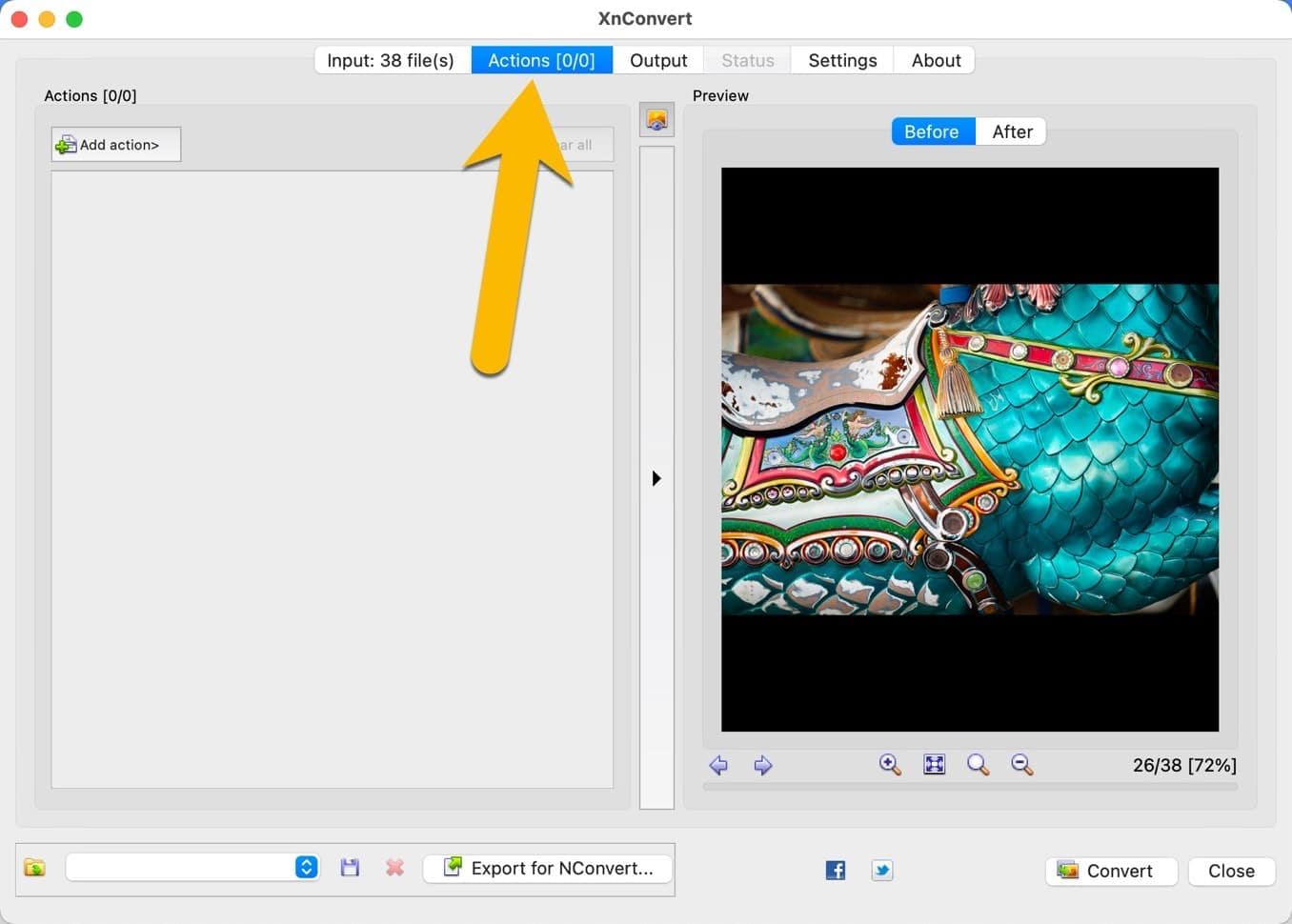
One of my favorites is XnConvert — it’s free, cross-platform, and powerful.
I’ve put together a guide on how to convert JPG to WebP with XnConvert. To go the other way, simply change the output format to JPG instead of WebP.
WebP for optimizing websites
WebP images are also a good option if you’re trying to optimize your website to meet Google’s Core Web Vitals.
If you’re getting warnings on your Core Web Vitals reports (or PageSpeed Insights or GTMetrix) to use next-generation image formats, WebP is one of those and is currently the best option in most cases.
WebP isn’t the only next-generation option, and the landscape has shifted significantly since it was introduced.
AVIF (based on the AV1 video codec) generally offers superior compression to WebP and now enjoys widespread browser support.
Meanwhile, JPEG XL became the center of a browser war: Google contentiously stripped JPEG XL support from the Chromium engine in 2023, while Apple surprisingly added native support for it in Safari 17. Because of this fragmentation, WebP remains the safest, most widely compatible ‘next-gen’ format for general web deployment today, even if AVIF beats it in raw efficiency.
Setting up a website to serve WebP images is beyond the scope of this post, and, frustratingly, it’s more complicated than it should be.
The creation of the WebP version is simple enough. You can create the WebP images manually (more on this below), use scripts or plugins on your website to generate the WebP versions automatically, or use a service that generates them on the fly and stores them away from your server.
Technical note: Because we can never assume 100% compatibility (some users will always browse on ancient hardware), best practice suggests serving WebP conditionally while keeping a JPEG fallback.
At the server level, this is typically handled by HTTPAcceptheaders, where the server checks if the browser acceptsimage/webpbefore delivering the file. On the front end, modern HTML handles this elegantly using the<picture>element. You define the WebP source first, and if the browser’s rendering engine doesn’t understand it, it gracefully degrades to the standard<img>tag containing your legacy JPEG. So, it’s not a case of JPG or WebP, but a case of gracefully failing back to JPG.
Another quirk of the way it’s implemented is that most WebP methods — at least, the most practical ones — create the WebP versions from the JPG versions. So it’s taking an already compressed original file and creating a second-degree compressed version.
For image quality, that’s hardly ideal and goes against best practices if the priority is on image quality. But it’s by far the most practical way to implement WebP on websites that use large numbers of images.3
Setting your website up to serve WebP images is more complicated than it should be. The trick is in serving them to compatible browsers and serving JPG/PNG versions to visitors whose browsers aren’t compatible with WebP. And doing it all reliably.
It usually involves some combination of server configuration and scripts on your website. If you’re using WordPress, there are plugins and services that can make this easier (eg. ShortPixel, EWWW Image Optimizer, or Imagify/WP Rocket) with automated integration. They’re typically paid services.
There are also paid services that can generate and serve the WebP versions while keeping them off your server, so you don’t run into server storage space issues. Cloudflare Pro plans (with Polish enabled) and BunnyCDN (with Bunny Optimizer add-on) are examples.
Common questions
Is WebP better than JPEG?
For web delivery, yes: smaller files at the same quality, plus transparency. For everything else — camera files, archives, email, print labs — JPEG (or TIFF/RAW for masters) remains the practical choice.
Is WebP better than PNG?
For photos and most graphics on the web, yes — WebP lossless is smaller than PNG and WebP lossy is far smaller, and both support transparency. PNG remains the safe universal choice outside the browser.
WebP vs AVIF — which should I use?
AVIF is a generation newer and compresses better, with 10-bit/HDR support; WebP has marginally broader support in older software and social crawlers. For a website today, AVIF with a JPEG fallback; WebP if your tooling doesn’t do AVIF yet. Details in my AVIF guide.
Why did my download come out as .webp?
Because the site served a WebP version to your browser for speed. Convert it (above), or look for the site’s download link, which usually gives a JPEG.
Notes & References:
- Technically, Google acquired the WebP format from On2 Technologies, a company that developed video encoding technology. Google acquired On2 Technologies in 2010. [↩︎]
- WebP has a sister format for video called WebM. [↩︎]
- If you want to be technical, it’s often worse than that. Many content management platforms such as WordPress will create derivative thumbnail versions when you upload a new image into the Media Library. So that’s already a second or third-generation compressed file there. And the WebP versions are created from those versions. So WebP is far down the chain. [↩︎]