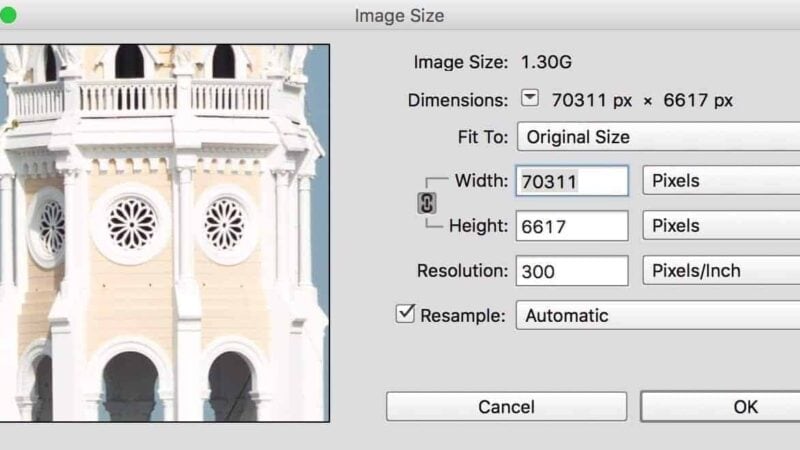
You can import very large images into Lightroom, but there are limits. They’re well beyond the sizes that any standard camera or scanner creates natively, but you can run into the limit, particularly if you work with high-resolution stitched panoramas or pixel-shift composite files.
In that case, you might run into this error: “The file is too big.”
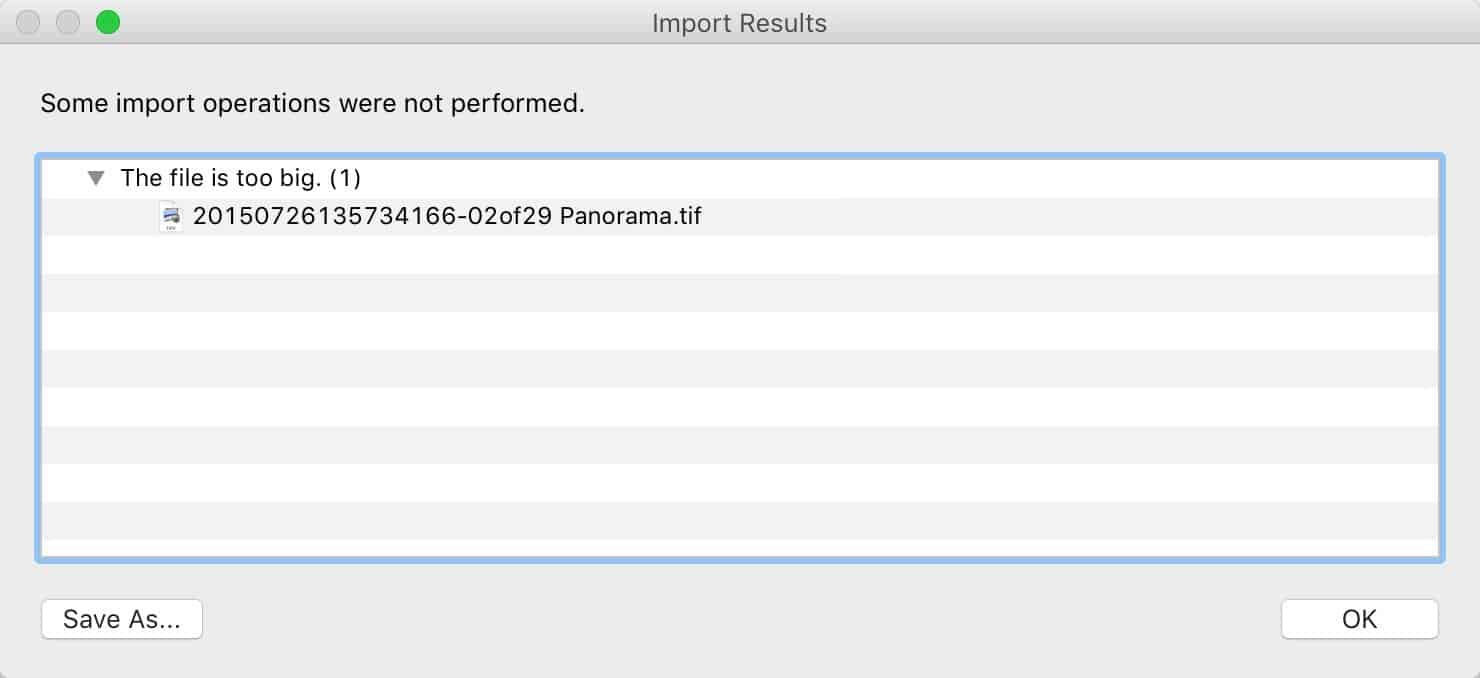
By ‘too big’ it’s referring not to filesize, as the error message seems to suggest, but to pixel dimensions.
What Lightroom Classic’s image size limits actually are
According to Adobe’s documentation, there are two limits you can run into, and your image needs to be under both of them.1
65,000 pixels per side
Lightroom Classic has a hard limit of 65,000 pixels along the long edge. If your image is bigger than that, you won’t be able to import it.
It’s not hard to run into that limit with stitched high-resolution panoramas–whether from a robotic head like a GigaPan, from Lightroom’s own Photo Merge with a lot of high-megapixel source frames, or from pixel-shift / high-resolution composite modes on cameras like the Sony A7R V, OM System OM-1, or Pentax K-1.
512 megapixels total
The other limit to watch out for is the hard ceiling of 512 megapixels overall. That applies even if neither side individually exceeds 65,000 pixels.


To calculate how many megapixels your image is, multiply the number of pixels wide by the number of pixels high and then divide by a million (or move the decimal point 6 places to the left).
Or you can use this quick megapixel calculator I put together.
How to make the image smaller
There’s no way to use Lightroom’s import dialog to resize images on the way in. And since you can’t get an oversize file into the catalog to begin with, there’s no way to resize it within Lightroom either.
So you’ll need to use some other software to bring the image’s pixel dimensions down before importing. If you’re already using Photoshop, that’s an obvious choice, and it gives you a few different ways to do it.
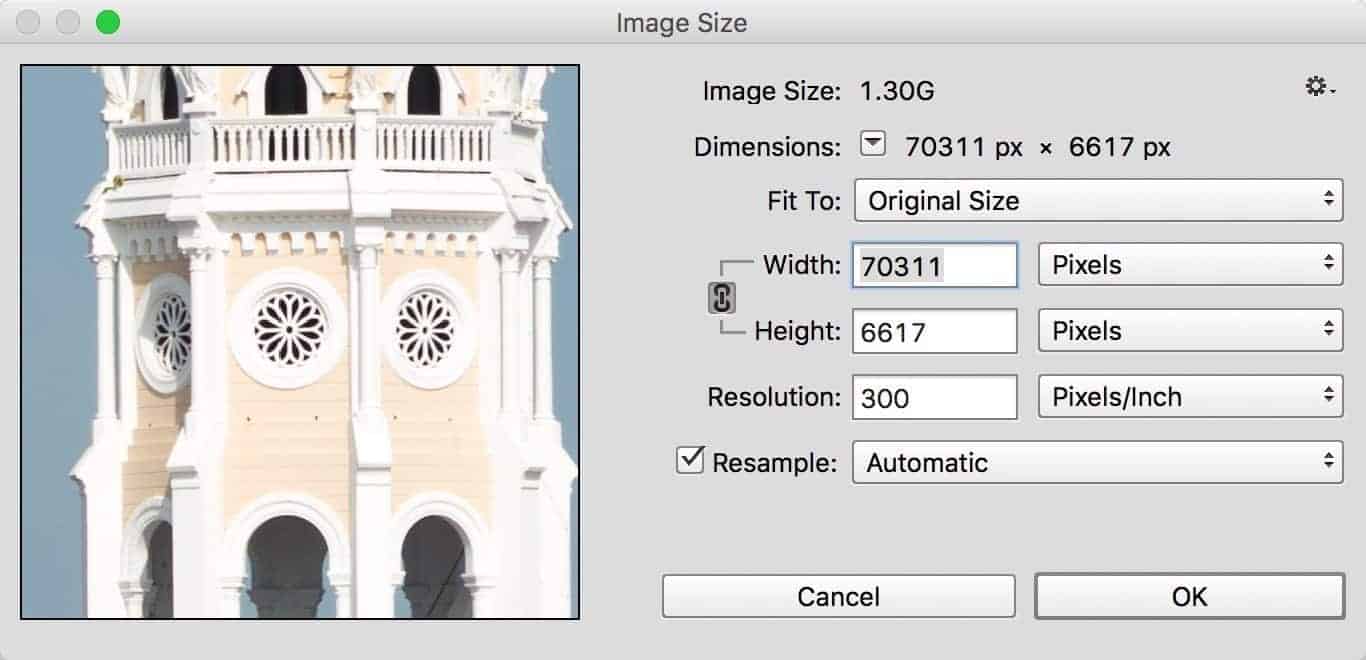
The most useful for this purpose is Image > Image Size, which preserves the entire image and just resamples it down to smaller pixel dimensions.
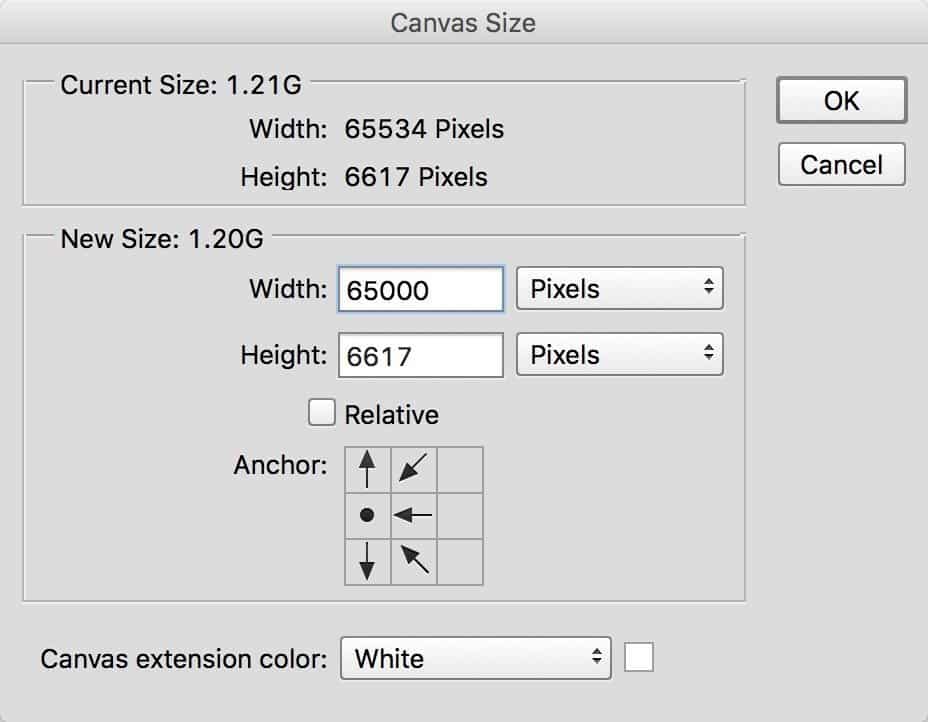
You can also crop the image, which throws away part of the frame rather than scaling the whole thing down. The Crop tool with specific dimensions entered in the top toolbar is the cleanest way; Image > Canvas Size can also crop, although strictly speaking it changes the canvas itself rather than the image content.
It’s worth noting that Photoshop has its own pixel dimension limits–30,000 pixels per side for PSD and 300,000 for PSB2–so for genuinely massive stitched files, Photoshop is generally the right tool to handle them.
You don’t have to use Photoshop, of course. Any image editing app worth its salt will include cropping or resizing options. Some of the less sophisticated ones may have problems working with very large files. Two good free options are GIMP (an open-source Photoshop competitor) and IrfanView (a very useful and powerful image toolbox). And there are plenty of others.
Importing the resized image
Once you’ve reduced the pixel dimensions to under 65,000 pixels on the long edge and under 512 megapixels overall, you’ll be able to import the photo into Lightroom normally.
Notes & References:
- Adobe, “Supported file formats in Lightroom Classic and Lightroom,” helpx.adobe.com/lightroom-classic/help/supported-file-formats.html. [↩︎]
- Adobe, “Photoshop file formats and image size,” helpx.adobe.com/photoshop/using/file-formats.html. [↩︎]


