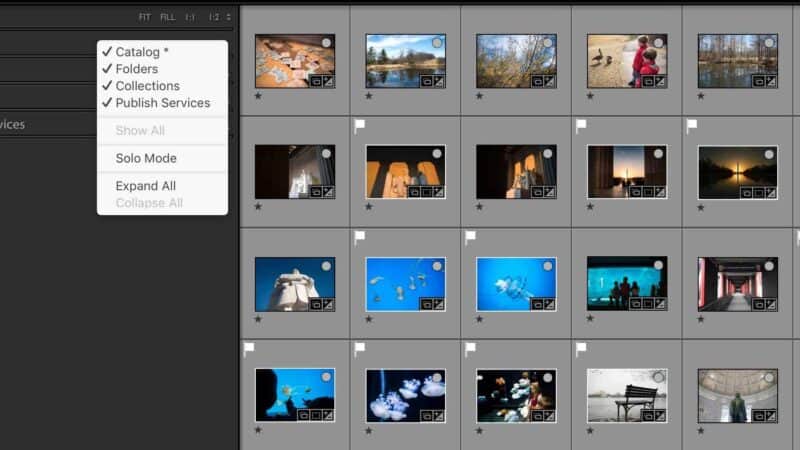
I was recently asked how to enable the Publish Services panel. The user couldn’t see it in the Library module and it wasn’t clear how to bring it back.
Lightroom Classic lets you hide any of the panels in the left-hand panel group of the Library module — Catalog, Folders, Collections, and Publish Services — and the same is true of the panels on the right side, and in every other module too. Handy if you want a less cluttered workspace, but not exactly self-evident if you’ve never seen the trick. Once you know where to look, it’s quick.
How to show or hide library panels in Lightroom Classic
Here’s how:
- Go to the Library module and make sure the left sidebar is visible. If it isn’t, press Tab to toggle it back on.
- Right-click on any visible panel header in that group — Catalog, Folders, Collections, or Publish Services. A context menu appears listing all four.
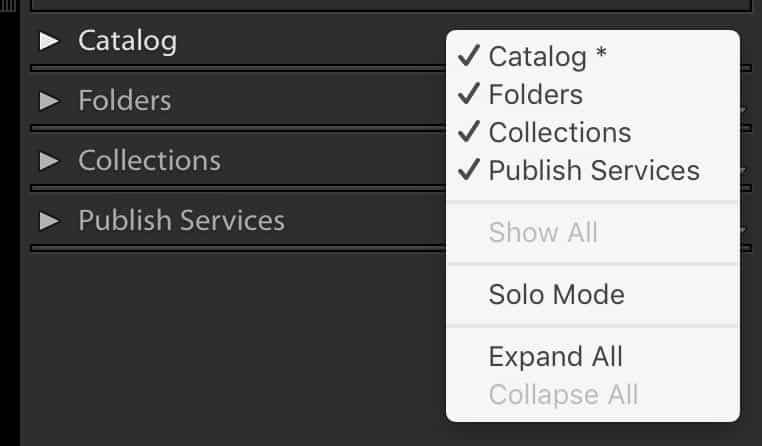
The panels with a checkmark next to them are the ones currently visible in the sidebar. The one with the asterisk is the panel header you right-clicked on (in this example, Catalog).
- Click whichever inactive panel you want to enable, and it’ll appear in the sidebar. To hide a visible panel, do the reverse — click a checked panel and it’ll disappear.
One thing worth knowing: the same right-click trick works in every Lightroom Classic module, on both the left and right panel groups. So if you’ve never used the Web module’s templates panel and want it gone, that’s how. Same gesture, same menu.
And if you ever manage to hide every panel in a group — at which point there’s nothing left to right-click on — don’t panic. Go to Window > Panels in the menu bar and you can re-enable them from there.1
Notes & References:
- Adobe lists this as the official fallback path; see Bampton, Lightroom — The Missing FAQ, 2015, p. 80, “Missing Panels”. [↩︎]


