Quick Summary
- Nikon Z8 provides two types of memory card formatting as well as two methods for accessing them.
- Method #1: Using the Menu
- Navigate to: Setup Menu > Format memory card.
- Choose between CFexpress/XQD card slot or SD card slot.
- CFexpress/XQD offers full or quick format; SD card only offers quick format.
- Method #2: Shortcut Buttons
- Press the two buttons with the red FORMAT label simultaneously for two seconds.
- Choose the card slot using the dial and proceed.
- Bonus: Add the format function to “My Menu” for quicker access.
There are two ways to format memory cards in the Nikon Z8. One method is obvious (the menu). The other is a specific shortcut involving two buttons on the camera body.
It is generally best practice to format memory cards in the camera they’ll be used in, rather than on a computer. This ensures the card uses the exact filesystem and folder structure the Z8 expects, reducing the risk of errors.
Quick video walk-through
If you prefer a video walkthrough, here is a quick guide I put together:
Method #1: Using the menu
This is the standard method. You can find the option under:
Setup Menu (wrench icon) > Format memory card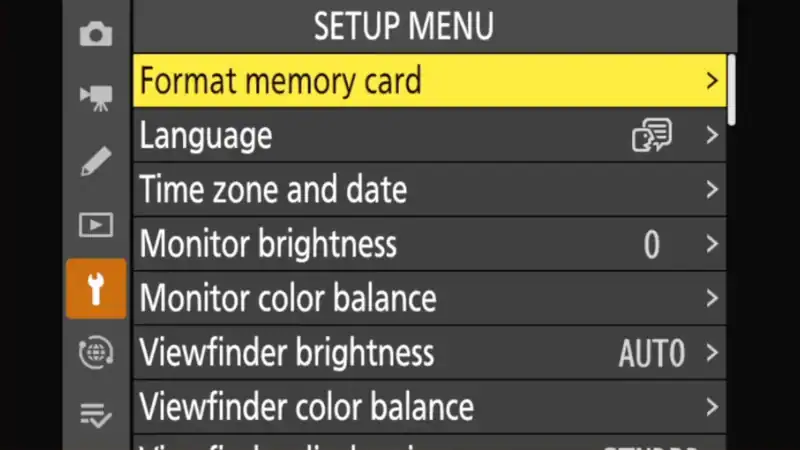
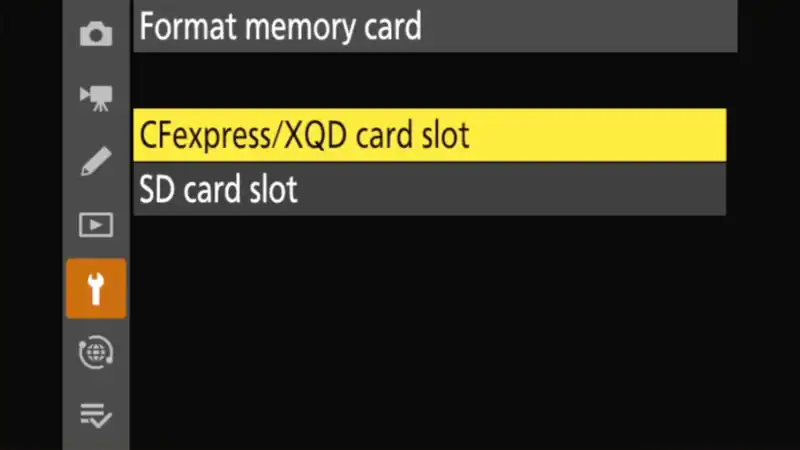
You will be prompted to select which slot you want to format: the CFexpress/XQD slot or the SD card slot.
Quick format vs. full format
If you select the CFexpress/XQD slot, you have two options: Quick Format and Full Format. (SD cards only support Quick Format).
Quick Format simply clears the file table, making the space available for new data. It is fast and sufficient for 99% of situations. However, the old data is technically still on the card until it is overwritten, meaning it can often be recovered with software.
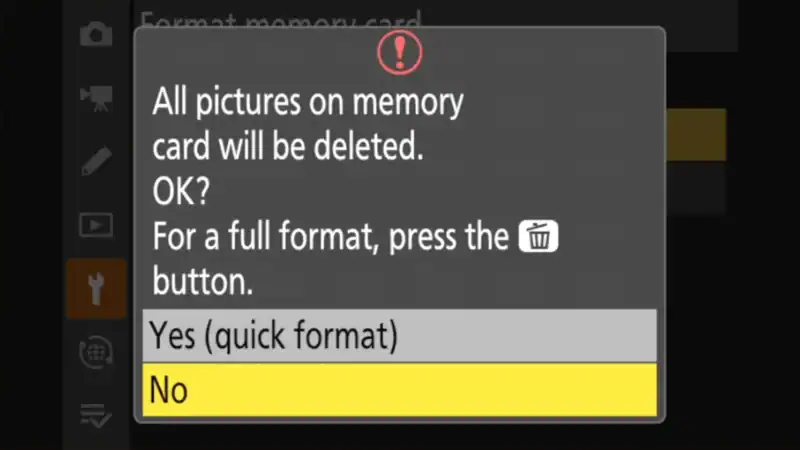
Full Format (accessed by pressing the Trash Can button while in the format menu) wipes the card more thoroughly. This takes significantly longer.
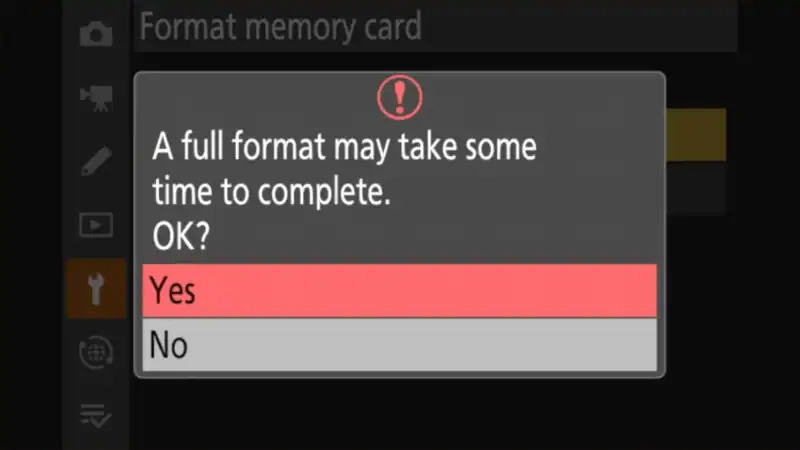
Use Full Format only if:
- You are giving the card to someone else and want to ensure your data is unrecoverable.
- You are experiencing read/write errors and want to attempt to clear bad sectors.
Method #2: Using the shortcut buttons
The Nikon Z8 has a “two-button salute” that lets you format cards without digging into the menus.
Look for the two buttons marked with a red FORMAT label:
- Top Left: The Delete (Trash Can) button.
- Top Right: The ISO button (near the shutter).
How to do it:
- Press and hold both buttons simultaneously for about two seconds.
- The top control panel will blink “For” (Format).
- Rotate the main command dial to select the card slot you want to format.
- Press both buttons again to confirm and execute the format.


Bonus alternative
If you don’t like the two-button method but hate digging through the Setup menu, you can add “Format memory card” to your My Menu. This puts the function just a couple of clicks away in your customized list.
Nikon Z8 essentials
Resources
Manuals: PDF Manual | Online Guide
Firmware: Official Download Center (Latest: v3.10) | Update Guide
Batteries (EN-EL15c)
The Z8 uses the EN-EL15c. Always carry spares — mirrorless cameras are hungry.
Top Picks: Nikon OEM (Best) | SmallRig (USB-C Port) | Watson
Memory cards
The Z8 has two different slots. See detailed recommendations here.
- Slot 1 (CFexpress Type B): SanDisk Extreme Pro, Lexar Gold, or ProGrade Digital.
- Slot 2 (SD UHS-II): SanDisk Extreme Pro V90 or Lexar Gold 2000x.
FTZ II lens adapter
Required to use F-mount DSLR lenses on the Z8 without image quality loss.