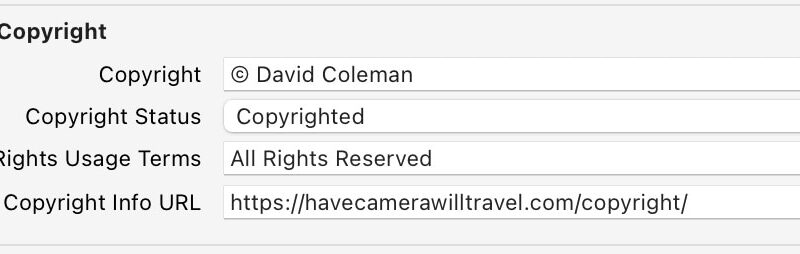
What I’m focusing on here is embedding copyright information into the metadata of your images. And more specifically, it’s into the IPTC metadata fields.
Many cameras let you set up an option to embed copyright information into the images as they’re taken. In that case, the copyright information is embedded into the EXIF metadata. But Lightroom doesn’t have a built-in way to directly edit that EXIF metadata. And IPTC is more correctly the category of metadata to use for this.
Embedding copyright information into the file is by no means a magic solution to prevent anyone from stealing your photos. But that’s not to say it’s not worth doing.
Related: seeing .xmp files next to your RAW photos and wondering what they are? See what an XMP sidecar file is.
Pros of embedding IPTC copyright information
There really aren’t any cons to embedding IPTC copyright information. There are several pros, although they generally come with qualifications. But, overall, it can accomplish three things:
- Act as a deterrent to someone stealing your photos. I don’t want to overstate this, because the reality is that it doesn’t prevent theft any more than a speed limit sign prevents speeding. But it does serve as an indication that the photographer does assert their copyright and might be more inclined to pursue infringements.
- Be attribution so that well-intentioned viewers have a lead in tracking you down. To be sure, there are more expansive dedicated contact details fields in IPTC that serve this role even better. But one of the advantages of also embedding it in the Copyright fields is that in some cases, the copyright fields are the least likely fields to be stripped out. You can see a practical example of this from right within Lightroom itself; when you export, one of the options is to remove all metadata except the copyright information.
- In a Google image search, the copyright field is used as the image credit.
It’s worth clarifying that embedding copyright information is not a requirement in the US to have copyright over an image you’ve taken. That copyright is created at the moment the image is created. Nor will it necessarily prevent someone from stealing your images. But it can be a useful first line of defense to stake your claim.
Step-by-step guide to embedding copyright IPTC information in Lightroom Classic
As with many things in Lightroom Classic, there are a few ways to tackle it. For the examples here, I’m going to embed the copyright information as part of the importing process. I find that to be the simplest for my workflow, and I can be assured that the information is embedded there, so I don’t have to think about it again.
But you can do this through the Library module as well. The process is fundamentally the same as the steps below, but instead, go to the Library module’s Metadata panel to create the preset.
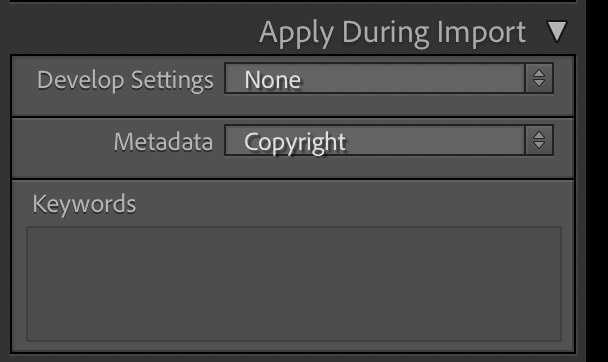
But to automatically add it when importing photos, start with the Apply During Import panel on the import screen.
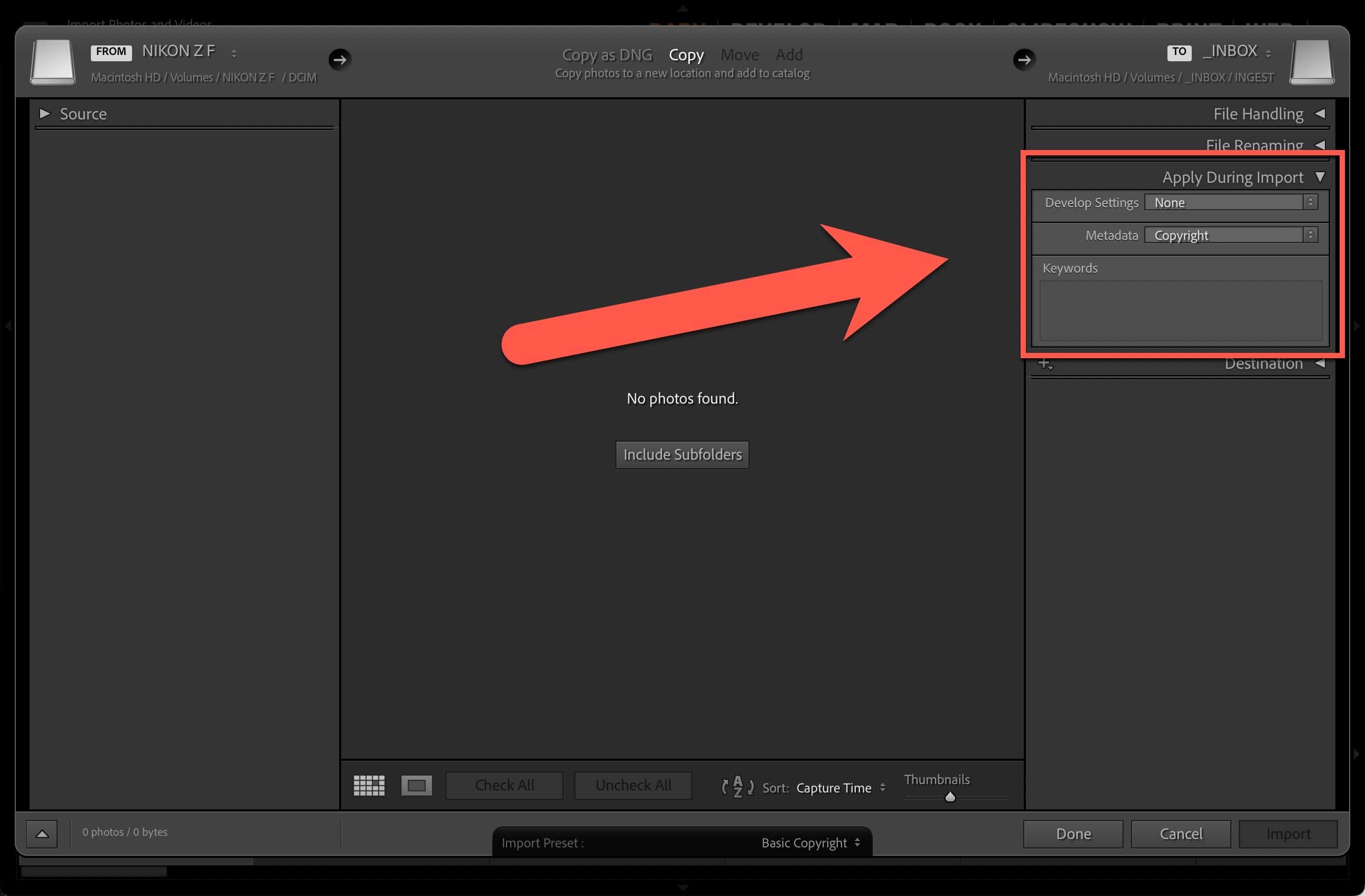
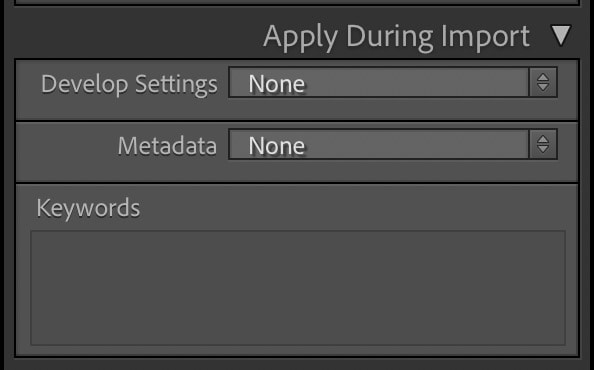
Here’s a closer look at that panel. By default, the fields are blank. You’ll notice that there’s not a dedicated option for copyright; the one we want is Metadata.
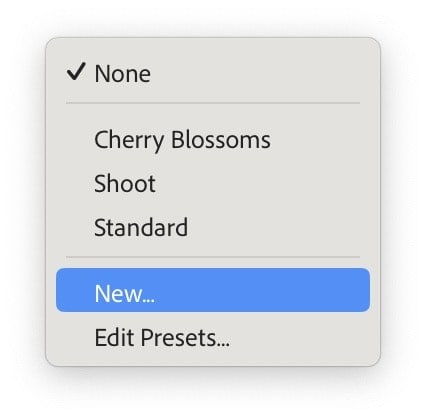
None is the default choice. In this example, I have some presets I’ve previously created. One is for photos I shoot for my cherry blossom site. Another is for client shoots. And another is a general catch-all.
To create a new preset, you obviously choose the New… option.
The New Metadata Preset panel has a lot of fields in it. And there’s no reason you can’t fill those in too. But since I’m focusing here on adding copyright, I’m going to concentrate only on those fields.
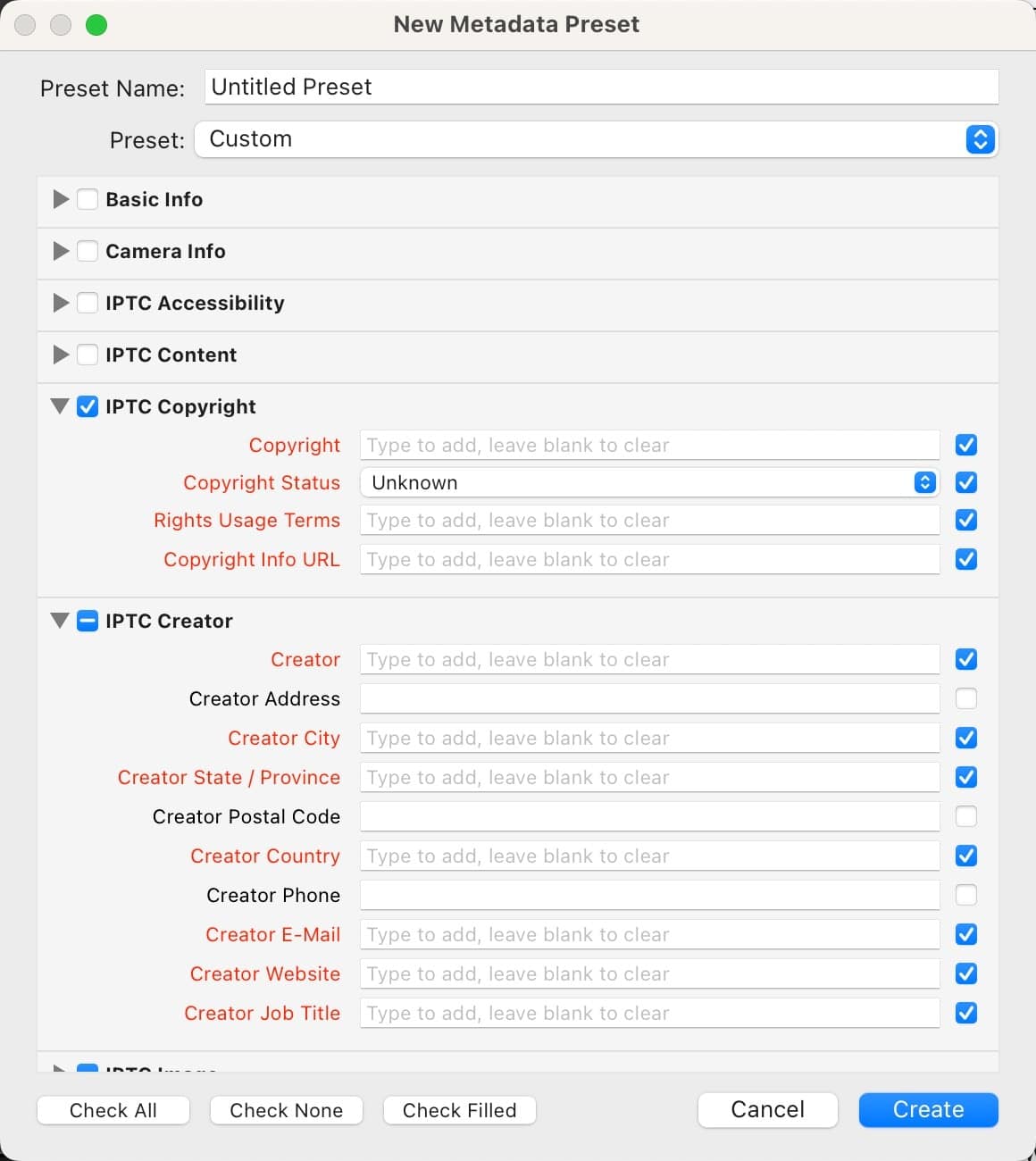
The four most relevant fields under the IPTC Copyright category are:
- Copyright. The name of the copyright holder. You can add the year and/or copyright symbol if you like.
- Copyright Status. This is a drop-down menu. Choose Copyrighted.
- Rights Usage Terms. There are different options available here, and the best person to advise on this is a copyright lawyer. I use the simple and traditional “All Rights Reserved” formula. Some photographers add something much wordier and specific, along the lines of “No reproduction rights are granted without the express written permission of [your name]. No other usage is expressed or implied.” If you’re offering your images under a Creative Commons license, you might have something specific to the combination of rights you’re offering. If you’re a staff photographer, your company probably has a template terms statement devised by company lawyers.
- Copyright Info URL. In this case, I have a dedicated page on my website that lays out my copyright policy. If you’re using Creative Commons, you should have been given a URL for a page that clearly lays out the combination of rights you’re including in your chosen license type.
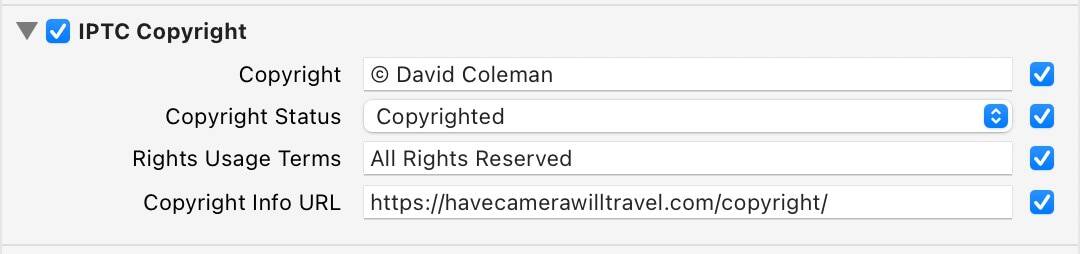
After you’ve filled in the fields how you want to them, you can save them as a preset so that you can apply them en masse in the future without having to re-enter all the information.


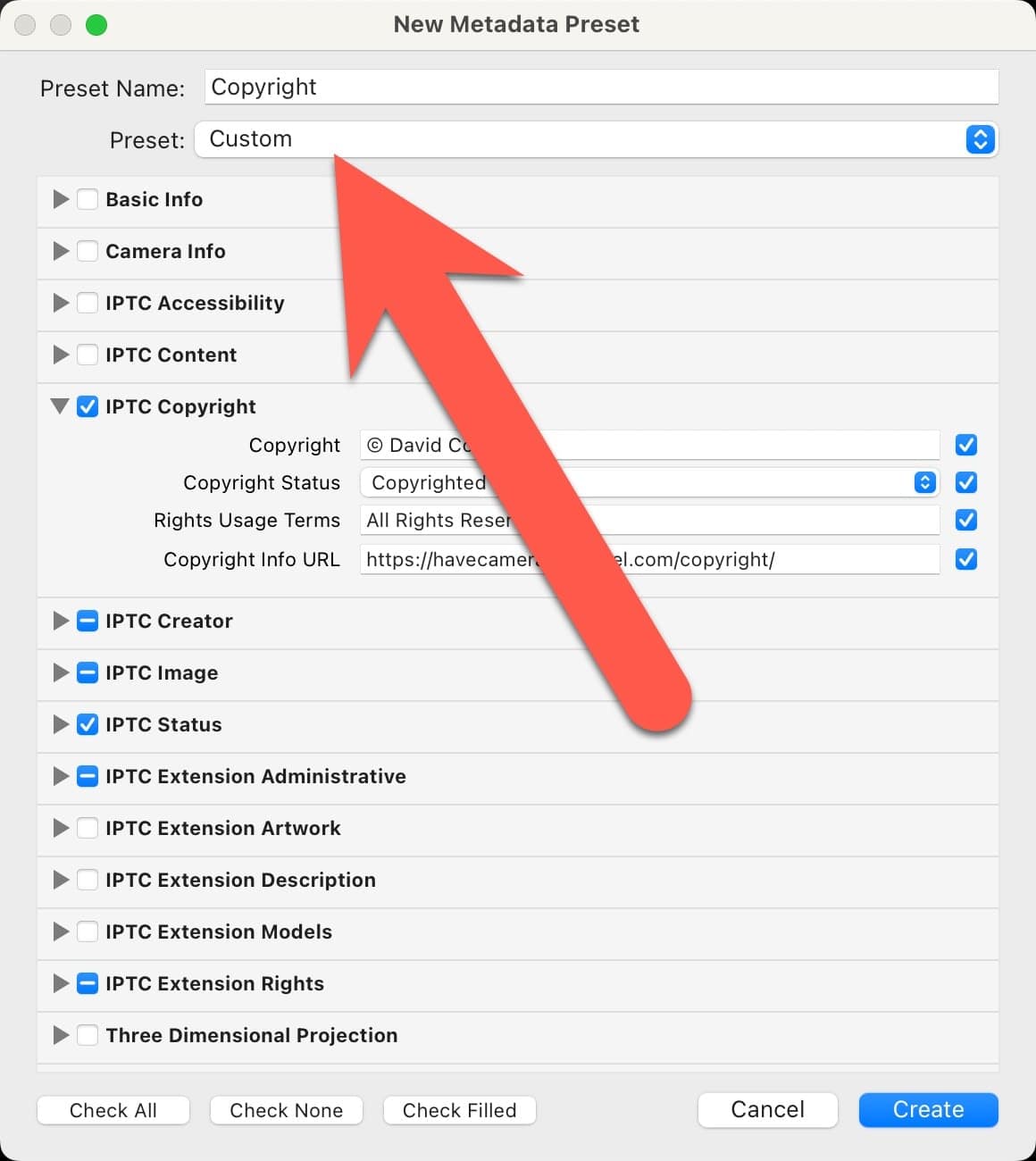
To do that, go up to the Preset option at the top of the panel and choose Custom.
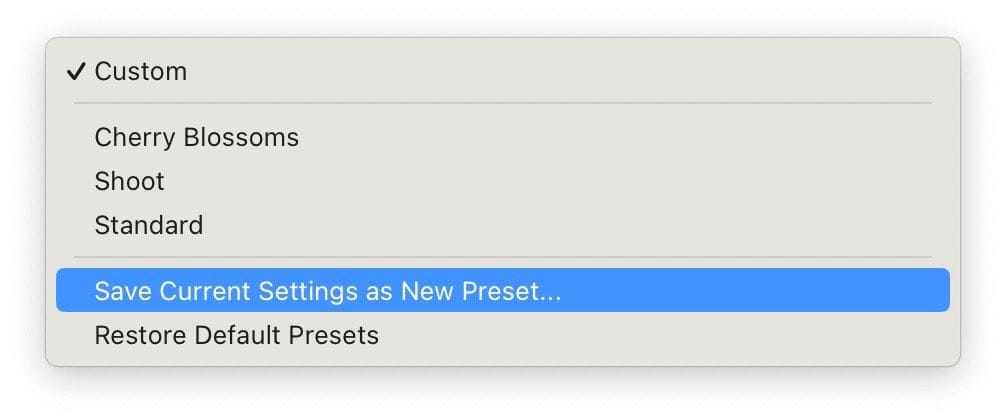
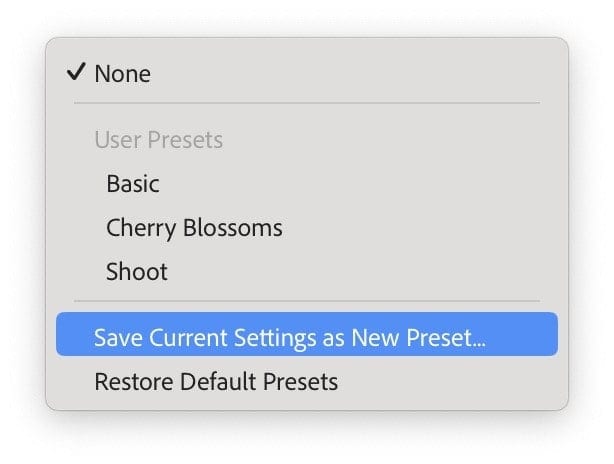
Then choose Save Current Settings as New Preset … and choose a name for it.
Now, back in the Apply During Import panel, you can select your saved preset there.
This step is option, but you can also save a higher-level import preset. This will include any presets you’ve selected from the right panel, including the metadata preset, develop settings preset, any keywords you’ve entered, as well as file location and file renaming templates.
To save this general import template, go to the bottom of the import panel.
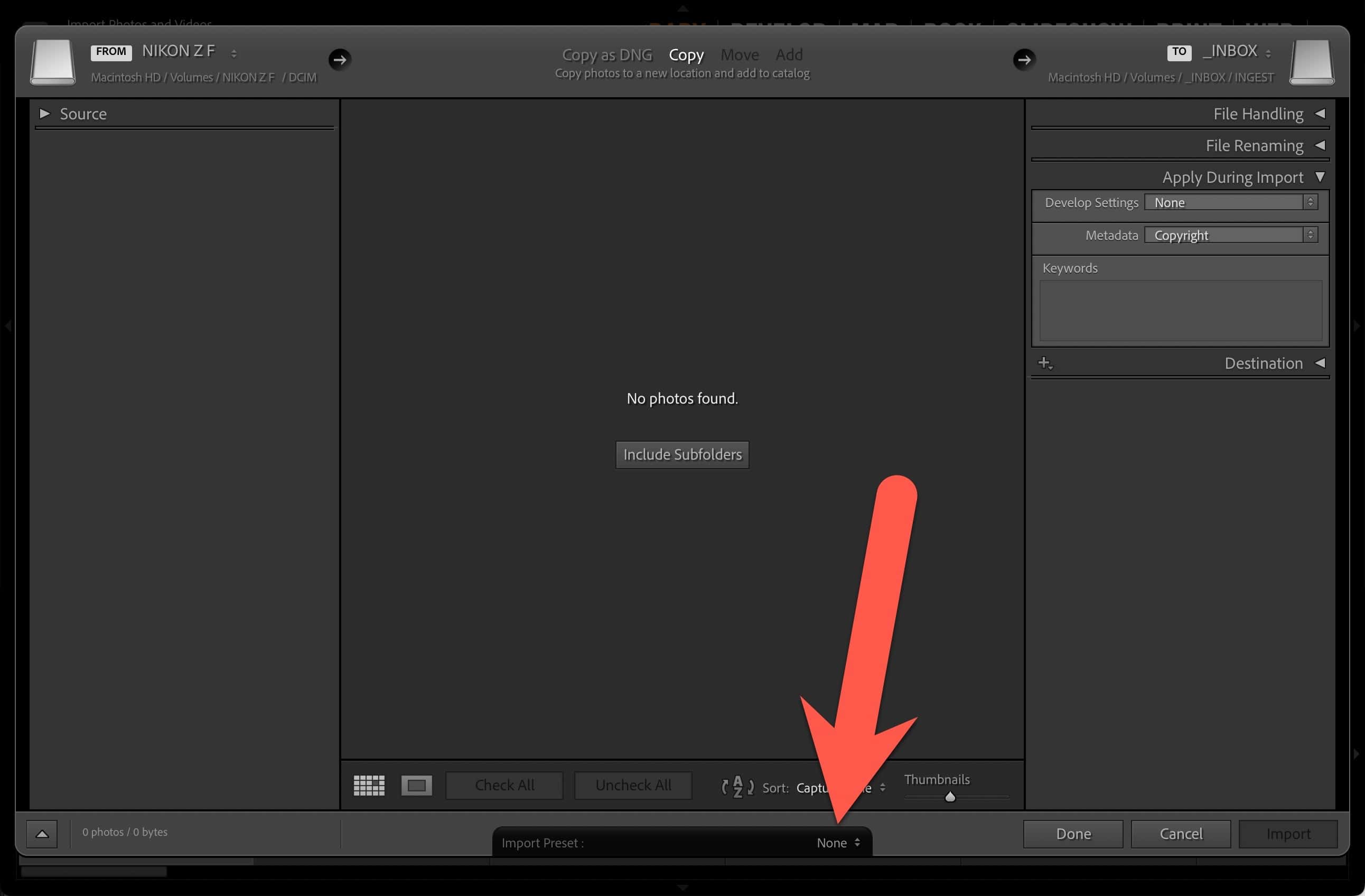
And then choose Save Current Settings as New Preset.
Now you can use this as a short-hand way for every future import to apply the same settings. If you have different kinds of shoots, you can add different kinds of presets.
Things worth knowing
Many cameras let you set up an option to embed copyright information into the images as they’re taken. In that case, the copyright information is embedded into the EXIF metadata.
In this case, the copyright information is being embedded into the IPTC metadata.
Where to find more information on copyright for photographers
I’m a photographer, not a lawyer, and I’m definitely in no position to offer legal advice. But these are some of the books that I’ve found useful in forming my own understanding of copyright issues:


