
It’s possible to rename image files as they’re imported into Lightroom as well as when they’re exported out of Lightroom.
But what I’m focusing on here is renaming the master versions after they’re already in the Lightroom catalog.
The simple step-by-step process for batch renaming files in Lightroom Classic
Here’s how to do it:
1. Select the images
In the Library mode, change the view to the thumbnail grid to select multiple images at once.

2. Choose renaming pattern
From the right panel, go to the File Name line at the top. If you’ve selected multiple files, it should say “mixed.”
To the right of that line there’s a small gray menu icon. Click on that.
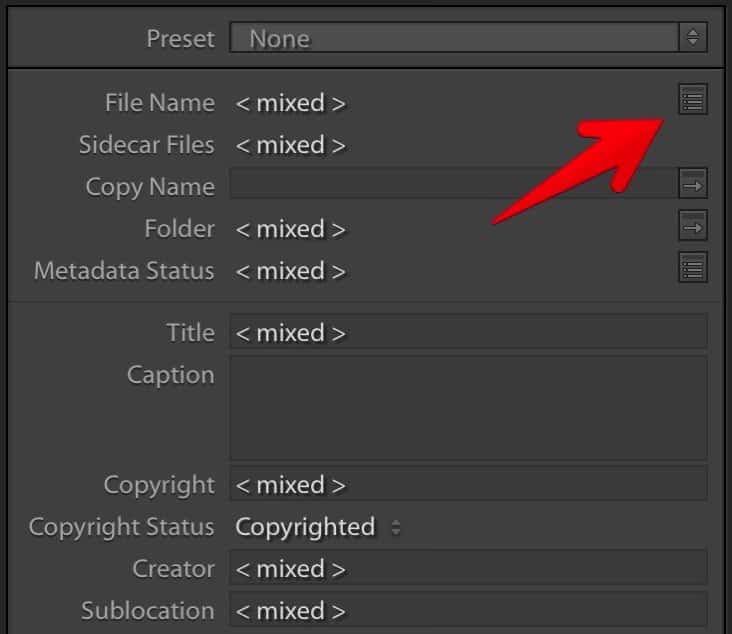
You’ll then get a popup renaming window. It tells you in the title bar how many photos you’ve selected to rename.
It also helpfully gives you a practical example of the output so that you can visualize the change.
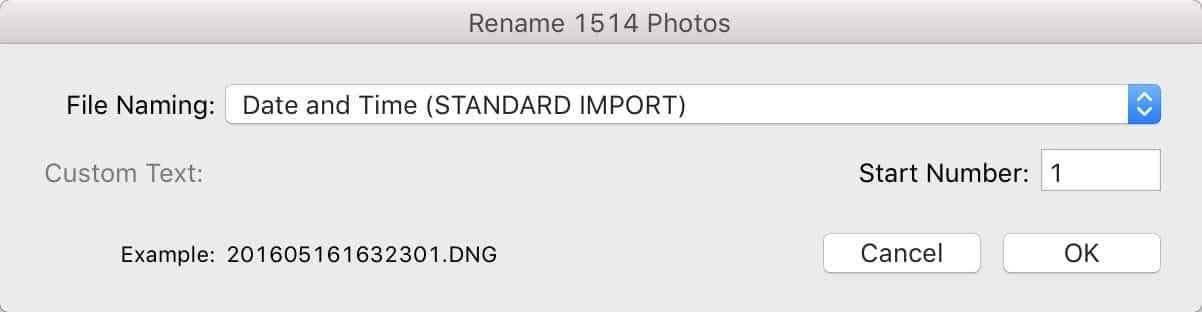
If you click on the File Naming option, you’ll get a drop-down menu with your file naming presets. You can choose any one you want, whether that’s one of the built-in ones or something you’ve created before.
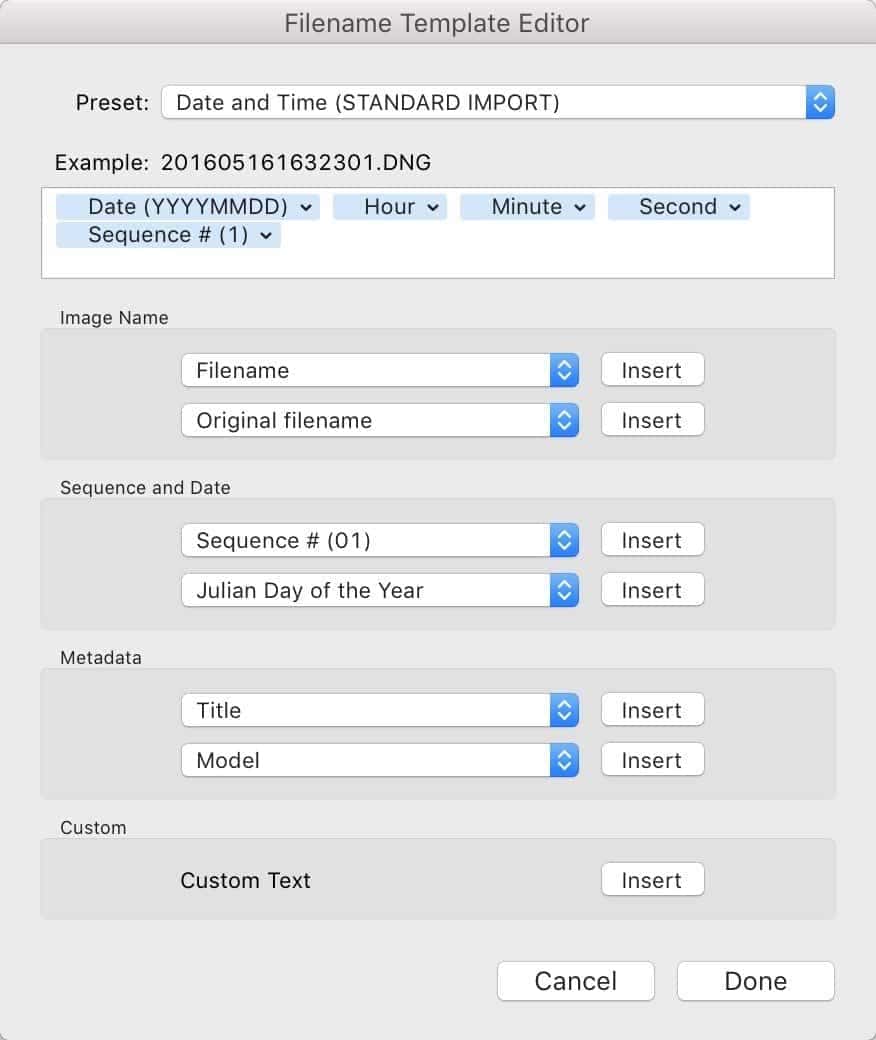
If you want to make changes, just select one, and then choose the “Edit” option at the bottom of the list. You can build your own pattern using the tokens to dynamically generate text or just insert static test.


This example is a basic time-stamping one, but you can make it as simple or as complicated as you like. You have access to the full range of system file information like timestamps as well as metadata. If you’re doing one-off, like adding a client’s name to the filename, use one of the presets using a Custom Name and add a sequence at the beginning or end to make each filename unique.
Batch rename the image files
Once you click on OK back in the Rename popup, Lightroom will process the images and rename the files.
And that’s really all there is to it!
When is this useful?
From a high level, the actual filenames don’t really matter when working with the files in Lightroom itself because the data management is being handled by a database rather than as a filesystem.
But there are plenty of times when you might be working with those files through the filesystem, in which case a logical and organized approach to file naming can be very beneficial. A simple example is when backing up your photos to external drives or the cloud. Another is if you switch from Lightroom to something else.
Being able to find the files without going through the database can be immensely useful in cases like that.
If you’re going to rename your image files after they’re already in Lightroom, it’s much better to do it through Lightroom rather than through your operating system’s file browser.
Yes, the file browser or other file management apps can give you much more powerful renaming features than area available in Lightroom, but it’s going to break the Lightroom catalog’s reference for the image file. And that means potentially losing any editing data or IPTC/Lightroom metadata (the synchronize function will treat the renamed files as new files).
In general, I rename my files when I’m importing them into Lightroom (or Photo Mechanic). I have a preset that looks like this:
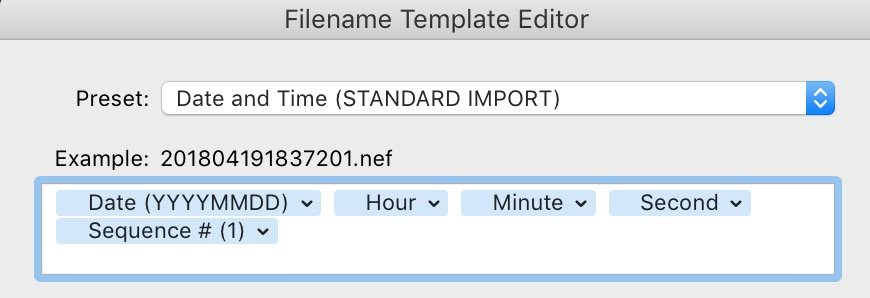
It’s basically putting a timestamp as the filename but adding a sequence on the end as a safety net for instances where there’s more than one image per second. The result is pretty ugly, but it has some benefits. It ensures that each file has a unique name. All the files list chronologically. And it provides an alternate way of quickly finding the file if for some reason I’m having to search through a filesystem by date.
But there are times that I don’t have renamed files in my Lightroom catalog. Quite often I use the Add function in the Import dialog to bring in files that I’ve sorted elsewhere like PhotoMechanic.
Or maybe you want to batch rename the original files for a client. Or perhaps you just want to change your file naming system for existing files.
Things worth knowing
It’s important to mention that what I’m talking about here is actually renaming the files in the filesystem. These make changes to the files on your hard drive — it’s not just something within the Lightroom catalog. And while Lightroom keeps track of the new filename, if you’ve got something else accessing those files and relying on the filenames it might throw it off (like a syncing operation, for example).
- It doesn’t work with folders, and you can’t do nested changes (although I’d love it if you could!).
- There are some related functions in Lightroom Classic, such as renaming files as they’re imported into the catalog or renaming them when they’re exported from the catalog. But those are different functions, and I’ll cover them separately.


