How to filter by portrait or landscape in Lightroom
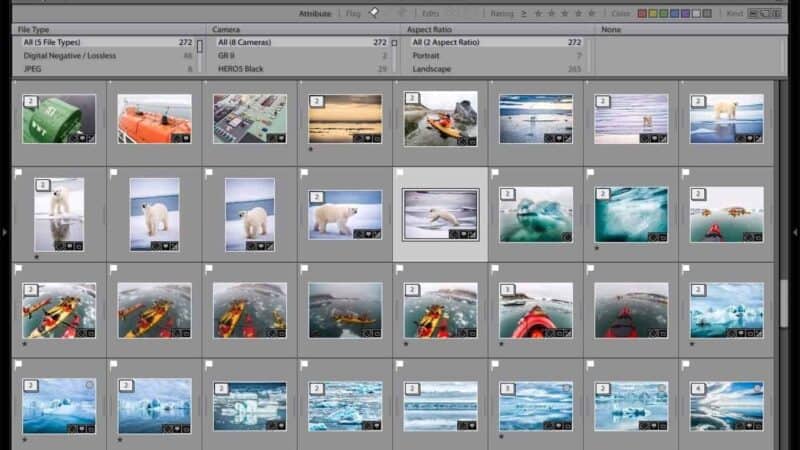
To isolate images by orientation in Lightroom Classic, open the Library Filter bar (), select the Metadata tab, and choose Aspect Ratio from one of the column headers. This allows you to instantly filter a folder or collection to show only Portrait (vertical), Landscape (horizontal), or Square images.
There’s always a specific friction point that drives the need for this filter. Maybe you’re pitching a magazine cover and need a purely vertical shot, or you’re building a social media header that requires a narrow landscape panorama. Hunting through thousands of thumbnails for the right “shape” is a waste of time when the metadata already has the answer.
Lightroom Classic handles this through the “Aspect Ratio” metadata filter, though the name is a bit of a misnomer since it’s actually tracking orientation.
Finding the Aspect Ratio filter
Lightroom allows us to slice and dice a catalog by almost any criteria, but the Aspect Ratio filter is tucked away in the Metadata section of the Library module. While we usually think of aspect ratios as specific numbers — 3:2, 4:5, or 16:9 — Lightroom uses this field to categorize the “lay” of the image.
How I use the Aspect Ratio filter
In the Library module, select the batch of images you’re working with — whether it’s a specific folder, a Smart Collection, or your entire All Photographs view.
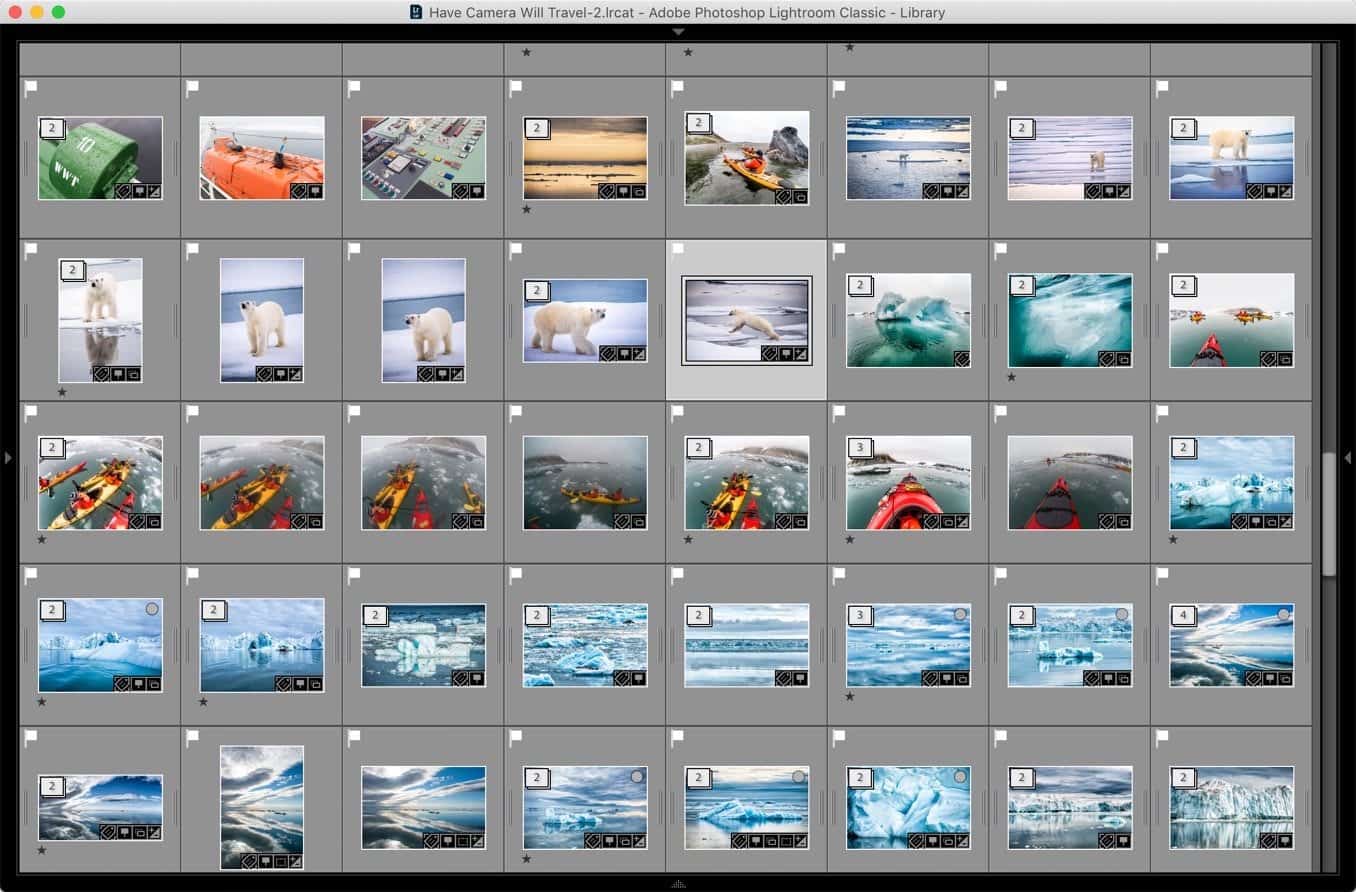
Open the filter bar by hitting the backslash key (\) or going to View > Show Filter Bar. Select the Metadata tab at the top. By default, Lightroom usually shows columns for Date, Camera, and Lens. Click on any of those column headers and change it to Aspect Ratio.
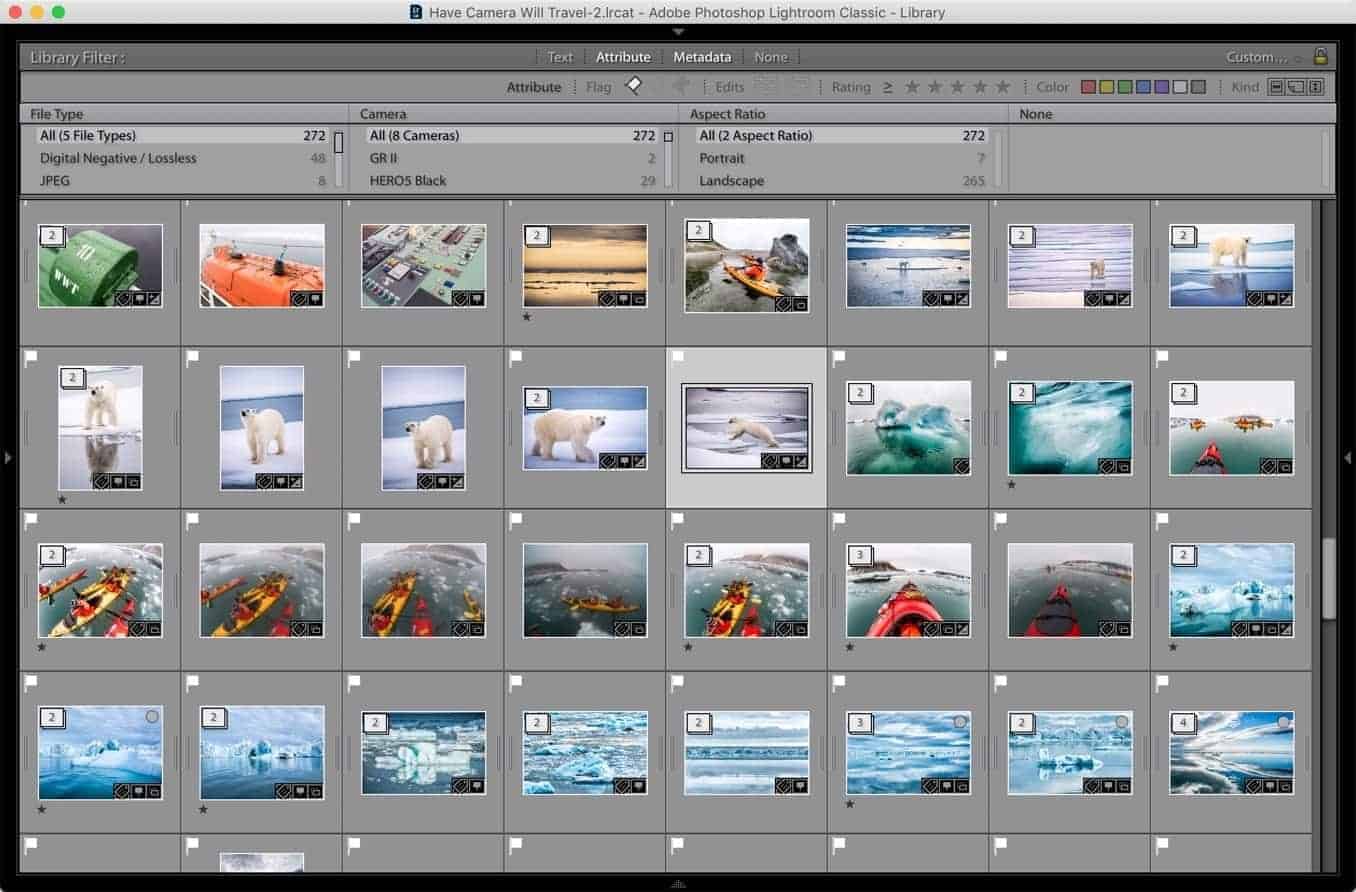
Lightroom will then scan your selection and present the available categories: Portrait, Landscape, Square, or Unknown.
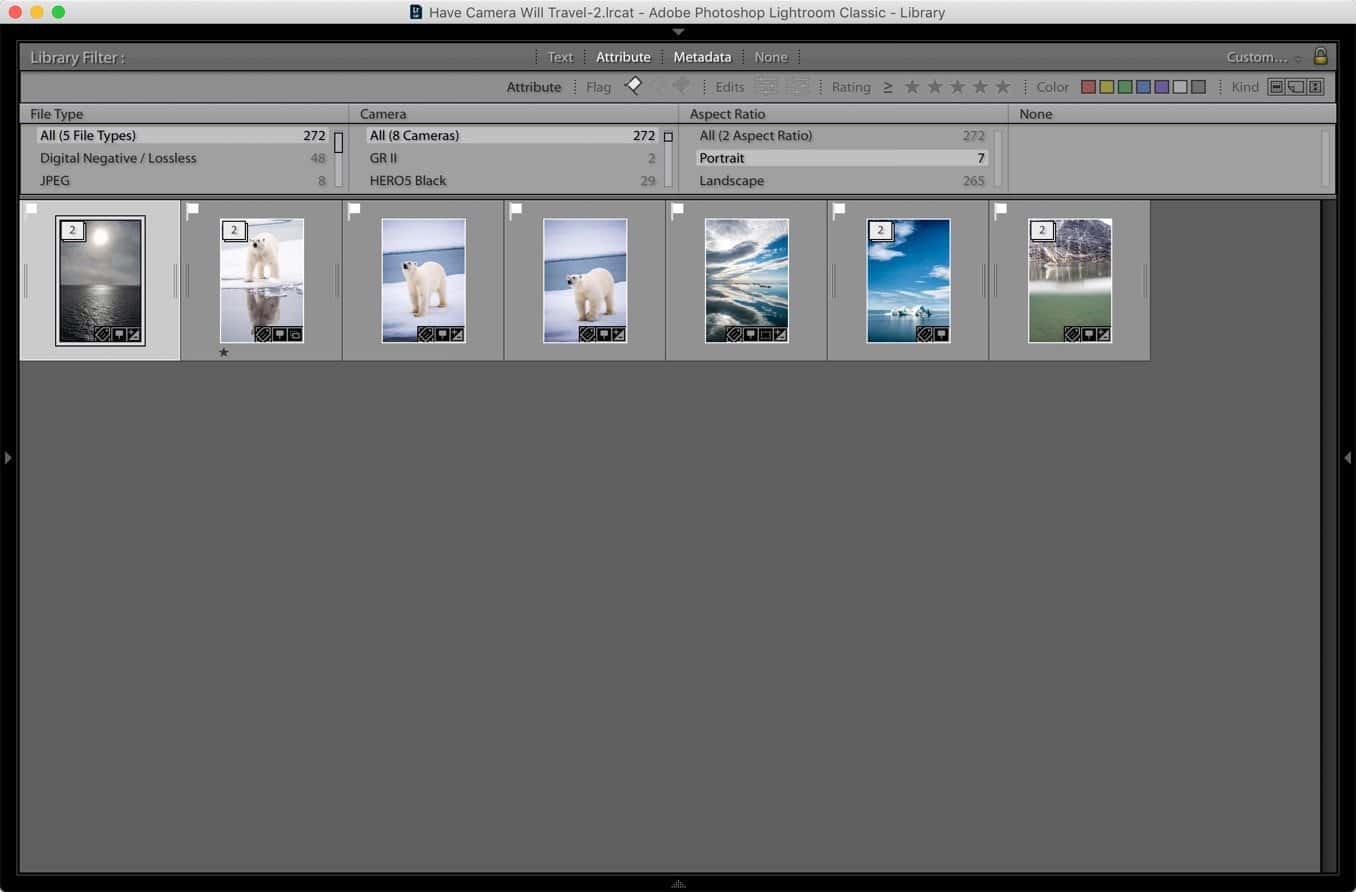
Note: Lightroom only displays options that actually exist in your current selection. If you haven’t cropped anything into a 1:1 square, the “Square” option won’t appear in the list.
The real power comes from stacking these. I often combine the Aspect Ratio filter with a specific Lens filter to find vertical shots taken with a wide-angle lens, or use Attribute filters to find only the “Flagged” landscape images in a gallery.
The “Unknown” Aspect Ratio science
You’ll occasionally see images dumped into the “Unknown” bucket. This happens because Lightroom isn’t visually analyzing the pixels for orientation; it’s reading a specific metadata field.
Common culprits for “Unknown” status include:
- Video files: LrC often struggles to categorize video orientation in this specific filter.
- Scanned film: If the scan doesn’t have orientation flags from the scanner software.
- Legacy Hardware: Older cameras or adapted manual lenses that don’t communicate orientation to the body.
Creating a “One-Click” orientation preset
If you’re frequently scouting for social media crops or print layouts, you should save these criteria as a Filter Preset to avoid digging through the Metadata columns every time.
Set up your filter exactly how you like it (e.g., Metadata > Aspect Ratio > Portrait). Then, look at the right side of the filter bar for the Custom Filter dropdown.
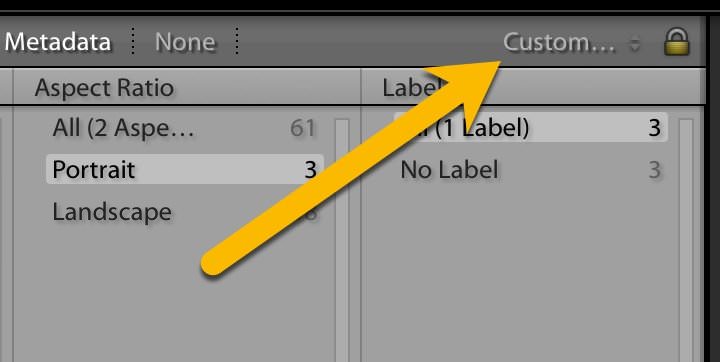
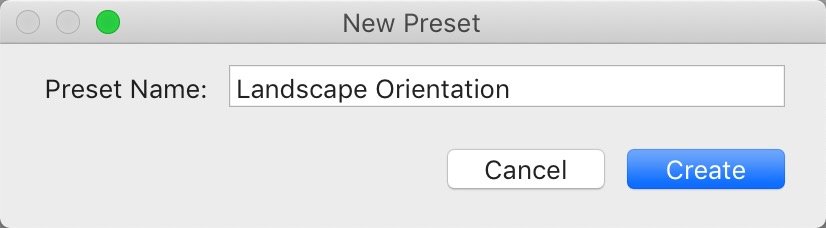
Select “Save Current Settings as New Preset” and give it a logical name like “Portrait Only” or “Landscape Scouting.”
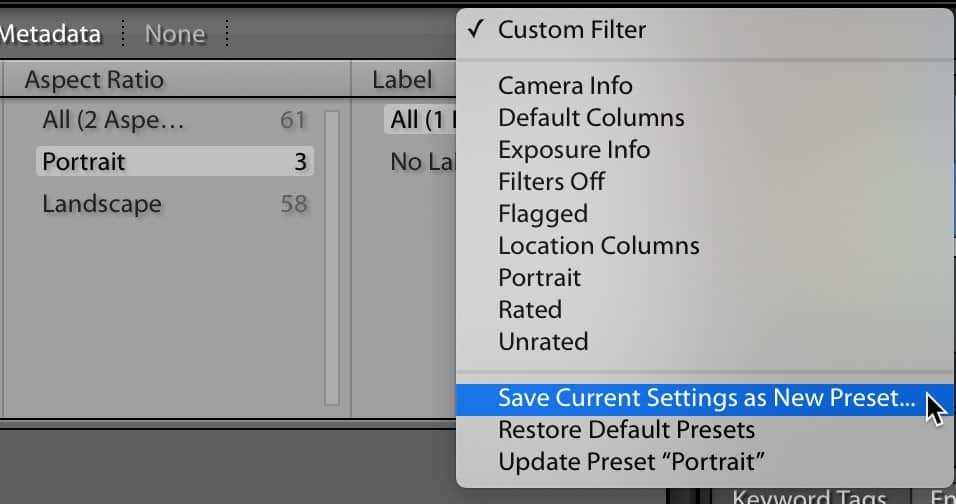
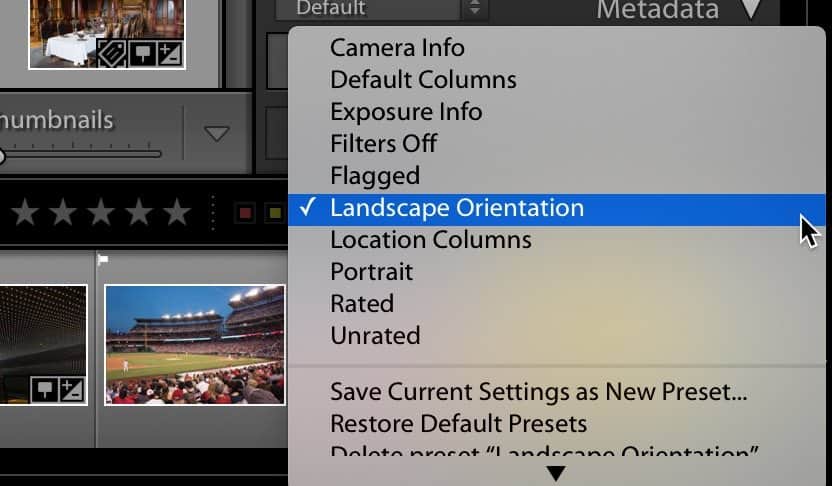
Once saved, you can trigger this from the filter bar, or even more conveniently, from the Filter toggle at the bottom right of the Grid view. It’s a massive workflow win that keeps you focused on editing rather than administrative hunting.
The science of orientation: EXIF vs. XMP
There’s a technical reason why an image might look vertical on your screen but show up as “Landscape” in your filters. It comes down to a conflict between how your camera wrote the file and how you edited it.
The “Recipe” for accuracy
- The In-Camera Rule: Most modern bodies (like the Nikon Z8) use a physical orientation sensor to write an “Orientation” tag into the EXIF data. Lightroom reads this first to determine the “Landscape” or “Portrait” status.
- The Crop Conflict: If you take a horizontal (Landscape) photo and crop it into a vertical 4:5 “Portrait” in the Develop module, Lightroom updates the XMP metadata. The filter bar is smart enough to prioritize this XMP crop data over the original EXIF sensor data.
The deep dive: How Lightroom calculates “Shape”
Lightroom doesn’t just guess based on the file type; it performs a mathematical check on the image dimensions.
- Original State: Lightroom looks at the
OrientationEXIF tag. This tells the software if the camera was held at 0°, 90°, or 270°. - The Metadata Override: If you have “Auto-Rotate” turned off in-camera, or if you are using a manual lens on an adapter that doesn’t pass orientation data, the file defaults to 0° (Landscape). This is the primary reason images end up in the “Unknown” or incorrect bucket.
- The Calculation: For the filter to work, Lightroom compares the pixel width ($w$) to the pixel height ($h$):
- Landscape: $w > h$
- Portrait: $h > w$
- Square: $w = h$
Why ratios matter for smart collections
If you’re building a Smart Collection for a specific project, you can’t just use the “Aspect Ratio” filter because it isn’t granular enough. For example, if you need images for an Instagram Story, you need a specific 9:16 ratio, not just any “Portrait” shot.
In that case, you’ll want to use the “Aspect Ratio” rule within the Smart Collection settings and set it to “is 9:16.” This ignores the general orientation and looks for the specific mathematical crop.


Related: seeing .xmp files next to your RAW photos and wondering what they are? See what an XMP sidecar file is.



Excellent content; I’ve subscribed!
I’m not sure if this is the best way to send this information (happy to hear about something better).
Just a typo that I noticed – don’t know if it’s easily fixed – in “How to Filter by Portrait or Landscape Orientation in Lightroom” you talk about using the backslash to access the filter bar, the place where (I speculate) you were going to place a backslash is empty. I’m using Chrome & Windows 11 if that’s useful information.
Glad it’s helpful. I have a big batch of Lightroom posts in the pipeline that I hope to post very soon. And thanks for the catch–corrected.