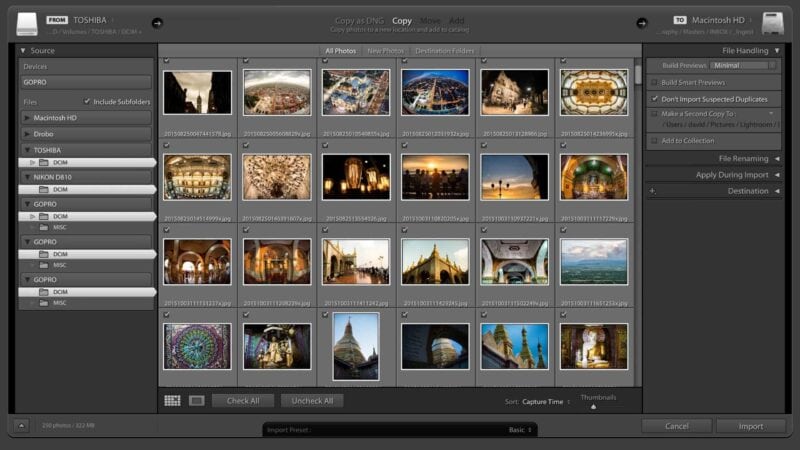
If you come back from a shoot with multiple memory cards full of photos, it can be tedious to import from each one in succession, one after the other.
But there’s a way to streamline the operation so that you can do it in fewer steps to help with a faster workflow: import from multiple memory cards at once.
Some photo software, like Photo Mechanic have concurrent importing as a prominent feature. ((Another popular app, Image Ingester, also had this feature, but Image Ingester has been discontinued.)
It’s also possible with Lightroom Classic, but it’s more of a hidden trick.
Here’s how to do it.
Instructions
Prerequisite hardware
First, though, there’s a hardware prerequisite for this to work.
You have to either have a memory card reader that is capable of simultaneous importing — something like ProGrade Digital dual card readers, for example, or multiple memory card readers connected simultaneously to your computer.


Many cheaper memory card readers, even if they have two or more memory card slots, are only capable of reading from one slot at a time.
The process
You use the same importing dialog that you normally would.
Often, you would use the Devices section at the top. But for this, you don’t want to use that because you can only select one device at a time.
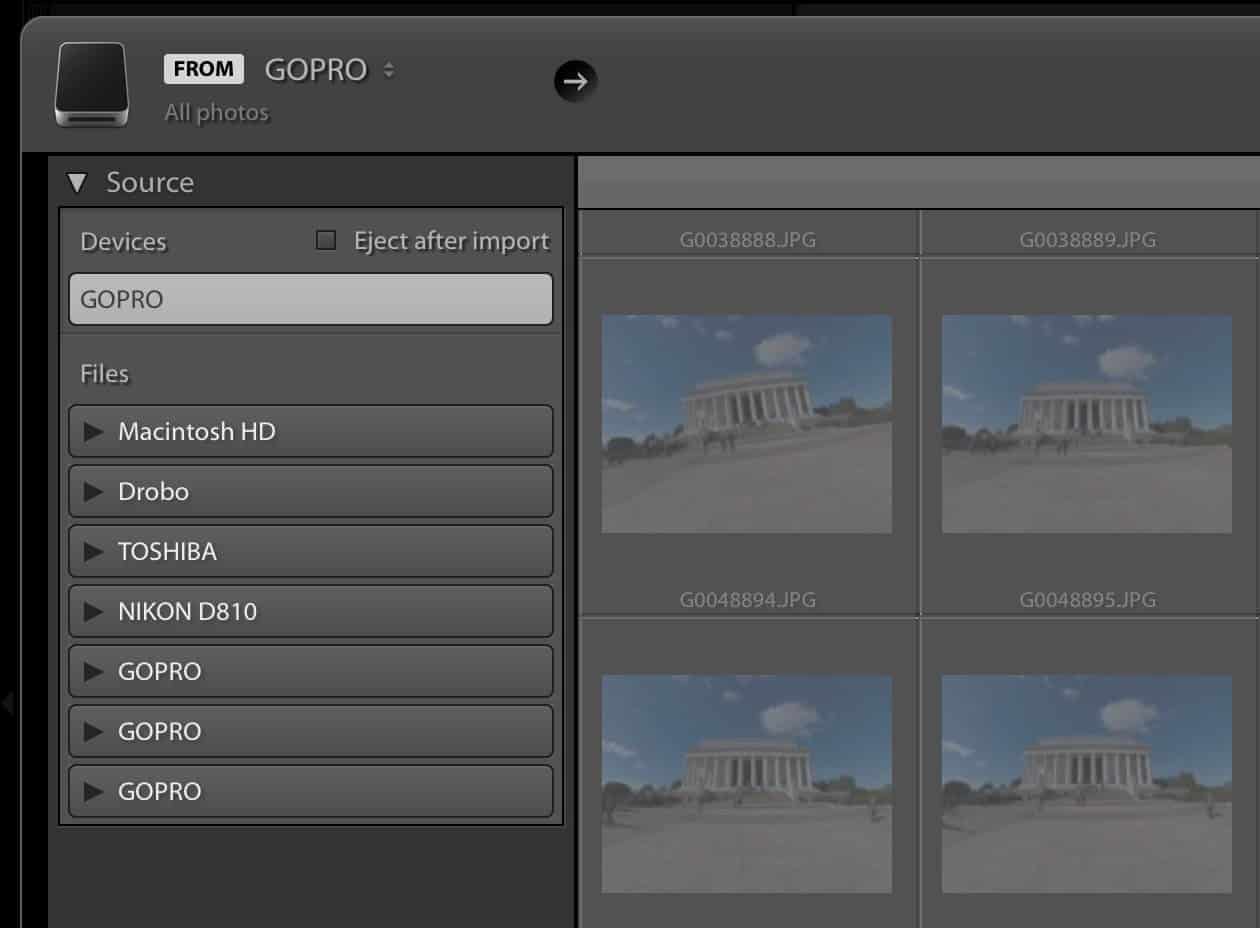
Instead, find the cards in the list under the Files section.
Make sure the Include Subfolders often is checked.
And again, you have to get the right bit. If you click on the drive or device label bars, you’ll only be able to select one at a time.
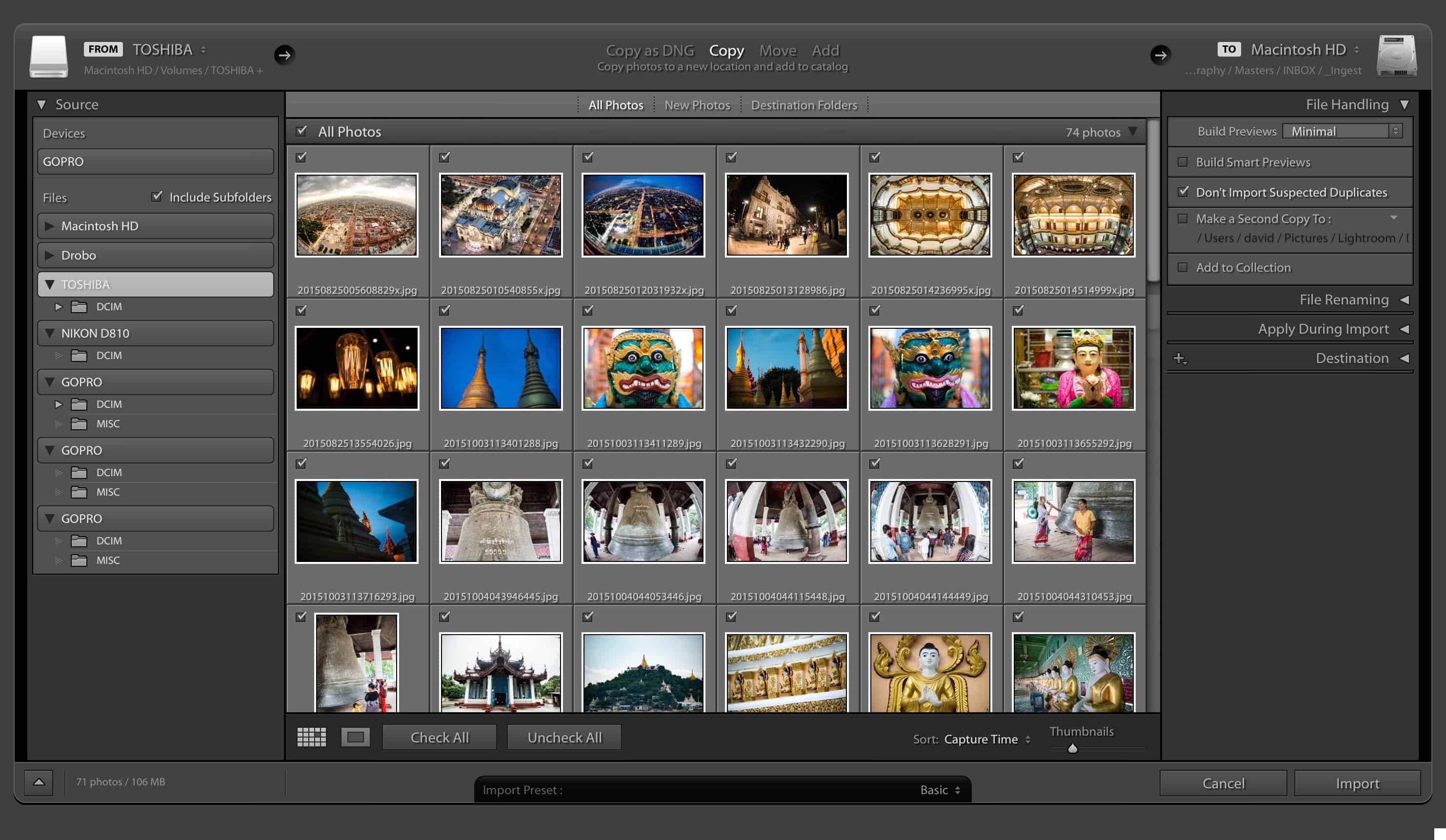
The trick here is that you have to drill down into the folders.
For each card, press the small triangles to expand so that you see DCIM for each one.
Click on one. Then, holding down the Command key on Mac or CTRL key on Windows, select the next one so that they’re both highlighted–just as you would for selecting multiple non-sequential files in other applications.
Add as many as you need. In this rather extreme example that I’m displaying here for illustration, I’ve selected files on a CompactFlash, SDXC card, and three microSD cards all at once.
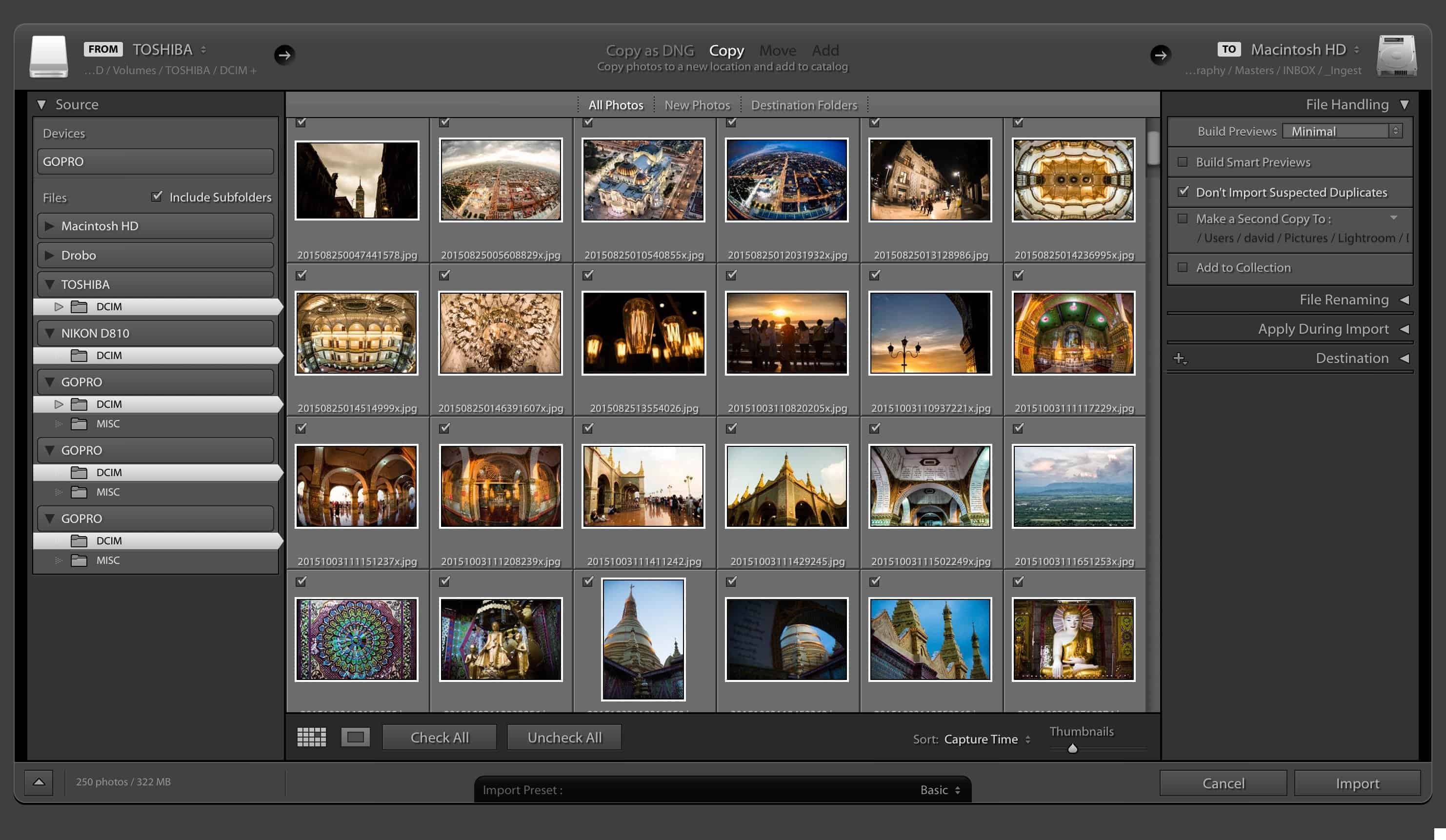
You’ll see thumbnails from all the cards you’ve selected show up in the consolidated preview screen, and you can sort them or select them individually, just as you would if you were importing from a single source.
Then hit the Import button at the bottom right of the screen, just as you normally would.
Things worth knowing
Lightroom treats it as a single import operation, so they all get the same treatment when it comes to import presets, metadata presets, and destinations. You can’t specify individual settings per card.


