The ability to upload directly from Lightroom to WordPress isn’t something that is part of either Lightroom or WordPress, but there are some good plugins that will take care of it for you.
My current favorite, which I’ve been using for years now, is LR/Sync. It uses Lightroom’s Publish Service functionality, which has some clear benefits when it comes to updating and synching images. I have a more detailed post on using LR/Sync separately.
But there’s also a simpler (and cheaper) option that doesn’t use Publish Services, and I used it for quite some time before moving to LR/Sync. And it’s that method that I’m focusing on here.
LR/Blog plugin for Lightroom to WordPress uploading
The specific plugin I’m talking about here is known as LR/Blog. It’s a plugin developed by Timothy Armes at Arctic Whiteness.
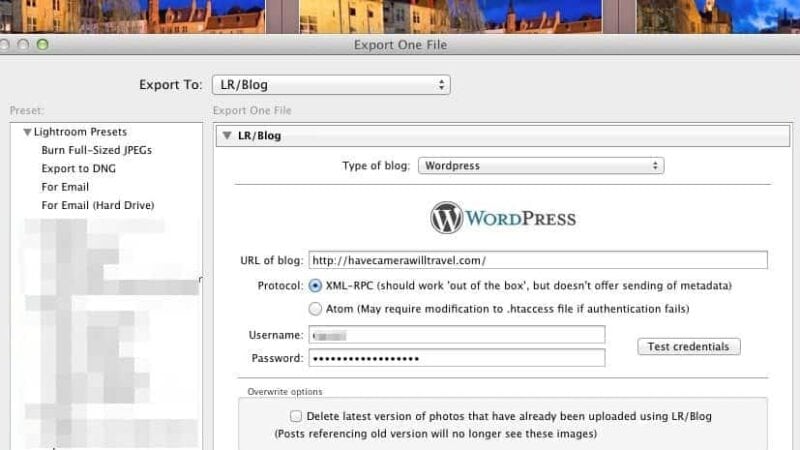
Once you download and install the plugin, when you go to export photos (File > Export) you’ll get a new option in the drop-down menu right at the top of the export screen next to “Export To: LR/Blog”.
Choosing that will replace the usual hard drive location chooser with a Wordpress login panel where you put in the URL of your Wordpress site, your username, and password.
If you hit Test Credentials and get a message that the credentials authenticated successfully, you’re good to go. If it fails, there are a few things to check. The most obvious to check first is that you’re using the correct username and password. The next thing to check is that your website’s host allows XML-RPC connections. Some hosts block that as a security precaution. If so, you might be able to submit a support ticket asking them to add a whitelist exception from your IP address. Here’s a more detailed guide that should help with troubleshooting.
But assuming you can make the connection successfully, in most cases, there’s nothing more to set up in Wordpress.
Crucially, there’s no need to install a plugin in WordPress itself.
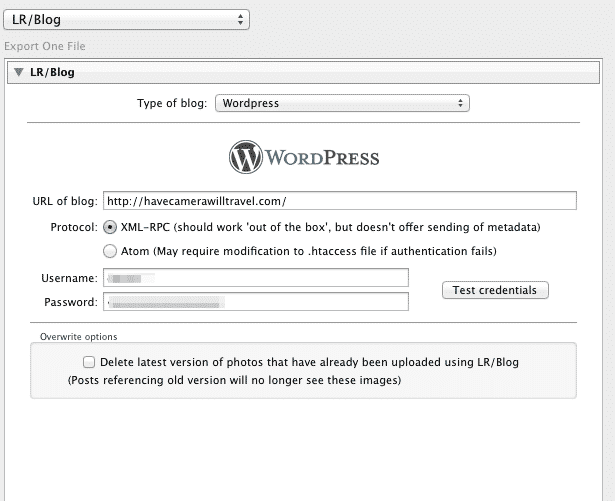
There are other options aside from uploading directly to the Wordpress media library. If you’re using NextGen for your images, you can upload directly there. You can also use it with a handful of other blog services like Blogger and Typepad.

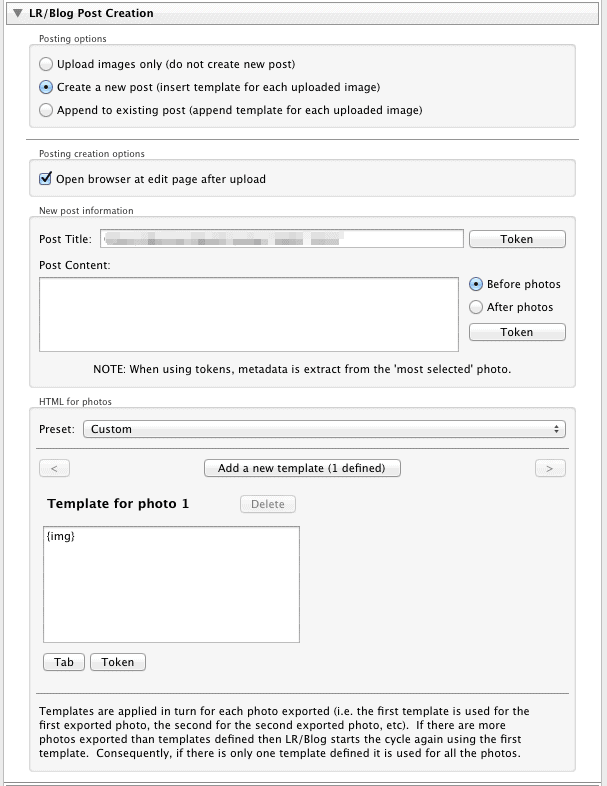
A great feature of the plugin is that you’re not limited to just uploading to the media library. You can even create a new post and have the new images you’re uploading embedded automatically. You can write a bespoke post or use a template with shortcode tokens.
While you don’t have the full features of the WordPress editing screens here, you have enough basics to get things started and save a lot of time.
There’s a field for adding the title of the post and then a field for the content of the post. It accepts regular text content, of course, but you can also use a bunch of different tokens to control where and how the images are inserted.
I find that this option saves me a lot of time when I’m creating my Cherry Blossom Watch updates in the spring, where I usually have text and then a series of on-the-spot photos underneath. That’s all handled wonderfully from the LR/Blog plugin itself. I still need to tweak a few things in the WordPress editor, but having the bulk of the heavy lifting done in one step saves me time.
Another very handy feature here is the ability to use tokens that will be replaced with metadata from your image as its uploaded. An easy example here is to add EXIF metadata fields to automatically display exposure details.
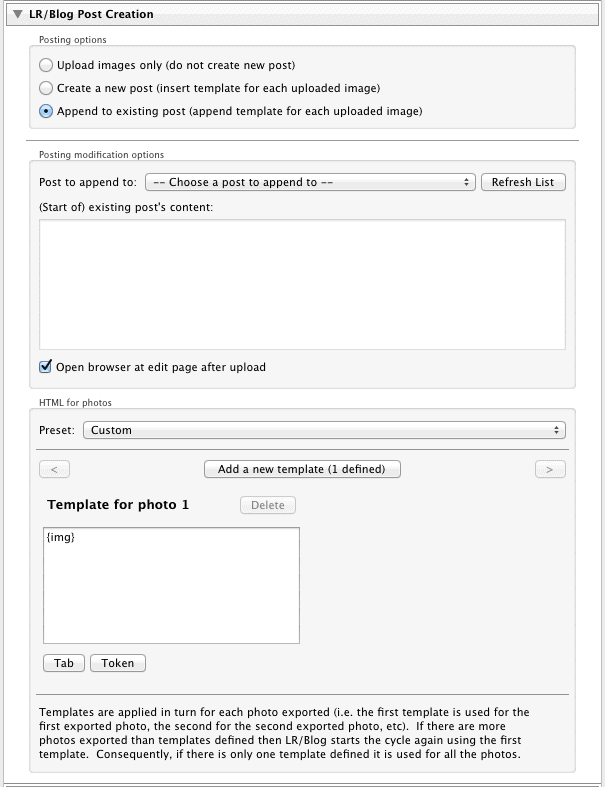
You also have the option of appending the new images to an existing post. Using the drop-down menu at the top of this panel, you can choose which post the images should be inserted into.
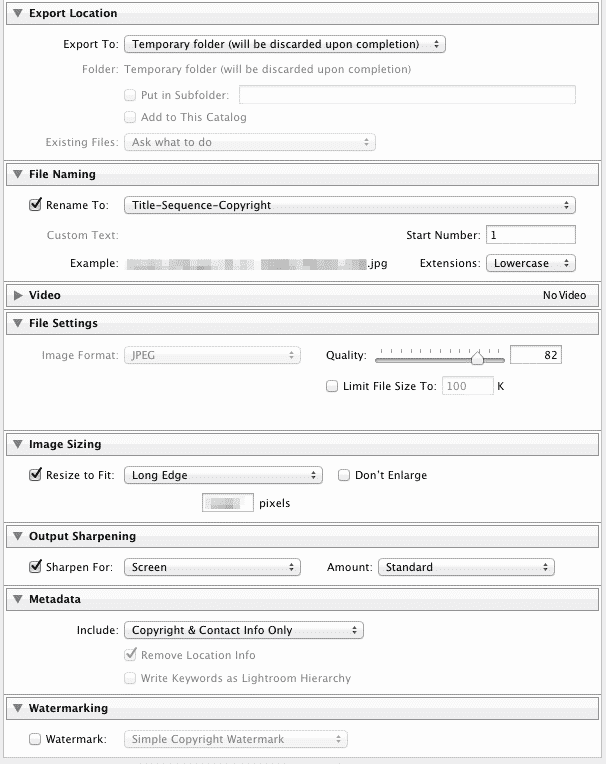
And you still have access to the standard panels in the Wordpress export function such as resizing, choosing JPG compression (you can’t export to PNG from Lightroom), applying sharpening, and adding watermarks. The one panel that you don’t have access to that I would find handy is the post export panel. It would be great to be able to run the images through an image optimizer like ImageOptim before they’re uploaded.
For now, you have to do that step manually.
If you’re using the regular Wordpress Media Library rather than NextGEN, your uploaded images will appear right in your Media Library just like any image you uploaded with Wordpress’s built-in uploader. You can then alter the title, ALT tags, captions, sizes, etc, just as you normally can.
Compatibility
The LR/Blog plugin is compatible with all versions of Lightroom 2 and above. It’s compatible with Wordpress versions from 3.2 on, both standalone installations as well as multisite. It’s also compatible TypePad, Blogger (hosted blogs only), NextGEN gallery for Wordpress (1.9.0 and above), as well as many MetaWebLog compatible blogs.
You can find further details here.
LR/Blog vs WP/LR Sync
LR/Blog and WP/LR Sync are two good options for getting images directly from Lightroom to Wordpress.
But they approach the task very differently. Each has its own advantages, and the decision on which to use comes down to which better suits your workflow.
LR/Blog is compatible with more content management and blog systems, including NextGEN gallery and Typepad. It also allows you to draft posts and use templates from within Lightroom and to attach images to a specific post. You can sort of sync images by checking the option to delete old versions of photos that have been uploaded through LR/Blog, but it’s not really a full-fledged sync option.
WP/LR Sync is all about creating a direct link between Lightroom and the Wordpress Media Library. It allows much more control over syncing metadata and new versions of photos. But it doesn’t allow you draft posts in Lightroom or attach photos to a specific post.


A third alternative is Luc Renambot’s Dossier de Press Lightroom plugin. UPDATE: This no longer seems to be available.
Where to get it
The LR/Blog plugin is available at the Photographer’s Toolbox. It’s a paid plugin priced at €8 (about USD$11, give or take with the exchange rate). There’s a trial version available that restricts the uploaded image size to 300px.
Use the panel at right of the Photographer’s Toolbox site to access detailed installation instructions and FAQs as well as the link to purchase.