
A memory card is an essential accessory if you want to get out shooting with the COOLPIX B500, but the camera doesn’t come with a memory card as standard.
Some retailers put together a deal bundle that might include some accessories, including a memory card, but chances are you’ll have to pick up a memory card separately. Or maybe you want something bigger with a larger storage capacity — the cards that are included in bundles are often on the small side and might fill up quickly, especially if you’re on a trip.
But what type of memory card does the Nikon COOLPIX B500 take? That’s where this post comes in — hopefully, to help you get out shooting sooner and out taking full advantage of all the features of your new camera rather than spending your time searching the web and trying to make sense of cryptic technical codes. I’ve been buying and testing numerous SD cards for several years and have put many of the most popular SD cards on the market through their paces.
Nikon B500 SD Card Quick Recommendations
If you just want some quick recommendations, here you go. Any of these will work well in the B500. These SD cards meet the needs of the B500’s features, have a strong track record of reliability, are readily available, and are usually cost-effective.
- Video Speed Class: V10
- UHS Bus Interface Type: UHS-I
- Maximum Read Speed: 195 MB/s
- Storage Capacities: 32GB, 64GB, 128GB, 256GB, 512GB
Check current price and availability at:
- Video Speed Class: V30
- UHS Bus Interface Type: UHS-I
- Maximum Read Speed: 150 MB/s
- Storage Capacities: 64GB, 128GB, 256GB
Check current price and availability at:
- Video Speed Class: V10 (64–256GB) · V30 (512GB–1TB)
- UHS Bus Interface Type: UHS-I
- Maximum Read Speed: 150 MB/s
- Storage Capacities: 64GB, 128GB, 256GB, 512GB, 1TB
Check current price and availability at:
Recommendations checked: August 2026
Nikon B500 memory card compatibility & requirements
You might see in some places, including the format menu item on the camera (see below), that the Nikon B500 has internal memory. That’s true, and the camera will work to a limited extent without a memory card.
But it’s not a viable replacement for saving images and video to a memory card simply because it’s such a small amount of storage space. It’s only 20MB, so you really can’t fit very much on there. It’s more like the tiny backup in a car’s gas tank after the gas-empty light comes on.
While it looks a little different from many other smaller point-and-shoot cameras, the Nikon COOLPIX B500 still falls into that category. It has auto-everything shooting that’s designed to make it easy to get great photos and videos. Two things make the camera larger than the average point-and-shoot: the ergonomic grip that makes it more comfortable to hold in hand, and the large lens that has both a very long 40x optical zoom and is larger to let in more light.
The B500 has a 26-megapixel sensor and shoots full HD video up to 1080p. It has a single memory card slot. It’s compatible with SDXC, SDHC, and SD cards.
All of those mean that it’s easy to find SD cards that will work well in the B500 and that you don’t need to break the bank to find a good one.
Because of the way that cameras interface with memory cards, once you have a card that meets the requirements of the camera, you don’t get any extra benefit by inserting a card with high specs and performance that exceeds the camera’s capabilities.1 And, naturally, high-performance cards are more expensive. So why pay extra for high performance that your B500 can’t use? By all means, if you already have a fast SD card on hand, you can use it in the B500, but it won’t get you any extra performance in the camera (it might when downloading the photos and videos to a computer).
That said, in the recommendations below, I’m factoring in cost-effectiveness as well. And because memory card manufacturers are coming out with newer, faster models all the time, it’s quite possible that the most cost-effective cards are faster than your camera needs. But that’s a case where it makes sense to go with the cost-effective option even if its performance exceeds the requirements of the camera.
Nikon COOLPIX B500 memory card recommendations in detail
So which SD card should you get for your Nikon COOLPIX B500? Here’s the more detailed version.
If you go looking in the B500’s instruction manual, you’ll find that it’s not very helpful in providing useful information on what memory card to get.
This is what it says (on page 175):
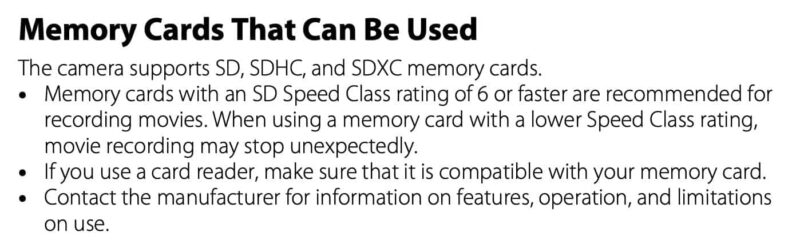
Nikon does have a webpage of approved memory cards for COOLPIX cameras, but it’s not much more helpful. For starters, it refers only to brands and storage capacities and not to speeds or card model numbers.
So what I’m aiming to do here is provide some practical recommendations on which SD cards to get for the Nikon B500 so you can spend less time searching online and more time out shooting. I’m not trying to list every SD card that works in the B500–there are others that will work just fine as well. I’m focusing here on ones that offer a good combination of meeting the requirements of all of the B500’s features, are readily available at major retailers, are cost-effective, and come from major manufacturers with track records for good-quality cards. I’m also basing this on my own SD speed tests.
So here’s more detailed information on these cards, along with some others.
These are by no means the fastest SD cards on the market, but the reality is that many cameras don't need and can't fully take advantage of the fastest SD cards available. But these cards are fast enough for this camera. And they also offer good value, since they're not pushing the limits with cutting-edge technology.
My emphasis here is on cards that meet these criteria:
- They're fast enough for all the features of this camera.
- They're from a reputable and reliable brand, so you can count on them working well.
- They're readily available at major retailers.
- They're good value for money — you're not paying for speed the camera can't use.
If you want to use a faster, fancier card, you can, but you won't see any extra benefit while operating the camera (though you might see faster speeds when downloading photos to a computer, depending on your card reader). And, as always, I recommend buying from a major retailer to minimize the chances of getting stung with a counterfeit memory card.
SanDisk Ultra V10 UHS-I
- Video Speed Class: V10
- UHS Bus Interface Type: UHS-I
- Maximum Read Speed: 195 MB/s
- Storage Capacities: 32GB, 64GB, 128GB, 256GB, 512GB
Check current price and availability at:
The SanDisk Ultra line is their cost-effective mid-range option. The latest versions of the Ultra cards are much faster than older versions, and it's a good basic option for cameras that don't demand too much of their SD card. The next level up — the Extreme cards — are also good options, but the Ultra cards are often priced slightly lower. They're usually widely available in stores, as well, which is a virtue.


Something to note is that SanDisk recycles its model names, and you can still find older, slower versions with the Ultra name. This latest version of the Ultra card is rated for V10 for video recording, uses a UHS-I interface, and is rated for 195 MB/s sequential read speed (write is much slower but is fast enough to qualify for the V10 rating).
It comes in sizes ranging from 32GB up to 512GB.
Lexar High-Performance 800x PRO BLUE Series V30 UHS-I
- Video Speed Class: V30
- UHS Bus Interface Type: UHS-I
- Maximum Read Speed: 150 MB/s
- Storage Capacities: 64GB, 128GB, 256GB
Check current price and availability at:
The Lexar 800x Pro range is a relatively new model that replaces the old 633x cards that were mainstays of Lexar's SD cards for a long time. There are now faster cards available, but this one is again fast enough for this camera while also representing very good value for money. As a V30 card, it's technically rated faster than strictly necessary for this camera, but it's still a good combination of speed, reliability, and value.
Kingston Canvas Select Plus (SDS3) UHS-I
- Video Speed Class: V10 (64–256GB) · V30 (512GB–1TB)
- UHS Bus Interface Type: UHS-I
- Maximum Read Speed: 150 MB/s
- Storage Capacities: 64GB, 128GB, 256GB, 512GB, 1TB
Check current price and availability at:
Kingston is a brand that probably isn't as widely known as some of the others here, but they've been making reliable memory cards for a very long time. As a brand, they don't tend to focus on cutting-edge speeds but rather on reliable, good-value memory cards. And this card fits squarely in those categories.
This particular card (model SDS3 Canvas Select Plus) is certainly not the fastest in Kingston's range, but it's fast enough to work well in this camera. It's available in sizes from 64GB through 1TB.
NB: The 64GB, 128GB, and 256GB versions of this card are rated V10. The 512GB and 1TB cards are rated for the faster V30 spec. All of them will work in this camera (the V30 cards will operate at the camera's lower speeds, but they're compatible).
Recommendations checked: August 2026
Things worth knowing
Making sense of SD card specifications
You’ll find a range of different acronyms and codes on SD cards. Here’s a quick overview of which to look for.
SDHC vs SDXC
Most of the cards you’ll see available have either SDHC or SDXC printed on them. The Nikon COOLPIX B500 will work with both SDHC and SDXC cards (and, for that matter, just plain SD cards, but they’re hard to find these days).
These are categories assigned by the SD Association, which is the organization that oversees and develops the standards for SD and microSD cards. The difference between those two specifications is in the filesystem they’re formatted with–the SDHC specification uses FAT32 formatting, while the SDXC specification uses exFAT–but when it comes to buying memory cards, the practical difference is that cards 32GB and smaller will be labeled SDHC and cards 64GB and larger will be labeled SDXC.
There’s no right answer when it comes to what size, or storage capacity, to get–it’s mostly a matter of convenience so that you don’t keep running out of space. As is probably obvious, you can fit twice as many photos on a 64GB card as on a 32GB card. And a 128GB card can store four times as many photos as a 32GB card, and so on. And that’s especially handy when you’re traveling; even more so if you’re shooting any video. The most logical sizes for this camera in terms of convenience and price are probably the 128GB, 256GB, and 512GB sizes. But if you want to use a larger or smaller one, say 64GB or even 1TB, go right ahead–they’ll work just fine because of the way that the SDXC spec is designed.
Tip: Don’t buy an SD Express or SDUC card. Both might look just like regular SD cards, but they’re emerging standards, and this camera isn’t compatible with those types of cards.
As a technical matter, SD Express cards are designed to be backward compatible and will function in this camera, but the camera won’t be able to use any extra speed benefit, and it may, in fact, perform slower than a non-SD Express card. SDUC cards require a different interface and will not function in this camera.
UHS-I vs UHS-II
Newer SD cards also have UHS-I or UHS-II on them (or often just an I or II). This refers to the type of interface that’s used to connect to the cards. It stands for ultra-high-speed bus.
UHS-I is the older, simpler bus interface. UHS-II is newer and potentially faster. The catch is that you only get the extra benefit of UHS-II if the device is also UHS-II. However the spec is designed to be backward compatible, so you can use UHS-II cards in UHS-I devices, but you will only get the speed of UHS-I.
The Nikon COOLPIX B500 doesn’t have a UHS-II interface, so, as a practical matter, there’s no benefit to using UHS-II cards in it (but it’s perfectly fine to do so).
Video Speed Classes
The SD Association has come out with various rating systems over the years to help buyers choose a card that’s suitable for use in cameras. Because recording high-resolution video (or, more specifically, high-bitrate video) is often the most demanding operation in terms of a camera and its memory card, it’s known as a video speed class rating system.
Most cards available now have a mix of old and new speed class codes printed on them. And while it’s helpful, it’s still an imperfect system for judging the speed of an SD card.
As a practical matter in the Nikon COOLPIX B500, cards that have any of these on them should be fast enough:
- V30
- U1
- U3
V60 and V90 are also fine, but they’re overkill for the B500.
There’s a separate rating system that you might also see on some cards. They might have an A1 or A2 on them. You can ignore that when choosing an SD card for a camera. It’s designed for the kinds of operations that gaming devices and smartphones do.
What size SD card to use in the Nikon COOLPIX B500
The B500 is compatible with SDHC and SDXC cards. That means you can use cards from 4GB all the way to the largest cards currently available, which are 512GB and 1TB cards.
The current sweet spot for a combination of convenience, being readily available, and being cost-effective is probably around the 128GB to 256GB range. But you can use larger or smaller ones if you prefer–it’s mostly a matter of convenience of how much video footage or photo data you can store on the card before it fills up, and you have to download to a computer or some other device.
So why get a good memory card?
A better memory card isn’t going to help you take better photos or improve image quality. But it can let you take advantage of all of the camera’s features. A card that’s not fast enough to keep up with the camera can cause issues like locking up, dropped frames, and overheating.
There’s also the issue of reliability. There are plenty of junk memory cards on the market. Not only do they have flaky performance, but they’re also more likely to fail. And that means the risk of losing your photos and videos.
At the same time, you don’t want to pay extra for a high-performance SD card that’s overkill for the camera.
How to format SD cards
When you buy a new SD card, you should format it before use (and then regularly after that). Before starting, though, make sure you’ve saved any data you want to keep from the card, because formatting the card will delete all of the data on it.
Here’s some information on how to do that.
How to format memory cards in the Nikon COOLPIX B500
It is best practice to always format memory cards in the camera that you’ll be using them in. That sets the card up with the filesystem, folder hierarchy, and, in some cameras, a database file, so that the card is just how the camera expects. That greatly reduces the risk of unexpected errors and unpleasant surprises.
On the Nikon COOLPIX B500, you can find the format function under:
MENU > Settings (the wrench of spanner icon) > Format CardFormatting the internal memory works the same way–just choose the Format Memory option instead. To save to the internal memory card rather than the SD card, just make sure that the SD card isn’t inserted, and it will save to internal memory automatically. To copy images and video between the internal memory to the SD card, go to:
Playback mode > MENU button > Copy > (choose the appropriate option) > OK.How to format SD cards with a computer
Having said that, it is still possible to format memory cards using a card reader and computer. You get a lot more flexibility that way, but also some extra risk if things aren’t set up just how the camera wants them. It’s also sometimes a good troubleshooting step if you’re having issues with a memory card.
There are some things to watch out for, particularly when it comes to choosing which filesystem to use. So I’ve put together guides on how to format SD cards on Mac and how to use the free SD Card Formatter app for Windows or Mac.
Nikon COOLPIX B500 FAQs
Is the Nikon COOLPIX B500 a DSLR?
While it does look a bit like a DSLR, and this category of cameras is even sometimes referred to as SLR-like, the B500 isn’t one.
Most importantly, it has a fixed lens that you can remove and change out for a different one. DSLRs have interchangeable lenses.
The closest DSLR models to the B500 would be the Nikon D3500 or Nikon D5600. Neither of those comes with a kit lens that has zoom anywhere close to the 40x optical zoom of the B500, but with the DSLRs, you can attach a wide range of compatible F-mount lenses for flexibility.
Can you add lenses to the Nikon COOLPIX B500?
The B500 has a fixed lens that doesn’t come off. So you can’t put different lenses on it in the way that you can with a DSLR.
How do you update the Nikon COOLPIX B500 firmware?
You can find the latest firmware for the B500 here. That page includes a step-by-step guide to updating the firmware.
What is the highest video resolution the Nikon COOLPIX B500 can shoot?
The maximum video resolution available on the B500 is 1080p (dimensions 1920×1080) at framerates of up to 30p or 60i.
What is the physical size of the sensor of the Nikon COOLPIX B500?
The B500’s sensor measures 1/2.3 inches. Which is approximately 6.16 x 4.62 mm. This is much smaller than the sensor in a basic APS-C cropped-sensor DSLR like the D3500 (23.5 x 15.6 mm) or a full-frame sensor DSLR like the D850 (35.9 x 23.9 mm).
Notes & References:
- Depending on your computer and memory card reader setup, you might get some speed benefit when putting a faster memory card into your card reader and downloading images to your computer. [↩︎]



I purchased my Nikon B500 five years ago but was never able to fully figure it out. The manual was more confusing than helpful, customer service couldn’t provide the answers I needed, and SnapBridge never worked as advertised. With a trip coming up in a week, I decided to give it one more try — and I’m so glad I found this post. It’s been incredibly helpful and has renewed my motivation to get a new SD card and give the camera another shot. I may need some help retrieving any stored photos before updating the firmware, but I’m feeling hopeful for the first time in a while. Thank you for sharing this valuable information!
Glad you found it helpful, and have a great trip!