
The Nikon Z8 has two memory card slots: one for CFexpress Type B or XQD cards, and one for SD cards (UHS-II, and also UHS-I). You can use either on its own, or both at once, and the camera gives you several choices for how the second card is used.
| Slot | Takes | Notes |
|---|---|---|
| CFexpress/XQD slot | CFexpress Type B, XQD | The primary slot by default; much faster |
| SD slot | SD, SDHC, SDXC (UHS-I and UHS-II) | Use a UHS-II card to get its full speed |
I’ve written separately about which memory cards to get for the Nikon Z8. What I’m focusing on here is using both slots at once, and how to control what the second card does.
There are advantages to filling both memory card slots, but it’s not required.
The Z8 doesn’t need both slots filled. It works fine with one card. But this post could easily be subtitled “Why You Should Use 2 Memory Cards in Your Nikon Z8.”

Choose the primary card slot
The first thing you’ll want to do is assign a primary slot. Or at least confirm that the default setting is what you want.
The default setting is the CFexpress / XQD card slot. And if you have one of those cards, it makes sense to use that as the primary because they’re typically a lot faster than SD cards. That extra speed will serve you well when shooting video or burst photos. But if you’d prefer to use the SD slot, just choose that instead.
You can find this under:
PHOTO SHOOTING MENU (the camera icon) > Primary slot selection
Where you can choose either the CFexpress/XQD slot or the SD card slot.

The primary slot setting only matters when two cards are inserted. It’s also the card the camera uses when you save your menu settings with [Save/load menu settings] in the SETUP MENU.
Set the secondary slot function: Overflow, Backup, or RAW/JPEG
With a second memory card in the camera, you get some extra features.
You can find these under:
PHOTO SHOOTING MENU (the camera icon) > Secondary slot function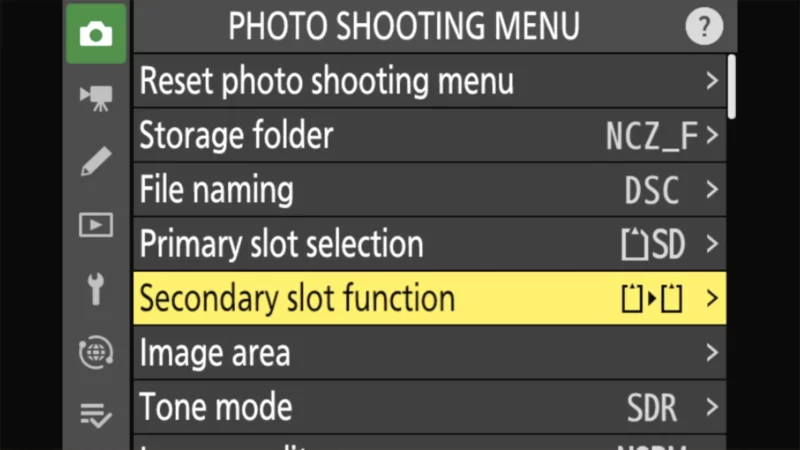
| Option | What it does | Available with |
|---|---|---|
| [Overflow] (default) | Uses the second card only when the first is full | Any tone mode |
| [Backup] | Records every picture to both cards | Any tone mode |
| [RAW primary – JPEG secondary] | With RAW + JPEG: RAW to the primary card, JPEG to the secondary | Tone mode SDR |
| [JPEG primary – JPEG secondary] | Two JPEGs: your chosen quality on the primary card, a JPEG basic copy on the secondary | Tone mode SDR |
| [RAW primary – HEIF secondary] | As RAW primary – JPEG secondary, with HEIF instead of JPEG | Tone mode HLG |
| [HEIF primary – HEIF secondary] | As JPEG primary – JPEG secondary, with HEIF instead of JPEG | Tone mode HLG |
Overflow
The default setting is overflow.
And it’s pretty simple: if you run out of storage space on the first card, it will automatically continue on the second card. This will give you the maximum possible storage space, but you’ll only have one copy of each image.

Backup
The backup option creates an identical duplicate on each card. It’s a great in-the-field safety precaution. Or if you’re shooting with an assistant, you can hand off one card to them for either safekeeping or for some immediate processing while you keep shooting.
If you’re using memory cards with different storage capacities, they’ll both be treated as though they’re at the lowest capacity, and the shutter will stop working once that runs out of space.

RAW primary – JPEG secondary
This applies if you’re using a RAW + JPEG option in the Image Quality setting. It saves the RAW file to the primary card and the JPEG to the secondary card.
If you’re shooting RAW only or JPEG only, it saves the same file to both cards. In other words, it works just like Backup.

It’s only available with Tone Mode set to SDR (the default). With Tone Mode on HLG, the option becomes RAW primary – HEIF secondary, because HLG photos are saved as HEIF.
JPEG primary – JPEG secondary
This saves a JPEG copy to each memory card.
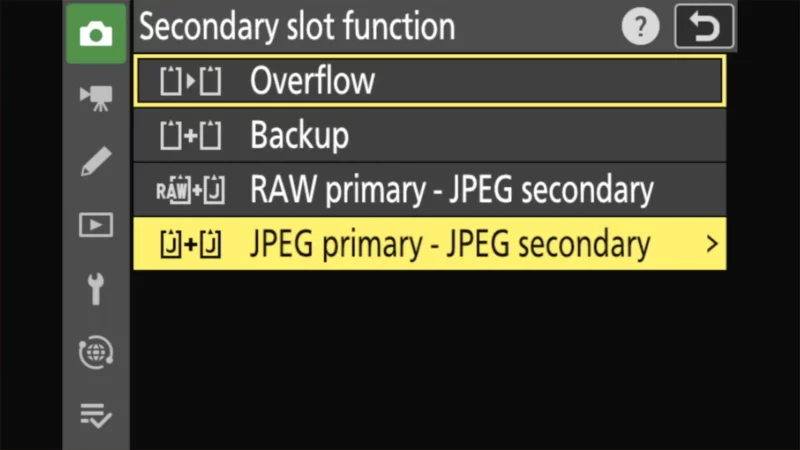
So the natural question is how this is any different from Backup. The difference is that the second copy is saved at JPEG basic quality, and you can choose a smaller size. It’s a lightweight version that can be useful if you need to send files quickly from the field, as photojournalists and sports photographers often do.
You’ll notice the small arrow to the right of the option. Press right to choose the second copy’s size: Large, Medium, or Small. In the FX image area, that’s 8256 × 5504, 6192 × 4128, or 4128 × 2752 pixels. In DX, 1:1, or 16:9 the pixel counts are smaller.

If your Image Quality is RAW or RAW + JPEG, it works just like Backup. With Tone Mode on HLG, the equivalent is HEIF primary – HEIF secondary.
Things worth knowing
There are some fine-print quirks worth knowing about.
- Either full card stops the shutter. With anything other than Overflow selected, the frames-remaining number on the top screen refers to the card with the least space left. When either card fills up, the shutter won’t release.
- Backup is only as fast as the slower card. Every picture has to be written twice, and the SD card is much slower than CFexpress. My memory card recommendations explain what that means for bursts. David Busch notes the write takes slightly longer in Backup, which is why it may not suit fast sports.
- Playback shows one copy. With a RAW/JPEG split or two JPEGs, the camera plays back the copy from the slot chosen in PLAYBACK MENU > [Dual-format recording PB slot] (the CFexpress/XQD slot by default). To see the other copy, use [Jump to copy on other card] in the playback i menu.
- Check how deleting works before culling in camera. When a picture exists on both cards, PLAYBACK MENU > [Delete pictures from both slots] decides what happens. The default, [Yes (confirmation required)], asks each time whether to delete just this copy ([Selected picture]) or both.
- With RAW + JPEG and no split, deleting the JPEG deletes the RAW. If you shot RAW + JPEG with one card, or with Overflow or Backup, deleting the JPEG copy on the camera also deletes the RAW file. Nikon’s manual is explicit about this.
- Multiple exposure and HDR overlay ignore the split. If you’ve told either of them to save the individual RAW frames, those go to both cards along with the combined JPEG.
- The camera will fire with no card in it. [Slot empty release lock] in the SETUP MENU ships set to [Enable release]. The shutter works and nothing is saved; playback shows “Demo”. Set it to [Release locked] so you can’t shoot a session without a card.
- All of this applies to photos. Videos go to the slot chosen under:
VIDEO RECORDING MENU (video camera icon) > Destination(The default is the CFexpress/XQD card slot.)
Copying photos from one card to the other
If you shoot to one card to keep the camera as fast as possible, you can still make a second copy later, in camera:


MENU > PLAYBACK MENU > [Copy image(s)]Choose the source card, select the pictures (or a whole folder, or everything on the card), pick a destination folder on the other card, and copy. David Busch describes using it on a cross-country trip: shoot all day to one card, then copy the day’s pictures to the other card before bed.
Which memory cards should you get for the Nikon Z8?
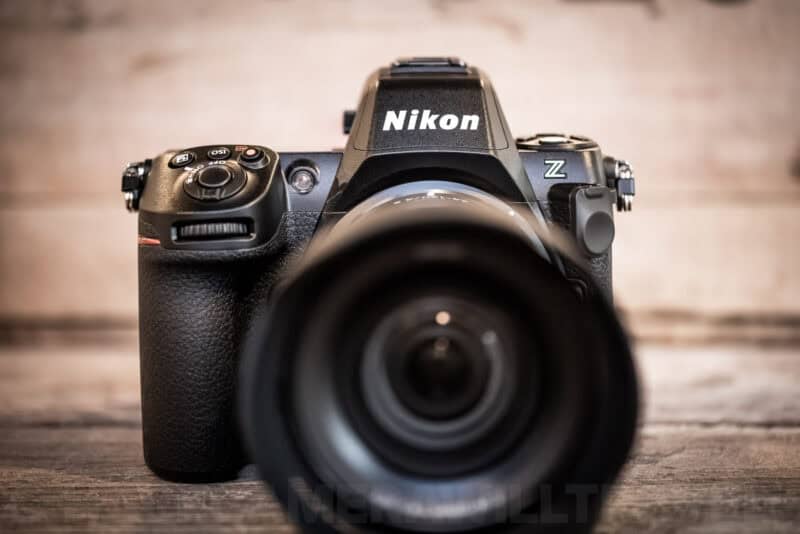
That’s a topic for a more detailed separate post. And as it happens, I have one: Nikon Z8 Memory Card Recommendations.
But if you just want the short version, here are some quick recommendations:
Slot 1: CFexpress Type B
CFexpress cards have been evolving quickly. A recent evolution has been from CFexpress 2.0 to CFexpress 4.0. While most cameras still have a CFexpress 2.0 interface, the spec is designed to be backward compatible, so 4.0 cards will work in 2.0 devices (at 2.0 speeds). That's especially pertinent because many of the memory card makers are upgrading their lines to 4.0, making 2.0 cards harder to find in stores.
ProGrade Digital Iridium CFexpress 4.0 Type B (VPG400)
- Card Type: CFexpress 4.0 Type B
- VPG Rating: VPG400
- Maximum Read Speed: 3550 MB/s
- Sustained Write: 850–1500 MB/s (capacity dependent)
- Storage Capacities: 400GB, 800GB, 1.6TB
Check current price and availability at:
Delkin Devices BLACK CFexpress 4.0 Type B (VPG400)
- Card Type: CFexpress 4.0 Type B
- VPG Rating: VPG400
- Maximum Read Speed: 3700 MB/s
- Minimum Sustained Write: 2040 MB/s
- Storage Capacities: 512GB, 1TB, 2TB
Check current price and availability at:
Lexar Professional DIAMOND CFexpress 4.0 Type B
- Card Type: CFexpress 4.0 Type B
- VPG Rating: VPG400
- Maximum Read Speed: 3700 MB/s
- Minimum Sustained Write: 3200 MB/s
- Storage Capacities: 128GB, 256GB, 512GB, 1TB
Check current price and availability at:
Angelbird AV PRO SE CFexpress B — CFexpress 4.0 Type B (MK2)
- Card Type: CFexpress 4.0 Type B
- VPG Rating: not published (Angelbird uses sustained-write specs)
- Maximum Read Speed: 3700 MB/s
- Sustained Write: 500–3500 MB/s (capacity dependent)
- Storage Capacities: 256GB, 512GB, 1TB, 2TB, 4TB
Check current price and availability at:
SanDisk Extreme PRO CFexpress 4.0 Type B
- Card Type: CFexpress 4.0 Type B — backward compatible
- VPG Rating: VPG400/800 (128–400GB) · VPG1600 (1TB–4TB)
- Maximum Read Speed: 3700 MB/s
- Storage Capacities: 128GB, 256GB, 400GB, 1TB, 2TB, 4TB
Check current price and availability at:
Lexar Professional GOLD CFexpress 4.0 Type B
- Card Type: CFexpress 2.0 Type B
- Minimum Sustained Write: 3300 MB/s
- Storage Capacities: 128GB, 256GB
Check current price and availability at:
ProGrade Digital Gold CFexpress 4.0 Type B (works in 2.0 cameras)
- Card Type: CFexpress 4.0 Type B
- Maximum Read Speed: 3400 MB/s
- Storage Capacities: 128GB, 256GB, 512GB, 1TB, 2TB, 4TB
Check current price and availability at:
Recommendations checked: August 2026
XQD cards will also work, but XQD is the older format and no longer the card to buy new. I go into the differences in my Nikon Z8 memory card recommendations.
Slot 2: SDXC UHS-II V90
With a camera this good, you don't want to skimp on a memory card that's too slow to let you use all the camera's features; that's just asking for problems. Here are some good choices that will let you use all the features of your camera.
SanDisk Extreme PRO V90 UHS-II
- Type: SDXC
- Video Speed Class: V90
- UHS Bus Interface Type: UHS-II
- Maximum Read Speed: 310 MB/s
- Storage Capacities: 128GB, 256GB, 512GB, 1TB, 2TB
Check current price and availability at:
SanDisk is probably the best-known of the SD card manufacturers listed here, and the Extreme Pro range is their top model.
One thing to note with SanDisk cards is that they recycle their model names. And in this case, not only are there older cards that carry the Extreme Pro name, but there are also V30 and V60 versions. This is the newest V90 version.
You'll probably find those older versions work just fine — it really depends how far back you go — but you can tell the latest version because it's labeled with both V90 and UHS-II and has 310MB/s read and 304 MB/s write ratings listed on the card itself.
ProGrade Digital SDXC UHS-II V90 300R Iridium
- Type: SDXC
- Video Speed Class: V90
- UHS Bus Interface Type: UHS-II
- Maximum Read Speed: 300 MB/s
- Storage Capacities: 128GB, 256GB, 512GB, 1TB
Check current price and availability at:
ProGrade Digital emerged after corportate upheaval at Lexar several years ago, and they have since built a very well-regarded brand. They cater to the top end of the market. And, having used a number of their cards (and top-notch memory readers) intensively for several years now, I've found them to be excellent.
Lexar Professional 2000x GOLD V90 UHS-II
- Type: SDXC
- Video Speed Class: V90
- UHS Bus Interface Type: UHS-II
- Maximum Read Speed: 300 MB/s
- Storage Capacities: 64GB, 128GB, 256GB
Check current price and availability at:
This is the fastest card in the Lexar Professional line, with a rated write speed of up to 260 MB/s. It's available in sizes from 64GB to 256GB.
Delkin Devices POWER V90 UHS-II SDXC
- Type: SDXC
- Video Speed Class: V90
- UHS Bus Interface Type: UHS-II
- Maximum Read Speed: 300 MB/s
- Storage Capacities: 64GB, 128GB, 256GB, 512GB, 1TB, 2TB
Check current price and availability at:
Delkin Devices have actually been around for years, but a few years ago they overhauled their SD card lineup to make it both clearer and more competitive. The Power range is their fastest line. This card is rated at V90 with UHS-II.
PNY EliteX-PRO90 V90 UHS-II
- Type: SDXC
- Video Speed Class: V90
- UHS Bus Interface Type: UHS-II
- Maximum Read Speed: 300 MB/s
- Storage Capacities: 64GB, 128GB, 256GB
Check current price and availability at:
New Jersey-based PNY have been making very good flash memory for quite some time, and in my own tests I've found this card to be very fast — even slightly faster than the speeds they claim on the box. It comes in storage capacities of 64GB, 128GB, or 256GB.
Angelbird AV PRO SD MK2 V90 UHS-II
- Type: SDXC
- Video Speed Class: V90
- UHS Bus Interface Type: UHS-II
- Maximum Read Speed: 300 MB/s
- Storage Capacities: 64GB, 128GB, 256GB, 512GB
Check current price and availability at:
Angelbird is a relatively new entrant in the memory card game, and they're a boutique manufacturer catering to the very top end of the market. And in my experience, their reputation for excellence is well deserved. These cards aren't always widely available, but they're well worth trying to track down. An interesting tidbit: the branding on the cards is printed directly onto the card so that there's no adhesive to melt when the cards get hot -- and they will get hot, as all cards do when you push them with high-spec cameras like this. There's also a V60 version. It's also very good, but the one I'm including here is their faster V90 card.
Nextorage NX-F2PRO V90 UHS-II
- Type: SDXC
- Video Speed Class: V90
- UHS Bus Interface Type: UHS-II
- Maximum Read Speed: 300 MB/s
- Storage Capacities: 64GB, 128GB, 256GB, 512GB
Check current price and availability at:
I've found the cards from Japanese memory card maker Nextorage to be excellent. But they're not always widely available at retailers in the US.
Recommendations checked: August 2026
In general, SDXC cards that carry the V90 rating are good bets. Don’t get an SD Express card: the Z8 supports UHS-I and UHS-II SD cards, not SD Express, so you’d pay a lot more for speed the camera can’t use.
Frequently asked questions
What memory cards does the Nikon Z8 take?
CFexpress Type B or XQD in one slot, and SD, SDHC, or SDXC in the other. UHS-II SD cards run fastest in the SD slot.
Does the Nikon Z8 have two CFexpress slots?
No. It has one CFexpress Type B/XQD slot and one SD slot.
Should I use Backup or Overflow on the Z8?
Backup gives you an instant second copy of every picture, but the camera writes at the speed of the slower card and stops when either card fills. Overflow gives you the most space and speed, with one copy.
Can the Z8 shoot without a memory card?
Yes, by default. It fires but saves nothing. Set [Slot empty release lock] to [Release locked] to prevent it.


