
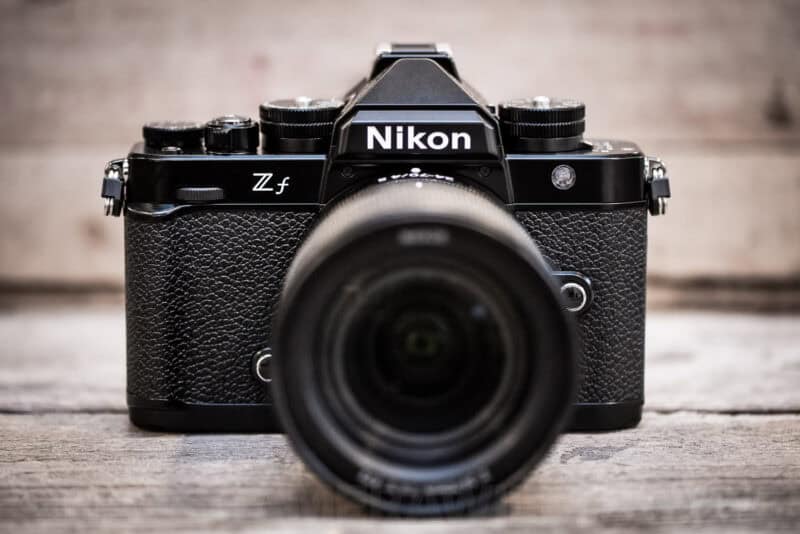
The Nikon Zf has two memory card slots, and they take two different card formats. Slot 1 is for full-size SD cards and supports the faster UHS-II interface. Slot 2 is for smaller microSD cards and is UHS-I only.
It’s an unusual combination, and I’ve written before about which memory cards to get for the Nikon Zf.
But what I’m focusing on here is the dual aspect of it. And, more specifically, how to control the way in which the camera uses them.
This post could easily be subtitled “Why You Should Use 2 Memory Cards in Your Nikon Zf,” because I’d argue that there are strong arguments in favor of filling both memory cards. But that’s not actually a requirement — the camera will work just fine with only one memory card slot filled. (If you’re choosing only one, the full-size SD is a better option, especially if you’re shooting video, pixel-shift photos, or burst photos. That’s because the SD slot supports UHS-II, which allows for faster data transfer. The microSD slot only supports UHS-I.)
There are advantages to filling both memory card slots, but it’s not required.
The advantage of filling both slots is that it opens up options on how the second slot is used.
That’s what I’m focusing on here.
Set the primary memory card
The first thing you’ll want to do is assign a primary slot. The default is the full-size SD card slot, and in most cases, that’s a good choice.
But if you want to reverse it, to make the microSD card slot the primary slot, you can find this under:
PHOTO SHOOTING MENU (the camera icon) > Primary slot selection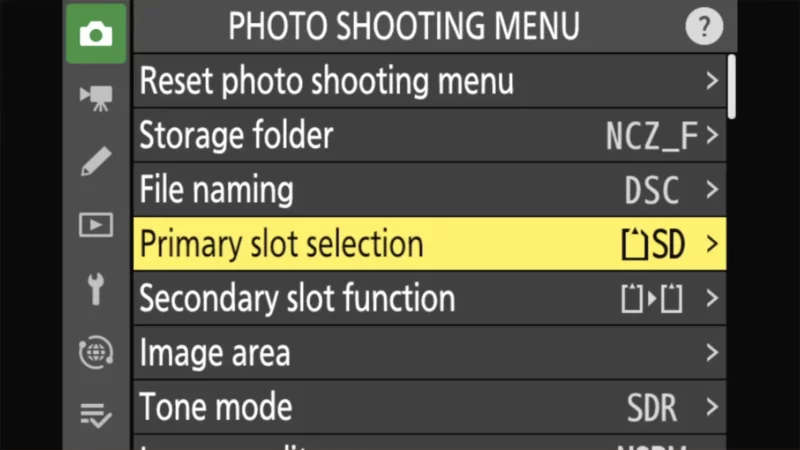
It’s a simple choice. The default is SD. To change it, just choose microSD instead.
Set the secondary slot function (how the second card is used)
With a second memory card in the camera, you get some extra features.
You can find these under:
PHOTO SHOOTING MENU (the camera icon) > Secondary slot function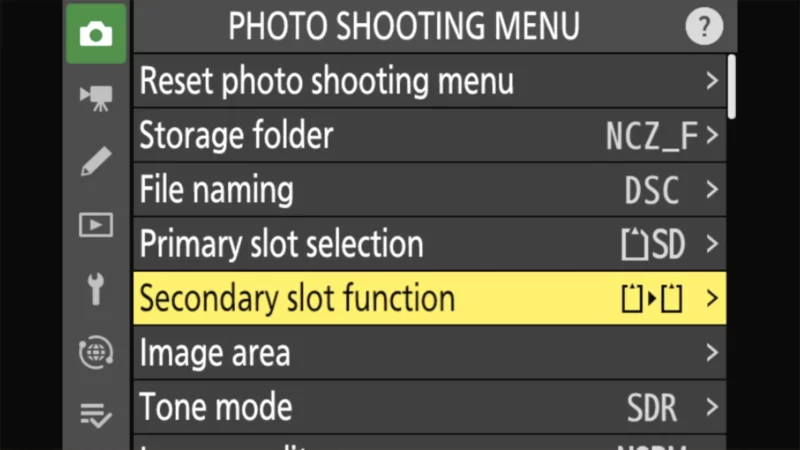
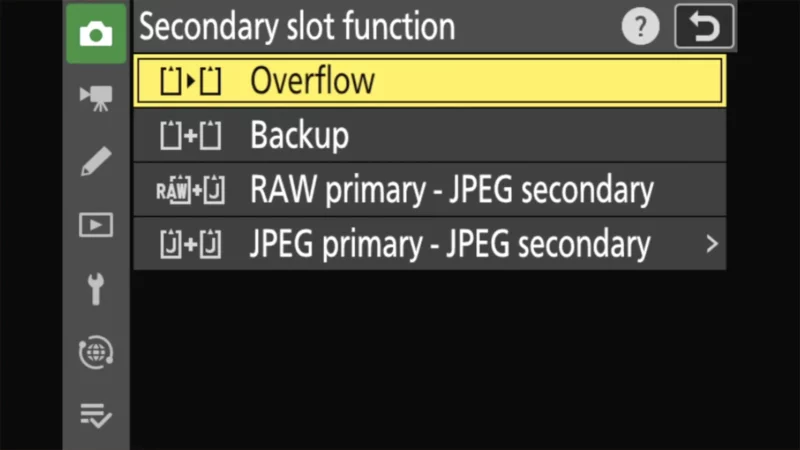
Overflow
The default setting is overflow.
And it’s pretty simple: if you run out of storage space on the first card, it will automatically continue on the second card.
Backup
The backup option creates an identical duplicate on each card. It’s a great in-the-field safety precaution. Or if you’re shooting with an assistant, you can hand off one card to them for either safekeeping or for some immediate processing while you keep shooting.
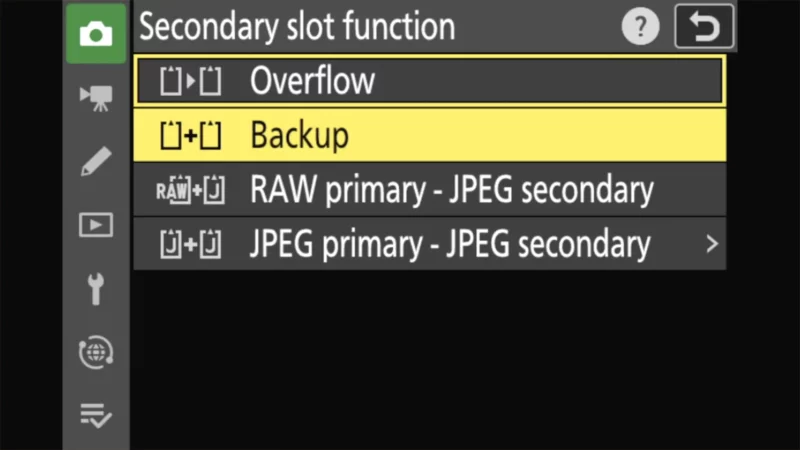
Critical warning: The “Backup Mode” bottleneck
There is one specific scenario where the Zf’s mixed card slots can cause a problem.
If you set the camera to “Backup” mode (writing the same file to both cards simultaneously) and you shoot high-bitrate video (4K60p), the camera is limited by the speed of the slowest card. You can run into much the same issue if you’re shooting in the high-speed Pre-Release Capture (C30) mode.


Since the microSD slot is slower (UHS-I), it can become a bottleneck. Even if you have a blazing fast V90 card in Slot 1, the buffer can only empty as fast as the microSD card in Slot 2 accepts the second copy, so a long burst stalls sooner than it would writing to the SD card alone.
My Advice: If you shoot long bursts, leave the Secondary Slot function on “Overflow” rather than “Backup” — or, if you want the redundancy, put a V30 microSD card in Slot 2 and test how deep your bursts actually run before you rely on it. For video, this menu isn’t the setting to change at all: point Destination (in the video recording menu) at Slot 1.
RAW primary – JPEG secondary
This applies if you’re using the RAW + JPEG option in the Image Quality setting. It will save a RAW version of the image onto the primary card and a JPEG version onto the secondary card.
If you have a different Image Quality setting, such as RAW or JPEG/HEIF, it will save two copies of the same file, one on each card. In other words, it will be functionally the same as the Backup option.
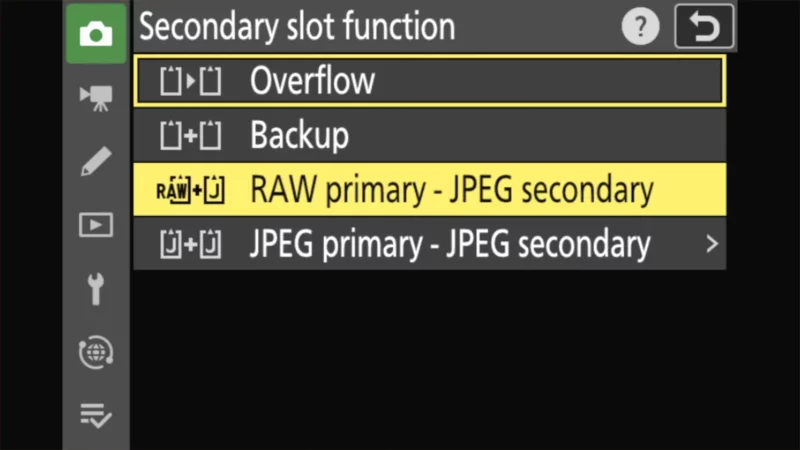
There is a prerequisite for this option to be available: you’ll have to have the Tone Mode set to SDR (which is the default setting). If you set the Tone Mode to HLG, the available option will instead be RAW primary – HEIF secondary. That’s because HLG can only save in HEIF format.
If you have an Image Quality setting for a different kind of file (i.e., RAW), it becomes functionally the same as Backup.
JPEG primary – JPEG secondary
This saves a JPEG copy to each memory card.
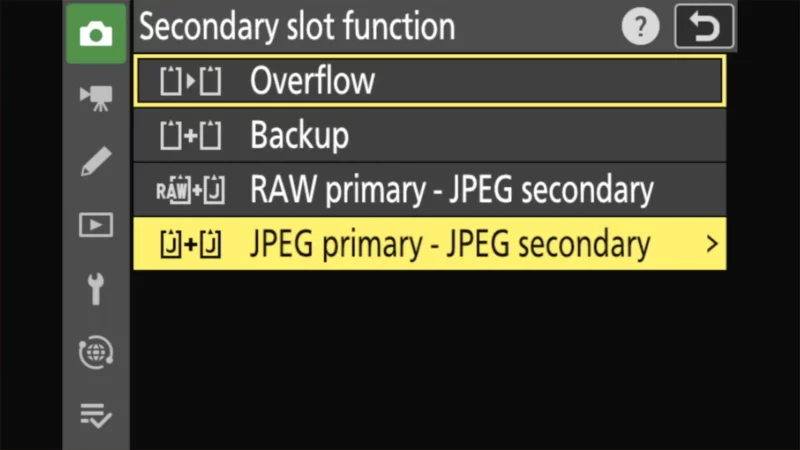
So the natural question is how this is any different from using the Backup setting above. And in this case, it’s because the second copy is a smaller version and at the JPEG basic setting. So it’s a smaller, lighter-weight version.
You’ll notice the small arrow to the right of the option. If you drill down to that, you get an option of saving the second copy as either a Medium (4528×3024 pixels) or Small (3024×2016 pixels) file (both are with JPEG basic compression settings).
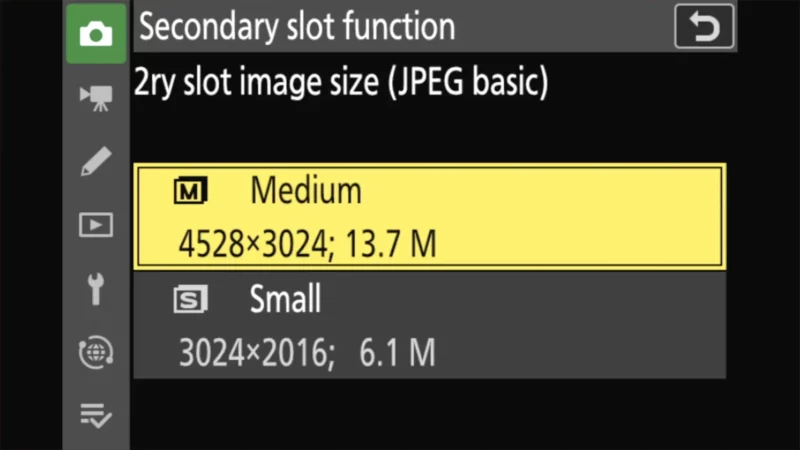
This smaller, lighter-weight version can be useful in some workflows, especially for photojournalists or sports photographers who need to transmit files quickly from a location. But it’s worth emphasizing that with this specific combination of settings, the secondary slot isn’t just a backup in this mode; it’s creating a lower-quality file.
If you have an Image Quality setting for a different kind of file (i.e., RAW), it becomes functionally the same as Backup.
Best settings by workflow
| Workflow | Recommended Slot 2 Setting | Why? |
| General Travel | Overflow | Maximizes storage; set-and-forget. |
| Wedding / Paid Work | Backup | Safety first; if one card dies, you have a copy. |
| Sports / Action | JPEG Primary – JPEG Secondary | Send small JPEGs to editor immediately; keep high-res on Card 1. |
| High-Res Video | Overflow (Video to Slot 1) | Avoids the microSD speed bottleneck. |
Things worth knowing
There are some fine-print quirks worth knowing about.
- If you have anything other than Overflow selected, the number on the top screen that shows how many images you can fit on the remaining space will refer to the memory card with the least remaining space. When the first card runs out of space, the shutter will stop working.
- All of the above refer to saving photos. There’s a separate section for specifying where video files should be saved.
You can find it under:
VIDEO RECORDING MENU (video camera icon) > Destination- I recommend setting the Video Destination to Slot 1 (SD) by default. Since Slot 1 is UHS-II and Slot 2 is UHS-I, you almost always want high-bitrate video going to the faster SD card to avoid buffer issues or stopped recordings.
- Technically, it’s possible to use two microSD cards in the Nikon Zf by using one in a microSD-to-SD cartridge adapter. However, I don’t typically recommend that approach because I’ve seen too many times something has gone wrong by adding the extra potential failure point of the adapter.
It’s also worth knowing what that adapter does and doesn’t do. It’s a passive shell — it re-routes the pins to the full-size footprint and has no controller of its own, so it adds no speed. A UHS-I microSD card in an adapter sitting in the UHS-II SD slot is still a UHS-I card running at UHS-I speeds.
Which memory cards should you get?
The good news is that neither of these is an exotic memory card format, and you can get fast, large-capacity cards at very reasonable prices. So not only does it make sense to fill both slots, but you can do so without it costing an arm and a leg.
I have a much more detailed post on memory cards for the Nikon Zf, but here are some quick recommendations for each slot.
Something you might notice with these is that the full-size SD cards listed are faster but their maximum storage capacities are lower. And these microSD cards (which are UHS-I) are slower but have higher maximum storage capacities.
One thing not to spend money on is a UHS-II microSD card for Slot 2. UHS-II needs a second row of pins on both the card and the slot, and the Zf’s microSD slot is UHS-I only, so a UHS-II microSD card just falls back to UHS-I speeds. The bus always runs at the speed of whichever is slower, card or slot, which is also why a UHS-II SD card only pays off in Slot 1.
If you’re using the Overflow setting, the cards do not need to be the same storage capacity, so you can have a lower-capacity (but faster) card in the full-SD slot and a slower but higher-capacity card for overflow in Slot 2.
If you’re using any of the other options from above, the shutter will only work so long as there is space on both cards. Put another way, as soon as one card fills up, the shutter will stop working, even if there’s plenty of space still on the other card. So, in that case, it makes sense to use matching storage capacities, but it’s not technically a requirement.
Full-size SD cards
With a camera this good, you don't want to skimp on a memory card that's too slow to let you use all the camera's features; that's just asking for problems. Here are some good choices that will let you use all the features of your camera.
SanDisk Extreme PRO V90 UHS-II
- Type: SDXC
- Video Speed Class: V90
- UHS Bus Interface Type: UHS-II
- Maximum Read Speed: 310 MB/s
- Storage Capacities: 128GB, 256GB, 512GB, 1TB, 2TB
Check current price and availability at:
SanDisk is probably the best-known of the SD card manufacturers listed here, and the Extreme Pro range is their top model.
One thing to note with SanDisk cards is that they recycle their model names. And in this case, not only are there older cards that carry the Extreme Pro name, but there are also V30 and V60 versions. This is the newest V90 version.
You'll probably find those older versions work just fine — it really depends how far back you go — but you can tell the latest version because it's labeled with both V90 and UHS-II and has 310MB/s read and 304 MB/s write ratings listed on the card itself.
ProGrade Digital SDXC UHS-II V90 300R Iridium
- Type: SDXC
- Video Speed Class: V90
- UHS Bus Interface Type: UHS-II
- Maximum Read Speed: 300 MB/s
- Storage Capacities: 128GB, 256GB, 512GB, 1TB
Check current price and availability at:
ProGrade Digital emerged after corportate upheaval at Lexar several years ago, and they have since built a very well-regarded brand. They cater to the top end of the market. And, having used a number of their cards (and top-notch memory readers) intensively for several years now, I've found them to be excellent.
Lexar Professional 2000x GOLD V90 UHS-II
- Type: SDXC
- Video Speed Class: V90
- UHS Bus Interface Type: UHS-II
- Maximum Read Speed: 300 MB/s
- Storage Capacities: 64GB, 128GB, 256GB
Check current price and availability at:
This is the fastest card in the Lexar Professional line, with a rated write speed of up to 260 MB/s. It's available in sizes from 64GB to 256GB.
Delkin Devices POWER V90 UHS-II SDXC
- Type: SDXC
- Video Speed Class: V90
- UHS Bus Interface Type: UHS-II
- Maximum Read Speed: 300 MB/s
- Storage Capacities: 64GB, 128GB, 256GB, 512GB, 1TB, 2TB
Check current price and availability at:
Delkin Devices have actually been around for years, but a few years ago they overhauled their SD card lineup to make it both clearer and more competitive. The Power range is their fastest line. This card is rated at V90 with UHS-II.
PNY EliteX-PRO90 V90 UHS-II
- Type: SDXC
- Video Speed Class: V90
- UHS Bus Interface Type: UHS-II
- Maximum Read Speed: 300 MB/s
- Storage Capacities: 64GB, 128GB, 256GB
Check current price and availability at:
New Jersey-based PNY have been making very good flash memory for quite some time, and in my own tests I've found this card to be very fast — even slightly faster than the speeds they claim on the box. It comes in storage capacities of 64GB, 128GB, or 256GB.
Angelbird AV PRO SD MK2 V90 UHS-II
- Type: SDXC
- Video Speed Class: V90
- UHS Bus Interface Type: UHS-II
- Maximum Read Speed: 300 MB/s
- Storage Capacities: 64GB, 128GB, 256GB, 512GB
Check current price and availability at:
Angelbird is a relatively new entrant in the memory card game, and they're a boutique manufacturer catering to the very top end of the market. And in my experience, their reputation for excellence is well deserved. These cards aren't always widely available, but they're well worth trying to track down. An interesting tidbit: the branding on the cards is printed directly onto the card so that there's no adhesive to melt when the cards get hot -- and they will get hot, as all cards do when you push them with high-spec cameras like this. There's also a V60 version. It's also very good, but the one I'm including here is their faster V90 card.
Nextorage NX-F2PRO V90 UHS-II
- Type: SDXC
- Video Speed Class: V90
- UHS Bus Interface Type: UHS-II
- Maximum Read Speed: 300 MB/s
- Storage Capacities: 64GB, 128GB, 256GB, 512GB
Check current price and availability at:
I've found the cards from Japanese memory card maker Nextorage to be excellent. But they're not always widely available at retailers in the US.
Recommendations checked: August 2026
microSD cards
SanDisk Extreme microSD V30 UHS-I
- Type: microSDXC
- Video Speed Class: V30
- UHS Bus Interface Type: UHS-I
- Maximum Read Speed: 245 MB/s
- Storage Capacities: 32GB–2TB
Check current price and availability at:
Fast, cost-effective, reliable, and widely available, the SanDisk Extreme cards are safe bets for a wide range of cameras. They're readily available at major retailers and quite cost-effective,
The latest version of the SanDisk Extreme comes in 32GB, 64GB, 128GB, 256GB, 512GB, 1TB, and 2TB versions.
As with most of its product names, SanDisk recycles them with newer, faster cards. So you can find "Extreme" cards that are actually several years old. It's therefore worth checking the model number (in this case it's SDSQXH9), although in practice you'll probably find that older versions of the Extreme cards will also work well.
SanDisk uses a three-part model numbering system in the format SDSQXH9-128G-GZ6MA. In this example, SDSQXH9 is the model number, 128G refers to the amount of memory, and the last 5 characters are used by the marketing department for different parts of the world but the cards are otherwise the same. So the first part is the crucial part if you're looking to see which model the card is, and you don't have to take much notice of the last 5 characters.
Lexar Professional SILVER PLUS microSDXC V30 UHS-I
- Type: microSDXC
- Video Speed Class: V30
- UHS Bus Interface Type: UHS-I
- Maximum Read Speed: 205 MB/s
- Storage Capacities: 64GB, 128GB, 256GB, 512GB, 1TB
Check current price and availability at:
Samsung PRO Plus microSDXC V30 UHS-I
- Type: microSDXC
- Video Speed Class: V30
- UHS Bus Interface Type: UHS-I
- Maximum Read Speed: 180 MB/s
- Storage Capacities: 128GB, 256GB, 512GB, 1TB
Check current price and availability at:
PNY PRO Elite Prime microSDXC V30 UHS-I
- Type: microSDXC
- Video Speed Class: V30
- UHS Bus Interface Type: UHS-I
- Maximum Read Speed: 200 MB/s
- Storage Capacities: 64GB–1.5TB
Check current price and availability at:
Recommendations checked: August 2026
You can see some of the photos I’ve taken with the Nikon Zf in these posts:
– Nikon Zf Sample Images (a varied collection of color and black and white photos taken under various conditions)
– Nikon Zf High ISO Sample Images (focusing specifically on high-ISO images taken in low-light conditions)
– Nikon Zf ISO Range Sample Images (sequences shot throughout the ISO range to help with assessing image quality at various ISOs)
– Shooting Panoramas with the Nikon Zf (focusing on stitched panoramas)


