When most cameras save a RAW file, they also generate a preview JPG and embed that into the RAW file’s data.
It’s that JPG you see when you preview photos on the back screen.
It’s also used as the preview in some imaging apps to speed things up — processing the RAW information and then interpreting it takes time and processor power, after all.
There are times when being able to extract those embedded JPGs can be useful.
You might want to get the version with the camera’s built-in effects applied (which don’t apply on the underlying RAW image — just the JPG preview).
You might want to speed things up for culling or processing, because it’s quicker to read a JPG that already exists than generating a new one from the RAW data.
You might want to quickly share some lighter-weight JPGs without messing with RAW processing software.
Or, if the underlying RAW image data has become corrupted, it might be a viable way to salvage at least the preview image.
Here are two ways to extract those preview JPGs from the RAW files.
ERawP app (free)
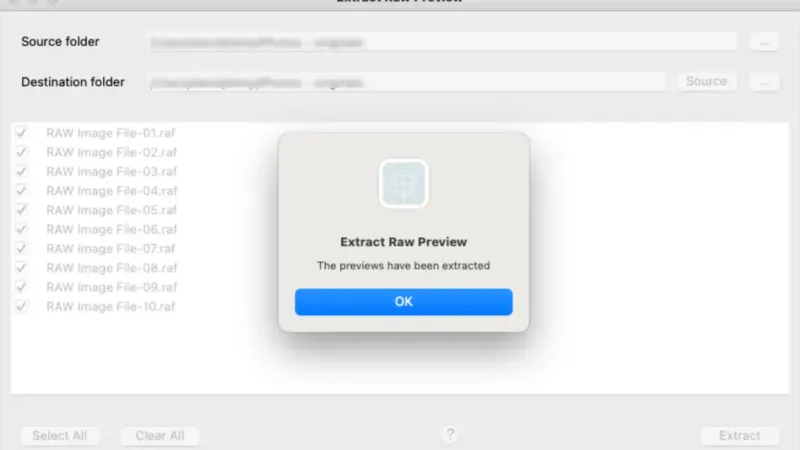
The ERawP app (or Extra Raw Preview) is developed by Fulvio Senore. It’s free and cross-platform, with versions for Windows, Linux, and Mac.


It’s very simple, and there are no bells and whistles. You simply choose the directory of the original images and set the folder where you’d like to save the extracted JPGs.
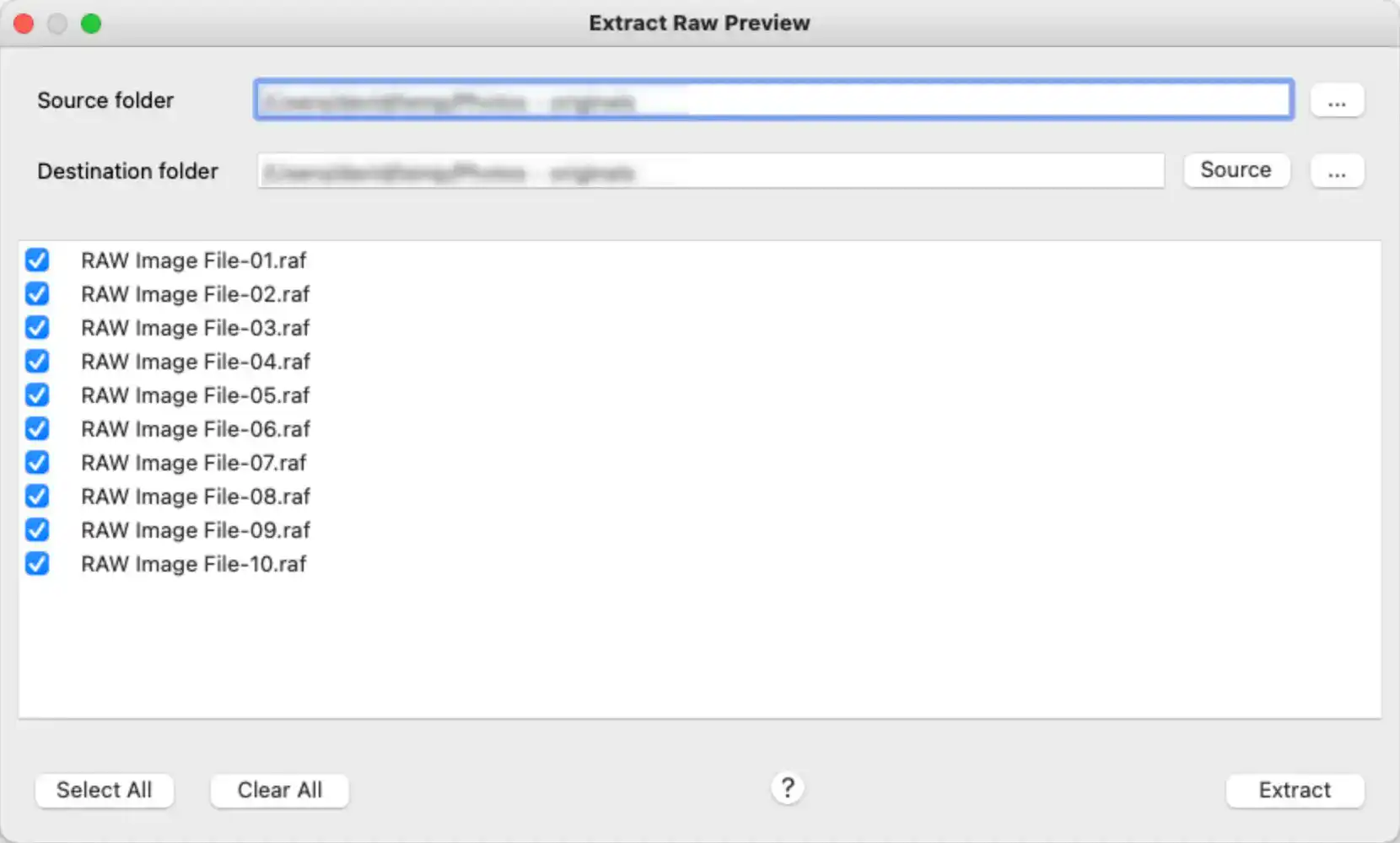
The documentation is sparse, and it’s not clear how frequently it’s updated to work with new revisions to the propriety RAW formats. For the common formats I’ve tried, it works well, but your mileage might vary if you’re using a less-common or newer format.
You can download it here. (NB: If you click on a download link on that page and nothing happens, it might be your browser blocking “insecure” downloads.” I had to separately authorize the download before my browser actually got the file. Every browser handles that a bit differently.))
PhotoMechanic (paid)
One app that is especially good at working with the embedded previews is PhotoMechanic. It’s one of the reasons the app is has a well-earned reputation for being lightning-fast.
But PhotoMechanic isn’t free — in fact, it’s kind of pricey.
Because of that, this option is probably only practical if you’re already using PhotoMechanic (or plan to use it for other things as well — it’s very powerful).
You can find this image tool under:
Tools > Extra JPG Previews from RAW Photos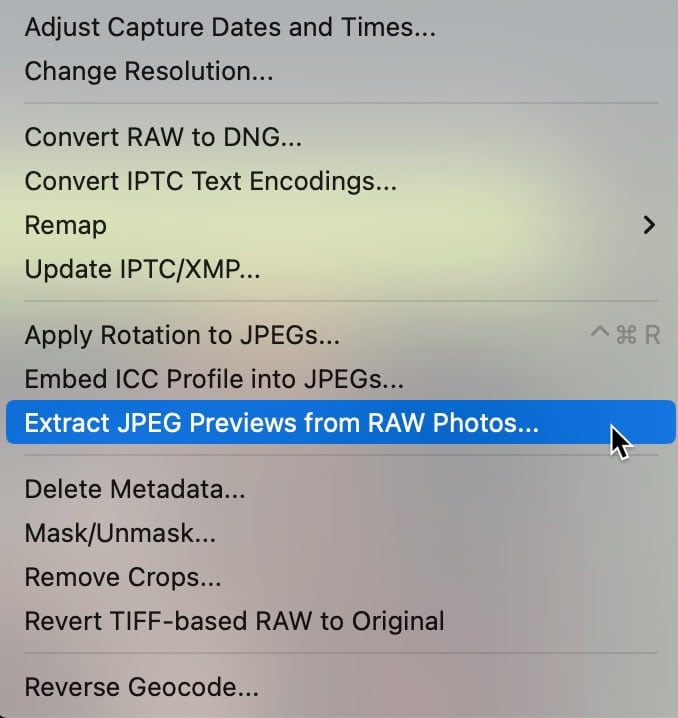
Things worth knowing
Lightroom Classic can’t do this
Recent versions of Lightroom Classic have included this feature, at least in part. When you first import images, it initially reads the embedded previews before it’s had a chance to replace them with a new preview image.
However, Lightroom’s use of embedded thumbnail preview images is geared toward reducing the time it takes for the image ingestion process rather than working with those preview images. So, it’s not currently possible to extract the JPG previews in Lightroom.
Lightroom’s regenerated thumbnail previews
When you open files in Lightroom Classic, it initially uses the built-in thumbnail preview to speed things up (you can toggle this behavior). But when you open the image in the Develop Module, it’ll regenerate the preview.
It’s worth knowing that that regenerated preview doesn’t replace the version in the original RAW file. That is, if you export the original RAW files from Lightroom without converting them to another format, or if you just access the original RAW files through the filesystem, they will retain the camera-generated preview thumbnails. However, when you’re viewing the images through Lightroom, it’ll be showing you the Lightroom-regenerated previews.
So even if you’re “edited” the files in Lightroom, you can still go back and extract the original previews using one of the tools above.
Instant JPEG from RAW (free / no longer available)
UPDATE: Instant JPEG from RAW appears to no longer be available. I’m leaving the mention here only for historical reference.
Instant JPEG from RAW, from Michael Tapes Design, produces basically the same end result but gets there a slightly different way.
It installs new items in the context-sensitive menu that are accessible when you right-click on the files in Finder or Explorer.
You can work with individual files or choose multiple files at once.
It’s free, and there are versions for Windows and Mac.


