Several versions ago, Lightroom Classic added the ability to use a RAW file’s embedded preview thumbnail rather than forcing a re-rendering and rebuilding of thumbnail previews for every file.1
Why would you want to do that? The reason is speed.
It can be vastly quicker for importing and culling photos because it dramatically cuts down on one of my least favorite things about working with Lightroom: how slow the process is to import images into the catalog and rebuild the preview images.2
Before this option was available, when you imported images into Lightroom, you had the option of having Lightroom generate new previews or creating none (in other words, deferring to doing it later manually).
- The problem with creating new previews using the 1:1 or standard settings is that it’s a slow process, and you can end up waiting for quite a while before you can get on with culling (ie. choosing the keepers).
- The problem with creating no previews (ie. the minimal setting) is that you need a preview for many basic tasks in Lightroom. It’s the whole point of a visual interface; otherwise, you’d just be using filenames. If you choose the minimal setting when importing images into Lightroom, those previews aren’t there when you need them, so when you need a higher-resolution version to take a closer look, you have to wait for Lightroom to create a preview for that specific image. And, again, that’s slow.
But most cameras save an embedded JPG preview in the RAW files when it saves them to the memory card. Many cameras even make it a full-size image, not just a tiny thumbnail. It also reflects any filters or effects that you’re applying in the camera, but those aren’t reflected in the underlying RAW file.
So now Lightroom can use those embedded previews that already exist. And because it eliminates the process of generating previews, it can speed things up immensely.
It’s one of the tricks that has been up the sleeves of PhotoMechanic for years and has given it such a strong reputation for speed and so beloved of photojournalists and sports photographers.
How to make use of the embedded previews in RAW files
You enable this feature in Lightroom Classic’s import dialog.
At the top right of the dialog, under File Handling, you have a menu for “Build Preview” options. The previous options of Minimal, Standard, and 1:1 are still there.
There’s also now a new option of Embedded & Sidecar.

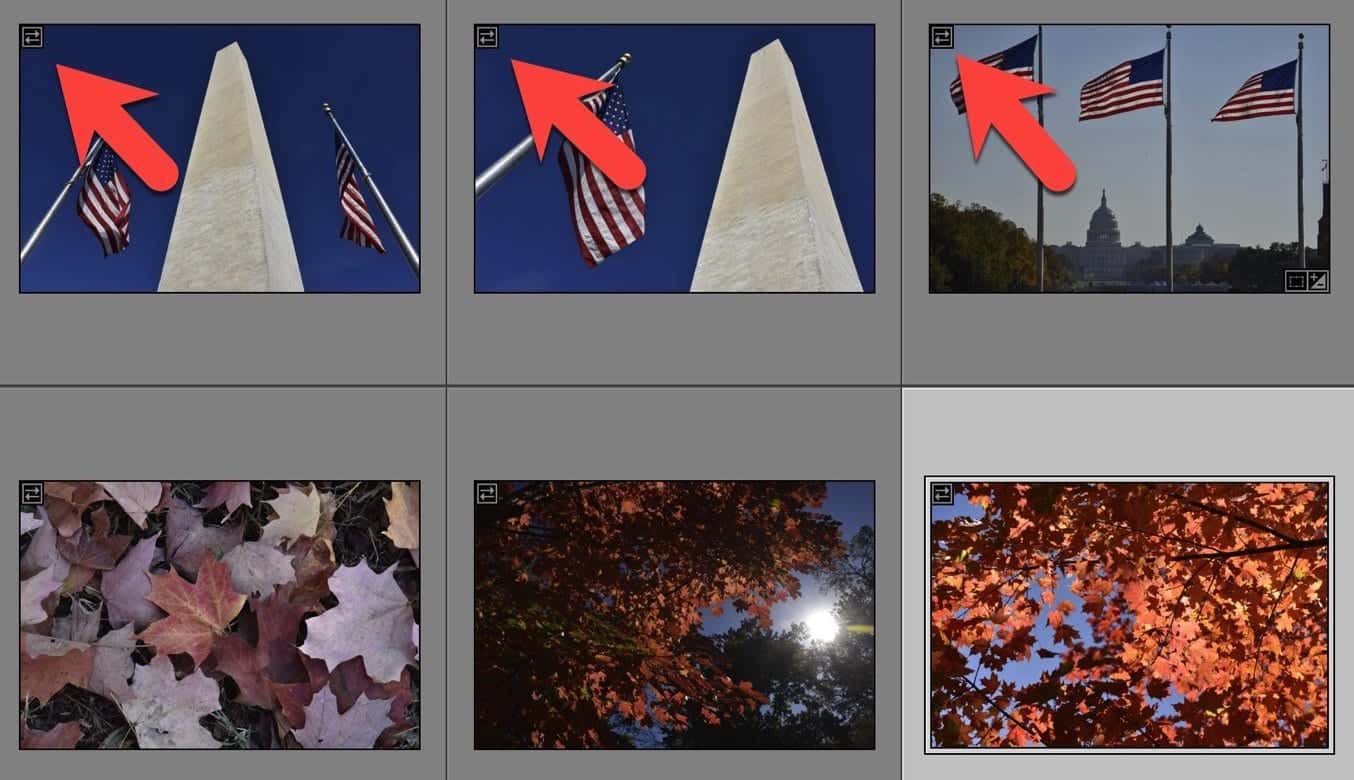
Once the images are imported and you’re viewing them in the Library module, there’s a new small icon that shows that you’re looking at the embedded preview. It shows in the top left of the thumbnails, like this:
Replace embedded previews
To go along with this new option, there’s a second setting that comes in very handy. In Lightroom’s preferences, you can now choose “Replace embedded previews with standard previews during idle time.”
You can find this setting under:
Preferences > General > Import Options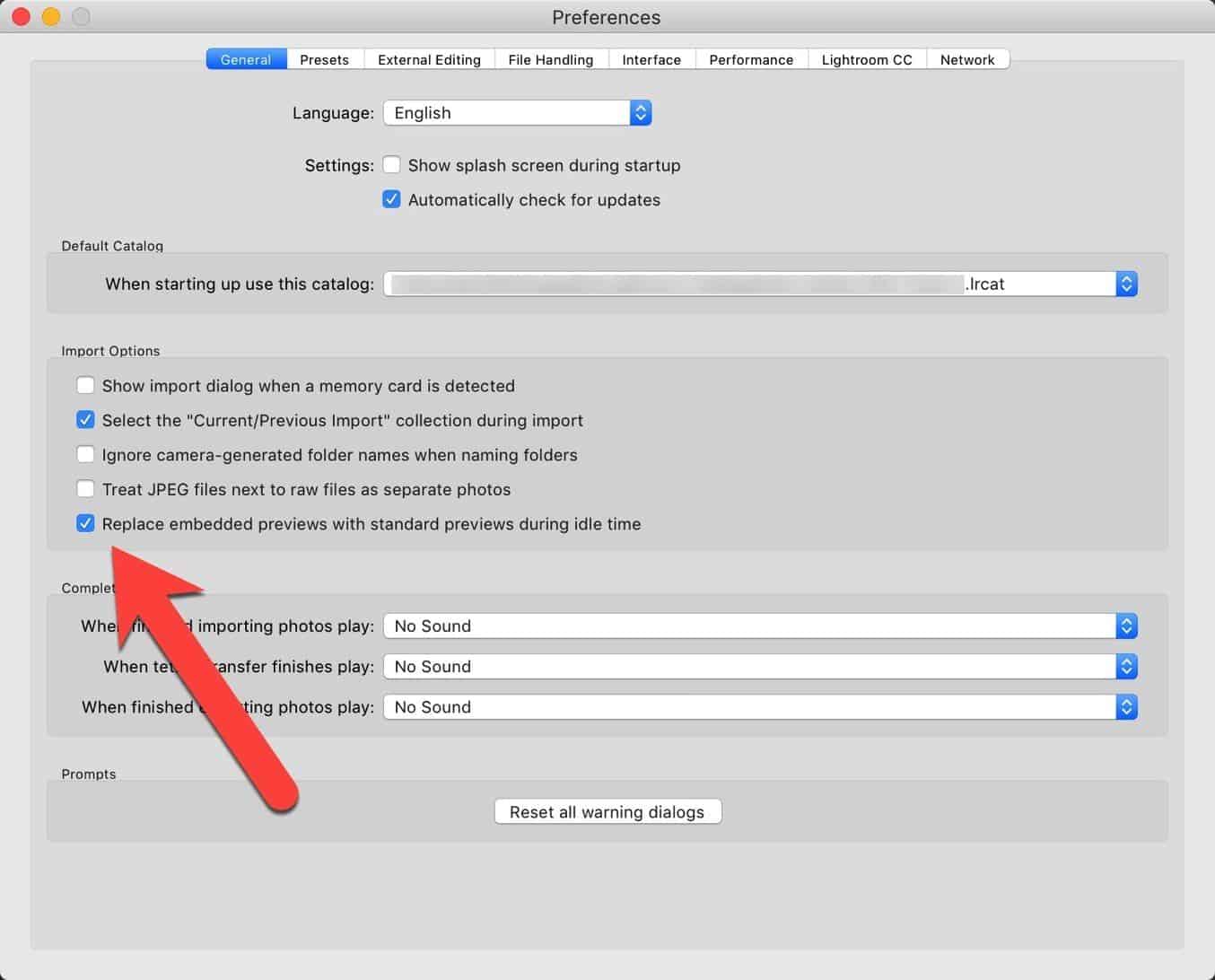
Things worth knowing
This is only relevant if you’re working with RAW files. If you’re importing JPGs, it just uses the original JPG.


Many newer cameras embed full-size previews, but not all do. Fujifilm and Olympus cameras use smaller embedded previews, but if you’ve enabled the RAW+JPG option when shooting with those cameras, this feature will use the JPG from those pairs (ie. the sidecar file). But for cameras that only have a smaller thumbnail available, this can be a less-than-useful feature because you might only have a low-resolution embedded thumbnail to work with. In that case, you might prefer to disable this feature and just force Lightroom to rebuild the thumbnails with the older method.
Embedded preview thumbnails are primarily useful for importing and culling images. Or, put another way, deciding which images from a shoot to keep and which to delete. Once you start editing the Develop module, Lightroom will need to generate its own preview to work with. But by that stage of the workflow, speed in working with large numbers of images should be less crucial and noticeable.
Wrap-up
This is one of those features that I immediately turn on by default.
It addresses one of the biggest bottlenecks in the workflow: waiting for Lightroom to generate previews before getting to work. And it’s one of the reasons I often turned to PhotoMechanic for faster culling.
Basically, it means you can get cracking on the culling process right away. Then, by the time you need Lightroom to generate its own previews, you’ll hopefully be working with a much smaller collection of images, and the previews were hopefully already generated while Lightroom was idle.
Extracting preview JPGs from RAW files
This is somewhat related, but if you’re looking to extract the embedded JPG previews from RAW images, there are apps that can do that. That can be particularly useful in two situations:
- You’ve run into a RAW file corruption issue and are trying to salvage an image.
- Your camera has distinctive processing presets that aren’t directly available in Lightroom. The obvious example of this is with film emulation profiles (eg. Fujifilm) or other custom processing recipes that you have applied in the camera itself.