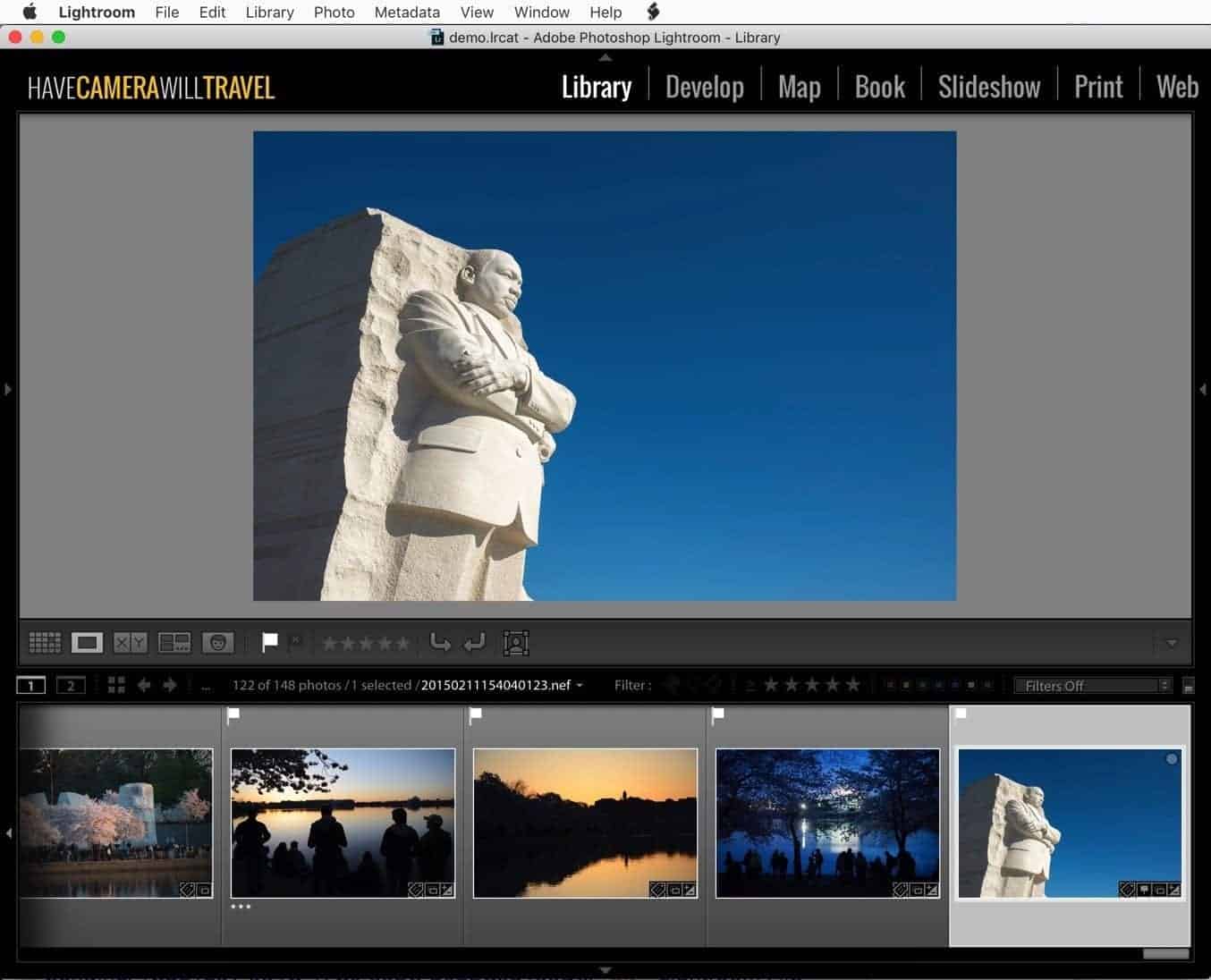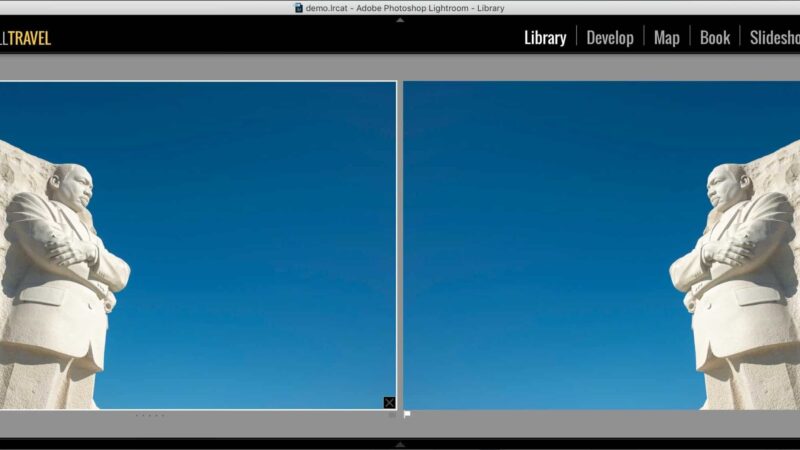
Here’s how to flip an image in Lightroom.
This is different from rotating it, which is a more precise operation that I’ve covered separately before.
What I’m talking about here is creating a direct mirror image, either horizontally or vertically. If you simply rotate by 180° you’ll end up with an image that’s upside down.
In general, of course, photos out of the camera come out the right way up and don’t require flipping. Most cameras these days have inbuilt sensors to detect the camera’s orientation when the photo was taken, and that is applied automatically to the image EXIF information. But cameras don’t always get it right or get it the way you want. Shooting straight up or down, for instance, will confuse the camera’s sensors.
But there are also some pretty common scenarios where flipping an image comes in handy. One is if you’re prepping an image for a layout with text or other graphical elements. Another is if you’ve scanned film or slides and had the original media back-to-front in the scanner. And another is if you’ve shot with the camera upside down, something that’s often done with GoPros, for example. Or maybe you’re going for a creative effect on an abstract shot.
It’s not hard, by any means. But like many functions in Lightroom, it might not be in the first place you look.
Lightroom’s menus change depending on what part of the screen and what module you’re in. It’s designed to give you the most logical options based on context, but it comes at some expense in terms of consistency.
Library module > Grid view
In the Library’s Grid mode, if you right-click on a thumbnail, you’ll get options for rotating left or right, but not flipping. Like this:
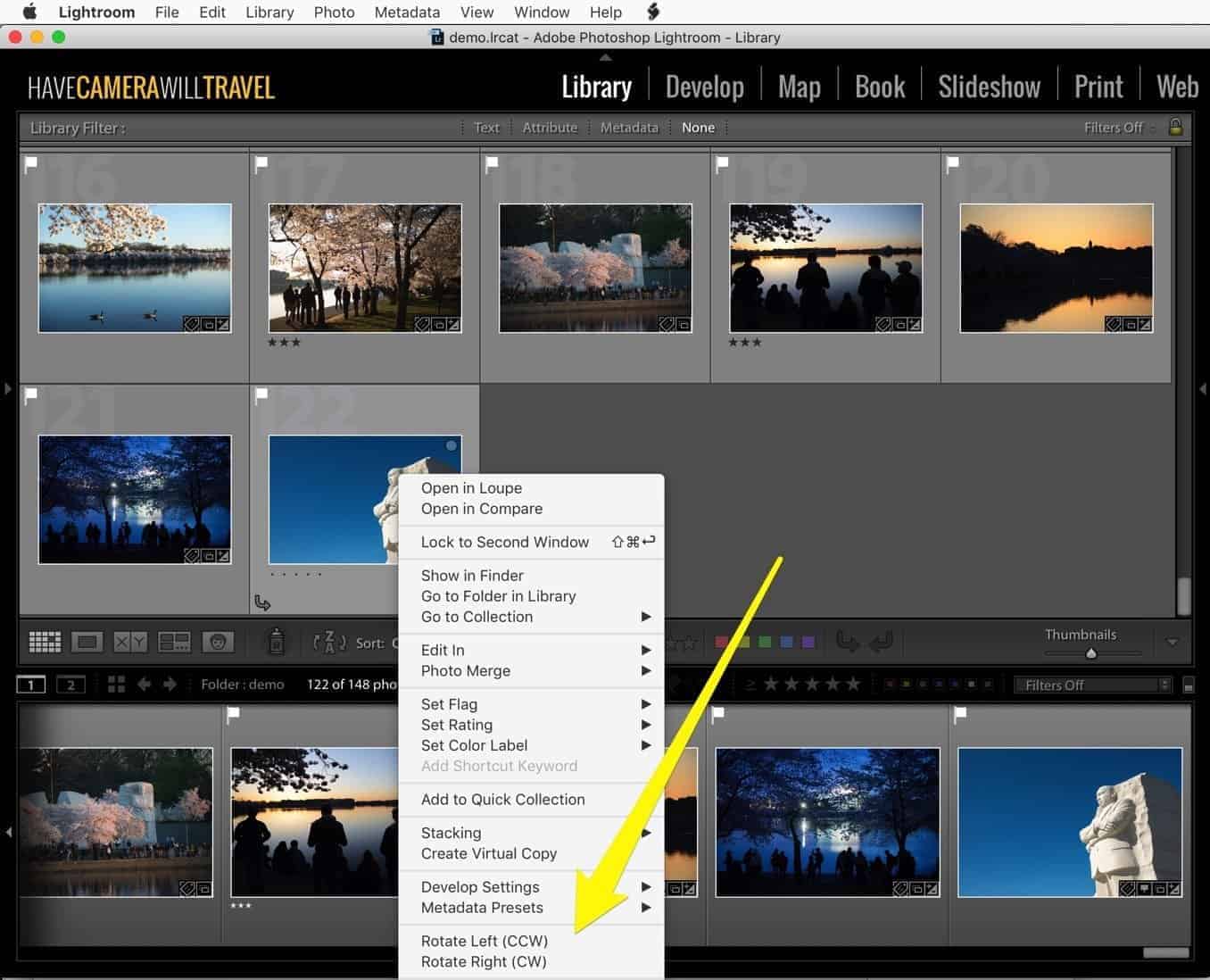
So what you can do instead is go to the top menu and go to Photo > Flip Horizontal.
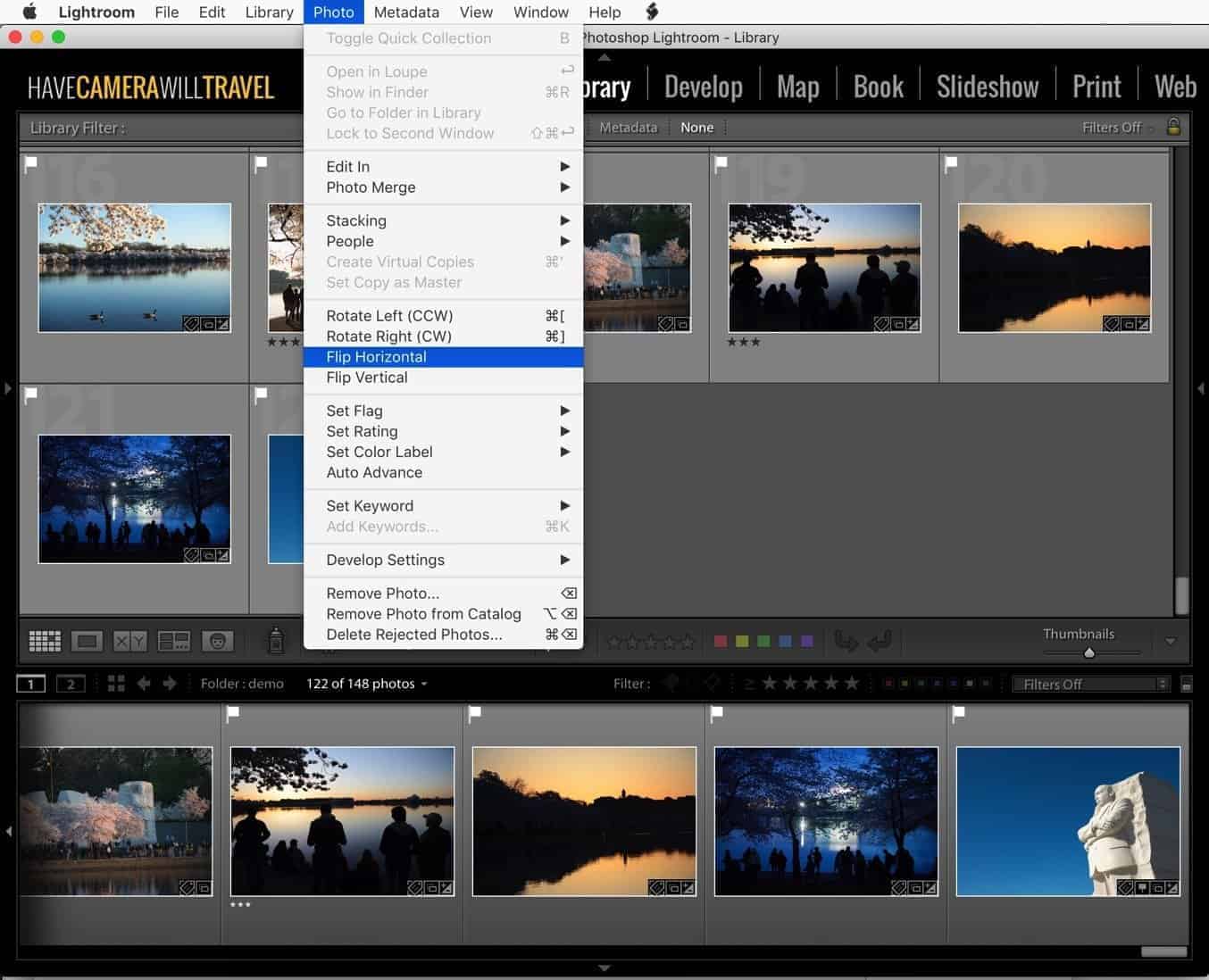
And this is also the way to do it if you’re looking to flip multiple images at once. Simply select multiple thumbnails and go to Photo > Flip Horizontal.
Library module > single image view | Develop module
If you switch to the single image view in the Library module or the Develop module, you can right-click and get the flip options. But it’s ever-so-slightly different again.
This time, when you click on the large image, both the rotate and flip functions are in a submenu of Transform. (If you click on the thumbnail in the bottom filmstrip, you won’t get the flip options showing up — just the rotation ones.)
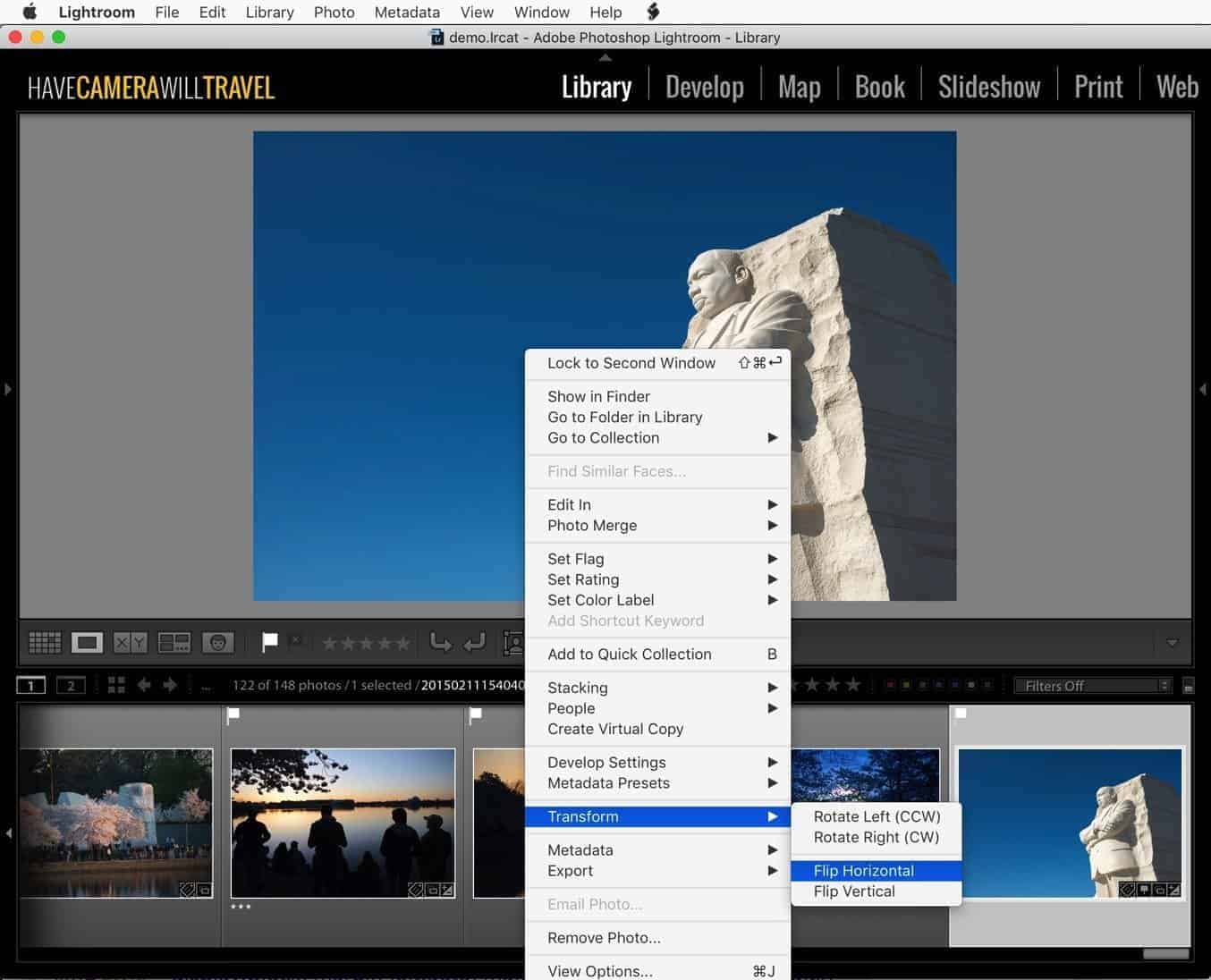
And you can also use the top menu option, going to Photo > Flip Horizontal (or Flip Vertical, of course).