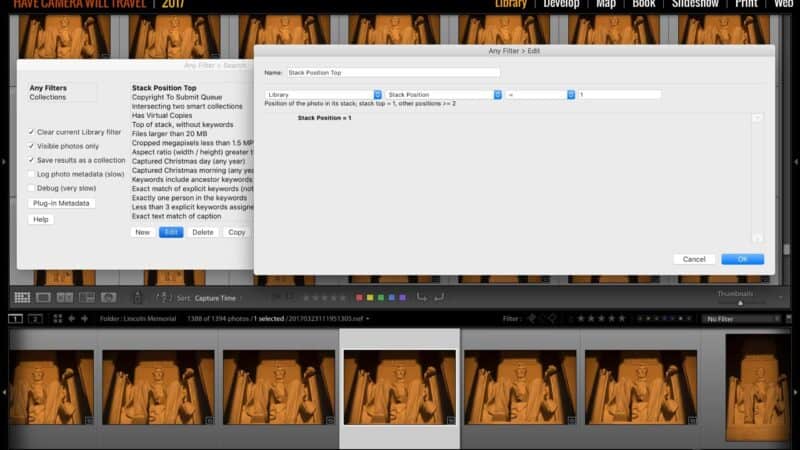
One of the drawbacks of using Lightroom’s smart collections becomes clear if you have stacked images: there’s no way natively to choose only the top image in the stack.
A workaround solution
In the meantime, there’s a workaround.
It’s not exactly the same thing since it doesn’t work directly with on-the-fly smart collections, but it is very useful nonetheless.
It’s part of the functionality of the very useful Any Filter plugin developed by John Ellis.
The Any Filter plugin opens up a huge number of fields that are Lightroom’s raw database but aren’t necessarily accessible through the main app’s user interface.
There’s a huge number of ways this functionality can be used. Maybe you want to find all of your panorama images over a certain aspect ratio. Or photos that have less than three keywords. Or that meet any number of other criteria you want to set up that are beyond the capabilities of Lightroom’s baked-in filtering.
The Any Filter plugin makes all of that possible and much more, but for the purposes here I’m focusing specifically on one filter: the stack position field.
How to use the Any Filter plugin’s stack position filter
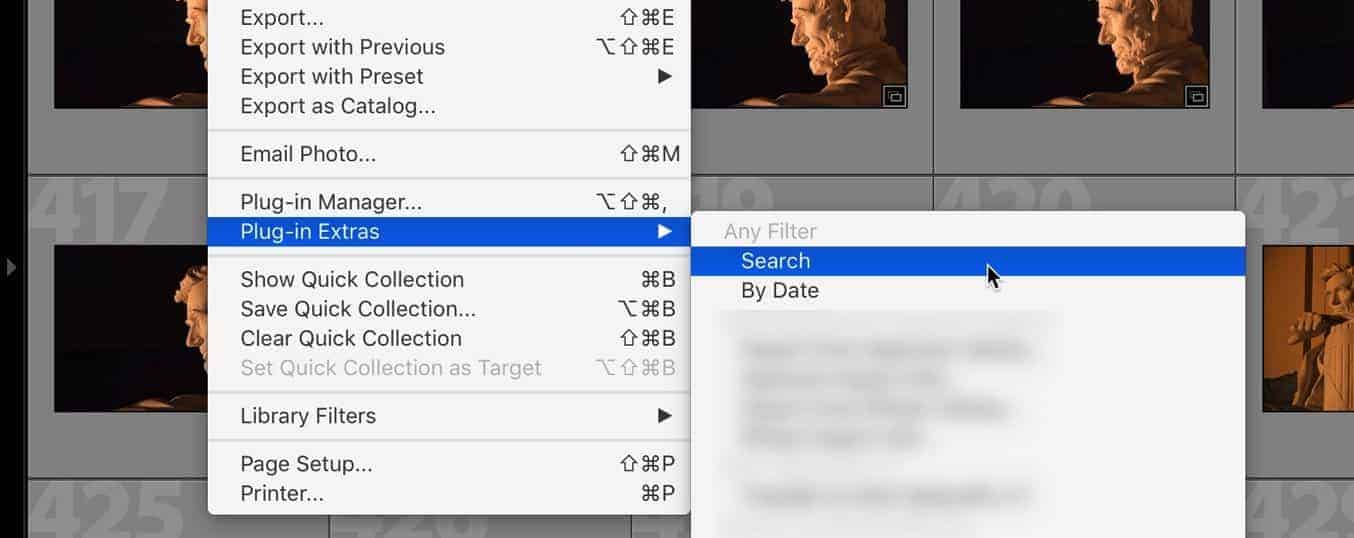
Once installed like a regular Lightroom plugin, its functions are accessible through the Plug-in Extra menu item (File > Plug-in Extras).
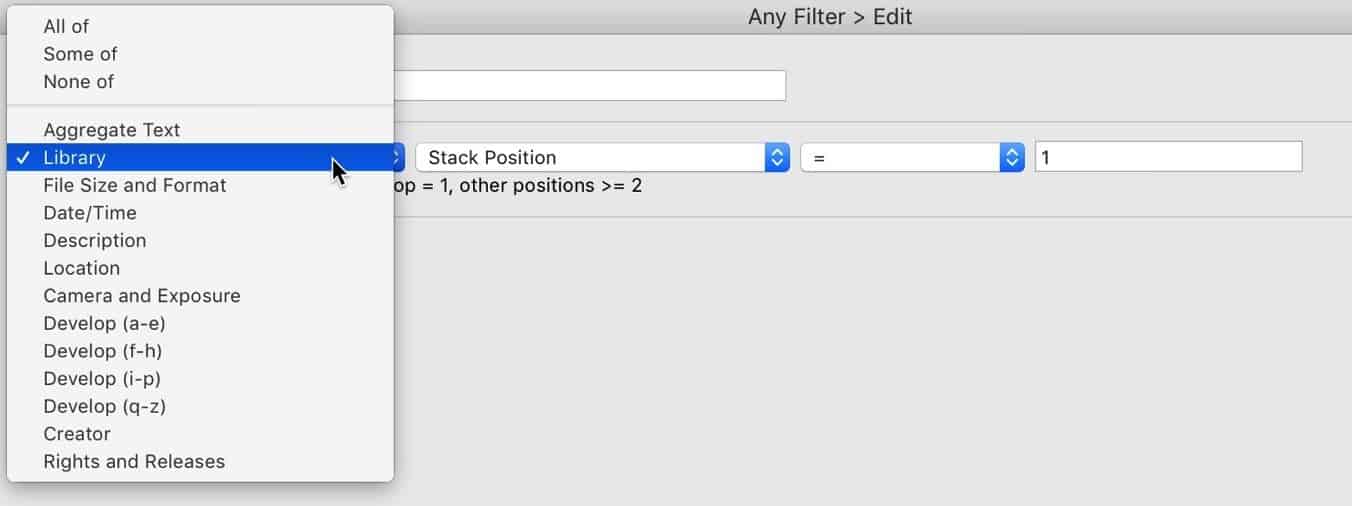
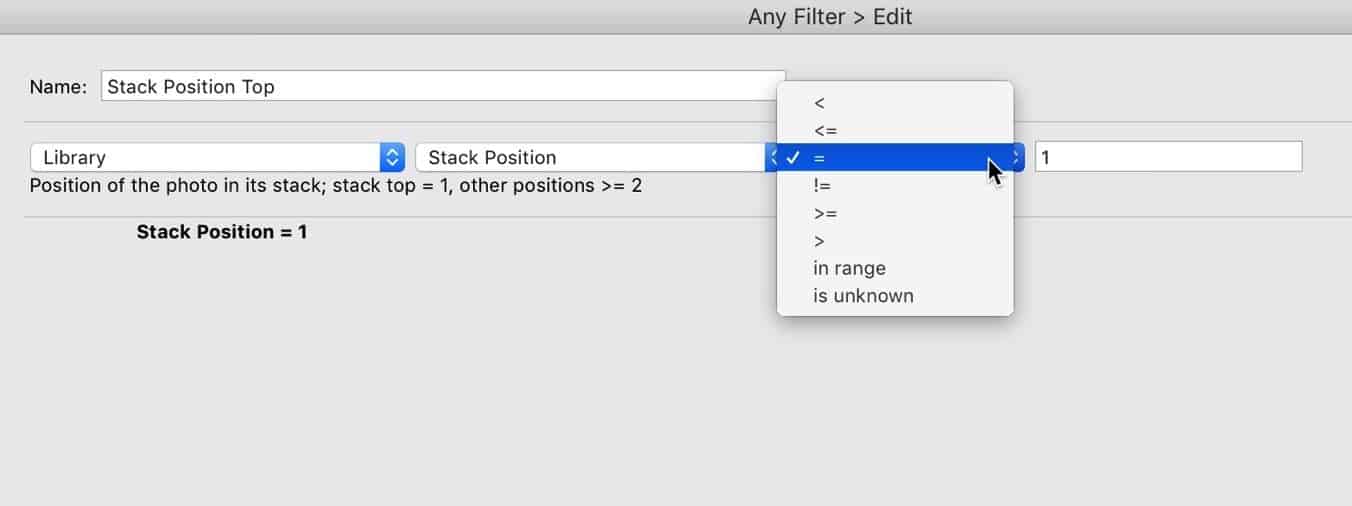
To find the Stack Position filter, it’s under the Library category.
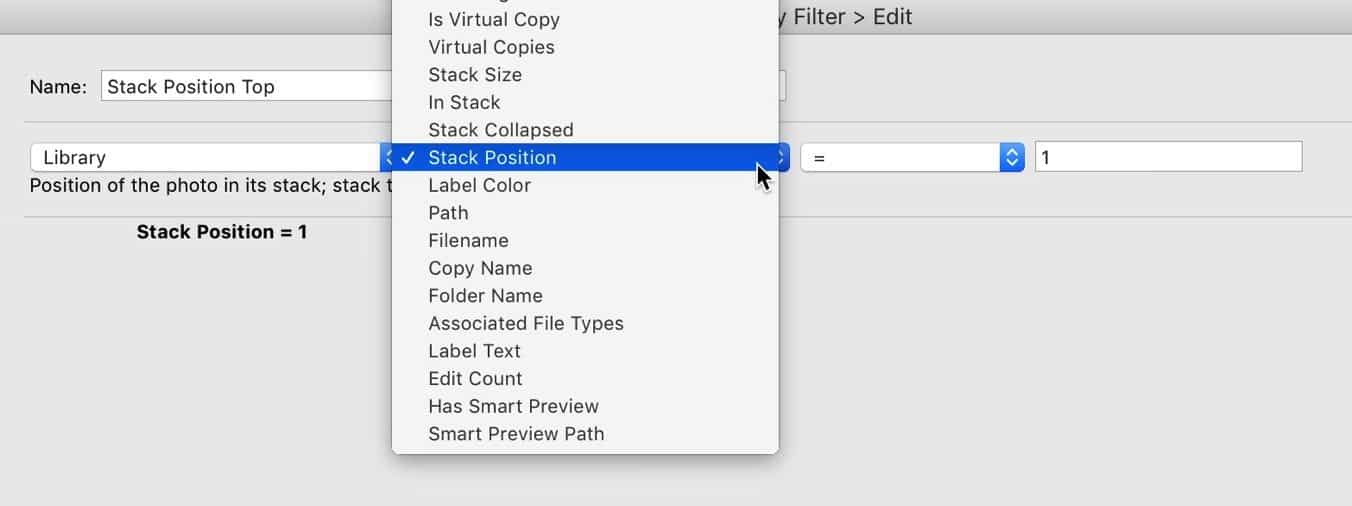
And then scroll down to the Stack Position item.
You then get the option of whether you’re after a specific number or a range. In this example, I’m after only images that are the top image on the stack. You could also choose another specific number, or do things like choose only the first and second, or only the ones that aren’t the top one, and so on.
The standard way to get the results is to generate a new regular static collection. Unfortunately, it doesn’t work with smart collections. But once it’s generated, you could then create another smart collection that incorporates only images that are in the generated collection.
That’s all well and good, of course, but the real power comes in when you combine with other filters. You can build incredibly powerful recipes by stringing together a series of filters from the 352 to choose from to narrow down the results. You can also save those recipes for future use.
When is this useful?
Why might you need to filter by stack position in Lightroom Classic?
Say you’ve got a TIF version that’s been edited in Photoshop or something like Perfectly Clear, but you have the TIF version stacked on top of the original RAW version. You probably don’t need both to show up in the smart collection. So you can display just the top images in a stack and filter out any versions underneath it.
I use this when I’m doing things like uploading images for copyright registration or submitting to stock agencies. I only want the top-most image — the final version — to go, not any other versions of the same image.
That’s not because the information isn’t in the database. It is.
It’s just that Lightroom’s interface doesn’t currently make the Stack Position field accessible when creating smart collections.
Hopefully, this functionality might make it into Lightroom itself someday. But it’s a feature that users have been requested for a very long time (at least since 2012), and so far it hasn’t made the cut.
Where can you get the Any Filter plugin for Lightroom Classic?
You can find John Ellis’s Any Filter plugin on his website.
You can download it for free as a trial to make sure it does what you need it to do. If it does, you can buy a license. It’s donationware, which means you can choose what you think is a fair price for the license (and that includes unlimited updates).


