But finding duplicates in Lightroom isn’t as easy as it could be.
That’s because, by itself, Lightroom doesn’t have a built-in function to find or remove duplicate photos.
So it’s not that you can’t find the feature or that your version of Lightroom is broken. It just isn’t a feature that’s built into Lightroom Classic’s core functionality.
There’s no particular reason it’s not possible for Adobe to add it. My guess — and it’s only a guess — is that part of the reason comes down to not wanting to deal with the customer support headaches of users accidentally deleting their photos. And it goes against the grain, somewhat of the non-destructive workflow that underpins how Lightroom works.
Plugins to the rescue!
The good news, though, is that there are a couple of plugins available that can add that functionality. And it’s those that I’m focusing on here.
Specifically, they are:
- Lightroom Duplicate Finder (paid plugin / $12.99)
- Teekesselchen: The Duplicate Finder for Adobe Lightroom (donationware plugin)
I have a rundown of how each of these works below.
Duplicate Finder Lightroom plugin
The Duplicate Finder Lightroom plugin uses EXIF data to determine matches between images.
That’s a useful way around the problem some other methods run into when you get things like “last modified” or even last touched metadata fields in Lightroom’s catalog.
The plugin is developed by Jim Keir, who is also well known for his very useful Lightroom to Alamy Bridge plugin.
Duplicate Finder installs in Lightroom the usual way you install plugins using the Plug-in Manager.
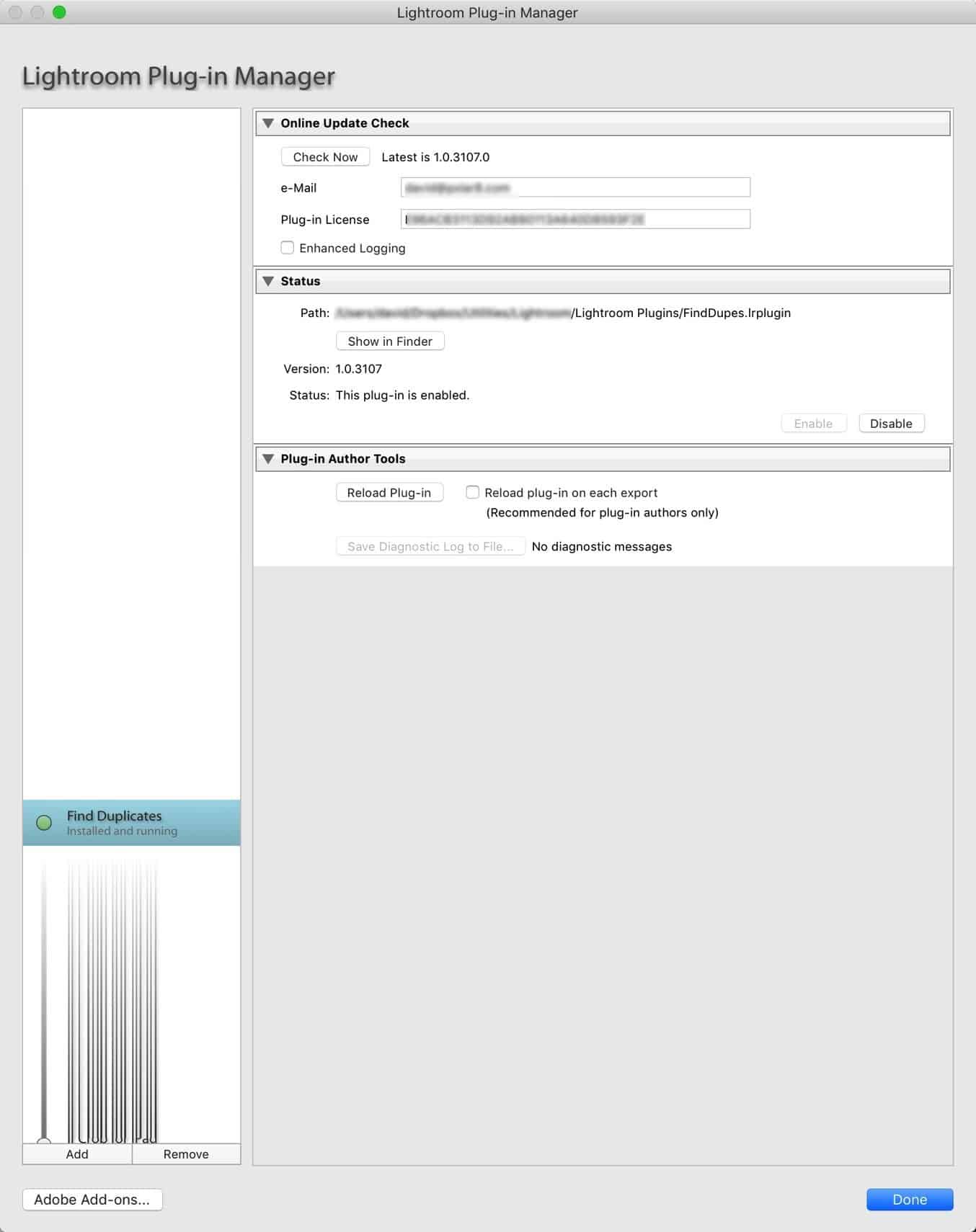
To use this one, you’ll need a license directly from the developer. A license costs £8.50, and you can buy it here.
Once the plugin is activated with the license and enabled through the Plug-in Manager, you access its functionality by going to:
Library > Plug-in Extras > Find Duplicates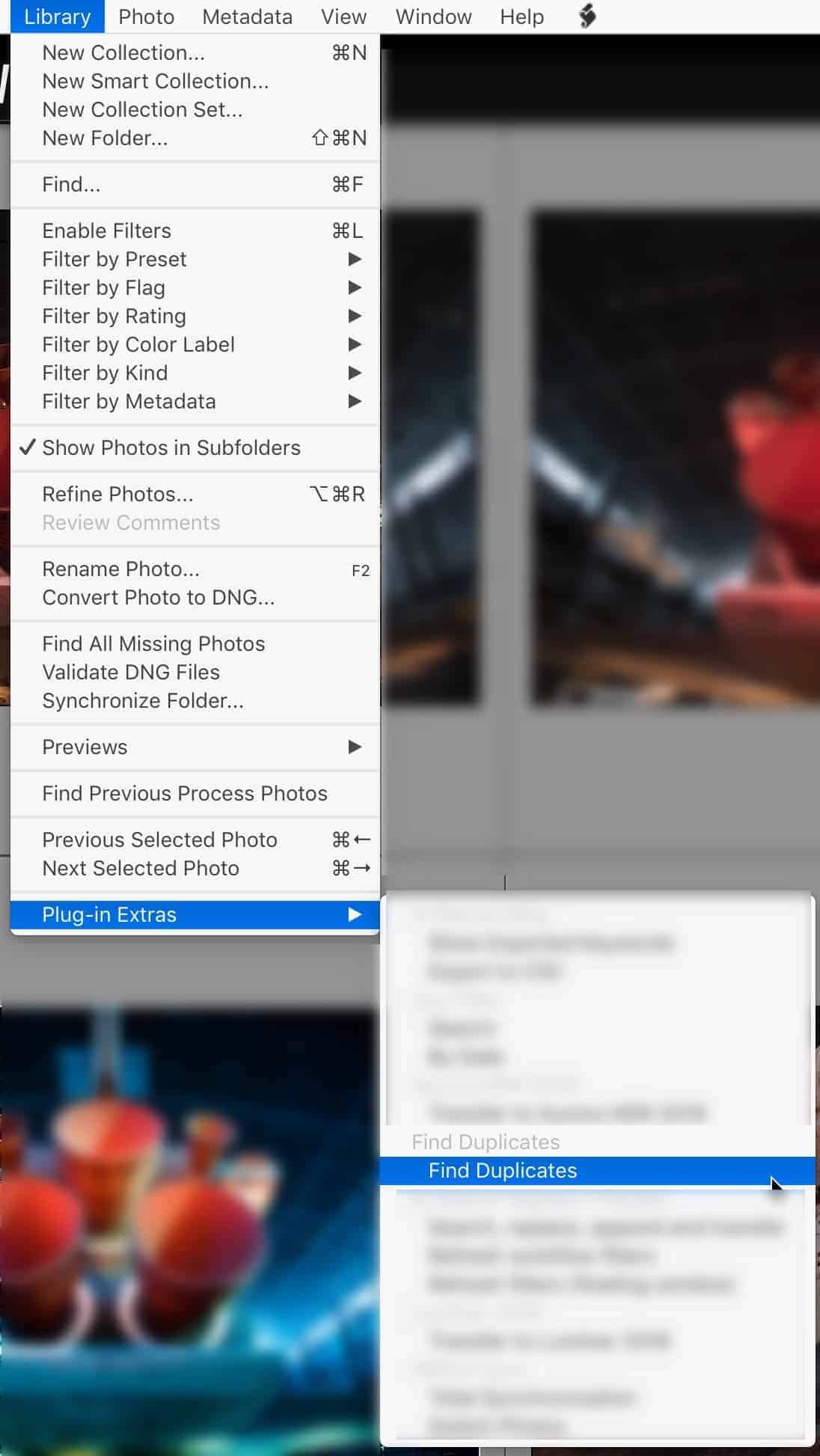
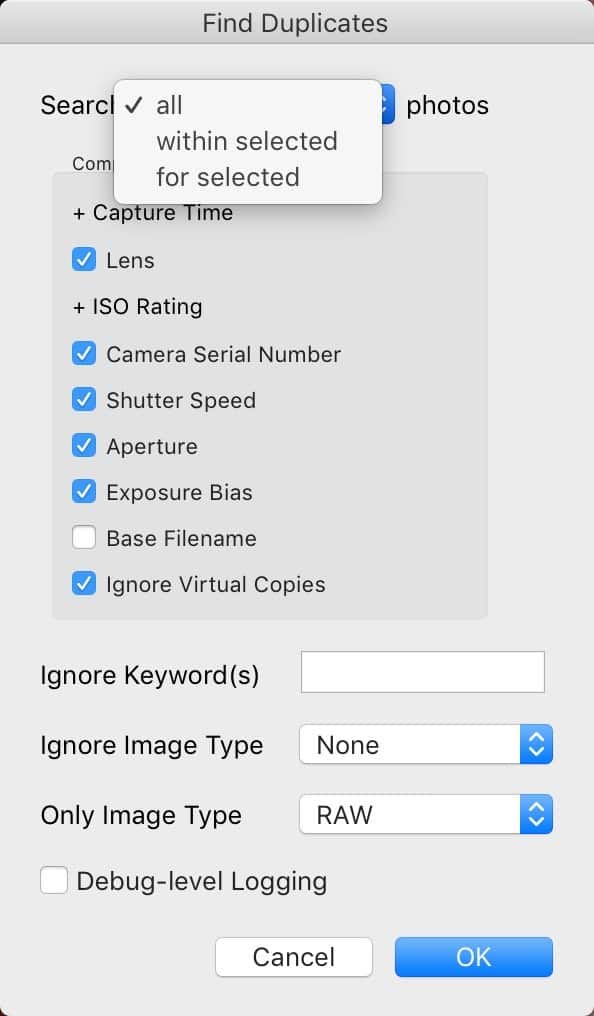
The settings are all on a single screen.
You can scan the entire catalog within a selection or try to find a match just for the selected image/s. You can filter by various EXIF metadata fields and file types.
Once you start the scanning, it can take quite a while if you’re scanning the entire catalog and have many images in it.
If it finds any, the plugin doesn’t actually delete anything. What it does is place the suspected duplicates into a new smart collection called Found Duplicates. From there, you can decide how you want to handle them. Which is a good way to avoid the problem of being responsible for people accidentally deleting their photos.
The EXIF comparison method isn’t perfect. For one thing, it’s quite slow, so be forewarned if you plan to scan a lot of images. For another, it has a limitation in that it can compare capture time only down to the granularity of seconds. When you have rapid-fire shots taken within the same second, they’ll come up as false positives unless you’re using some other distinguishing criteria in the scan options.
If you come across false positives, you can reset them and remove them from the smart collection by going to the metadata panel, choosing the All Plug-In Metadata view, and deleting the ID number that’s in the Duplicate ID field.
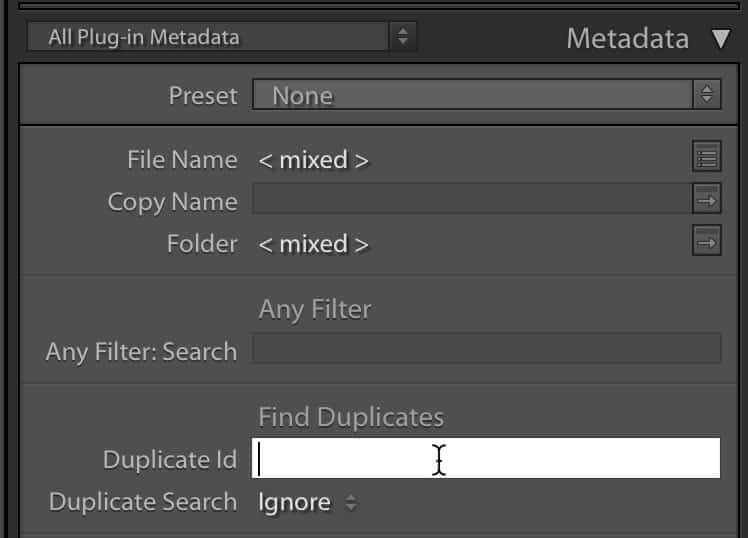
You can download and buy the Duplicate Finder plugin directly from the developer’s website, where you can also find the more detailed instruction manual (PDF).
Teekesselchen Duplicate Finder plugin for Lightroom Classic
This plugin is developed by Michael Bungenstock.
Like Duplicate Finder, Teekesselchen is based on comparing EXIF metadata.


It offers more granular controls in its settings than Duplicate Finder and, in a feature I find useful, has a nifty way of working around the limitation of differentiating capture times only down to the second (more on that below).
The plugin does come with Windows and Mac installers, although I didn’t have much luck with the Mac installer. But there’s also a Zip file version that’s provided for manual installation; that worked better for me. Since then, the developer has released an updated version, so you might have a smoother experience than I initially did.
Once the plugin is installed and enabled (use Lightroom’s Plug-in Manager to handle that), you access its functionality by going to
Library > Plug-in Extras > Teekesselchen > Find Duplicates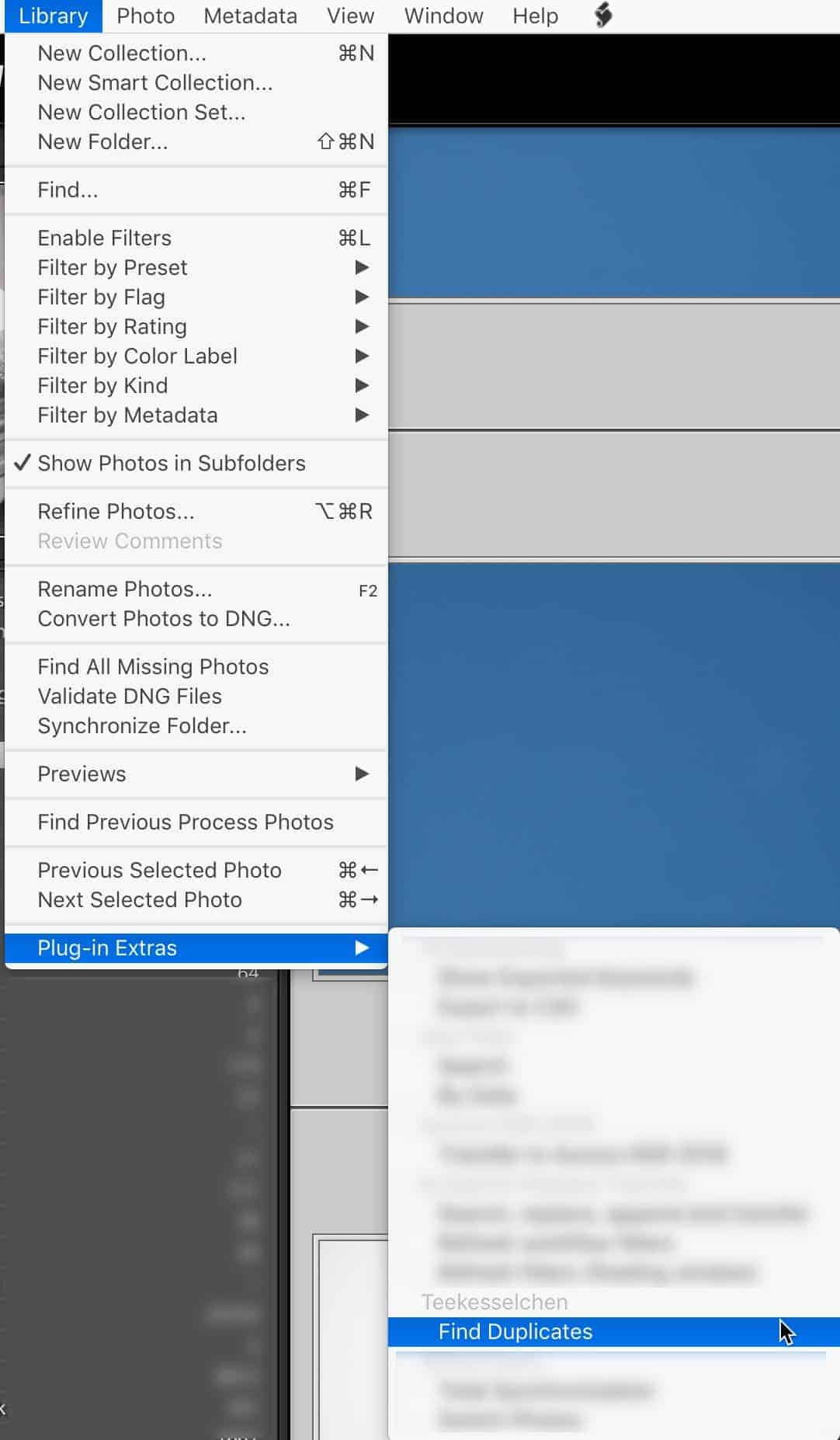
You’ll then get the plugin’s settings panel. In this instance, I’ve selected a folder and subfolders that has 556 photos in it, and the scan will run on those.
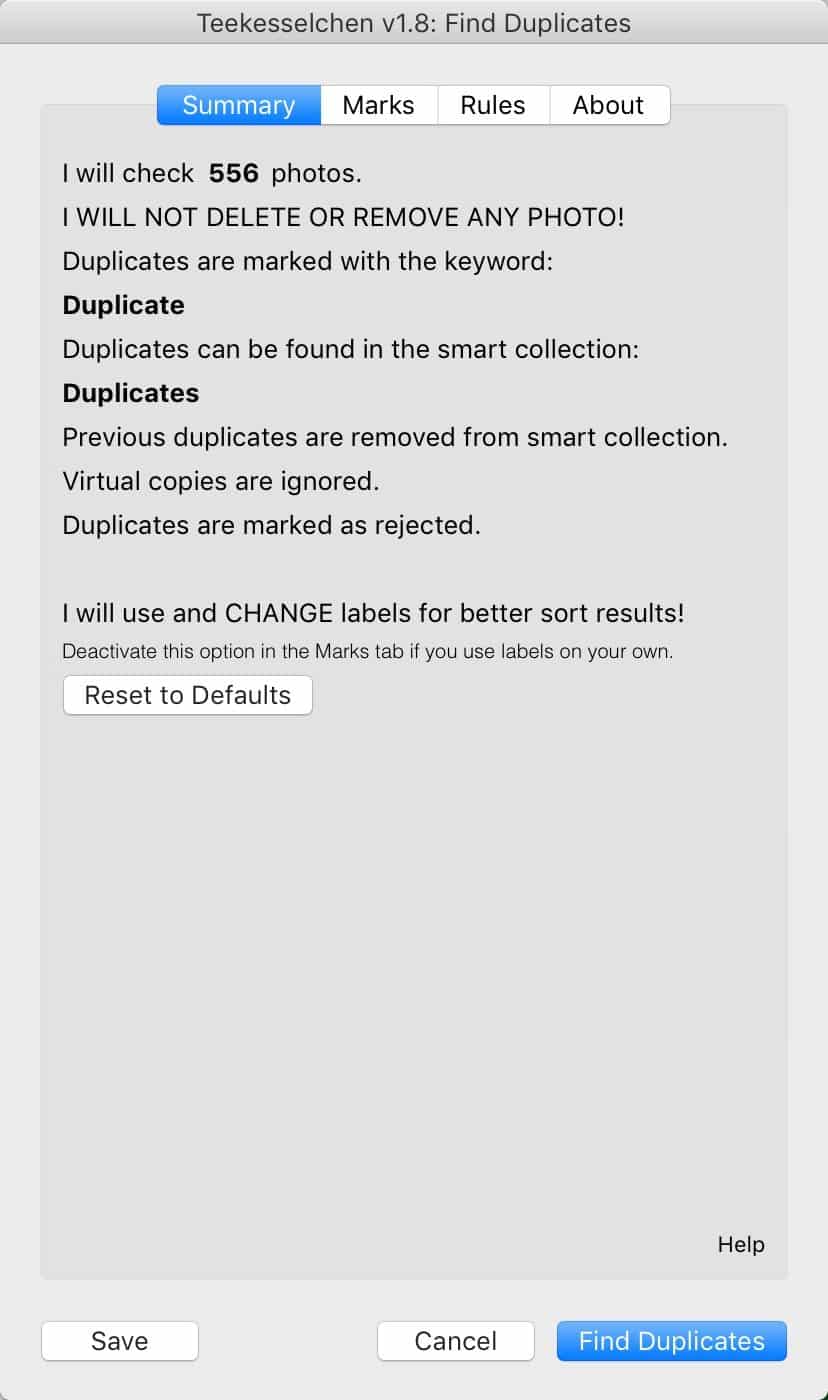
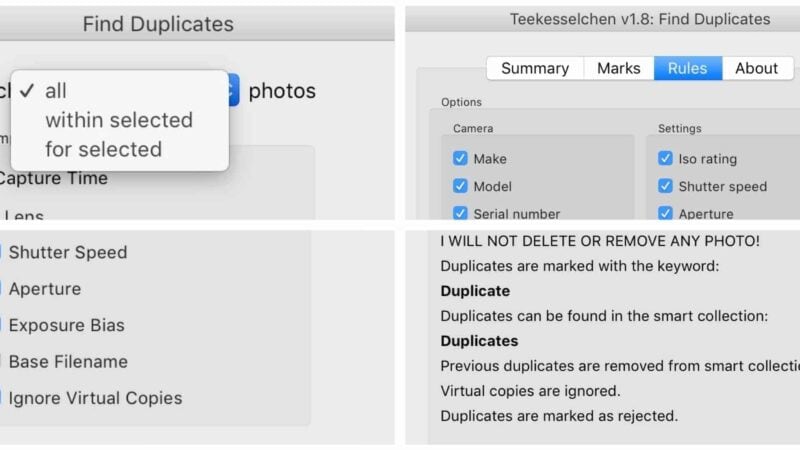
The Marks and Rules tabs are where you set the parameters of the scan. The Marks tab is where you determine how the results are treated. The Rules tab determines what criteria is used for the matching.
One feature I find useful is the ExifTool option; that is a workaround for the limitation of searching only down to a second’s granularity that can result in so many false positives.
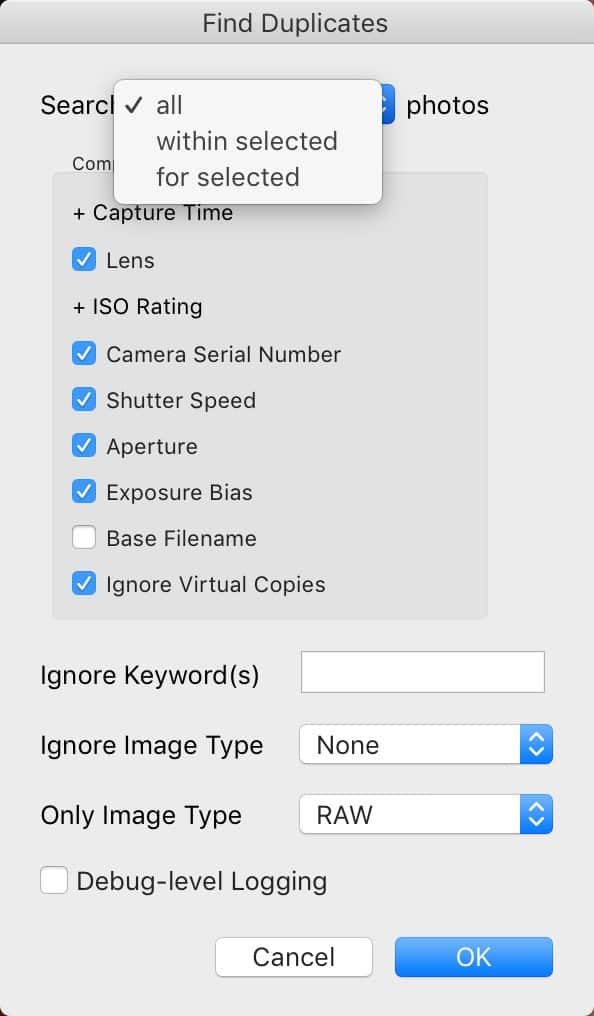
You can find more detailed explanations of these settings in the documentation that the developer has put together.
You can download the plugin directly from the developer’s website, where you can also find a more detailed user guide.
Lightroom Classic duplicate images FAQs
Can Lightroom find duplicates?
No, Lightroom doesn’t have built-in functionality to find duplicate images. But there are a couple of plugins available that can add that functionality
Can Lightroom make duplicates?
Lightroom doesn’t have a direct way of making full duplicates of image files. u003cbru003eu003cbru003eThe logical method that is available is to use the virtual copy feature. That doesn’t make a duplicate in the file system — as in, there’s no actual file attached that’s saved onto your hard drive — but it does create a copy with all the same settings that you can work with in Lightroom itself. u003cbru003eu003cbru003eAn indirect way to create duplicate images is to export an image using the u0022originalu0022 filetype and then re-importing the new file back into Lightroom. u003cbru003eu003cbru003eOf course, you can create derivative versions that can be stacked with the original. A common use for this is when using an external editor with round-trip editing.
Can Lightroom remove duplicates?
Lightroom doesn’t have a built-in duplicate photo finder tool, but some plugins can add that functionality. Once those plugins have identified suspected duplicates, it’s just a matter of using the usual Lightroom delete feature to remove the duplicates.


