
This is a cheat sheet for the icons on the GoPro HERO4’s small screens — the rabbit (QuikCapture), the paint roller (Color), the zigzag that looks like a stock chart (Interval), and the rest — for when the manual isn’t in your pocket. Many carried over from earlier GoPros.
Later GoPros with color touchscreens label most settings in words, though some of the same glyphs survive; on the HERO7 the camera can also show help popups for its icons — see how to turn the camera tips back on.
There’s not a lot of screen real estate on those tiny monochrome LCD screens on the front of GoPro cameras. So for a bunch of features and modes, GoPro uses icons in place of text. Some of them are obvious, but some aren’t. Yes, that really is a rabbit. What does a paint roller have to do with it? And no, that thing that looks like a stock price chart has nothing to do with GoPro going public.
In case you’re not carrying the paper instruction manual around with you when you’re out and about shooting, here’s a cheat sheet of the icons used on the GoPro HERO4’s screens.

Have Camera Will Travel Newsletter
Practical field notes, hands-on gear tests, and the fun of exploring the world with a camera in hand.

Quite a few of these are familiar from earlier versions of the GoPro cameras. But there are also some that are new for the new features of the GoPro HERO4 range like the night modes.
| Icon | What It Means |
|---|---|
 | Video. It’s also used for Video Mode |
 | Still photo. Also used for Photo Mode |
 | Continuous photos |
 | Burst photos |
 | Time Lapse |
 | Night Photo |
 | Night Timelapse (GoPro calls this Night Lapse) |
 | Video + Photo simultaneously |
 | Setup Mode |
 | Auto Low Light |
 | Auto Power Off |
 | Beeps. Camera function sounds (not related to audio recording) |
 | Color |
 | Date and Time (it’s a calendar) |
 | Default Mode (when you turn the camera on) |
 | Delete, format, erase |
 | Exposure Compensation Value |
 | Field of View (ie. wide-angle or not) |
 | Frames per second for video (e.g., 30 fps, 24 fps) |
 | Interval between shots |
 | ISO Limit |
 | LEDs (turn lights on exterior of camera on or off) |
 | Video looping |
 | Megapixels (size of stills photos) |
 | On-screen display |
 | Orientation (want to shoot upside down?) |
 | Playback mode |
 | Protune |
 | QuikCapture (turn the camera on and start recording with one press of the Shutter button) |
 | Rate |
 | Sharpness |
 | Shutter |
 | Spot meter (ie. light meter) |
 | Touch display |
 | Video format |
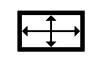 | Video resolution |
 | White balance |
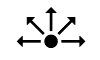 | Wireless |


Portable cheat sheet concerns – Take a screen shot, several since the length is too long for one, print each, reduce size, tape together, put on desired size and print both sides of paper. Laminate for longetivity.
is there a printable version of this cheat sheet
Pat did you ever find a printable version of this cheat sheet?