Finding your GoPro’s serial number is something you rarely need to do — until you really need it. Whether you are contacting support, registering for a subscription, or manually updating firmware, that 14-character code is essential.
This guide covers the five methods to find the serial number on the HERO13, HERO12, HERO11, HERO10, and HERO9 Black.
The short version: if the camera powers on, the quickest place to look is the camera’s own menu, under Preferences > About. If it won’t power on, look inside the battery compartment — every one of these models except the HERO12 Black has the number printed in there.
Method 1: Inside the battery compartment (the “Dead Camera” method)
This is the standard way to find your serial number if your camera won’t turn on.

Have Camera Will Travel Newsletter
Practical field notes, hands-on gear tests, and the fun of exploring the world with a camera in hand.

Important Exception: The HERO12 Black
GoPro did not print the serial number inside the battery compartment of the HERO12 Black — at least, it isn’t printed in mine, which was from the earliest batch released; whether they changed that for further manufacturing runs, I don’t know — and GoPro’s own HERO12 manual still tells you the number is stamped in there, so it’s easy to spend a while hunting for something that was never printed. If you own a HERO12, use one of the other methods below.
For HERO13, 11, 10, and 9:
- Open the battery door.
- Remove the battery.
- Look for the text stamped inside the compartment, just below the CE icon, or on the inside of the door itself. It’s 14 characters long and starts with C3…

Method 2: The camera menu (the “Easiest” method)
If your camera powers on and the screen works, this is the best method because the text is large and easy to read. This works on all models (including HERO12).
- Power on the camera.
- Swipe down to open the Dashboard.
- Swipe left to find Preferences.
- Go to
Preferences > About > Camera Info.

Method 3: The Quik app (the “Copy/Paste” method)
This is the best method if you need to paste the number into a support form or email.
- Connect your camera to the GoPro Quik App on your phone.
- Tap the Gear Icon (Settings) next to the camera image.
- Scroll down to the About section.
- Tap Serial Number.
Method 4: The SD card file (the “Broken Screen” method)
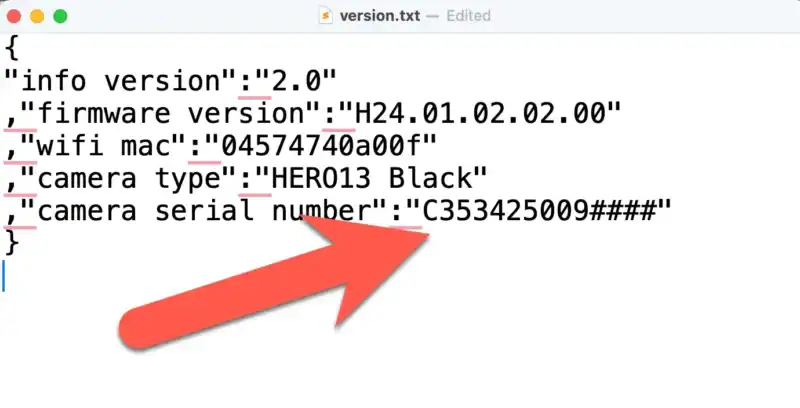
If your screen is broken but the camera still powers on, you can retrieve the serial number from the SD card using a computer.
- Insert your microSD card into your computer.
- Open the MISC folder (located at the root level of the card).
- Open the file named
version.txt. - The serial number is listed at the end of the text file.
The MISC folder only appears on a card that has been used in that camera, but once the file is there, it stays put. So this works even if the camera is dead, broken, or gone, as long as you still have one of its cards. The same file also lists the firmware version, which is the other thing support usually asks for.
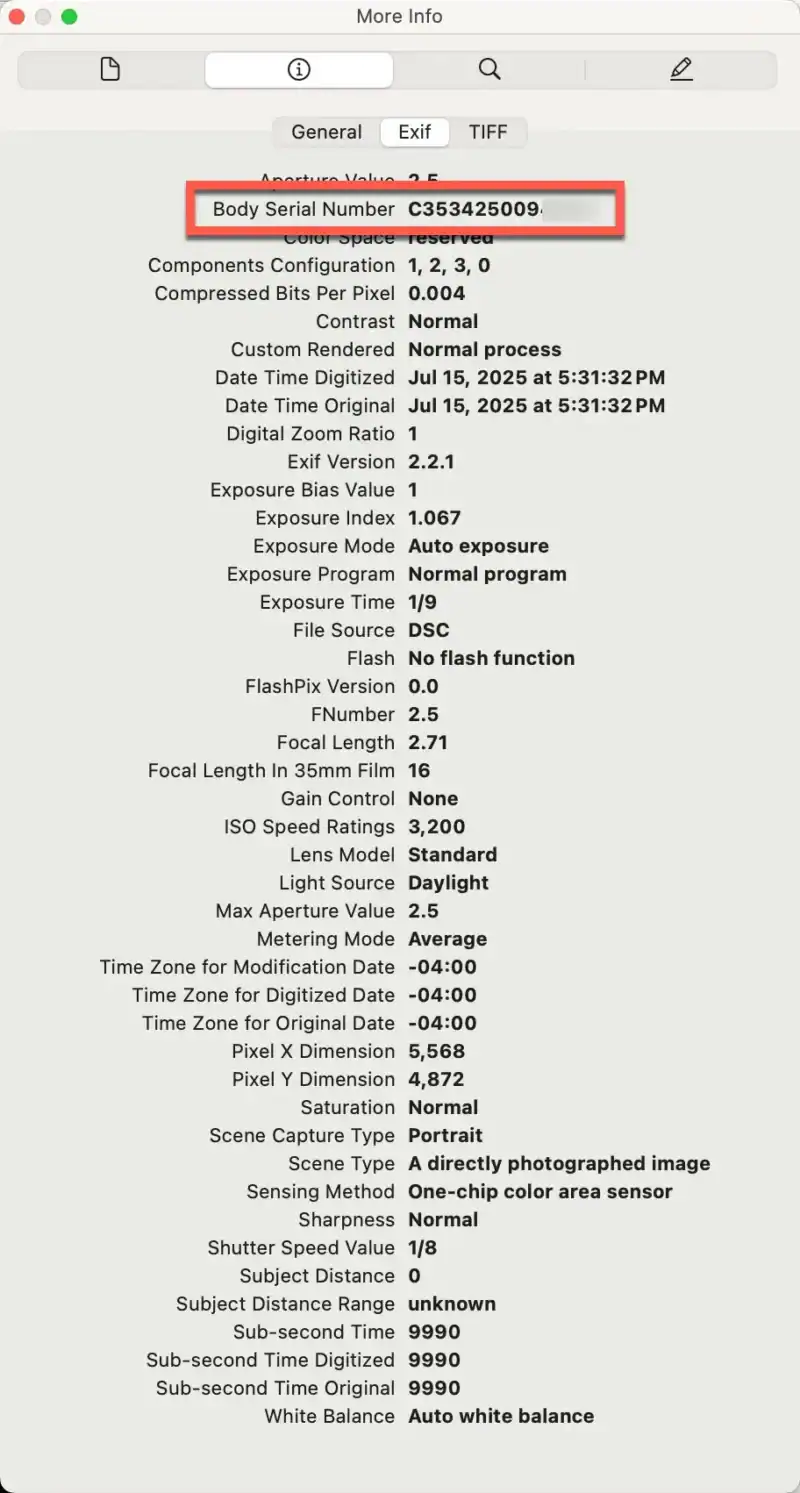
Method 5: EXIF data (the “Lost Camera” method)
If you have lost your camera but still have a photo taken with it on your computer, you can find the serial number embedded in the image metadata.
On Mac (Preview):
- Open a GoPro photo (JPG) in Preview.
- Press
Command + Ito open the Inspector. - Click the “i” (Info) tab, then the Exif tab.
- Look for Camera Serial Number.
On Windows:
- Right-click the photo > Properties.
- Click the Details tab.
- Look for Camera Serial Number (Note: Windows sometimes hides this field; you may need a third-party tool like EXIFMeta or Jimpl).