
To select multiple photos or videos in the GoPro HERO8 Black’s media gallery, tap the checkbox icon at the top right of the grid first — then taps add to the selection instead of replacing it, so you can delete several at once. The steps are below.
Same pattern on the neighboring models. For getting files off the card wholesale, a reader beats the gallery — see card notes.
When you’re viewing photos or videos in the grid on the screen on the back of the GoPro HERO8 Black, if you click on one thumbnail and then another, it will deselect the first and select the second. That is, the default behavior is that it will only let you choose one thumbnail at a time.
But what if you want to delete multiple photos or videos at once? There’s a quick way to select multiple photos, changing the behavior from the usual single-thumbnail selection to a sticky multiple-thumbnail selection mode.
This applies when viewing images in the grid view on the screen. Or in other words, when there are multiple small thumbnails on the screen rather than a single large image filling the screen.
To select two or more images (but not all of them), tap the checkbox icon at the top right.
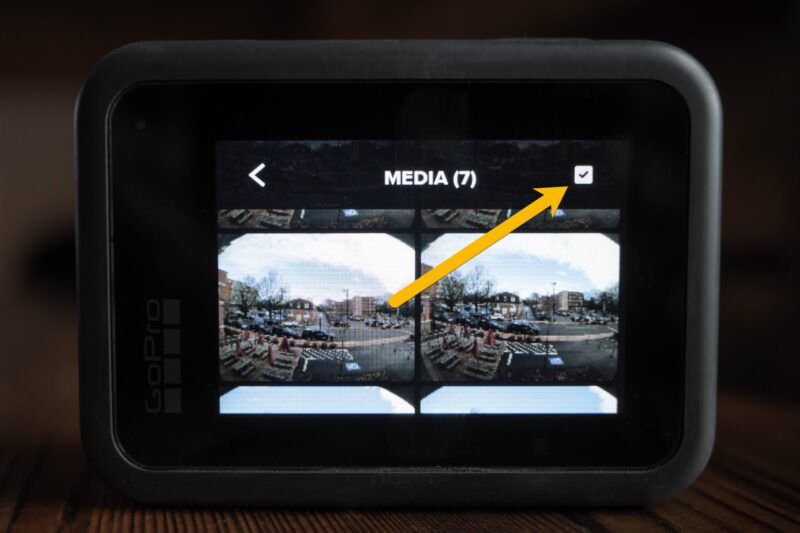
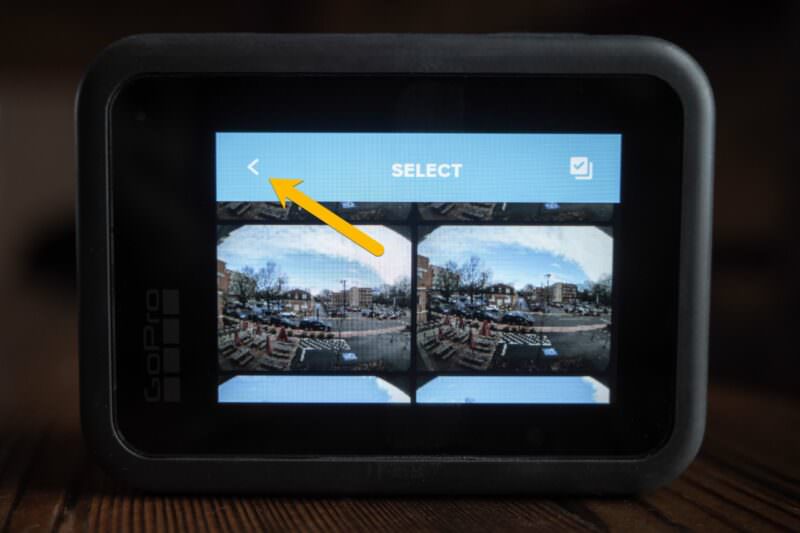
When you tap on that icon, the menu bar will become blue, and the icon will change slightly to indicate that you’re in multi-selection mode (ie. it looks like a stack of papers rather than a single sheet of paper).
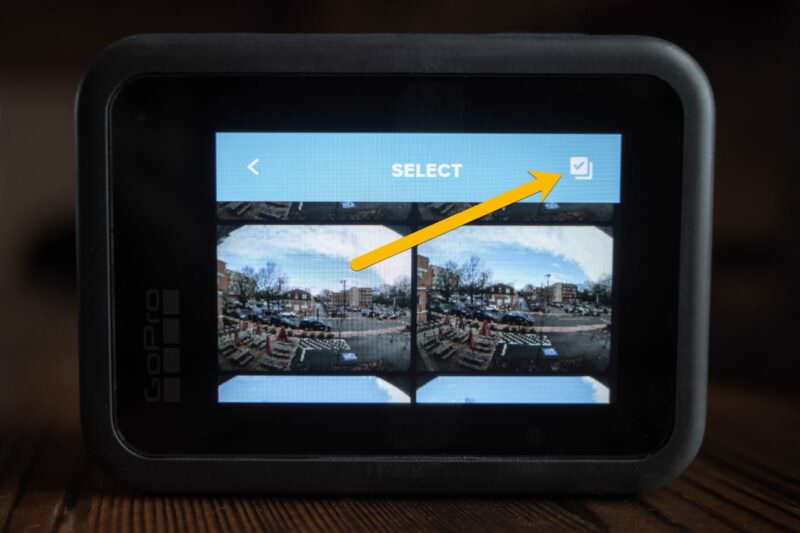
Then tap on the thumbnails you want to select.
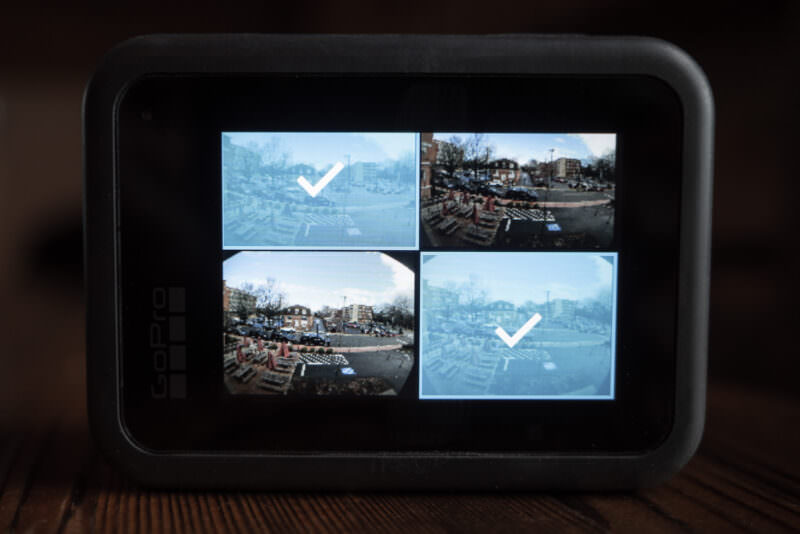
To select all of the thumbnails, tap the icon twice. That will select everything.
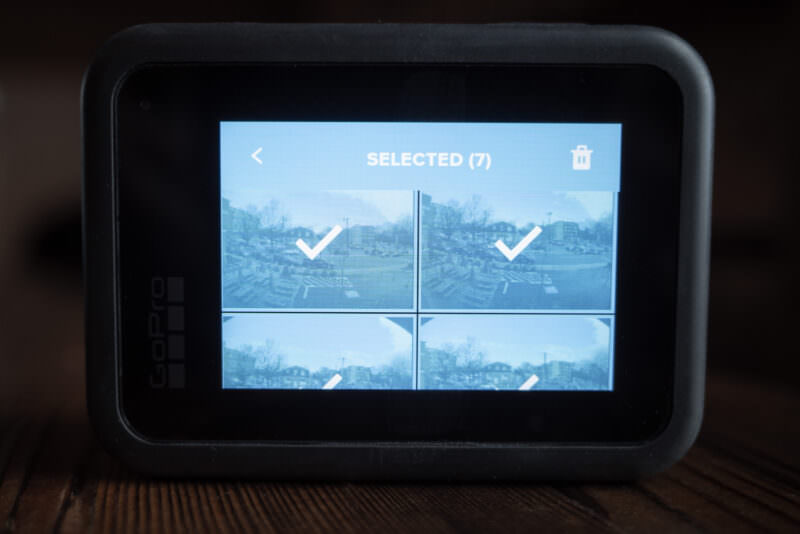
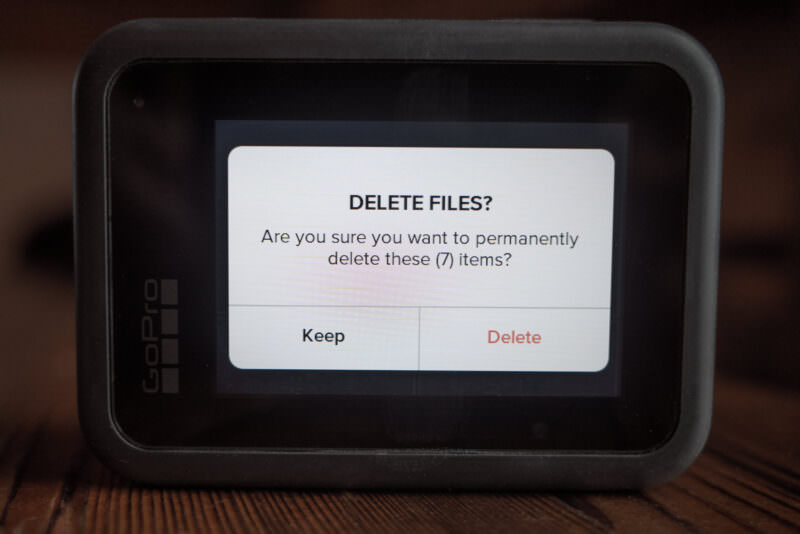
Once you’ve got the selection you want, you can tap the trash can (bin) icon to delete them. You’ll get asked for confirmation first.
To break out of the multi-thumbnail selection mode, tap the back arrow at the top left.
Time lapse photos & burst mode photos
The playback of time-lapse photos and burst mode photos works a bit differently (time-lapse videos are treated as the single file that they are and work with the method outlined above). Images shot in these modes are displayed in the camera’s media viewer in a stack in the grid view, and if you use this method to select, it will delete the entire stack. A small number on the thumbnail will show how many images are contained in that stack.

Have Camera Will Travel Newsletter
Practical field notes, hands-on gear tests, and the fun of exploring the world with a camera in hand.

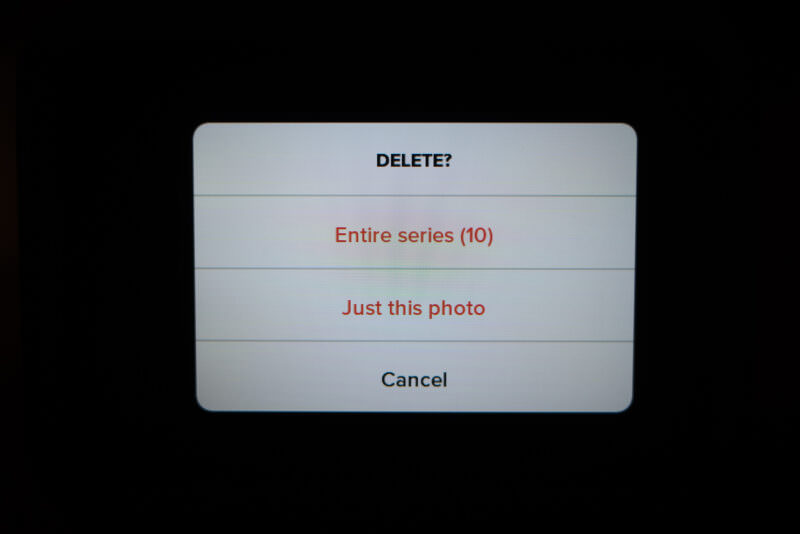
If you want to delete individual photos from within a stack of burst mode photos, you can go into the stack for playback and then choose the trash icon at the bottom left. It will then ask you whether you want to delete just the currently active image or all of the images within the stack. There’s no way to select multiple images inside the stack — it’s either one of them or all of them.
Finding a HERO8 Black today
GoPro discontinued the HERO8 Black some time ago, so the used market is the place to look now — sites like MPB and eBay.


