
Switching between NTSC and PAL doesn’t matter nearly as much as it used to.
If you’re shooting only for online use like YouTube, Instagram, or TikTok, there’s a good chance you’ll never need to touch this setting. That’s because modern screens, whether it’s a desktop display or a mobile phone’s display, refresh at variable rates, and the internet doesn’t care if your video is 30fps or 25fps.

Have Camera Will Travel Newsletter
Practical field notes, hands-on gear tests, and the fun of exploring the world with a camera in hand.

However, there are two specific situations where this setting is critical: avoiding flickering lights and maximizing slow motion.
The short version: match the setting to the electrical grid where you’re shooting. That means 60Hz (NTSC) in North America and 50Hz (PAL) in Europe, Australia, and much of Asia.
Outdoors in daylight, or if the footage is only ever going to the web, it makes no practical difference — except that 60Hz gives you the higher slow-motion frame rates.
This guide covers how (and why) to switch formats on the HERO13, HERO12, HERO11, HERO10, and HERO9 Black.
Why you might need to switch (NTSC vs. PAL)
GoPro doesn’t use the words NTSC or PAL anywhere in the menus anymore. On the HERO13 Black the setting is called Regional Format; on the HERO12, HERO11, HERO10, and HERO9 Black it’s called Anti-Flicker. Either way, it controls the underlying frame rate base of the camera.
- 60Hz (NTSC): Unlocks 30, 60, 120, and 240 fps.
- 50Hz (PAL): Unlocks 25, 50, 100, and 200 fps.
Reason 1: Lighting flicker (the #1 cause of ruined footage)
This is the most common reason to switch. Artificial lights (LEDs, fluorescents, street lamps) pulse in time with the local power grid. They actually pulse twice per cycle, because the current peaks in both directions, so a 60Hz supply gives 120 pulses a second and a 50Hz supply gives 100.
- North America & western Japan (60Hz): Lights pulse 120 times a second. If you shoot at 25fps or 50fps here, your video will strobe or flicker. Solution: Use NTSC (60Hz).
- Europe, Australia, much of Asia & eastern Japan (50Hz): Lights pulse 100 times a second. If you shoot at 30fps or 60fps here, you will get flicker. Solution: Use PAL (50Hz).
Japan is the awkward one, and it’s for an unusual reason. Japanese television has always been NTSC — the 60Hz standard, sometimes called NTSC-J. But the power grid is split down the middle: 50Hz in the east, including Tokyo, Yokohama, Sendai and Sapporo, and 60Hz in the west, including Osaka, Kyoto, Nagoya and Hiroshima. So in Tokyo, the setting that matches the country’s broadcast heritage is not the setting that matches the lights you’re actually shooting under.
In practice, using 50Hz in eastern Japan should fix it. For instance, if you’re shooting under fluorescent or LED lighting in Tokyo and you can see bands rolling through your footage, switching to 50Hz (PAL) should solve it.1
It matters less if you’re shooting under old-fashioned incandescent bulbs, which are increasingly rare these days. Their flicker is more smoothed out because the filament stays hot between pulses, so banding rarely shows up. It’s fluorescent tubes and inexpensive LEDs that flicker hard enough to see, because they have almost no persistence between pulses. Fast shutter speeds and slow motion make it more obvious; slow shutter speeds smooth it out.
This is also why GoPro keeps renaming the setting. It was Video Format on the HERO7 and earlier, with NTSC and PAL as the literal options. It became Anti-Flicker on the HERO8 through HERO12. On the HERO13 it’s Regional Format. The descriptions moved too: the HERO8 manual called it “the regional frame rate for recording and playback on a TV,” while GoPro now describes it as matching “your regional power frequency to reduce light flicker caused by indoor lighting.” The broadcast question faded as playback moved to phones and laptops. The lighting question didn’t go anywhere.
Reason 2: Getting maximum bang for the buck with slow motion
There’s another good reason to shoot in the NTSC/60Hz setting.
The standard “Max Slow Mo” on modern GoPros (HERO9 through HERO13) is 240 frames per second (at 1080p or 2.7K depending on the model). However, 240fps is mathematically tied to the 60Hz format.
If you switch to PAL (50Hz), the camera caps your slow motion at 200 fps. So, if you want that extra 40 frames of slowing power, you’ll have to be in NTSC mode.
How to change the setting (HERO13, 12, 11, 10, 9)
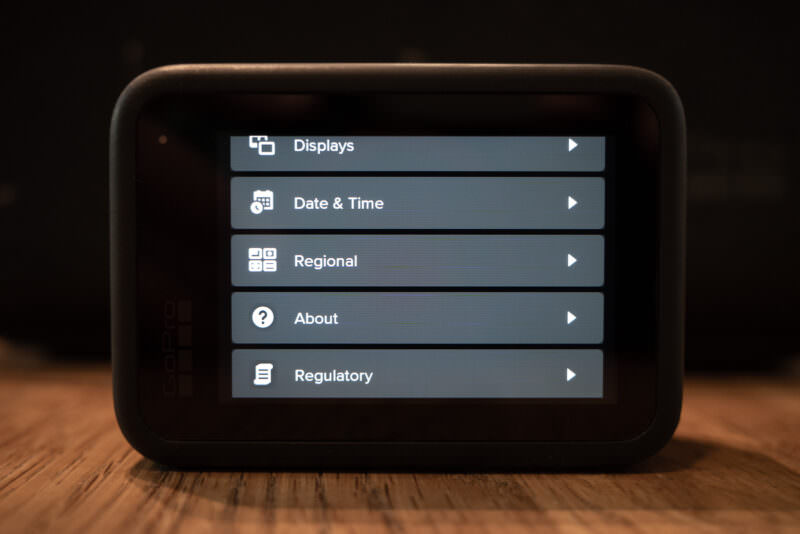
The label and the location have moved around. On the HERO13 Black it’s called Regional Format and sits under Regional. On the HERO12 Black it’s called Anti-Flicker and is buried under Video, next to Bit Rate and Bit Depth. On the HERO11, HERO10, and HERO9 Black it’s Anti-Flicker under General — which is why so many people go hunting through the regional settings and can’t find it.
Method 1: On the camera
- Swipe down on the rear screen to open the Dashboard.
- Swipe left to find Preferences.
- Scroll down to Regional on the HERO13, Video on the HERO12, or General on the HERO11, 10, and 9.
- Tap Regional Format on the HERO13, or Anti-Flicker on the HERO12, 11, 10, and 9.
- Select your frequency:
- 60Hz (NTSC): For the USA, Canada, and western Japan.
- 50Hz (PAL): For the UK, Europe, Australia, India, and eastern Japan.
Method 2: Via the Quik app
If the camera is mounted just out of reach, you can change this wirelessly.
- Connect your camera to the GoPro Quik App.
- Tap the Gear Icon (Settings).
- Scroll down to the
Setupsection. - Tap
Regional Format— orAnti-Flickerif you’re on a HERO12 or earlier — and make your selection.
Special note: HERO13 Burst Slo-Mo
The HERO13 Black added a “Burst Slo-Mo” feature that captures very high frame rates in short bursts: 400fps at 720p and 360fps at 900p for up to 15 seconds, or 120fps at 5.3K for up to 5 seconds.
Does Regional Format affect this? Yes — and on two of the three options it changes what the camera actually captures, not just how the file plays back.
Mostly, but not entirely. Only the 720p option captures at the same rate either way, at 400fps in both. The other two drop in PAL: 900p falls from 360fps to 300fps, and 5.3K falls from 120fps to 100fps. However, the Regional Format determines the “Base Frame Rate” of the resulting file.
- In NTSC (60Hz): The file will save as a 30fps or 60fps video file.
- In PAL (50Hz): The file will save as a 25fps or 50fps video file.
If you are mixing this slow-motion clip into a timeline with other footage, setting this correctly beforehand saves you from having to conform or stretch the footage in editing software later.
- GoPro’s own manuals simplify this and list Japan under 60Hz, which is right for the broadcast standard and wrong for the lighting in half the country. [↩]


