
The HERO8 Black tops out at 4K60 and 1080p240, records in HEVC or H.264, offers four digital lenses – SuperView, Wide, Linear and Narrow (the HERO8 is where GoPro renamed fields of view as digital lenses), and introduced HyperSmooth 2.0, including the new Boost setting. Resolutions, frame rates, bitrates, codecs, lenses, stabilization, and the extras (slo-mo, Clips, live streaming) are all laid out below.
The HERO8 is discontinued; this stays as the reference for anyone using one. For the codec question see HEVC vs H.264 on GoPros; for what stabilization crops, this explainer.
GoPros are great for taking photos. And time-lapse. But their bread and butter shooting mode has always been video. It’s really the format that defines them.
The HERO8 Black’s top video modes are 4K60 and 1080p240.1
Overall, GoPro HERO8 Black has very similar video capabilities as the previous model, the HERO7 Black, but there are a few notable differences. One of the leading ones is an improved in-camera stabilization, now called HyperSmooth 2.0.
Another major change has to do with the user interface. Video shooting modes are now assigned with presets. If you have the presets already assigned or want to use one of the default ones, it’s potentially a quicker way of accessing different sets of settings. If you’re looking to change settings ad hoc, it can be a bit slower.
Here’s a rundown of the various options available when shooting video with the HERO8 Black.

Have Camera Will Travel Newsletter
Practical field notes, hands-on gear tests, and the fun of exploring the world with a camera in hand.

Resolutions, framerates, and aspect ratios
Overall, there’s a lot of overlap between the resolution/framerate options offered on the HERO8 Black with those that were offered on the HERO7 Black. The HERO8 Black’s list is 4K, 4K 4:3, 2.7K, 2.7K 4:3, 1440p and 1080p – the HERO7’s 960p and 720p modes are gone. But overall, the options are very similar.
Two aspect ratios are offered: 16:9 and 4:3.
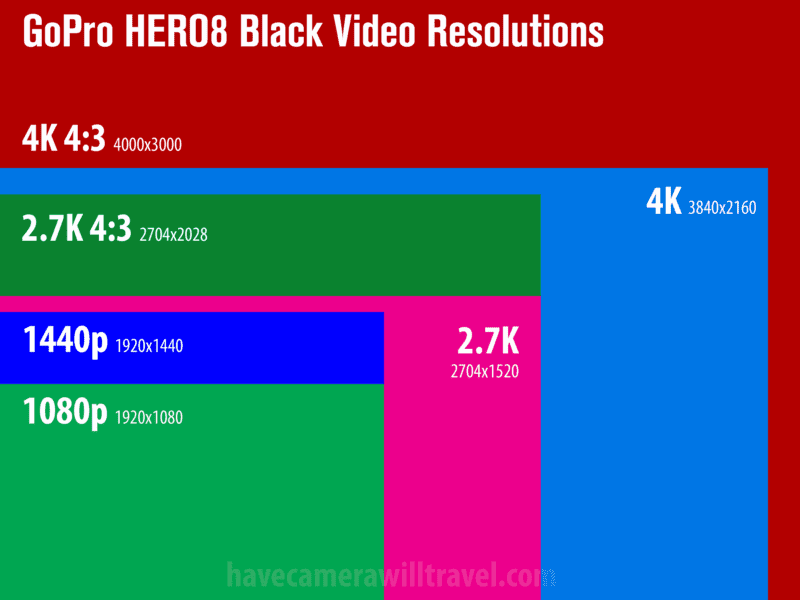
The largest resolution is 4K 4:3, at 4096 by 3072. The smallest is 1080p, at 1920 by 1080.
The fastest frame rate available is 240 fps. The slowest is 24 fps. As usual, switching between PAL and NTSC will change the available framerates. Not all framerates are available at all resolutions. The table below has the combinations available.
Here’s an illustration showing how the video resolutions available on the GoPro HERO8 Black compare with each other in terms of size.
Video bitrates
The way video bitrates are handled on the HERO8 Black is a bit different from how they’ve been handled on previous models. With previous models, any bitrate changes were determined by whether or not you have Protune turned on.
With the HERO8 Black, there’s a specific Bitrate option that lets you switch between Low (the default) and High. Having a separate switch means that you can use the other Protune options while still having a choice on whether to use higher bitrates or not. The reason that you might want to choose one or the other relates to the balance between file size and picture quality. A higher bitrate has potentially higher image quality, but it also has a significantly larger file size. (By file size, I’m referring to space on the memory card or disk. It doesn’t refer to the resolution size, which is different.)
The maximum bitrate available on the HERO8 Black is 100Mbps. That’s only available with 4K and 2.7K resolutions. Bitrates at other combinations of resolution and framerates drop down below that, ranging from 100Mbps at the top end down to 45Mbps at the low end.
| Resolution | Framerate (NTSC / PAL) | High Bitrate | Low Bitrate | Pixels | Aspect Ratio | Digital Lenses | Codec Options |
|---|---|---|---|---|---|---|---|
| 4K | 60 | 100 | 60 | 3840x2160 | 16:9 | Wide, Linear | HEVC Only |
| 50 | 100 | 60 | Wide, Linear | HEVC Only | |||
| 30 | 100 | 60 | SuperView, Wide, Linear | H.264 + HEVC | |||
| 25 | 100 | 60 | SuperView, Wide, Linear | H.264 + HEVC | |||
| 24 | 100 | 60 | SuperView, Wide, Linear | H.264 + HEVC | |||
| 4K 4:3 | 30 | 100 | 60 | 4096x3072 | 4:3 | Wide, Linear | HEVC Only |
| 25 | 100 | 60 | Wide, Linear | HEVC Only | |||
| 24 | 100 | 60 | Wide, Linear | HEVC Only | |||
| 2.7K | 120 | 100 | 60 | 2704x1520 | 16:9 | Wide | HEVC Only |
| 100 | 100 | 60 | Wide | HEVC Only | |||
| 60 | 100 | 60 | SuperView, Wide, Linear, Narrow | H.264 + HEVC | |||
| 50 | 100 | 60 | SuperView, Wide, Linear, Narrow | H.264 + HEVC | |||
| 30 | 100 | 45 | SuperView, Wide, Linear, Narrow | H.264 + HEVC | |||
| 25 | 100 | 45 | SuperView, Wide, Linear, Narrow | H.264 + HEVC | |||
| 24 | 100 | 45 | SuperView, Wide, Linear, Narrow | H.264 + HEVC | |||
| 2.7K 4:3 | 60 | 100 | 60 | 2704x2028 | 4:3 | Wide | HEVC Only |
| 50 | 100 | 60 | Wide | HEVC Only | |||
| 30 | 100 | 60 | Wide, Linear, Narrow | H.264 + HEVC | |||
| 25 | 100 | 60 | Wide, Linear, Narrow | H.264 + HEVC | |||
| 24 | 100 | 60 | Wide, Linear, Narrow | H.264 + HEVC | |||
| 1440p | 120 | 78 | 60 | 1920x1440 | 4:3 | Wide | HEVC Only |
| 100 | 78 | 60 | Wide | HEVC Only | |||
| 60 | 78 | 60 | Wide, Linear, Narrow | H.264 + HEVC | |||
| 50 | 78 | 60 | Wide, Linear, Narrow | H.264 + HEVC | |||
| 30 | 60 | 45 | Wide, Linear, Narrow | H.264 + HEVC | |||
| 25 | 60 | 45 | Wide, Linear, Narrow | H.264 + HEVC | |||
| 24 | 60 | 45 | Wide, Linear, Narrow | H.264 + HEVC | |||
| 1080p | 240 | 78 | 60 | 1920x1080 | 16:9 | Wide | HEVC Only |
| 200 | 78 | 60 | Wide | HEVC Only | |||
| 120 | 78 | 60 | SuperView, Wide, Linear, Narrow | H.264 + HEVC | |||
| 100 | 78 | 60 | SuperView, Wide, Linear, Narrow | H.264 + HEVC | |||
| 60 | 60 | 45 | SuperView, Wide, Linear, Narrow | H.264 + HEVC | |||
| 50 | 60 | 45 | SuperView, Wide, Linear, Narrow | H.264 + HEVC | |||
| 30 | 60 | 45 | SuperView, Wide, Linear, Narrow | H.264 + HEVC | |||
| 25 | 60 | 45 | SuperView, Wide, Linear, Narrow | H.264 + HEVC | |||
| 24 | 60 | 45 | SuperView, Wide, Linear, Narrow | H.264 + HEVC |
Whether the file is compressed with the HEVC or H.264 codecs, the HERO8 Black uses variable compression, just like its predecessors. So, in practice, you can end up with bitrates just slightly above or below these target bitrates.
Digital lenses / fields of view
In all the previous GoPros, there have been different “fields of view.” With the HERO8 Black, they’re now “digital lenses.” They’re the same thing and work the same way. It all strikes me as a bit of marketing puffery. Although that’s probably being a bit harsh — they do correspond more closely to a traditional camera lens, so if you’re used to working in those focal lengths, they’re probably more intuitive (although they’re approximations of a true optical focal length).
There’s a total of four FOVs available, although they’re not all available at every resolution. This chart shows which fields of view (or digital lenses) are available at which combinations of resolution and framerate.
| Resolution | Framerate (NTSC / PAL) | Digital Lenses | Pixels | Aspect Ratio |
|---|---|---|---|---|
| 4K | 60/50 | Wide, Linear | 3840x2160 | 16:9 |
| 30/25 24 | SuperView, Wide, Linear | |||
| 4K 4:3 | 30/25 24 | Wide, Linear | 4096x3072 | 4:3 |
| 2.7K | 120/100 | Wide | 2704x1520 | 16:9 |
| 60/50 30/25 24 | SuperView, Wide, Linear, Narrow | |||
| 2.7K 4:3 | 60/50 | Wide | 2704x2028 | 4:3 |
| 30/25 24 | Wide, Linear, Narrow | |||
| 1440p | 120/100 | Wide | 1920x1440 | 4:3 |
| 60/50 30/25 24 | Wide, Linear, Narrow | |||
| 1080p | 240/200 | Wide | 1920x1080 | 16:9 |
| 120/100 60/50 30/25 24 | SuperView, Wide, Linear, Narrow |
And here’s what used to be known as fields of view on earlier models correspond to the digital lens focal lengths on the HERO8 Black:
| Field of View | Digital Lens |
|---|---|
| SuperView | 16mm |
| Wide | 16-34mm |
| Linear | 19-39mm |
| Narrow | 27mm |
The ranges in the Wide and Linear options are factoring in the digital zoom feature.
The standard one is the basic Wide / 16mm-34mm, which is the default one that we’re used to with GoPro footage. SuperView crams even more scene into the frame. Linear digitally corrects for lens distortion.
Filetypes & codecs: H.264 / HEVC (H.265)
Like its predecessor, the HERO8 Black has two video codecs available: HEVC (H.265) and standard H.264 (AVC). All of the video files have the same file extension of .mp4 — the difference is in the codecs that are used to encode the video data within that mp4 container.
GoPro introduced the HEVC (H.265) codec back with the HERO6 Black. It’s a newer, more efficient codec than the older H.264 one and offers better compression that results in a better combination of video quality and file size. The catch is that files encoded with HEVC are not yet anywhere nearly as widely compatible as ones using the older H.264/AVC codec. (If you’re having trouble with the HEVC files, I’ve posted a workaround here.)
On the H8 Black, there’s an option in the preferences for choosing HEVC or H.264 + HEVC. (Note that if you’re using the GoPro mobile app, these show up in the Video Compression option as “High Efficiency” and “Most Compatible”.)
But the way this is implemented is a bit confusing. The first option is obvious enough: it will use HEVC for all video recordings. The second option isn’t quite as obvious. It doesn’t mean the same as a RAW + JPG option you often find on cameras, for example, where it records both formats simultaneously. If you choose the H.264 + HEVC, it won’t record two versions. What it will do is use H.264 for most of the video options. But with some of the high-end video modes, you can still only record them with the HEVC codec. If you’re recording 4K60, for instance, it will only record using the HEVC codec regardless of whether you’ve chosen the H.264 + HEVC option. So “H.264 + HEVC” doesn’t mean “H.264 and HEVC”; it means H.264 when available and HEVC when it’s not.
In-camera video stabilization
One of the notable new features of the HERO8 Black is the new and improved in-camera electronic stabilization, now called HyperSmooth 2.0. It’s more aggressive and better than the version in the HERO7 Black. I’m in the process of putting together some side-by-side examples and hope to post those soon.
Protune
With the HERO8 Black, the Protune options are still there, but they’re handled a bit differently than in previous models. With previous models, you had to enable the expert mode first before you could access the advanced settings. With the new model, they’re more readily accessible in normal shooting because of the way that you define shooting presets.
Here’s a rundown of the various Protune options available when shooting video with the HERO8 Black.
| Protune Option | HERO8 Black |
|---|---|
| Color | GoPro Color (default), Flat |
| White Balance | Auto (default), 2300K, 2800K, 3200K, 4000K, 4500K, 5000K, 5500K, 6000K, 6500K, Native |
| Bit Rate | Low (default), High (up to 100Mbps for 4K and 2.7K video) |
| ISO Minimum | 100 (default), 200, 400, 800, 1600, 3200, 6400 |
| ISO Maximum | 100, 200, 400, 800, 1600 (default for video), 3200, 6400 |
| Shutter | Auto (default), 1/fps, 1/(2xfps), 1/(4xfps), 1/(8xfps), 1/(16xfps) (for example, 1/(2xfps) is 1/60 sec at 1080p30) |
| EV Comp | -2.0 to +2.0, 0 (default); available only when Shutter is Auto |
| Sharpness | High (default), Medium, Low |
| RAW Audio | Off (default), Low, Med, High (creates a separate .wav file) |
| Wind-Noise Reduction | Auto (default), On, Off |
For other GoPro models, see the Protune settings guide.
Other features for shooting video
Here’s a rundown of other key features for shooting video with the HERO8 Black.
Slow motion (slo-mo)
The HERO8 Black has the same slow-motion capabilities as the HERO7 Black. In one way of describing it, it’s capable of up to 8x slow motion. Put another way: it can shoot at up to 240fps (which you can then play back at 30fps, giving the 8x slow option). It’s important to note, though, that the 8x slow motion is only available at 1080p. At 4K, the highest slow-motion rate is 2x. Here are the maximum slow-motion rates at the various resolutions:
| Resolution | Max Slow Motion Rate |
|---|---|
| 4K | 2x |
| 2.7K | 4x |
| 1440p | 4x |
| 1080p | 8x |
There’s also a Slo-Mo shortcut on the touch screen. Tapping it resets the frame rate to 120 fps, for 4x slow motion. If you tap it while set to 4K30 or 2.7K30 (4:3), it bumps the frame rate to 60 fps instead, for 2x. Again, it depends on the resolution and framerate you’re on. At 4K, for example, the maximum framerate available is 60fps, so if you play that back at 30fps, you’re getting 2x slow motion.
Clips
The Clips feature shoots, well, clips, of a preset duration. (It was called Short Clips on the HERO7 Black.) You can choose a duration of either 15 seconds or 30 seconds.
Obviously, you could end up with the same result with regular shooting and then edit in post, but this saves you some steps to get there. It’s perfect for quick-hit social media posts.
Live video feed
Like its predecessor, the HERO8 Black has the ability to stream live video from the camera through the GoPro app. This is something that GoPro is starting to lean heavily into with the introduction of the new HERO8 mods that are especially suited for vlogging. You can then share that stream through services like Facebook Live, YouTube, Twitch, and Vimeo. You set the stream up from the GoPro app: connect to the camera, tap to control it, then follow the live-stream prompts.
A separate feature is that you can also output a live video signal via HDMI. You can use this for using your HERO8 as a webcam or for sending the video signal directly to your computer. But for that you’ll need to add the Media Mod, because the HERO8 Black has no HDMI port of its own. The Media Mod adds the port; the micro-HDMI cable and an HDMI capture device are still separate.
Horizon Leveling
This is a new feature for the HERO8 Black. It’s not handled in the camera itself — you have to use the GoPro mobile app to access it. But it does pretty much what it sounds — levels out the horizon to give the footage a more gliding, cinematic look.
Portrait orientation
The Portrait Orientation feature allows you to film vertically rather than the usual horizontal (or landscape) orientation. This is something YouTube and some other web video services have embraced, mainly because so many people film with their phones held upright. The camera has a built-in sensor that tells it which way is up and should switch accordingly.
But one thing to watch is that once you start recording a video clip, it won’t switch the orientation. So if you start filming in vertical, it will stay in vertical mode. For that reason, there’s an option in the settings where you can lock it into landscape-only recording (it’s called Landscape Lock). Both screens, front and back, also rotate to reflect the vertical orientation.
Voice Control
Like several of the previous models, the HERO8 Black has voice control, so you can start or stop recording with your voice. You can also tag a highlight by voice command while filming. Some examples of commands you can issue related to shooting video are:
- GoPro, start recording
- GoPro, stop recording
- GoPro, HiLight
Highlights / HiLight Tags
You can make notable moments in your video using the HiLight Tags feature. These can be added in real time as you’re recording or during playback. These can make it easier and quicker to find specific spots in your footage later on.
QuikCapture
This isn’t specifically a video feature, but it can certainly be used for that. It’s the feature that lets you define the shooting mode the camera powers up and automatically starts shooting in when you push the shutter button when the camera is powered off. If you want a quick way to start capturing video (or photos, or time-lapse), it’s a good option.
Looping
The looping feature records for a preset time and then goes back over to re-record over it. So it’s similar functionality as something like a dashcam or security cam, but that’s not really the best use of it on a GoPro.
It’s particularly useful when you know something’s going to happen that you want to capture, but you don’t know exactly when it’s going to happen. With a constant cycle of short clips, you can just stop it when the action has happened. That way, you end up with one short clip rather than hours of dead footage, making post-processing much more manageable and saving storage space on your SD card (and cloud storage of hard drive, if you’re uploading/downloading to either of those destinations).
The default loop length is 5 minutes, and you can set it to 20, 60, or 120 minutes. There’s also Max, which records until the SD card is full before looping back over the start.
Auto Low Light
Auto Low Light lowers the frame rate automatically when the camera decides there isn’t enough light. It’s on by default, and it works at any resolution as long as you’re shooting at 50 or 60 fps. You turn it off from the Video settings screen under Low Light.
Things worth knowing
- NTSC / PAL. As usual, you can switch between NTSC and PAL, but the way to do it is less obvious than usual. Rather than an NTSC/PAL switch, you go to
Preferences > Anti-Flickerand switch between 50Hz (PAL) and 60Hz (NTSC). If you want to access the related manual shutter speed settings for video, you’ll first need to make this switch before the shutter speeds become available (e.g., a shutter speed of 1/100 isn’t available in NTSC/60Hz mode). - HDMI Output. Unlike previous Black editions, the HERO8 Black doesn’t have an HDMI output on the camera itself. You can, however, add one with the separate (ie. it’s an optional extra) Media Mod.
- Deleting several files at once. In the camera’s media gallery you can select multiple photos or videos and delete them together; here’s how.
- It is possible to use your HERO8 Black as a webcam, but it’s not as simple as just plugging your camera into your computer with a USB cable; you’ll need some other gear as well. I have a detailed guide on how to do it here.
- GoPro HERO8 Black Manual. You can download a PDF version of the manual directly from the GoPro website here.
Finding a HERO8 Black today
GoPro discontinued the HERO8 Black some time ago, so the used market is the place to look now — sites like MPB and eBay.


You can do that with FFMPEG, select your file as source and set the output frame rate to whatever you want for the speed up effect. IE 30 fps video viewed at 60fps would be a 2x speed up.
Good point–thanks!
Yes, you can do with a function called retiming. Some of the more advanced video editing apps have it.
Here’s a quick explanation on how to do it in Final Cut Pro.
Ditto for Adobe Premiere Pro.
Other editors (like DaVinci Resolve) also do it–those are the two I’m most familiar with. From memory, I don’t think Premier Elements, iMovie, or GoPro Quik do it, although I might be wrong.
Hi, Do you know of a way to take a video run length of say 40 mins and speeding it up to 32 mins? I would prefer not to cut footage.
Thanks in advance.