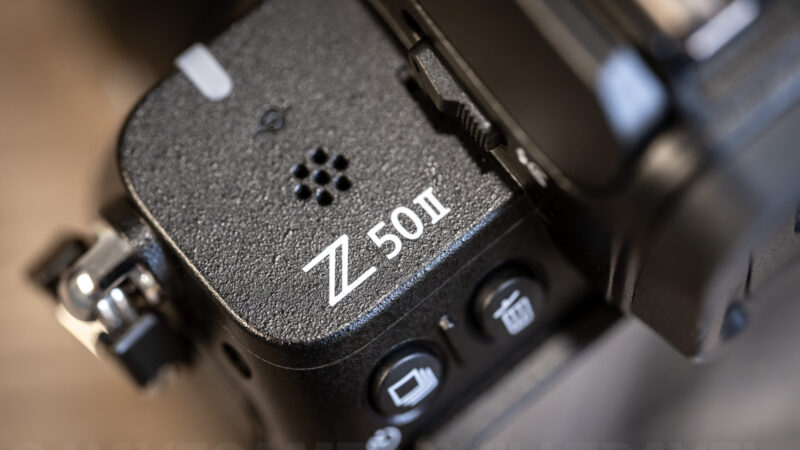
If your images play fine on your camera but after you’ve downloaded the photos to your computer you find that your software won’t open RAW files from a Nikon Z50 II, there’s usually one of two issues:
The original RAW files for the images in this post are available to subscribers to my newsletter on the RAW file downloads page. The page is password-protected; the password is in the newsletter’s welcome email. The JPG versions linked in the captions stay free.
- The app is too old to support the Z50 II. Updating your RAW image editor usually fixes it.
- The camera is using a RAW compression option your app can’t read. Changing one setting to Lossless compression should fix it for photos going forward, but it won’t solve the issue for photos you’ve already taken.
So here are the practical steps to take to diagnose the issue and what to do about it.
The quick fix: Switch the Z50 II to Lossless compression
This is a quick fix for photos going forward, but it won’t solve the issue for those you’ve already taken. For existing photos, the next section walks you through the first thing to check.
But if you’re having issues, this is also a good troubleshooting step. If you do this and the app still won’t open your photos, it points to different solutions.
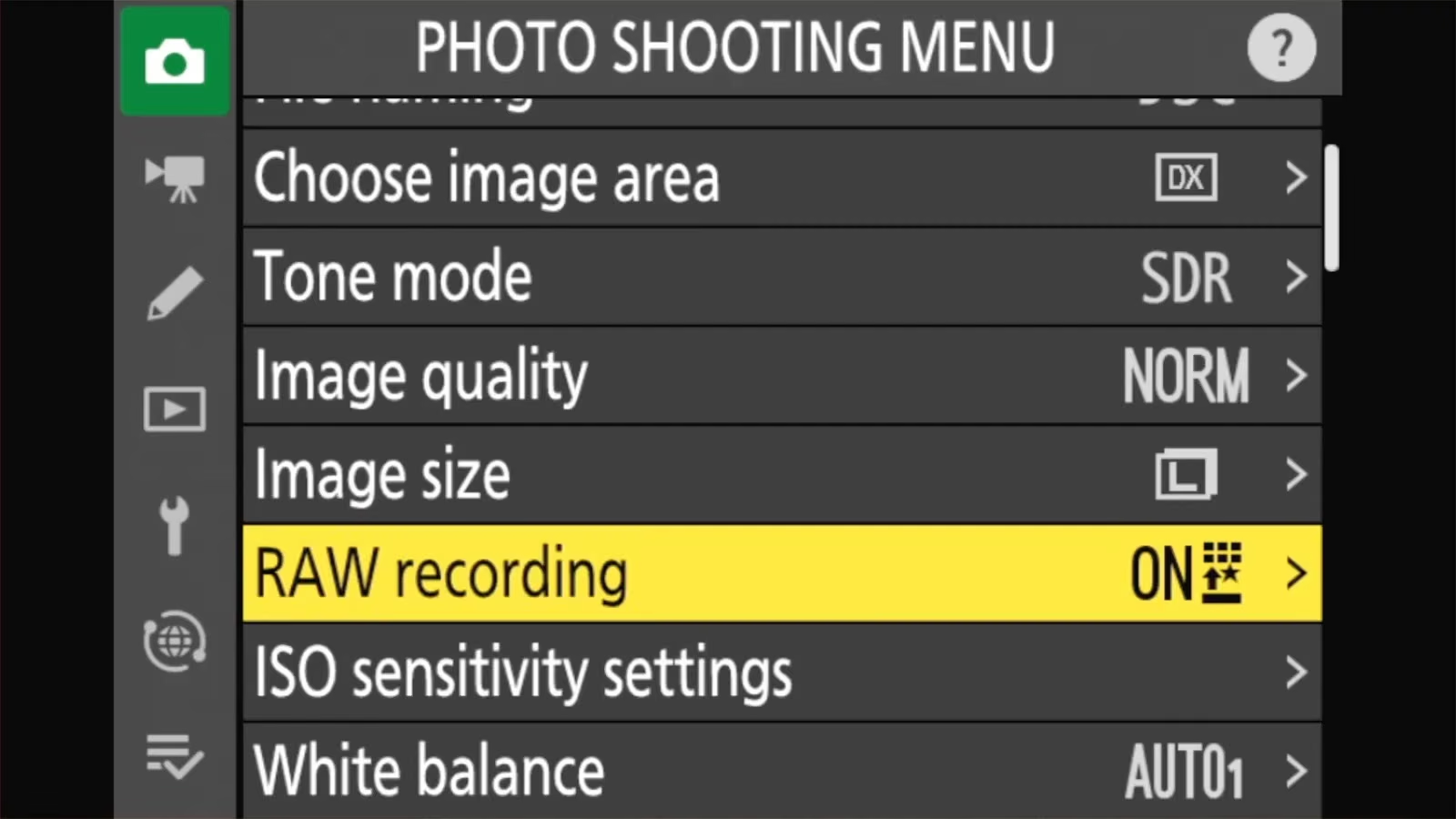
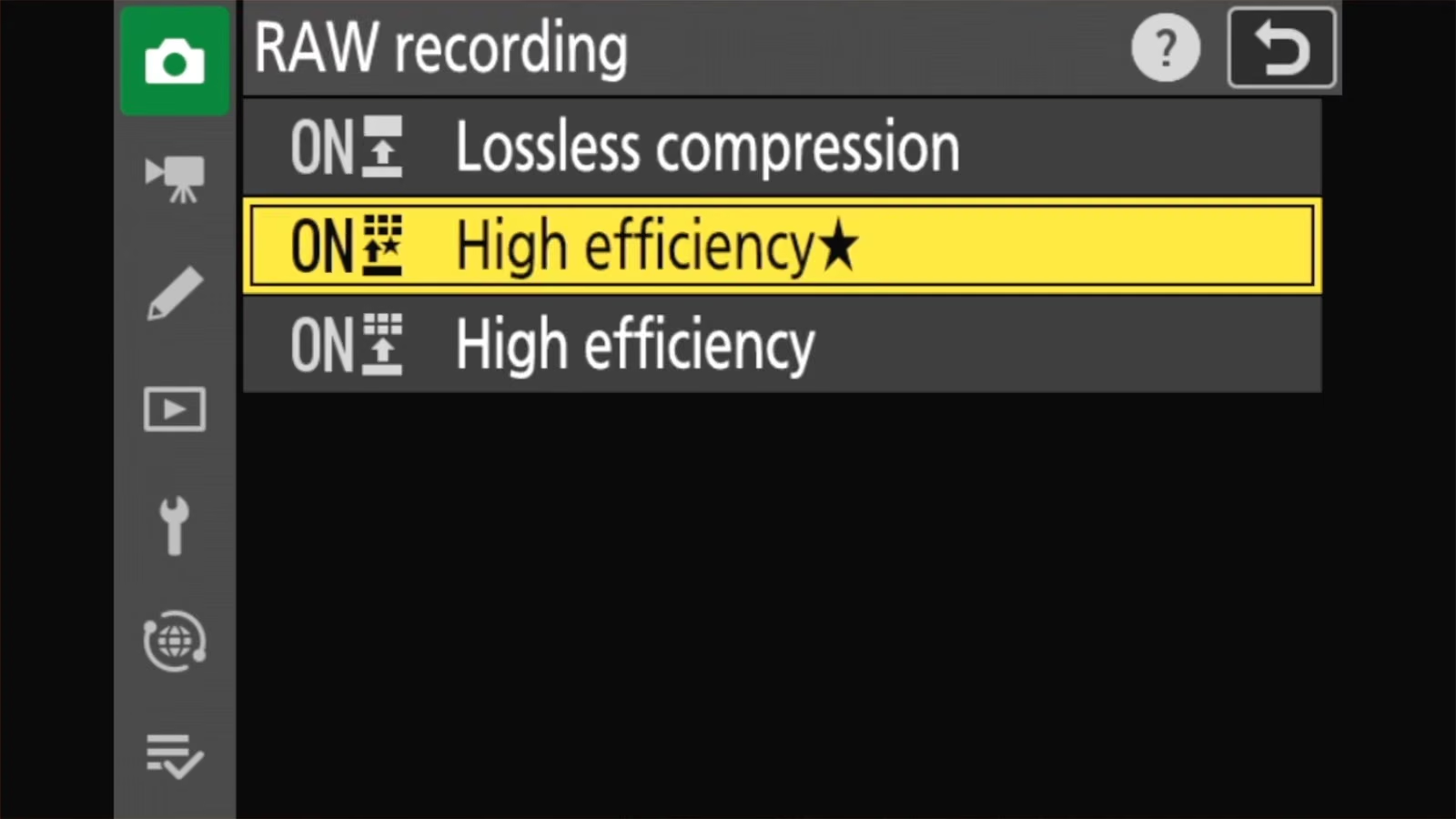
To change it, press the MENU button, go to the PHOTO SHOOTING MENU, and select RAW recording. Choose Lossless compression from the three options. The other two are High efficiency★ and High efficiency.
MENU > PHOTO SHOOTING MENU > RAW recording > Lossless compressionThis makes the camera save its RAW files in the format that every app supporting the Z50 II can open. It only affects photos you take from now on; it doesn’t solve photos you’ve already taken.
Why this happens
Nikon’s RAW files are called NEF files. The Z50 II can save them with three kinds of compression, which shrink files to save card space.
If you’ve come from the original Z50, this isn’t the same setting, even though it looks like it. On the Z50, NEF (RAW) recording chose the bit depth (12-bit or 14-bit). On the Z50 II, RAW recording chooses the compression. The files are always 14-bit, and there’s no uncompressed option.
| RAW recording option | File size (approx.) | What it does |
|---|---|---|
| Lossless compression | 24.4 MB | Smaller file, nothing thrown away, maximum compatibility |
| High efficiency★ | 15.6 MB | Newer compression; Nikon says quality “compares favorably” with lossless; Nikon’s own compression algorithm |
| High efficiency | 10.6 MB | Smallest files, a small step down in quality |
The two High efficiency options use a newer compression method, and not every RAW editing app could read it when the camera came out. Most, but not all, have since issued updated versions that can work with these files.
The catch is that the Z50 II ships set to High efficiency★ by default. So when you take a brand-new camera out of the box, this setting applies. So your first shots are probably using a RAW file type that an older editing app can’t open.
Note that this doesn’t affect any images saved as JPEGs (including if you’re using JPEG + RAW). It applies specifically and only to the RAW files.
Here’s a High Efficiency★ NEF file you can use for testing
For your peace of mind to test whether it’s a compatibility issue or something to do with your camera, here’s a High Efficiency★ NEF (subscribers) I’ve taken with the Nikon Z50 II. You can download it to your hard drive and see if it opens for you.

I know the file is fine, so if it doesn’t open for you on your computer, it almost certainly points to a compatibility issue in your setup. If it does open for you but your images don’t, then it points to an actual corruption problem with your camera, memory card, or some kind of data corruption.
If you use Adobe Lightroom, Photoshop, or Camera Raw
Adobe added full support for the Z50 II in Lightroom Classic 14.1 and Camera Raw 17.1, which were released December 12, 2024. So any Lightroom Classic or Camera Raw version newer than that will work with High Efficiency★ NEF files from the Z50 II (that’s not necessarily true of High Efficiency★ from newer or future Nikon cameras, though).
So the fix is usually just to update your software.
If you can’t update, perhaps because your computer is too old for the newest version or you just decided against renewing, set the camera to Lossless compression and convert the files you already have (see below).
The “computer is too old” problem is a real one on Windows. Starting with Lightroom Classic 14.1, the very version that added Z50 II support, Adobe requires a processor with AVX2 support. Older PCs without it are stuck on earlier versions that can’t read Z50 II files at all.
If you use Apple Photos or Preview on a Mac, iPhone, or iPad
Compatibility with RAW files is also something the computer’s operating system can do. On Apple products, it’s built in. But, as with other software, the compatibility has to be added when the camera manufacturers tweak their RAW format.
- macOS 26 and iOS/iPadOS 26 or later: Z50 II RAW files open with any compression option.
- macOS Sequoia (15) and iOS/iPadOS 18: Apple supports only Lossless compressed Z50 II RAW files.
Apple doesn’t add new camera support to older operating system versions. If you’re staying on an older version, set the camera to Lossless compression.
What to do with photos you’ve already taken
The switch above will apply to photos you take from now on, but it won’t do anything for the photos you’ve already taken.
But the good news is that you don’t need to reshoot anything. Your High efficiency NEF files are fine. You just need something that can read them.
- Update your app if you can. That’s the simplest and most obvious fix. For when it’s not feasible . . .
- Use Nikon NX Studio. It’s Nikon’s free software, and it reads all Z50 II RAW files. It won’t save the compressed RAW files as uncompressed RAW files, but you can at least export them as full-resolution TIFF or JPEG files. You can download it from the Nikon Download Center.
- Use Adobe DNG Converter. This is probably the second-best option after updating your existing app. It’s free, and version 17.1 or later converts Z50 II NEF files to DNG, a RAW format that older versions of Lightroom and Photoshop can open. You keep the RAW editing flexibility. Note that the DNG files will generally come out significantly larger in file size than the original compressed NEF files.
Should you leave it set to lossless NEF?
I have more detail on the RAW/NEF choices in my Z50 II image quality post.
While there’s no “right” answer, there are clear advantages (as well as some disadvantages) to switching it to lossless NEF. It’s what I nearly always use.
Lossless. The two big deciders for me are that it has maximum compatibility now and in the future and that it literally preserves all the original image data captured by the sensor. The High efficiency options are very good, but they’re lossy, so by definition they throw away some image data. The main disadvantages from using the lossless setting stem from the much larger file sizes that come with preserving all that capture data. That means more storage space on your memory card and computer. It also means that more data has to be transferred quickly, which has a practical implication when it comes to shooting high-speed burst photos.
High efficiency★ is a reasonable choice if you want more photos per card, you shoot lots of bursts, and you know your software supports it. The compression is very good visually, and you’ll really only notice any difference in the shadows if you try to milk as much detail out of them as you can. So it’s something you’re most likely to see when doing heavy editing.
But there’s a compelling reason to switch to High efficiency★ if you’re shooting a lot of high-speed burst photos, such as with wildlife or sports. The smaller files are quicker to transfer from the buffer to the memory card, so the buffer clears faster between bursts. The fastest modes, C15 and C30 (the ones with Pre-Release Capture), don’t record RAW at all. They save JPEGs only, whatever RAW recording is set to.
Frequently asked questions
Does Lightroom support the Nikon Z50 II?
Yes, from Lightroom Classic 14.1 and Camera Raw 17.1 (December 2024) onward, including all three RAW compression options.
Why do some of my Z50 II RAW files open and others don’t?
The most likely reason is that they were shot with different RAW recording settings. Older apps may open the Lossless compression files but not the High efficiency ones.
That said, it is possible, if rare, for the files to get corrupted on the memory card or during transfer. For that, you might need to try a data recovery app, and ideally one with repair capabilities. Not all of them have that, but Disk Drill is a good place to start.
Does High Efficiency lower the image quality?
Slightly, for High efficiency. High efficiency★ is very close to Lossless compression, and unless I’m really, really pixel peeping on a computer at 100% and pushing the shadows, I really can’t tell any visual difference.
That said, I rarely use it and generally use the lossless mode. Part of that is decades of habit. Part of it is wariness about future compatibility issues. And only a relatively small part of it has to do with image quality, and that’s more about what might be recoverable from these files in 10 or 20 years.
Do I need to change anything for JPEGs?
No. JPEG files aren’t affected by anything here. If your JPEGs won’t open, it’s not going to be a compatibility or update issue; more likely is that it’s some kind of data corruption that will require recovery and repair. In those instances, try to go back to the original, ideally on your memory card. From time to time — but not often — I’ve come across instances of the image opening fine on the camera but not on my computer. That’s nearly always a problem in the data transfer process and often fixable by re-running a fresh download.
Explore the Nikon Z50 II
Here’s a tool I created to help identify which buttons and dials are where — and what they’re called, because every brand has their own dialect and jargon.


