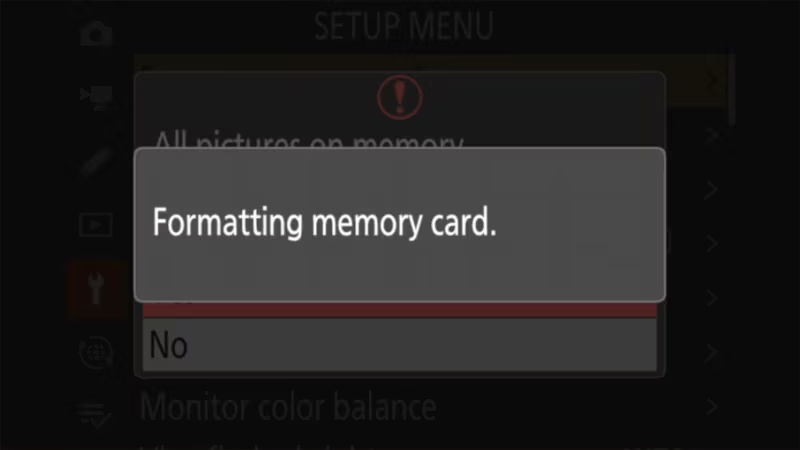
To format a memory card in the Nikon Z50 II, go to:
MENU > SETUP MENU > Format memory cardChoose Yes. A few seconds later, you’ll have a freshly formatted SD card and can carry on shooting.
That’s it. There aren’t any settings or options to choose. The rest of this post covers when you should do it, why the camera should be the one doing it, and a few Z50 II quirks that catch people out.
How to format the card, step by step
MENU > SETUP MENU > Format memory card > Yes- Copy off anything you want to keep. Formatting permanently deletes every photo and video on the card.
- Press the MENU button on the back of the camera.
- Go to the setup menu. It’s the tab with the wrench icon.
- Highlight [Format memory card]. It’s the first item in the setup menu.
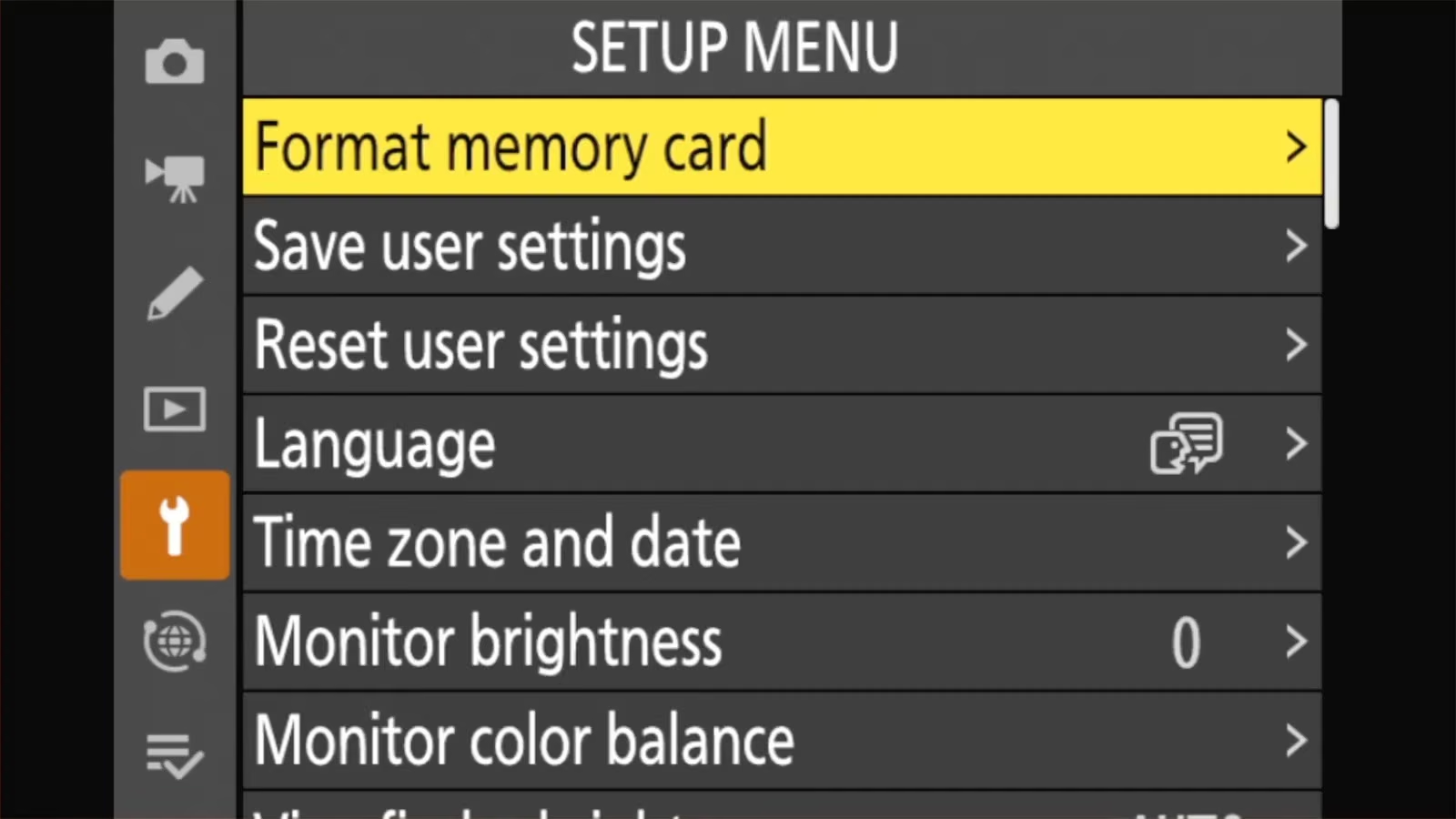
- Press OK (or press right on the multi selector).
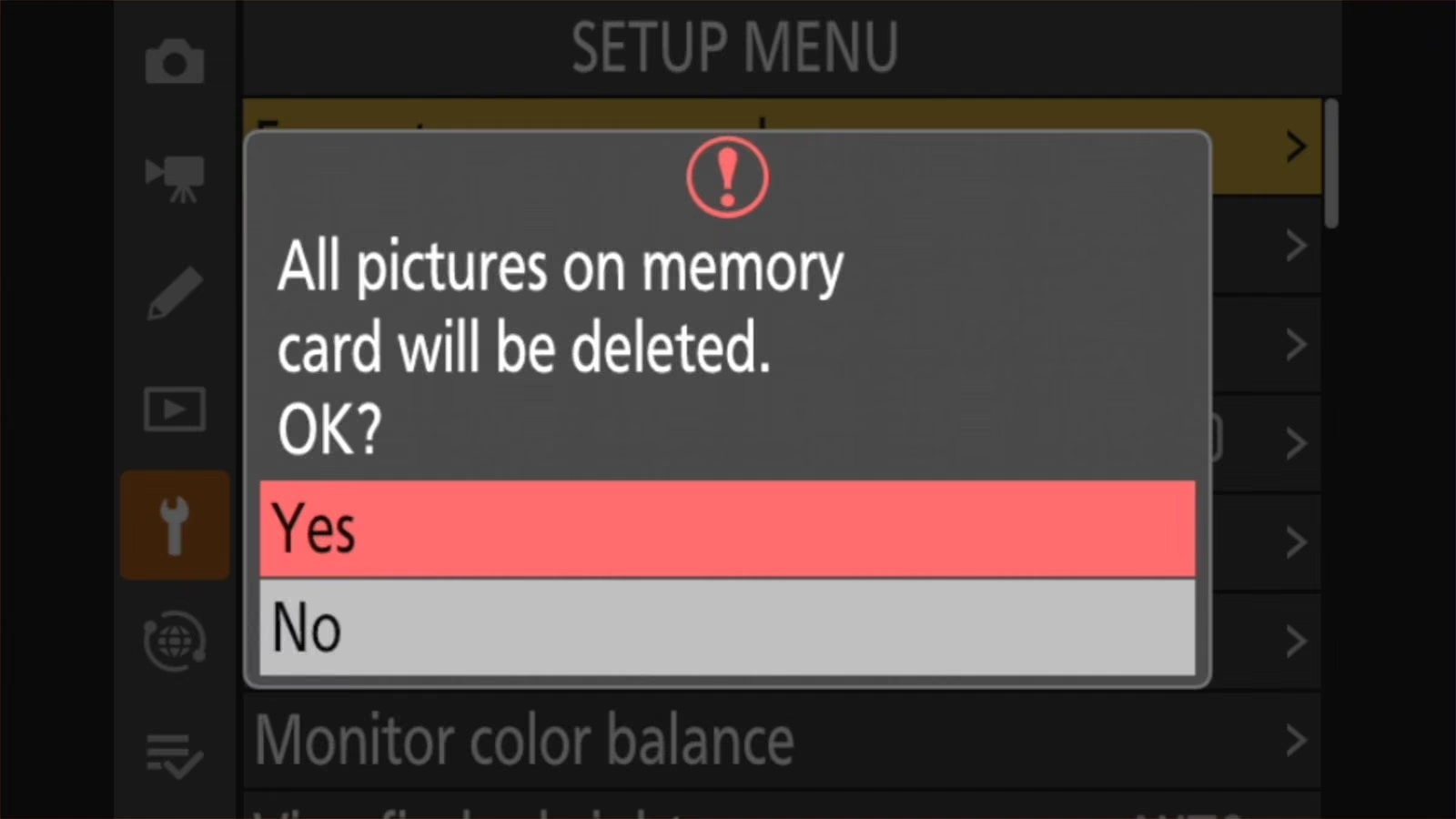
- Choose [Yes] and press OK.
- Wait for the “Formatting memory card.” message to clear. Don’t turn the camera off or open the card door while it’s on screen.
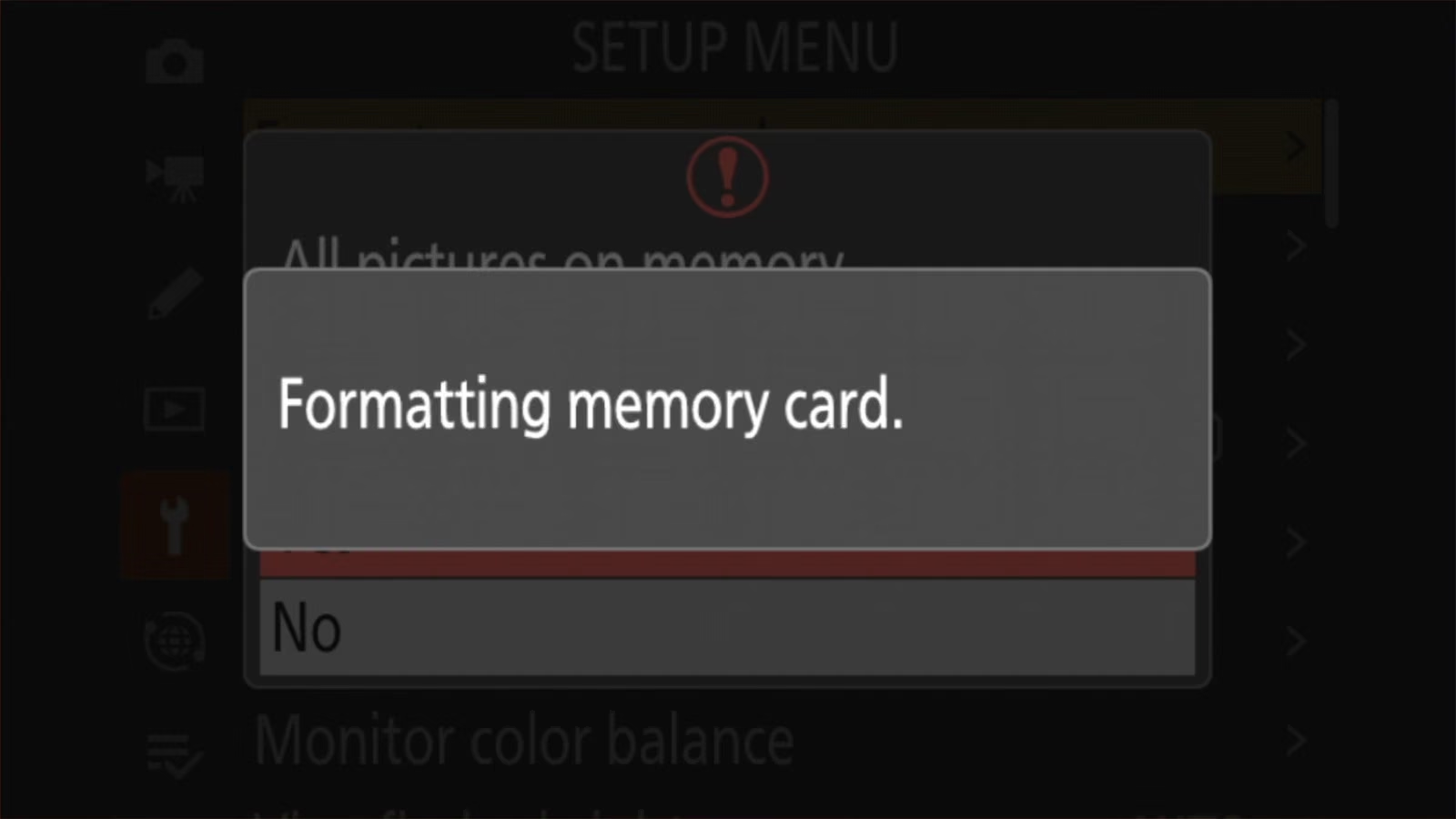
When the camera shows Formatting complete., the card is ready to use.
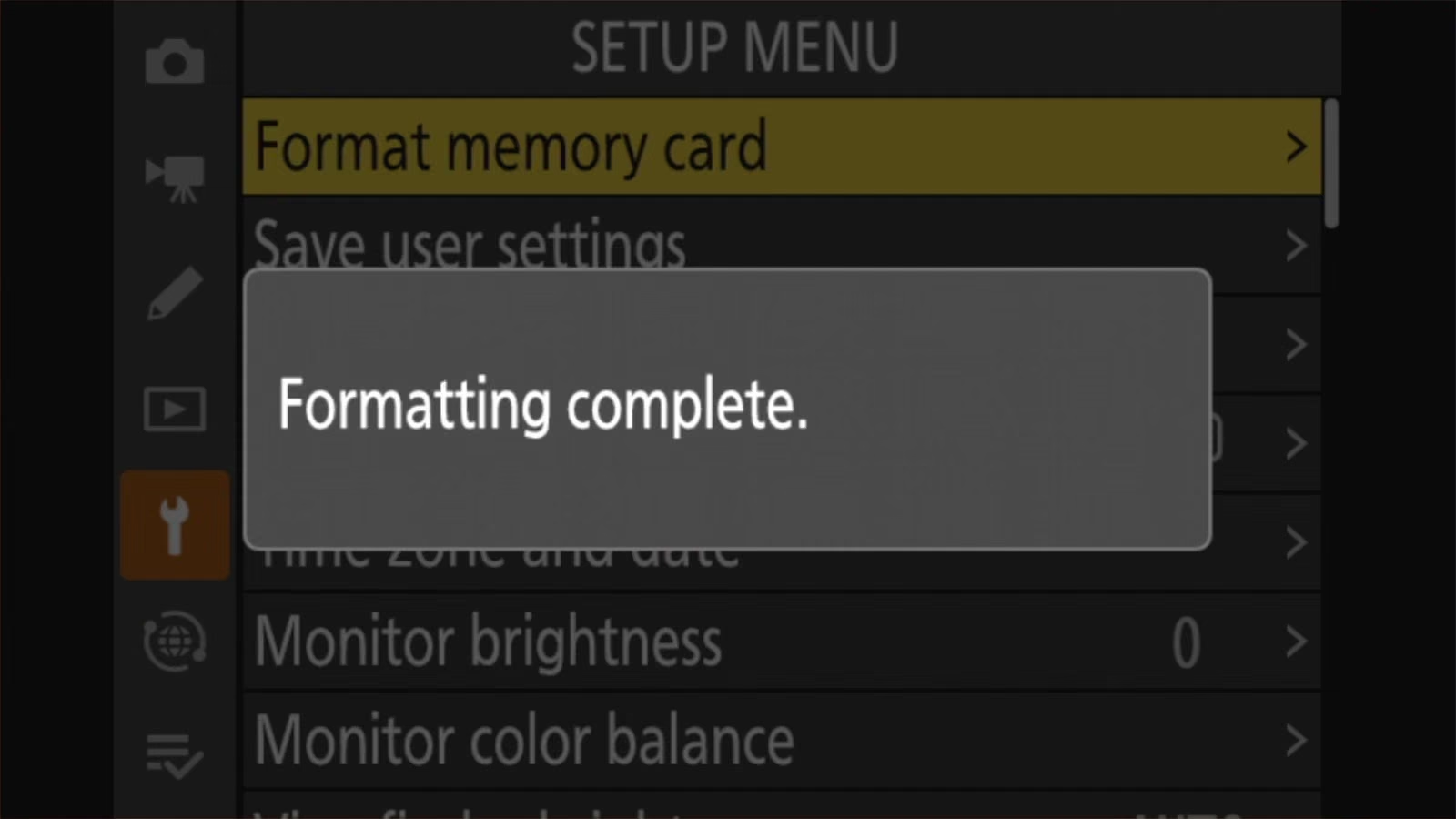
There’s no shortcut button, but you can make one
Some Nikon cameras, including the Z8 and several DSLRs, let you format by holding two buttons at once. The Z50 II doesn’t have that option.
The easiest workaround is to add it to My Menu, the Z50 II’s custom tab for the settings you use most and want quick access to. Put [Format memory card] there and it’s two button presses away instead of a hunt through the setup menu each time.
You can find this setting under:
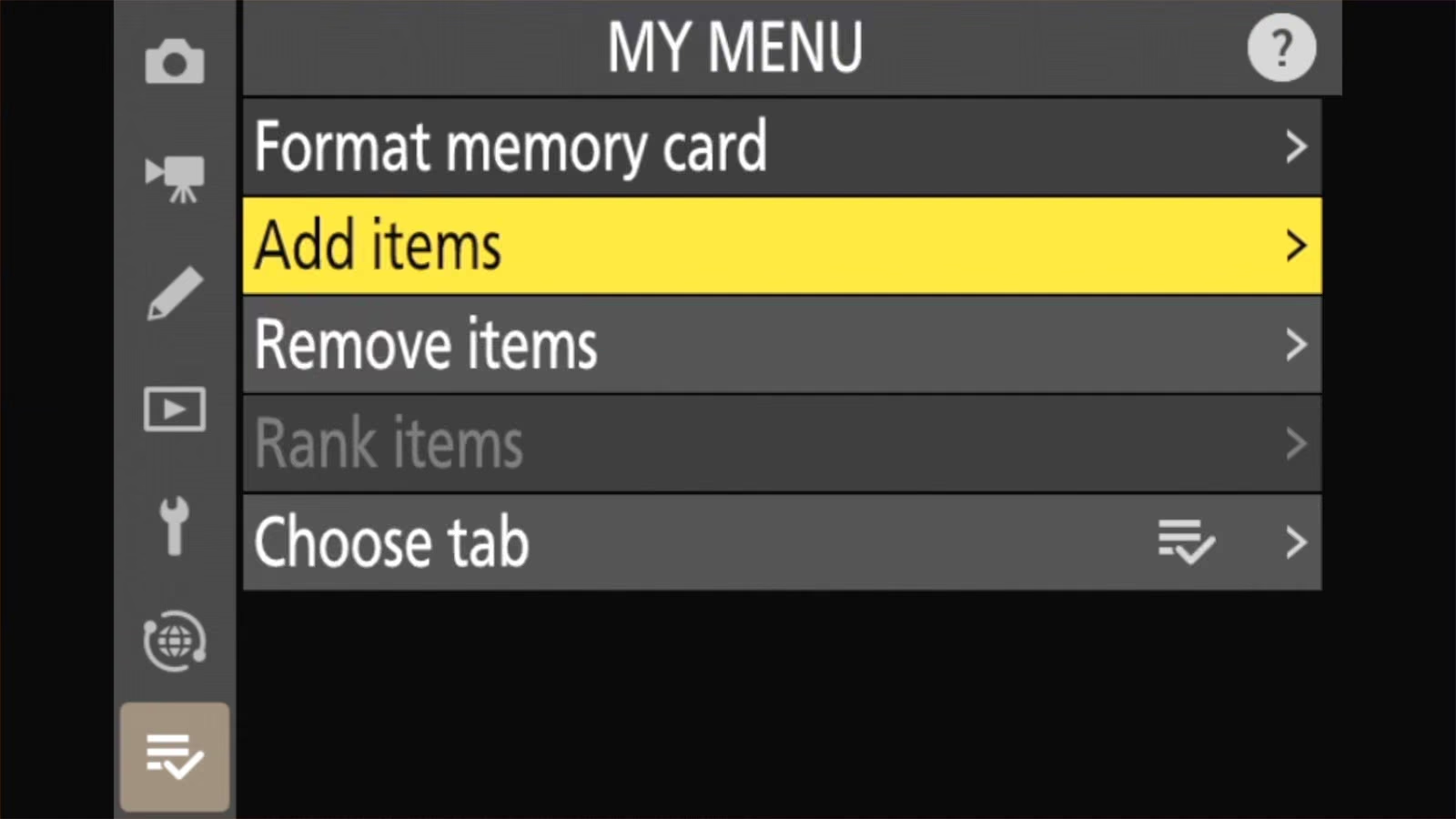
MENU > MY MENU > Add items > SETUP MENU > Format memory card- Press MENU and go to the MY MENU tab. It’s the last icon in the column of tabs down the left side.
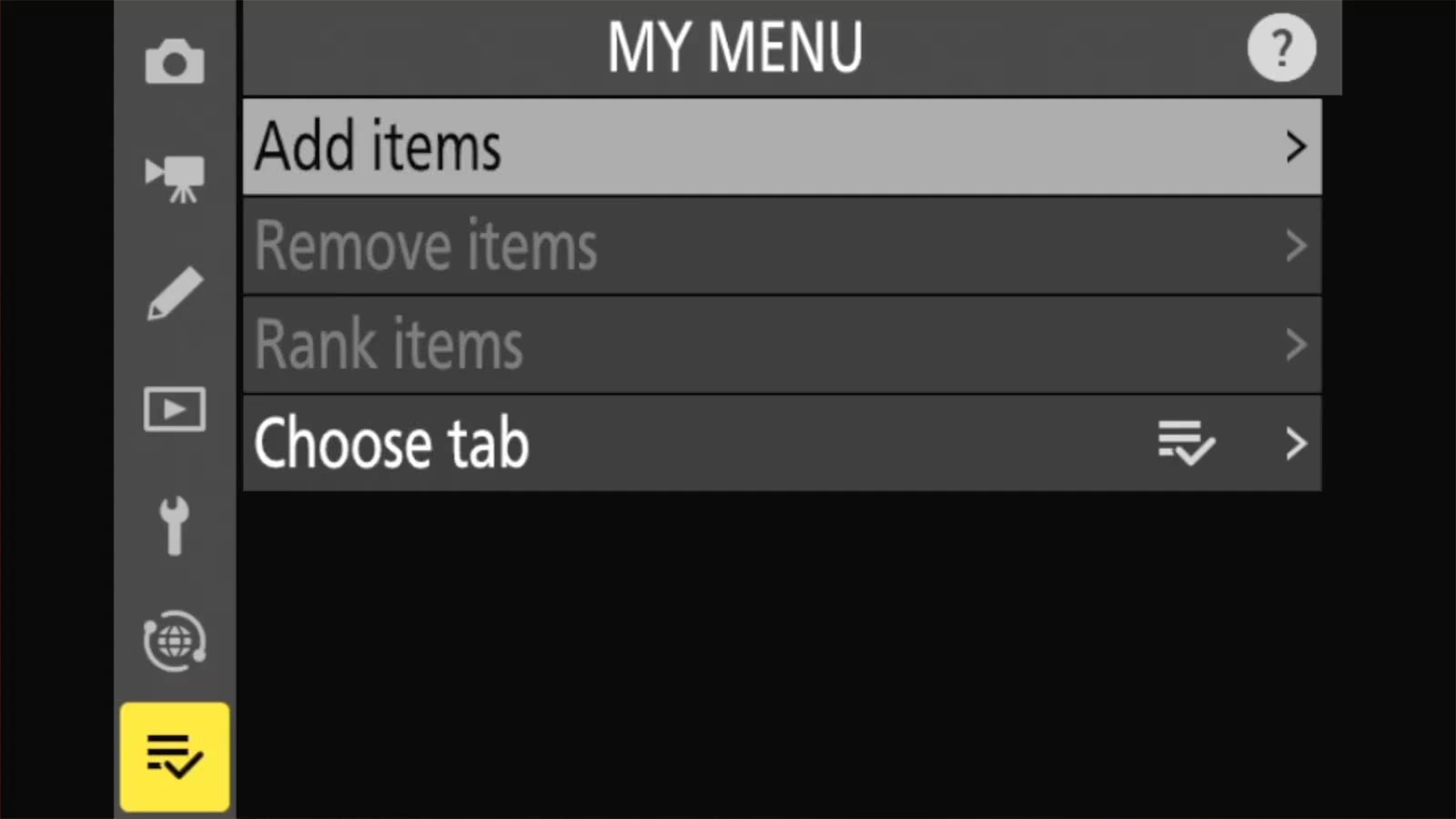
My Menu shares a tab with Recent settings. If you open that tab and see RECENT SETTINGS instead, select [Choose tab] and switch it to MY MENU.
- Select [Add items].
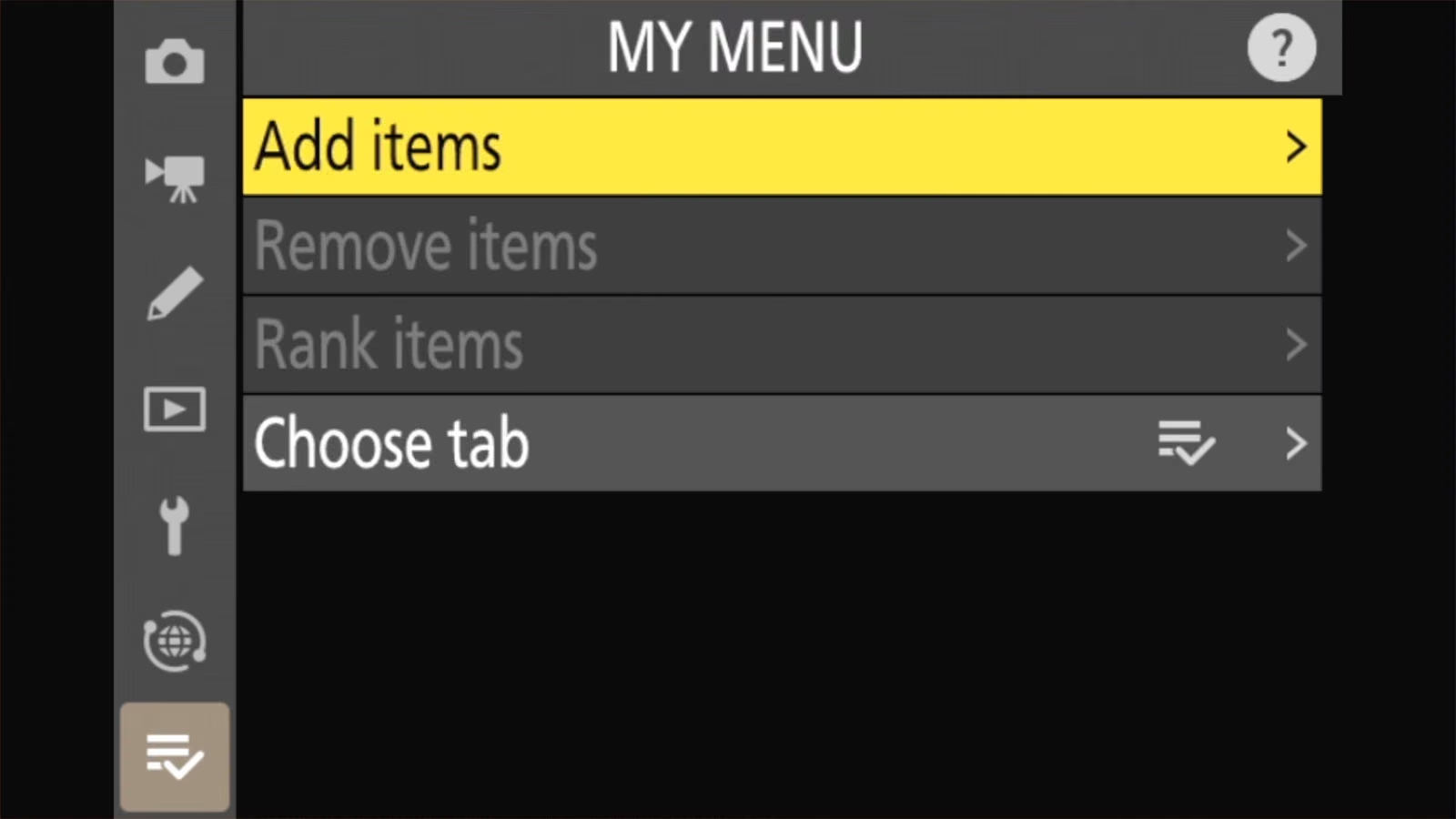
- Choose [SETUP MENU].
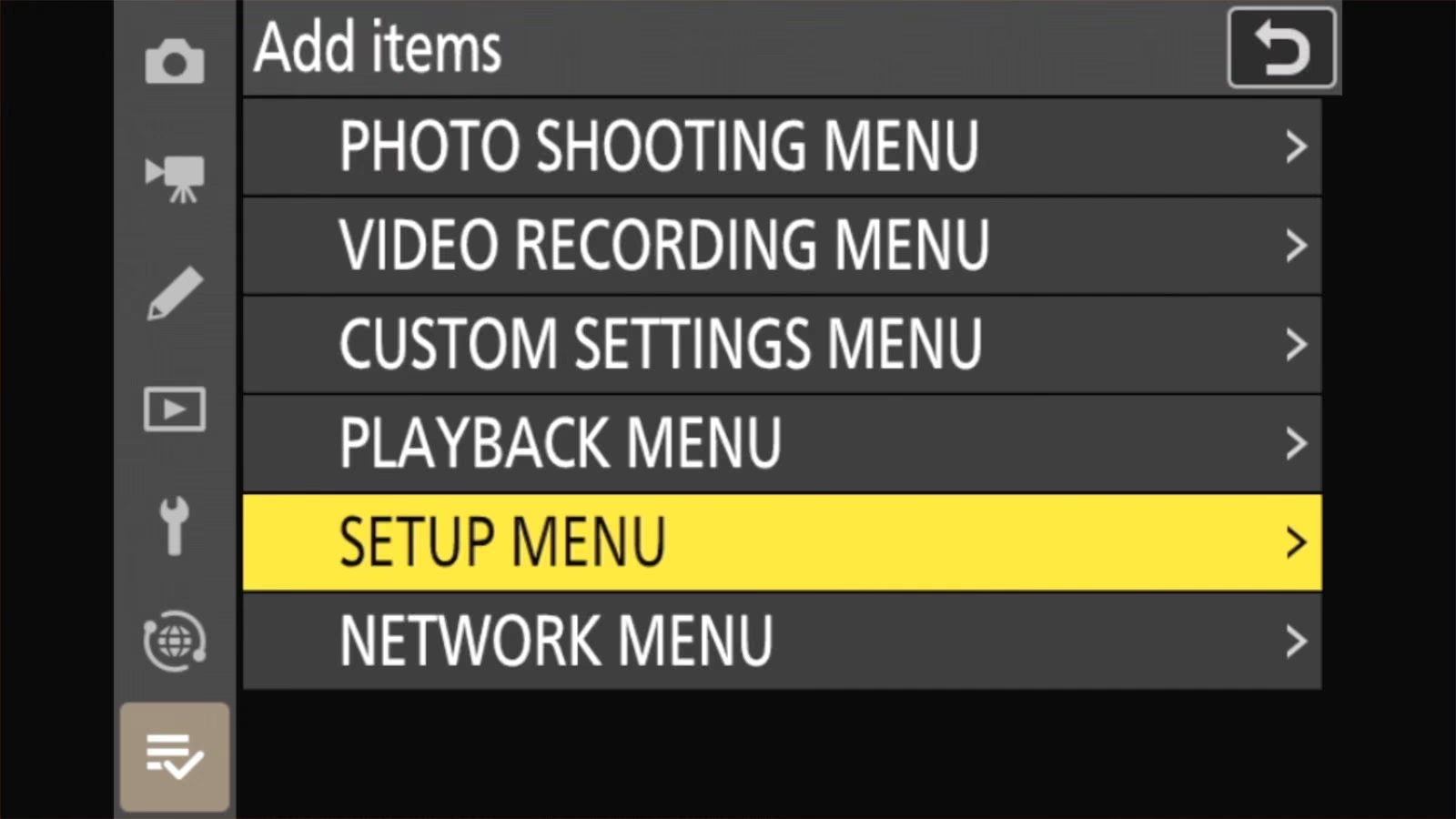
- Highlight [Format memory card] and press OK.
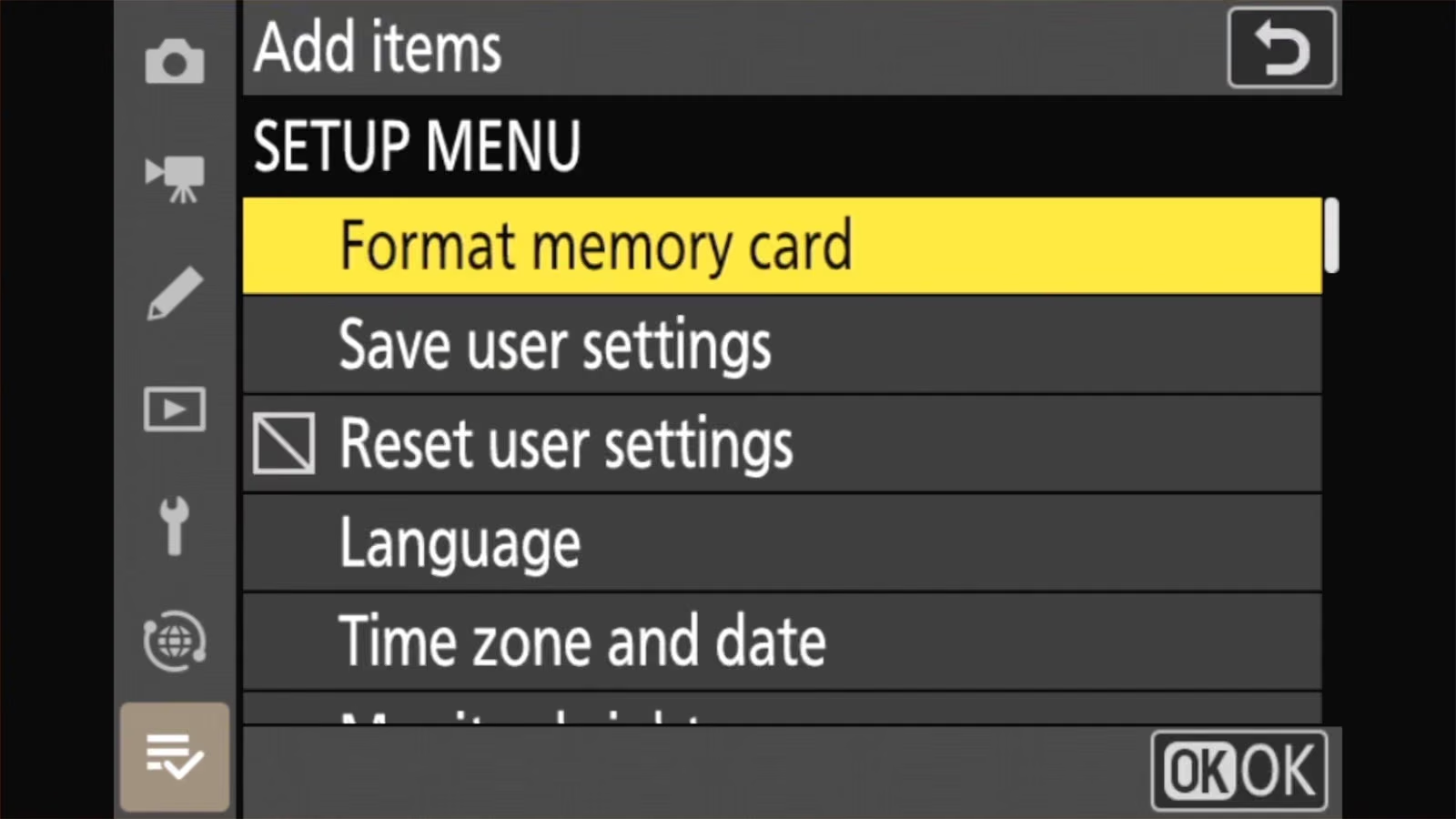
- Choose where it sits in the list and press OK. The camera confirms with Done.
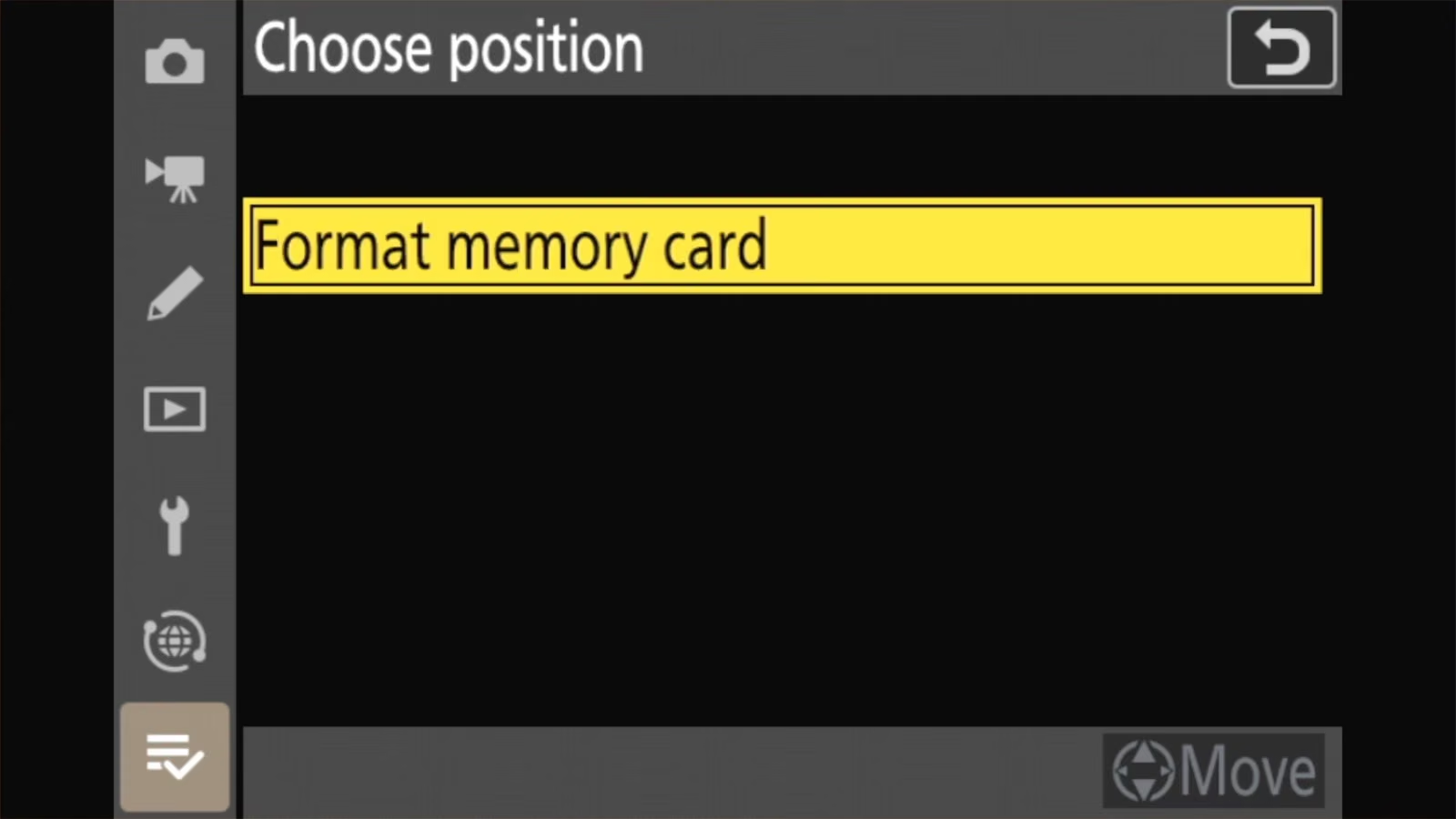
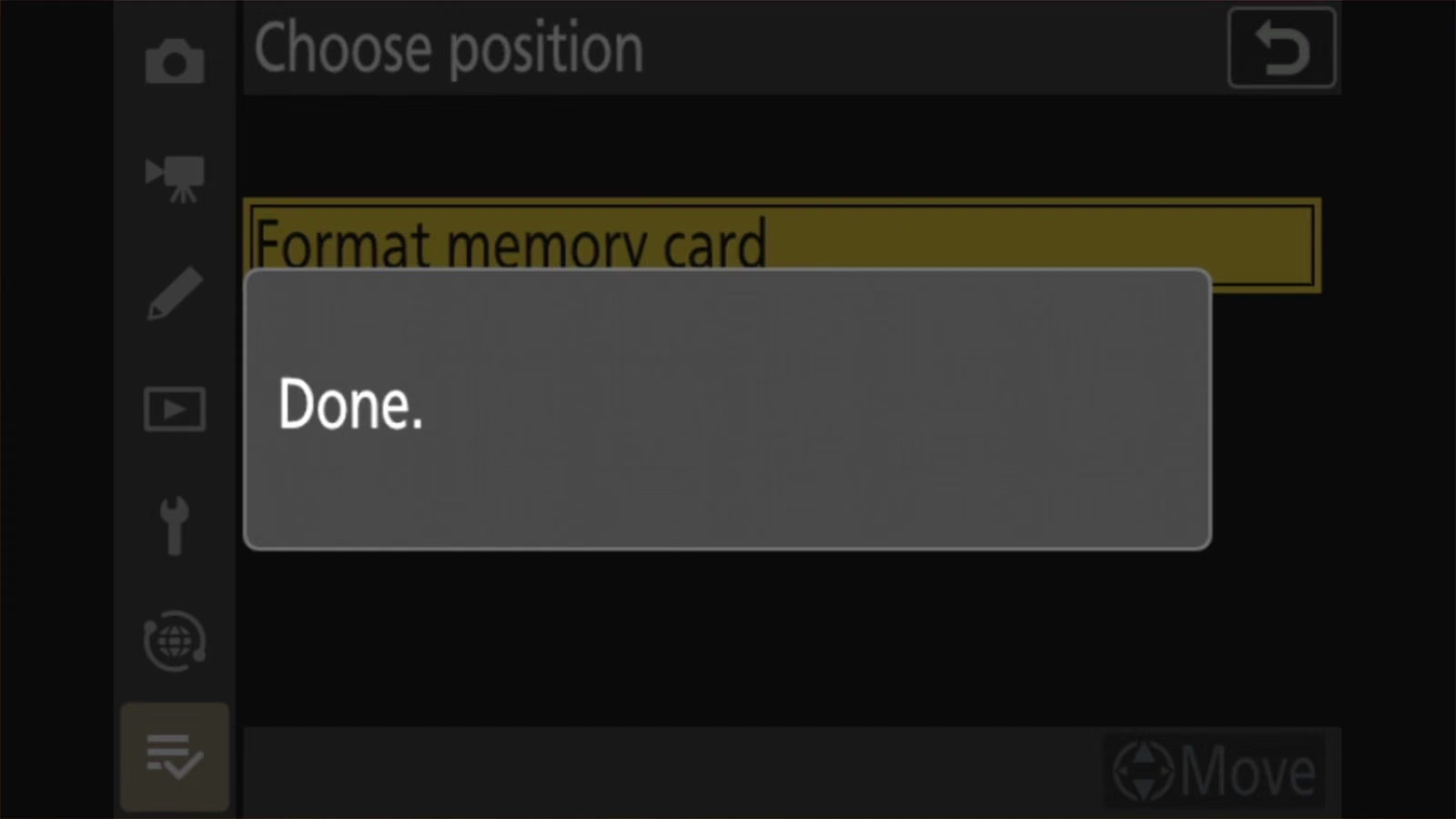
[Format memory card] now appears in My Menu.
When to format the card
You don’t need to format after every outing, but you can if you want (so long as you’ve already downloaded the images off of it!). These are the times it’s worth doing:
- A brand-new card. Format it in the camera before the first shot. Most cards come formatted and usable out of the box, but formatting it in the camera will set up the folders that the Z50 II uses and make sure the card is as the camera wants and expects.
- A card that’s been used somewhere else. That includes another camera, a computer, a phone, a drone, or a card reader someone formatted it in. Nikon’s manual says cards formatted in a computer or another camera should be reformatted in the Z50 II before use.
- Before a trip or a big shoot, once the photos already on it are safely copied and backed up. That way you start with an empty card and a clean slate and are much less likely to have to be messing with it when you’re out and about when there are more interesting things going on.
- When the camera tells you to. The message “This card is not formatted. Format the card.” means the Z50 II can’t read how the card is set up. This is most likely to happen with a brand-new card or a card that’s been formatted elsewhere, so it shouldn’t be something you see often.
- When the camera refuses to take pictures because file numbering has run out. This is a bit of a gotcha, and I explain it in more detail below.
- After a card error, once you’ve recovered anything you need. If errors keep coming back after a format, the card itself may be failing. In general, if you do have errors and have recovered any data that’s recoverable, I recommend running a more thorough full format operation. You can’t do that in the Z50 II, though — it only has the simpler and quicker quick format option, which doesn’t actually correct any corruption errors. Or even put that card aside and use another (a good argument for carrying a spare).
Why format in the camera instead of your computer
A computer has far more powerful file system formatting options available that are built into its operating system. So why not just use that? You can, but there’s more risk of something going wrong.
A memory card needs a file system before anything can be saved to it. This is the invisible structure that keeps track of where each file lives. Formatting sets that up from scratch.
Computers, phones, and other cameras can all format an SD card. But each does it their own way, and the Z50 II also expects its own folder layout on the card. When the camera does the formatting, the card is set up exactly the way it wants. On the Z50 II, that means a DCIM folder and a Nikon folder. On some other cameras, like those from Sony, that can even include a basic database system.
A card formatted elsewhere will often work for a while. The trouble is when it doesn’t. The errors tend to show up partway through a shoot rather than at the start.
Formatting is also better than deleting photos one at a time to clear a card. It’s faster, and it resets the card completely instead of leaving the leftovers of hundreds of deletions behind.
If you decide to use a computer anyway
For SD cards, which is what the Z50 II uses, I recommend using the SD Association’s SD Card Formatter app. It’s free and simple to use, and you can download it here.
If you absolutely insist on using the operating system’s formatting tools, these are the settings you want:
- SD cards 32GB and smaller: FAT32
- SD cards 64GB and larger: exFAT
Anything else won’t work in the camera and will throw an error message asking you to reformat the card.
What formatting does (and doesn’t) erase
Always download your photos and videos first. Formatting the card functionally wipes it.
As far as the camera is concerned, everything on the card is gone: photos, videos, and folders.
But it’s a quick format. The camera marks the space as free rather than overwriting every bit of old data, and the Z50 II doesn’t offer a full or secure erase. That has two practical consequences:
- If you format by mistake, stop using the card right away. Don’t take any more photos on it. Every new file can overwrite something you want back. Recovery software can often get the images back from a card that hasn’t been written to since. Here’s how to recover deleted photos from an SD card.
- Formatting isn’t a secure wipe. If you’re selling or giving away a card, assume the old photos could be recovered by someone who tries — here’s how to securely wipe an SD card on Mac if you need to make sure they’re really gone.
For more on the difference, see quick format vs. full format.


NB: Protecting a photo in playback doesn’t save it from a format — protected images and videos get wiped along with everything else.
Formatting doesn’t touch anything stored in the camera itself. Your menu settings, Picture Controls, and copyright information all survive it. But it does clear anything else you’ve saved to the card, and that’s easy to forget: a settings backup written by [Save/load menu settings], Custom Picture Control files you copied across, and Image Dust Off reference data all go with the photos. If you’re relying on a settings backup that only exists on the card, copy it to your computer first.
Things worth knowing
Wait for the access lamp before opening the door
On the Z50 II, the battery and memory card sit behind the same door on the bottom of the camera, not on the side as on many Nikon cameras.
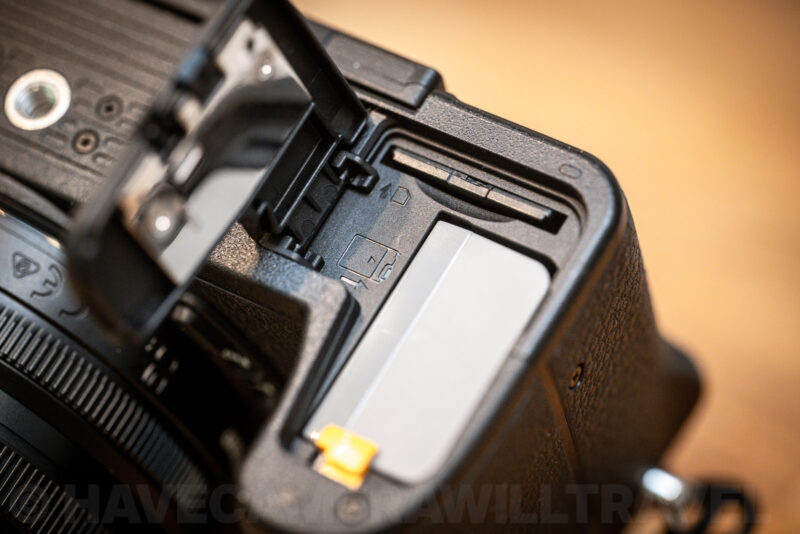
So if you’ve started a format operation and plan to switch out the battery at the same time, it’s a pretty easy mistake to make to pull the battery out while the SD card format operation is still in progress. And that will probably corrupt the card’s filesystem and make it unreadable to the camera, probably forcing you to reformat it again.
There are two simple ways to make sure the formatting is complete. You can see the progress on the camera’s back screen. And there’s also a memory card access lamp on the back of the camera that lights up while the camera is writing to the card. Don’t remove the SD card or the battery while that small light is on.
This doesn’t only apply to format operations. After a long burst of photos, the camera can keep writing for a while after you’ve stopped shooting, and the lamp stays lit until it’s done. Wait for it to go out, turn the camera off, and then open the door.
Nikon says the lamp can stay lit for anywhere from a few tens of seconds to around a minute after a long burst, so a lamp that’s still on isn’t a sign something has gone wrong. And if you switch the camera off while it’s lit, the Z50 II won’t actually power down until the images still in the buffer have been written to the card.
Two settings worth checking
Stop the camera from shooting without a card
It’s possible to take “photos” on a Z50 II with no card in it at all. They just aren’t saved anywhere. Which, yes, is pretty pointless. And potentially frustrating; if you’ve ever come home from a day out to find an empty camera, this is how it happened.
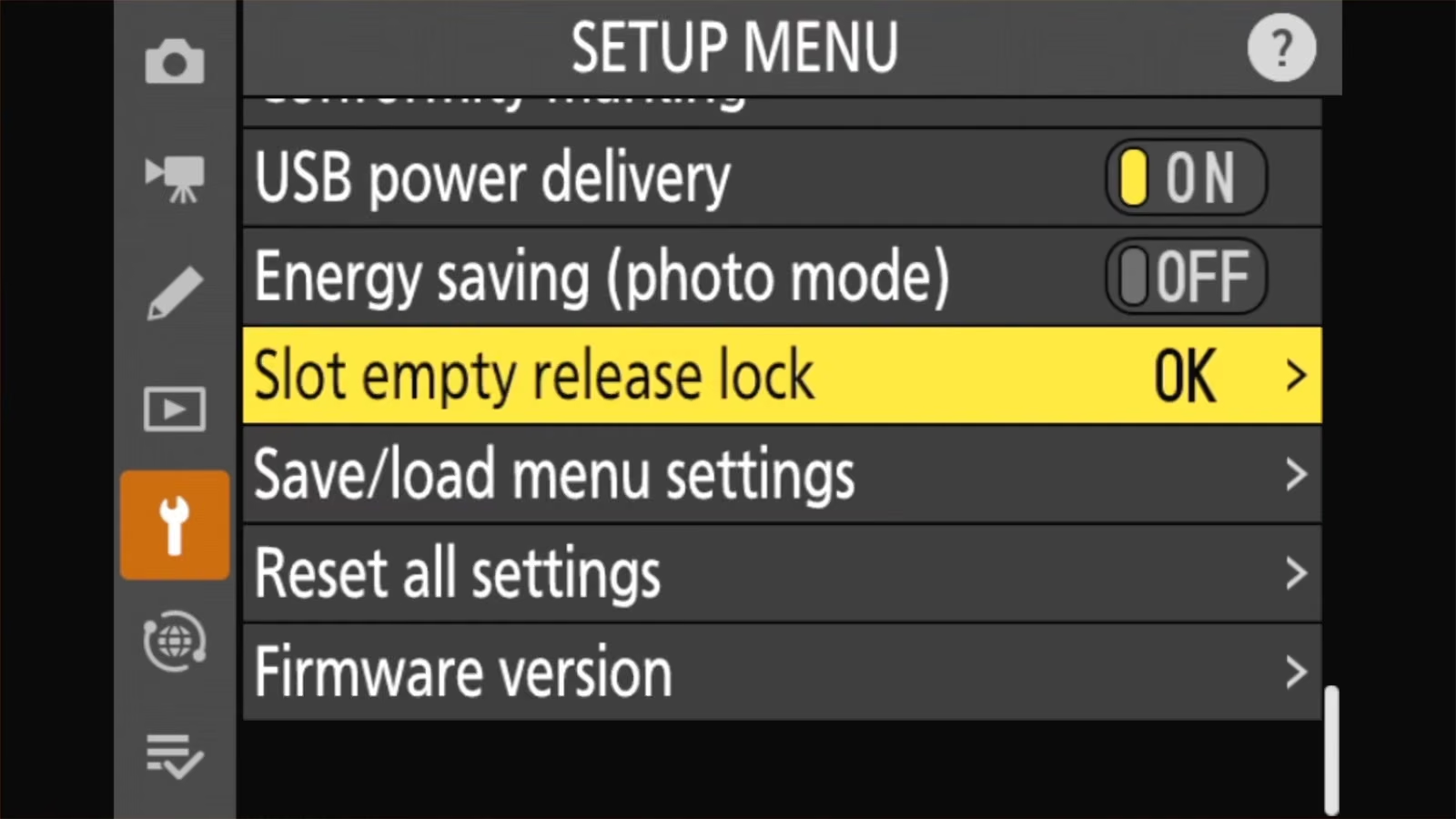
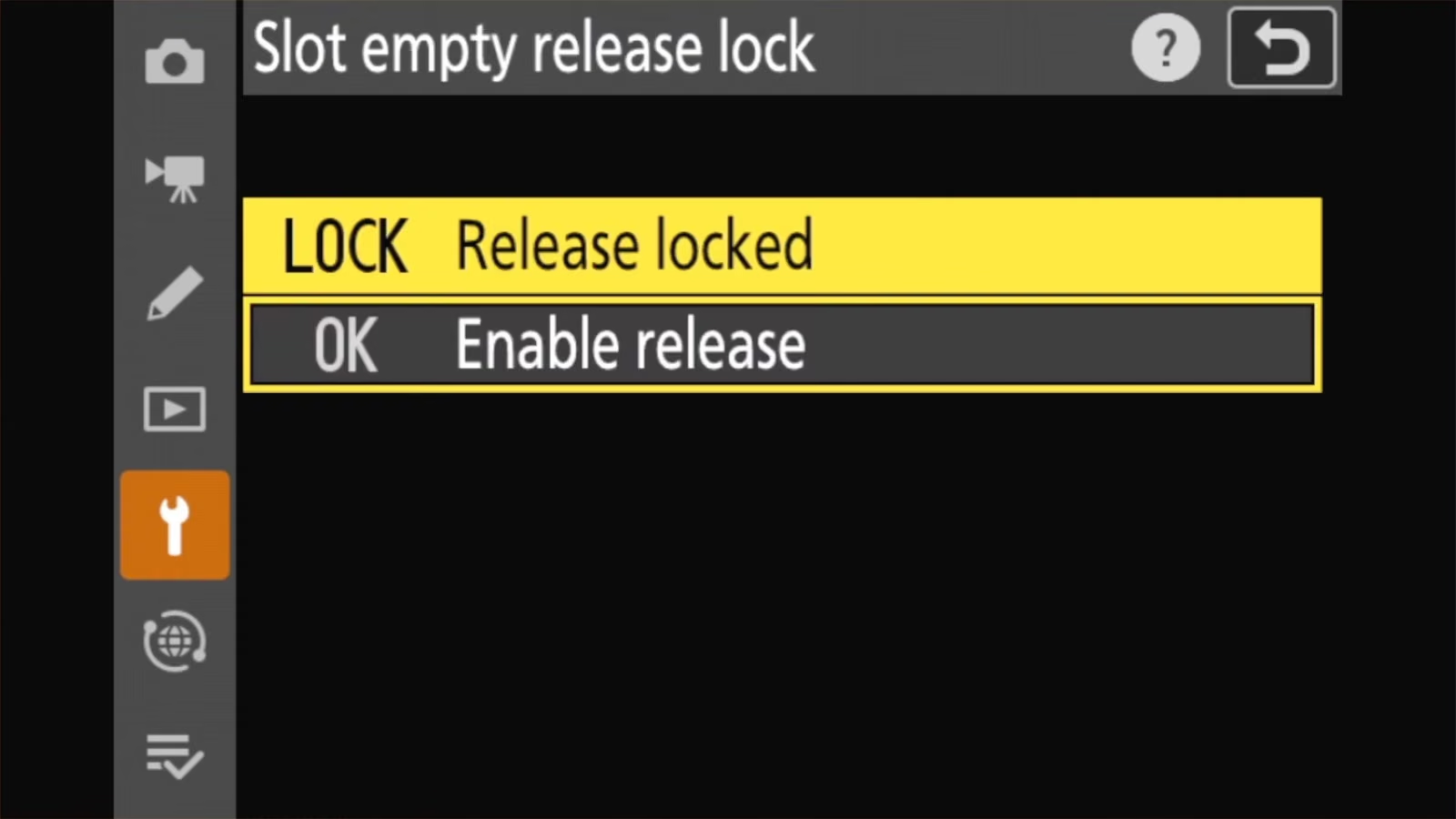
This setting makes the camera refuse to fire when there’s no card:
MENU > SETUP MENU > Slot empty release lock > Release lockedWith Release locked, the shutter won’t release without a card. With Enable release, it will. The default setting is Enable release.
When the camera stops shooting because of file numbers
The Z50 II numbers files and folders as it goes. When it runs out of numbers, it stops taking pictures.
According to Nikon’s manual, the shutter is disabled when the current folder is numbered 999 and contains 5,000 pictures, or contains a file numbered 9999.
You’re unlikely to hit this soon on a new camera. But on a well-used one it can look like a fault.
The fix is two steps. First:
MENU > CUSTOM SETTINGS MENU > d9 File number sequence > Reset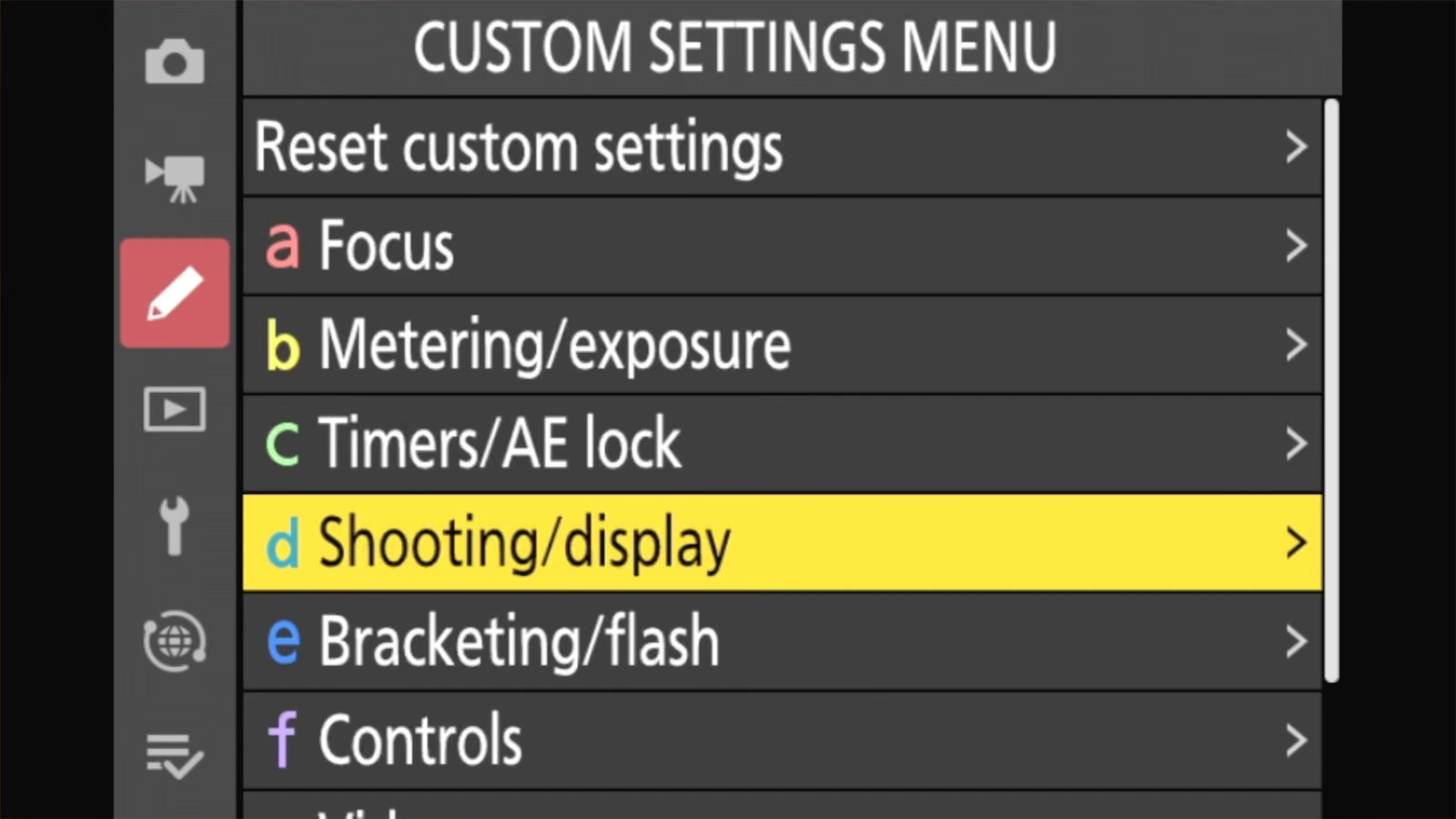
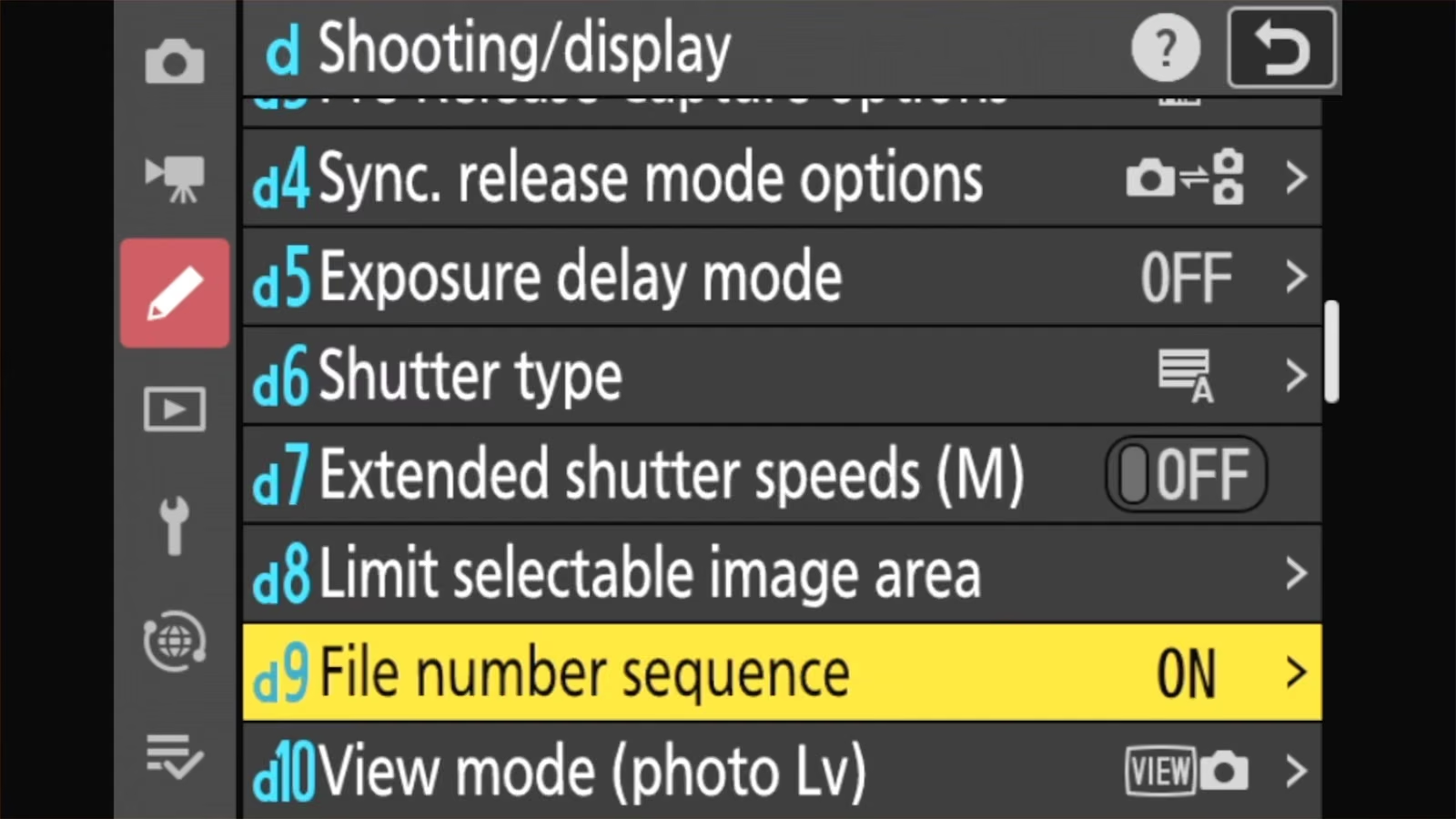
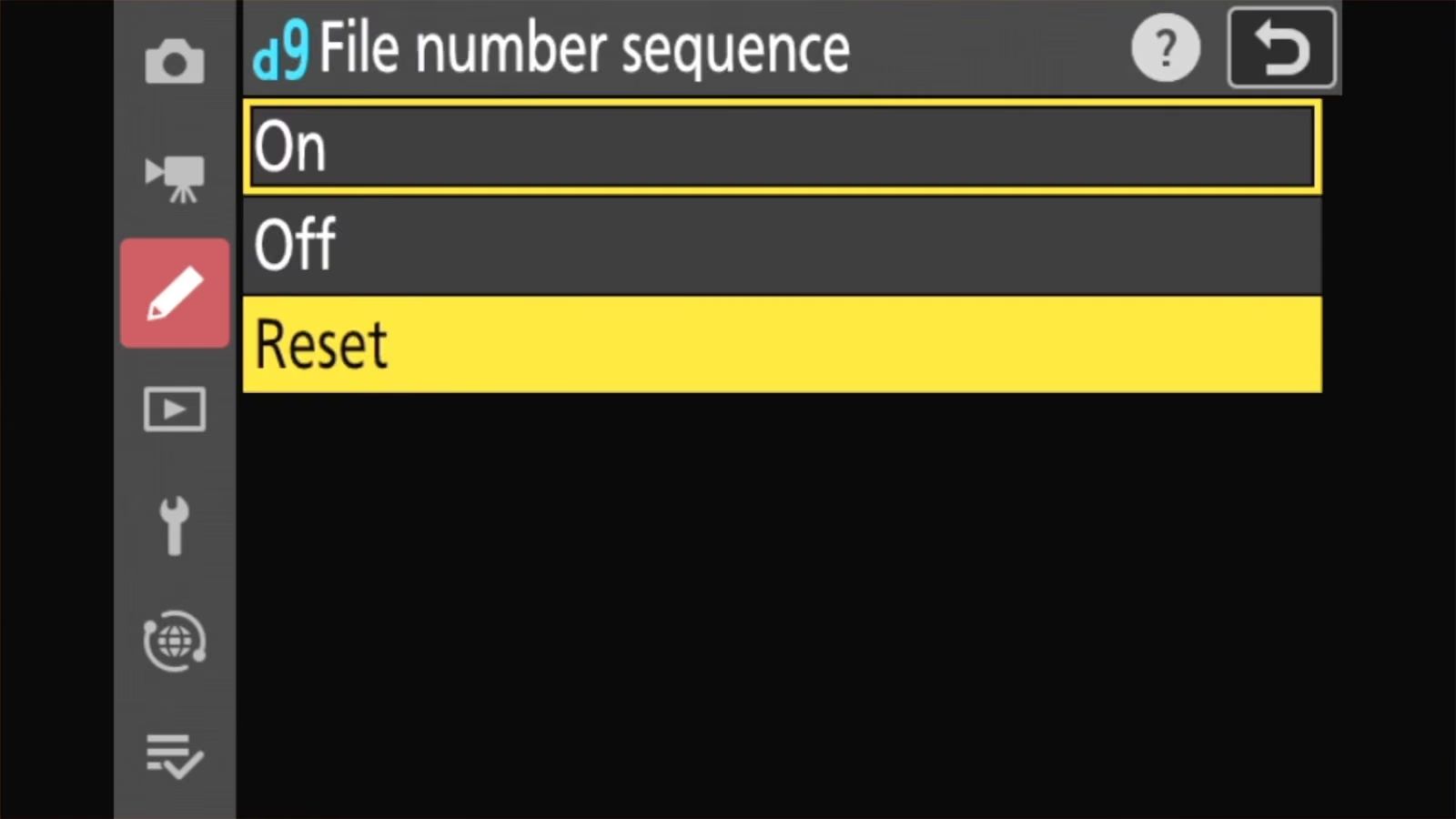
Then format the card, or put in a new one.
Formatting on its own won’t clear it. With file number sequence left on, the camera carries on from the last number it used, even on a freshly formatted card — which is why the reset has to come first.
If you see an error message or warning
- ” – – – ” in the display and a [Card] warning. The small lock switch on the side of the SD card is in the locked position. Take the card out, slide the switch up to unlock it, and put it back.
- “This card is not formatted. Format the card.” Format it in the camera, after copying off anything you need. If you can’t get the photos off another way, try a card reader on your computer first.
- The camera won’t format the card, or errors come back after formatting. Try formatting it once with the free SD Card Formatter app on a computer, then format it again in the camera. If the problems continue, it’s probably time to ditch the card rather than spend the time, effort, and peace-of-mind on trying more thorough repair options. Memory cards are cheap; lost photos aren’t.
If you’re on a Mac and need to format a card there first, here’s how to format SD cards on a Mac. In some cases, that can fix some basic filesystem errors. Just reformat it in the Z50 II before you shoot.
Frequently asked questions
Is formatting the same as deleting all photos?
No. Deleting removes photos but leaves the card’s filing system as it was. Formatting rebuilds it from scratch. Formatting is the better way to clear a card.
How often should I format?
There’s no set schedule. Formatting at the start of each trip or shoot, after you’ve backed up the previous photos, is a sensible habit.
Can I format a card on my computer instead?
You can, but then format it again in the Z50 II before using it. Nikon (and all camera manufacturers, for that matter) recommends the camera do it.
Which cards work best in the Z50 II?


