
Warning: Formatting the SD card will permanently wipe all data on it. So make sure you’ve backed up your photos and videos to your computer or cloud before proceeding.
SD cards are an essential accessory for your GoPro. Unlike some cameras, GoPros don’t have usable internal memory to store your footage.1 So you’re going to need a card to get out shooting. That’s step one. Step two is prepping the card to get it ready for the GoPro to work with.
The quick answer
On most GoPros with a rear touchscreen — HERO7 Black through HERO13 Black, plus the HERO (2024) and MAX — the option is Swipe down → (on the HERO9 Black and later, swipe left) → Preferences → Reset → Format SD Card. (Yes, it’s under “Reset.” No, it won’t factory-reset your camera.) The HERO11 Black Mini and HERO10 Black Bones work differently; see the table. The Quik app’s “Delete All Files from SD Card” and the HERO13’s Manage SD Card tile also empty the card, but GoPro lists them as deleting files, separate from Format SD Card.
| Camera | Where the format option is |
|---|---|
| HERO13 Black, HERO12, HERO11, HERO10, HERO9, HERO (2024), MAX2, LIT HERO, MISSION 1 PRO, MISSION 1 | Swipe down → swipe left to Preferences → Reset → Format SD Card |
| HERO8 Black, HERO7 Black, HERO7 Silver, HERO7 White, MAX | Swipe down → Preferences → Reset → Format SD Card |
| HERO11 Black Mini | Status/Pair button repeatedly to Format SD → Shutter to select → Status/Pair to highlight the confirm icon → Shutter to confirm |
| HERO10 Black Bones | No screen: use the GoPro Quik app → Delete All Files from SD Card |
| HERO6 Black, HERO5 Black, HERO (2018) | Swipe down → Preferences → Format SD Card (top level, no Reset submenu) |
| HERO4 Black | Power/Mode to Setup (wrench) → Settings/Tag to open → Power/Mode to Delete → Shutter/Select to All/Format |
| GoPro Quik app (any connected camera) | Settings (gear) → Delete → Delete All Files from SD Card |
| Computer (card won’t mount or format is grayed out) | SD Card Formatter app (or exFAT for 64GB+, FAT32 for 32GB and under), then format again in the camera |
I’ve put together separate recommendations for the best SD cards for GoPro cameras. Here, I’m focusing on how to keep that card healthy and ready for action.
Why format your SD card?
Formatting your card does two things:
- Clears Space: It wipes all files at once, which is much faster than deleting clips one by one.
- Resets the File Structure: It sets up the file system and folders exactly how the camera expects them.
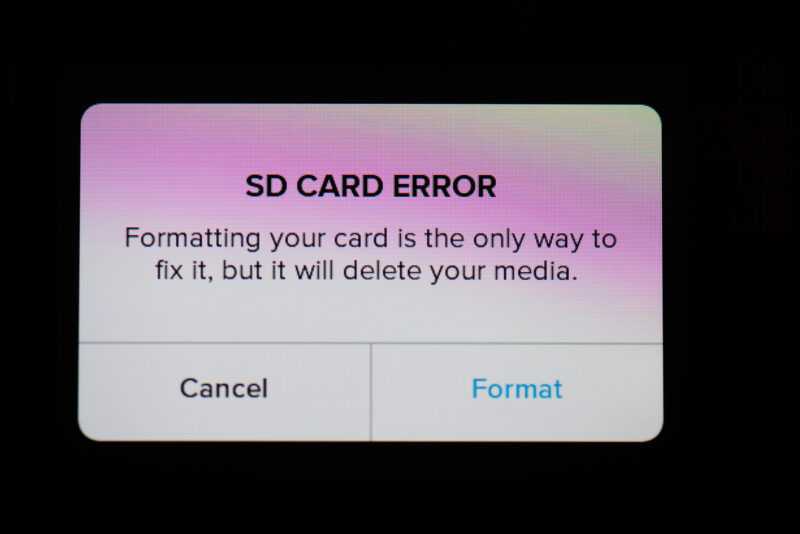
Think of it as “conditioning” the card. Regular formatting helps prevent the dreaded “SD Card Error” that can stop a recording halfway down a mountain. I recommend formatting your card in the camera at the start of every shoot, right after you’ve confirmed your previous footage is safely backed up.
Method 1: Using the camera menu (touchscreen models)
This is the standard method for almost all modern GoPros. While the menus have changed slightly over the years, the logic remains the same.
For HERO7 through HERO13, HERO (2024), MAX, MAX2, LIT HERO & MISSION 1
On the most recent models, the format option is tucked away inside the “Reset” menu. This confuses people (like me!) because “Reset” sounds like a factory reset — and I do not want to do a factory reset unless it’s a last resort!
Don’t worry: Tapping “Reset” won’t reset anything by itself. It opens a short list. That list also includes options that do reset settings, like Reset Presets and Factory Reset, so tap only Format SD Card.
- Swipe down on the rear screen to access the Dashboard.
- On the HERO9 Black and later (including the HERO (2024)), swipe left to find Preferences. On the HERO7 Black, HERO7 Silver, HERO7 White, HERO8 Black and MAX, tap Preferences right on the Dashboard.
- Scroll down to the Reset section.
- Tap Format SD Card.
Emptying the card without formatting: Manage SD Card on HERO13, HERO12 & HERO (2024)
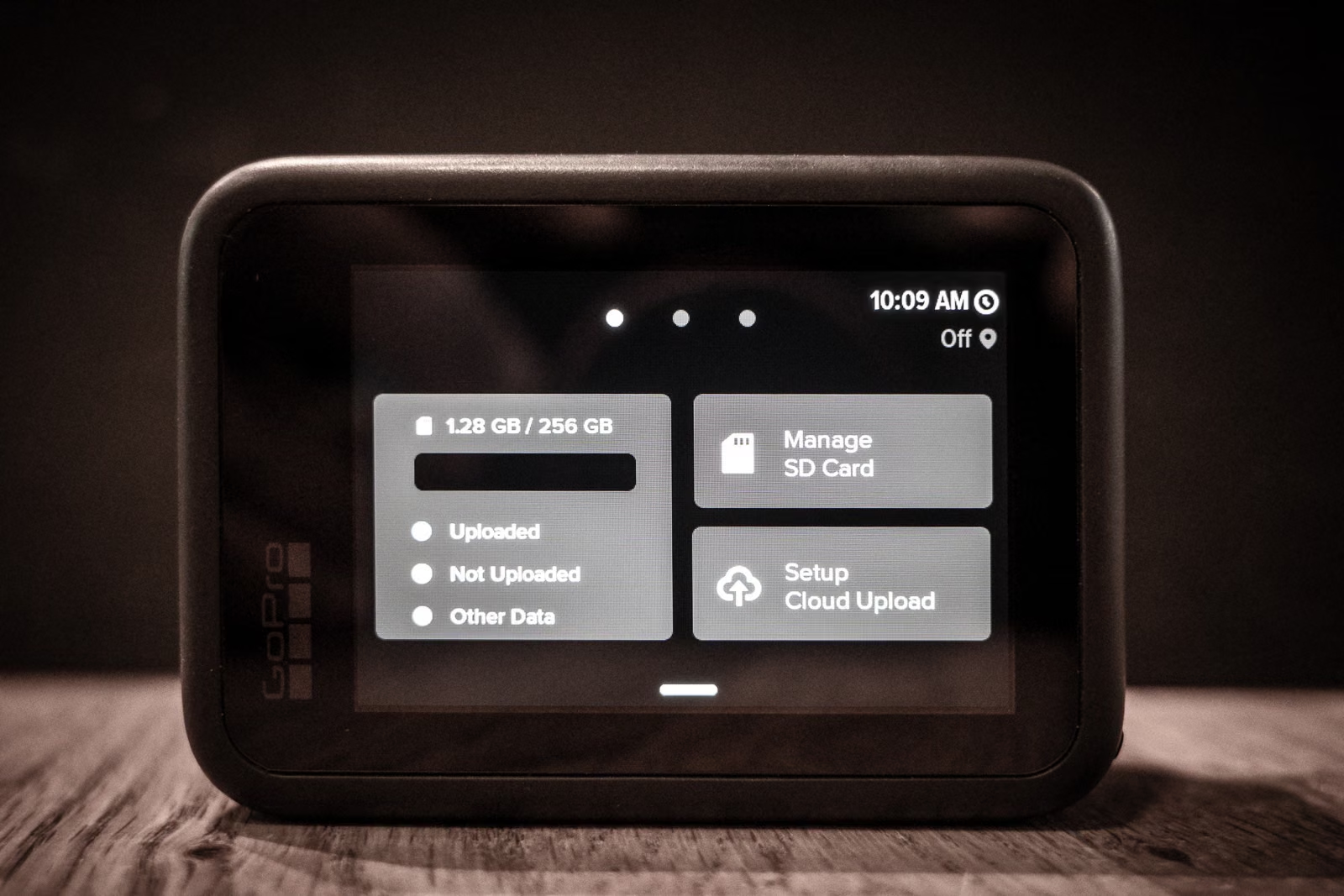
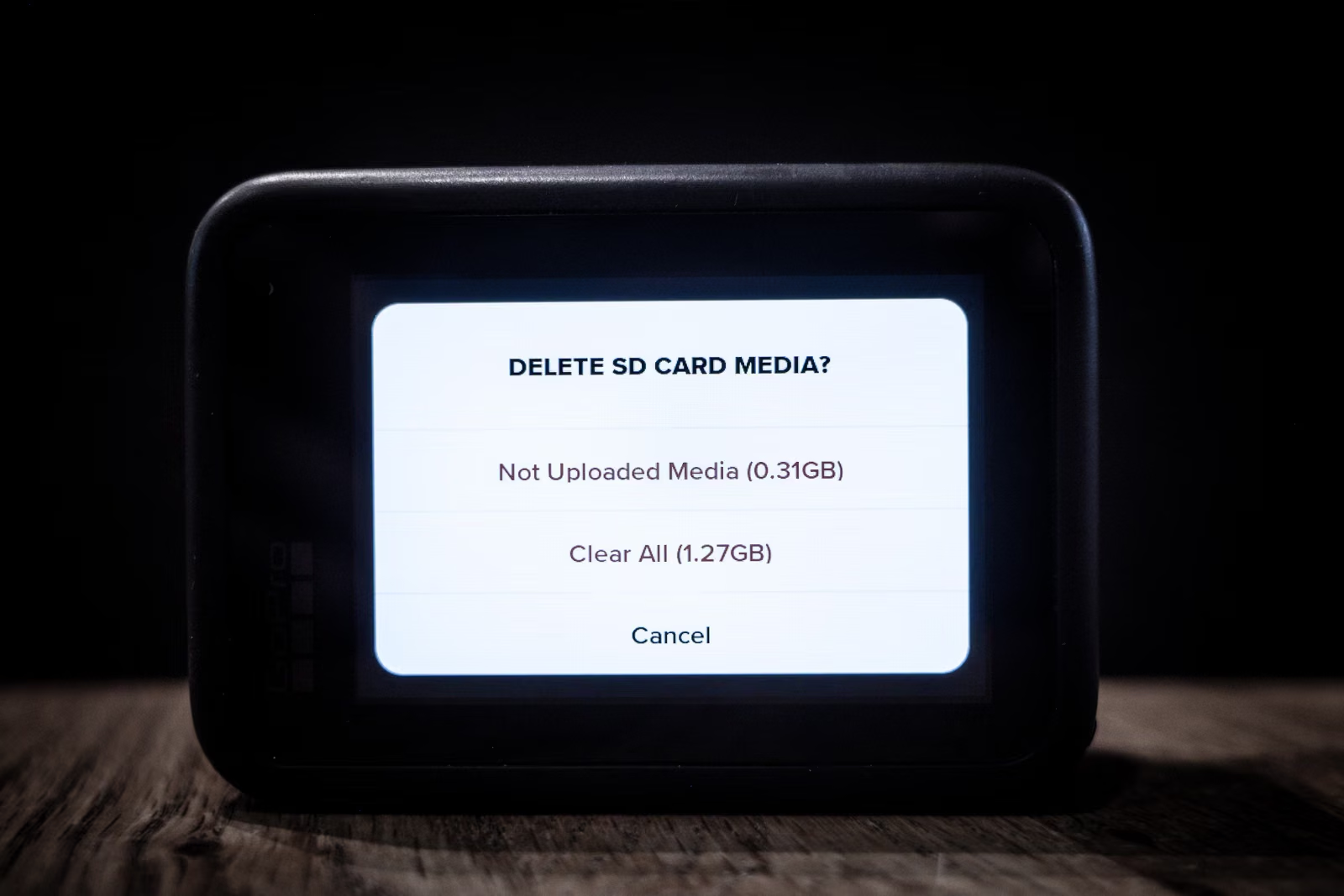
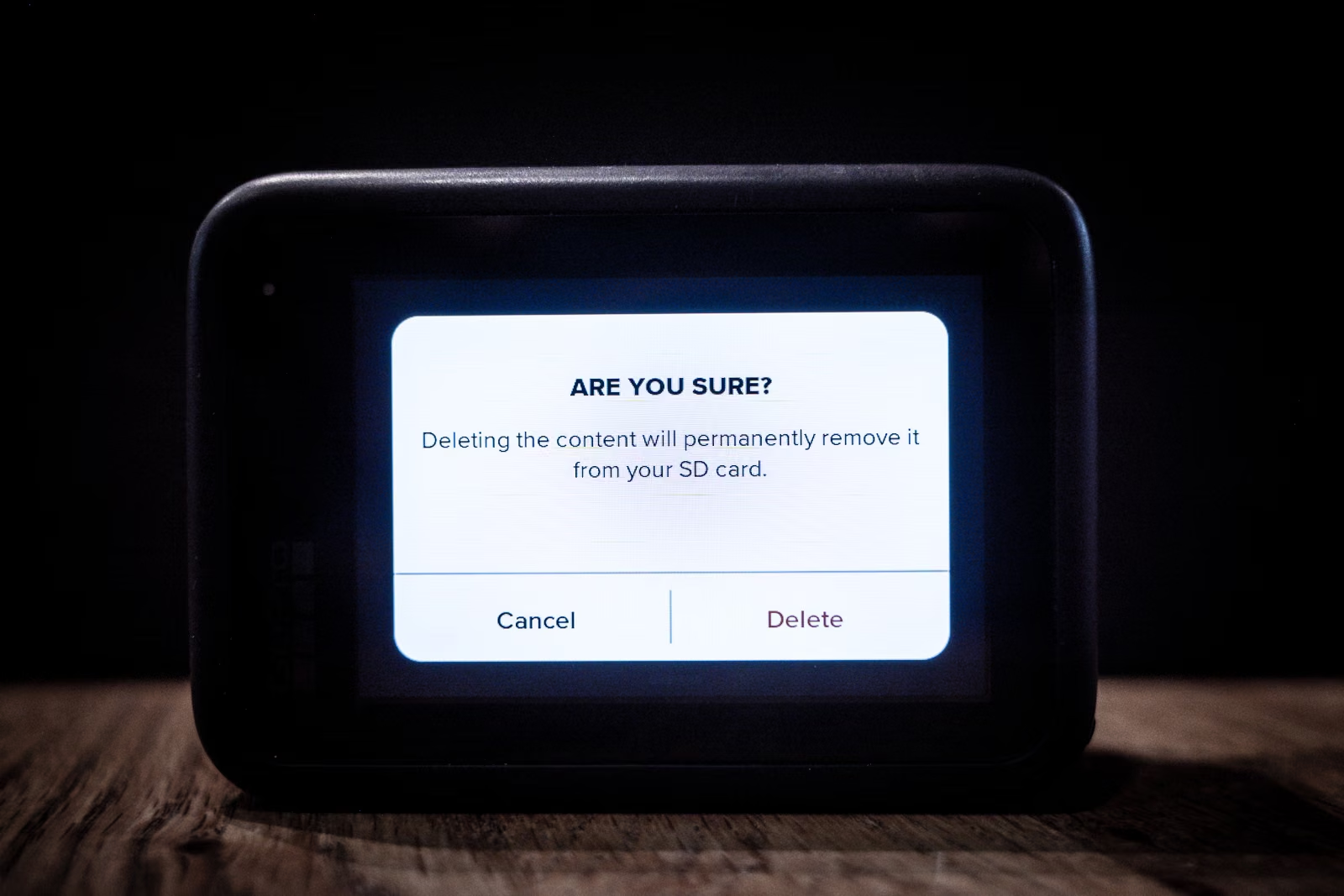
The HERO13 Black also has a Manage SD Card button for deleting media, and GoPro’s manuals show the same option on the HERO12 Black and HERO (2024). Swipe down on the rear screen, move to the SD card page (it shows how much of the card is used), tap Manage SD Card, choose Clear All, and confirm. It empties the card fast. But GoPro lists it as deleting media, not formatting, so use Format SD Card when you want the card reformatted. Here’s the whole sequence on my HERO13 Black:
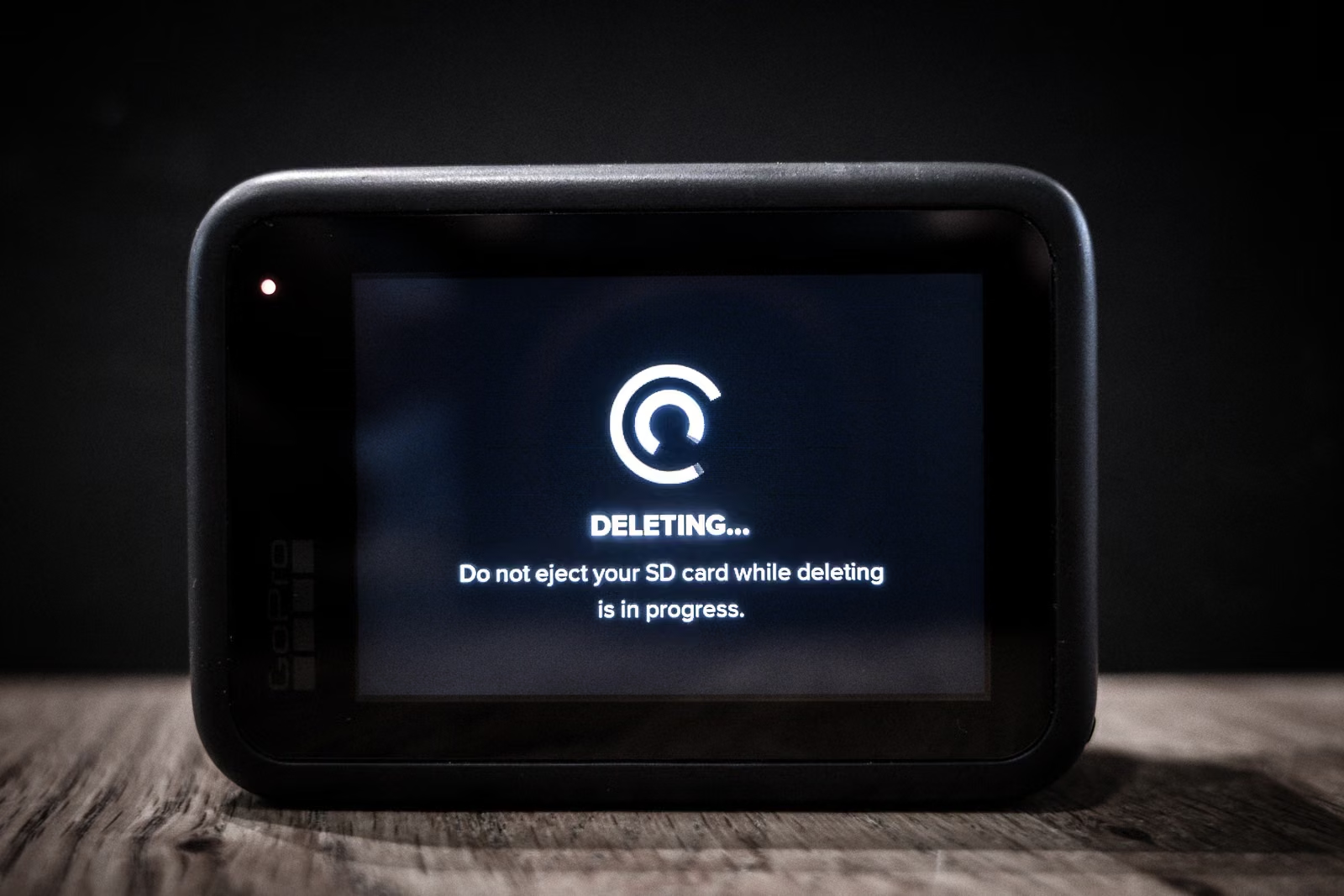
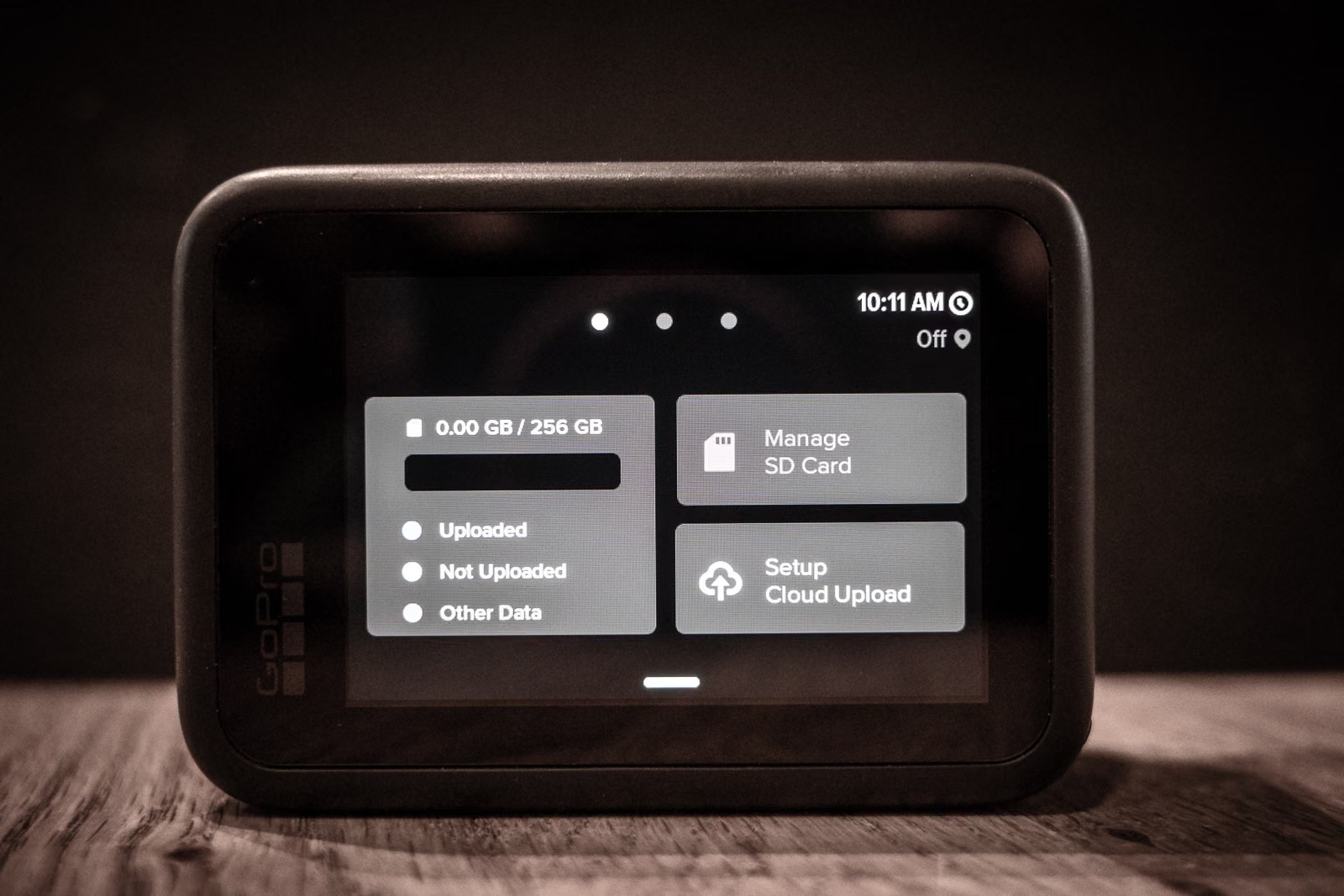
The classic route described above — Preferences → Reset → Format SD Card — is still there too. It’s the option GoPro describes as reformatting the card, and it’s the one to use on older models.

Have Camera Will Travel Newsletter
Practical field notes, hands-on gear tests, and the fun of exploring the world with a camera in hand.

For HERO6 Black, HERO5 Black & HERO (2018)
On these slightly older models, the option is at the top level of the Preferences menu.
- Swipe down to access the Dashboard.
- Tap Preferences.
- Scroll down to Format SD Card.
- Tap Delete to confirm.
Method 2: Using the GoPro Quik mobile app
If your camera is connected to the GoPro Quik app, you can clear the card remotely. This is handy if the camera is mounted just out of reach.
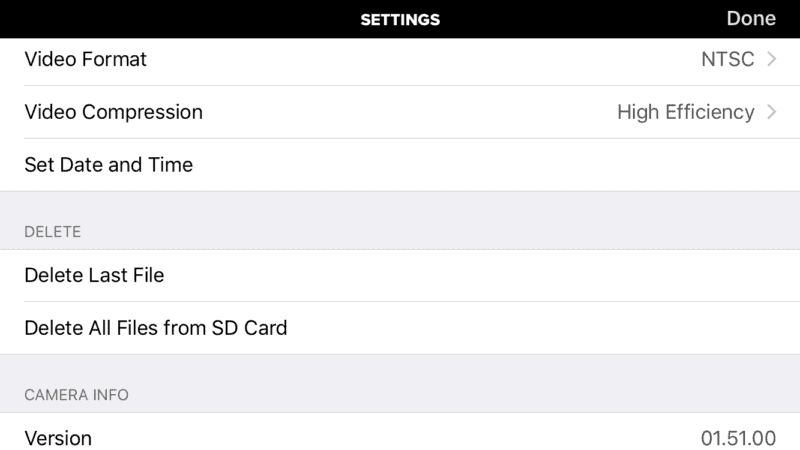
Note: The app doesn’t say “Format.” The option is “Delete All Files from SD Card,” which removes the files. When you can reach the camera, its Format SD Card option is the one that reformats the card.
- Connect your camera to the GoPro Quik app.
- Tap the Settings (Gear Icon).
- Scroll down to the Delete section.
- Tap Delete All Files from SD Card.
Method 3: Using the front screen (older models)
If you’re using an older camera without a touchscreen (like the HERO4 Black), you can use the buttons and the front status screen. This doesn’t help if a newer camera’s touchscreen is broken. On the HERO6 Black and HERO7 Black, for example, the button menus don’t include Preferences, so use the Quik app instead.
On the HERO4 Black:
- Press the Power/Mode button (front) repeatedly until the Setup (wrench) icon appears on the status screen.
- Press the Settings/Tag button (side) to open the Setup menu.
- Press Power/Mode to cycle to Delete.
- Press Shutter/Select (top) until All/Format is highlighted. GoPro’s manual says leaving an option highlighted selects it, and the status lights blink until the format is finished.
Method 4: Using a computer (Mac or Windows)
I strongly recommend formatting in the camera whenever possible. However, if your card is corrupted and the camera refuses to read it, a computer format can sometimes save it.
The Best Tool: SD Card Formatter
Don’t use the default Windows/Mac disk utility if you can avoid it. Instead, download the free SD Card Formatter tool from the SD Association. It automatically detects the correct standard for your card.
If using built-in tools, choose the right file system:
- 32GB or smaller: Choose FAT32 (on a Mac, Disk Utility calls it MS-DOS (FAT)).
- 64GB or larger: Choose exFAT.
Pro Tip (Full Format): If you are having persistent glitches, try doing a Full Format on your computer (uncheck “Quick Format” in Windows). This takes much longer but forces the computer to check every sector of the card for physical errors. Once done, put it back in the camera and format it again.
Troubleshooting: What if “Format” is grayed out?
Many readers arrive here because they’re already seeing an “SD ERR” message.
If you go to the menu and “Format SD Card” is grayed out or won’t respond, first check that the card is seated properly (it clicks in). If it still won’t work, move on to the fix below. (On newer models, the Manage SD Card button is also grayed out when the card is empty, which is normal.)
The Fix: Format the card on your computer first (using Method 4 above), then put it back in the camera. This usually “unblocks” the card so the camera can recognize it again.
If you find yourself formatting constantly to clear errors, the card itself may be the problem. GoPro notes that cards wear out over time, and newer models warn you when a card is rated too low. GoPro’s HERO13 Black manual calls for a card rated A2, V30, and UHS-3 or higher. Check my guide to the Best SD Cards for GoPro to find one that fits.
SD card error messages and what to do
Most people arrive at this page because the camera is already complaining. Here’s what the common messages mean and the quickest fix for each:
| What the camera shows | What it usually means | What to do |
|---|---|---|
| SD ERR (HERO4 Black, HERO5 Black, HERO6 Black, HERO (2018)) | The camera can’t read the card’s formatting | Back up anything you need, then reformat the card in the camera. If the format option won’t work, format on a computer first (Method 4), then again in the camera |
| SD Card Error (newer models) | The camera has detected a problem with the card | Restart the camera first; GoPro says it will try to repair damaged files. If the error keeps coming back, back up what you need and format the card in the camera |
| NO SD | No card detected | Reseat the card (it clicks in); try it in a reader to confirm it’s alive; check it’s a microSD with the right capacity for the model |
| FULL / SD FULL / Memory Card Full | The card is full | Back up and format — it’s faster than deleting clips one at a time |
| A card-rating warning, or recording stops on its own | Newer GoPros warn when a card is rated too low or has worn out | Use a card that meets your model’s rating: see the best SD cards for GoPro |
| “Format SD Card” is grayed out | The camera can’t work with the card | Reseat the card, then format on a computer with the SD Card Formatter app and format again in the camera |
Accidentally formatted your card?
If you hit “Format” by mistake, stop! Do not record anything else on that card.
Recovery software can sometimes get files back from a formatted card, but only if nothing new has been written to it. So stop recording, and try recovery before you use the card again.
Common questions
Does formatting delete everything on the card?
Yes — all photos and videos. Back up to your computer or cloud first. (If you’ve formatted by mistake, stop using the card and see the recovery note above.)
How often should I format a GoPro SD card?
At the start of every shoot, after confirming the previous footage is backed up. It’s the simplest habit for avoiding SD errors mid-recording.
FAT32 or exFAT?
Let the camera decide by formatting in the camera. If you must format on a computer: exFAT for cards of 64GB and larger, FAT32 for 32GB and smaller — which is exactly what the SD Card Formatter app picks automatically.
Can I just delete the files on my computer instead?
You can, but it doesn’t reset the folder structure the camera expects, and it leaves behind hidden files. Formatting in the camera does both, which is why it’s the better routine. If you only want to clear out some files, the camera can do that too: on the HERO8 Black, for example, you can select several photos or videos in the gallery and delete them together.
Notes & References:
- Some GoPros do have an HDMI out port, which technically allows you to record directly to an external recorder. But for 99% of users, the SD card is the only storage method. [↩︎]


