
One of the first things I do with most new cameras when setting them up is to disable the beeps and other optional noises that cameras can make. It’s not that they can’t be useful–in some situations, they certainly can. I will turn the beeps back on when shooting in the surf, for instance, so that I get confirmation of the shutter being fired.
So what if you want to turn off the beeps on a GoPro? The step-by-step below uses the GoPro HERO10 Black, and the table covers every other model.
I’m posting this not because it’s hard to do–it’s not. But the option isn’t in the place where I was inclined to look first. And on most recent GoPros, there are two separate places in the settings where you can adjust the beeps.
The short answer: On the HERO7 and later touchscreen models, swipe down on the touch screen to open the Dashboard and tap the Camera Beeps icon (just “Beeps” on the MISSION 1 series). To make the beeps quieter instead of turning them off, use the beep volume setting in Preferences. The HERO11 Black Mini and older models without a Dashboard work differently. Here’s where the setting is on each model.

Have Camera Will Travel Newsletter
Practical field notes, hands-on gear tests, and the fun of exploring the world with a camera in hand.

Where the beep settings are on every GoPro
| Camera | Turn beeps on or off | Beep volume setting | Volume options in GoPro’s manual |
|---|---|---|---|
| HERO13 Black | Dashboard: Camera Beeps | Preferences > Audio > Camera Volume | Not listed |
| HERO12 Black | Dashboard: Camera Beeps | Preferences > General > Beep Volume | High (default), Med, Low, Mute |
| HERO11 Black | Dashboard: Camera Beeps | Preferences > General > Beep Volume | High, Med (default), Low, Mute |
| HERO10 Black | Dashboard: Camera Beeps | Preferences > General > Beep Volume | High, Med (default), Low, Mute |
| HERO9 Black | Dashboard: Camera Beeps | Preferences > General > Beep Volume | High (default), Med, Low, Mute |
| HERO8 Black | Dashboard: Camera Beeps | Preferences > General > Beep Volume | High (default), Med, Low, Mute |
| HERO7 Black, Silver & White | Dashboard: Camera Beeps | Preferences > General > Beep Volume | High (default), Med, Low, Off |
| HERO (2024) | Dashboard: Camera Beeps | Preferences > General > Beep Volume | High (default), Low, Mute |
| LIT HERO | Dashboard: Camera Beeps | Preferences > General > Beep Volume | High (default), Low, Mute |
| MAX2 | Dashboard: Camera Beeps | Preferences > General > Beep Volume | High (default), Med, Low, Mute |
| MAX | Dashboard: Camera Beeps | Preferences > General > Beep Volume | High (default), Med, Low, Off |
| MISSION 1 & MISSION 1 PRO | Dashboard: Beeps | Preferences > Audio + Voice Control > Beep Volume | Not listed |
| HERO11 Black Mini | Camera buttons: Beeps On or Off (steps below) | GoPro Quik app: Setup > Beeps | High (default), Med, Low, Mute |
| HERO6 Black, HERO5 Black & HERO (2018) | Set Beep Volume to Off | Preferences > Beep Volume | High (default), Med, Low, Off |
| Fusion | Set Beep Volume to Off | Preferences > Beep Volume (camera buttons) | Off, Low, Medium, High (default) |
| HERO5 Session | Set Beeps to Off | Beeps setting | 100% (default), 70%, Off |
| HERO4 Black & HERO4 Silver | Set Beeps to Off | Setup > Beeps | 100% (default), 70%, Off |
| HERO4 Session & HERO Session | Set Beeps to Off | Setup > Beeps | 100% (default), 70%, Off |
| HERO (2014) | Set Beeps to Off | Settings > Beeps | 100% (default), 70%, Off |
| HERO10 Black Bones | Not listed | Not listed | GoPro’s Bones manual doesn’t list a beep setting |
The option names come from GoPro’s manuals. What you see on screen can differ with firmware: on the HERO10 Black, firmware 01.20 showed three volume options where the manual lists four (more on that below).
Step by step: Turning the beeps on or off on the HERO10 Black
Turn the beeps on or off from the camera’s Dashboard. Hold the camera in landscape orientation and swipe down on the rear screen to open it. Tap the musical note icon. Blue means on and gray means off, and the top of the screen confirms it with BEEPS: ON or BEEPS: OFF.
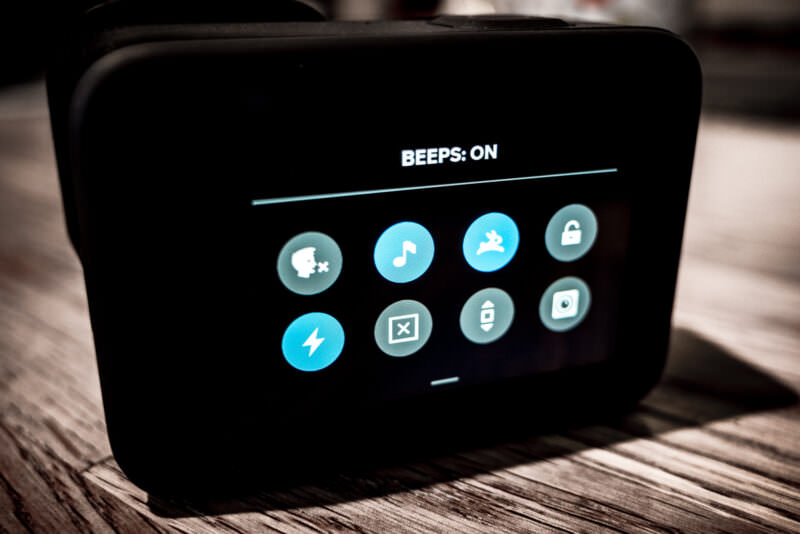
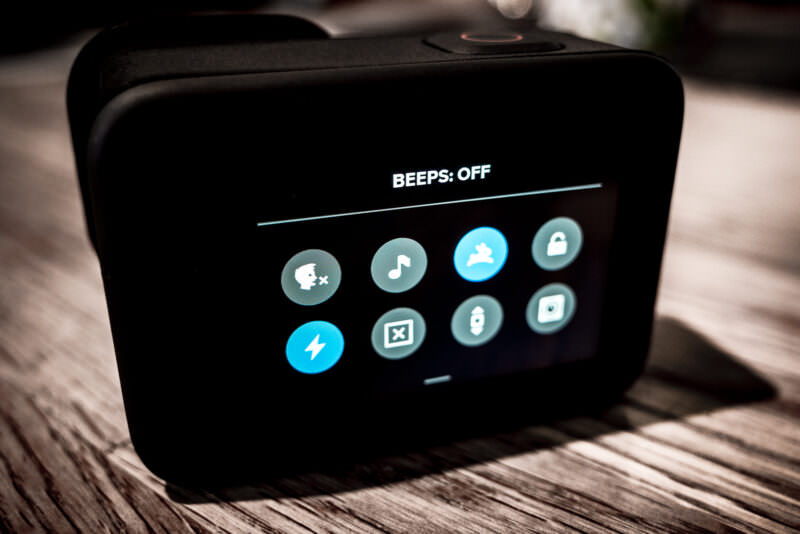
That’s the simple on/off toggle, but if you want to adjust the volume of the beeps, you have to go into a different section.
How to change the volume of the beeps on the HERO10
The beep volume setting is in a separate section. Swipe down on the rear screen to open the Dashboard, swipe left, and then go to:
Preferences > General > Beep VolumeOn firmware 01.20, the screen showed three options:
- Low
- Medium
- High
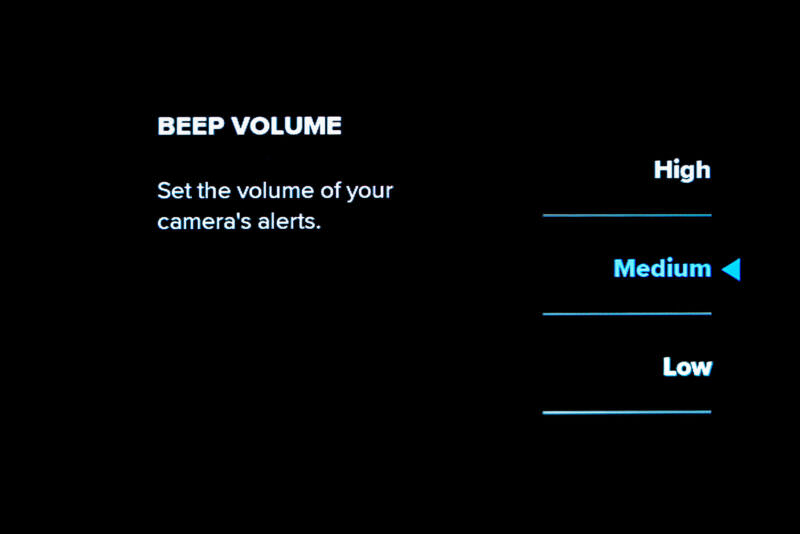
They’re pretty self-explanatory. There was no Off on that screen.1 GoPro’s HERO10 Black manual, though, lists four choices: High, Med (the default), Low, or Mute. If your camera shows Mute, choosing it is another way to silence the beeps. If it doesn’t, use the music-note toggle on the Dashboard.
Turning off the beeps on the HERO11 Black Mini
The Mini has no rear screen, so there’s no Dashboard to swipe to. Use the camera’s buttons instead:
- Press the Status/Pair button to turn on the camera.
- Press Status/Pair repeatedly until you get to Beeps.
- Press the Shutter button to select Beeps.
- Press Status/Pair to switch between Beeps On and Beeps Off.
- Press the Shutter button to lock in your choice.
To change the volume instead, connect the Mini to the GoPro Quik app. In the app’s Setup preferences, set Beeps to High, Med, Low, or Mute.
Things worth knowing
On the HERO11 Black Mini, the beep volume is set in the GoPro Quik mobile app. For the other models in the table, GoPro’s manuals put the beep settings on the camera itself. If the beeps come back when you switch presets, check the preset: the HERO13 Black lets a preset carry its own Dashboard settings, including camera beeps, and the MISSION 1 series has a similar Dashboard Override for custom modes. On the MAX2, you can also tap and hold the Camera Beeps icon to get to its settings.
Related
Notes & References:
- I’m using firmware version 01.20 here. It’s possible that any of these settings might change in a future firmware update. [↩︎]


