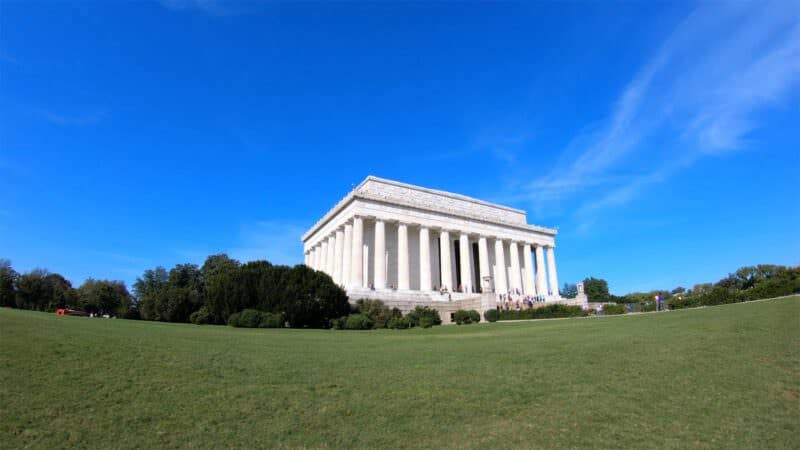
GoPro’s in-camera stabilization crops the frame because it needs spare pixels around the edges to shift the image against shake. GoPro’s manuals put it at 10% on the HERO5 Black, HERO6 Black, and HERO7 Black, and 10% of the Wide lens for HyperSmooth On or High on the HERO8 and HERO9 Black, with Boost cropping more tightly. The output resolution stays the same, so in effect it’s a small digital zoom: you’re trading field of view for smoothness.
Below: the difference between a crop and a zoom, a HERO6 example of what’s lost, and how to preview the cropped frame before you shoot. Related: HyperSmooth vs standard stabilization and Linear FOV, which is a different kind of crop.
GoPro cameras since the HERO5 have digital stabilization. It’s applied in the camera, so you don’t need to mess with external stabilizer accessories or spend time and effort doing it in post-production. Even if it’s not always as effective as a gimbal, I’ve found the in-camera stabilization to work very well and improving with each generational upgrade. But there’s a quirk that’s worth knowing about: when you’re shooting in the Wide field of view, you’ll end up with a slightly cropped image and lose some of the image around the edges. GoPro’s manuals put the crop at 10% on both the HERO5 Black and the HERO6 Black. And because the Wide FOV is the default, it’s something you might run into often. Later models work the same way: the HERO7 Black’s manual says it crops 5% on each side (10% total), and on the HERO8 and HERO9 Black the On and High HyperSmooth settings crop the Wide lens by 10%. The Boost setting crops more tightly. Other software stabilization options, like those in Final Cut Pro and Premiere Pro, do the same thing. That’s because the way they work needs to cannibalize space from the edges of the frames in order to follow the rest of the frame smoothly.Cropping vs zoom
The cropping we’re talking about here isn’t technically the same thing as when we talk about cropping with still images in that it’s not actually making the dimensions of the final product smaller. As an example, without stabilization, the 4K footage comes out of a GoPro with dimensions of 3840×2160. It will come out with exactly the same dimensions when you turn on stabilization. So what’s actually happening is really a digital zoom, with the camera’s processor interpolating to replace the missing information. In practice, the degradation of the image quality is more theoretical than visual–you really can’t see the difference, although it’s technically there.Example of the cropping applied on the GoPro HERO6 Black
Here’s a practical example of what I mean. These were shot from two GoPro HERO6 Black’s mounted side by side in a dual frame mount. Both were set at 4K30, the highest mode in which stabilization is available. Both used the Wide FOV setting. One had stabilization turned on. The other had it turned off.