
If you’ve deleted photos or videos from an SD card and want to recover them, the short answer is: yes, it’s usually possible, and there are free tools that can do it.
The catch with the free tools, though, is that which one works best depends on how much data you need back.
If you shoot with a digital camera, the odds are good that sooner or later you’ll run into a situation where you’ve accidentally deleted some photos or videos that you actually wanted to keep. It’s just one of those occupational hazards of digital photography.
The good news is that it’s often not only possible to recover data, but also surprisingly straightforward to do. There’s a whole category of software designed specifically for the purpose. And while there’s no guarantee that you can recover the data you want in every situation, it is possible surprisingly often.
I’ve written before about how to recover deleted photos from an SD card. That covered in detail the various options available, including paid software and paid data recovery services.
Here, I’m focusing more closely on free alternatives.
In most cases, paid data recovery software provides the most user-friendly and comprehensive data recovery. But there are some free options available, especially if you only need to recover a relatively small amount of data.
And while I’m focusing mainly on SD cards, the same methods and principles apply to other types of memory cards.
Free vs “Free”
Only a couple of the options here are what I’d call completely free: PhotoRec and Windows File Recovery. Both are powerful and useful, and importantly there are no limits on how much data you can recover with them.
But the catch is that they’re also the least user-friendly options. They use command-line interfaces, not graphical interfaces, so you need to be comfortable working in terminal windows. And that’s not for everyone.
There are other options here that are much more user-friendly. And while they still qualify as “free,” that comes with limits.
In most cases, that means that there’s a limited amount of data you can recover with them before you need to purchase a license. That might be 10 images or 500MB. That’s plenty if you only need to recover a relatively small number of photos, but it’s often not enough if you have to recover photos from a whole trip or video files. With these apps, you can buy a license that will lift that restriction.
There’s a third sub-category: software where it’s free to scan the card and see what’s recoverable, but actually recovering anything requires a license. Calling that “free” is a stretch — a free scan is not free recovery. But as you’ll see below, a genuinely good free scan has real value as the first step of a two-app strategy, so I’ve included the standout in that category rather than excluding it.


So, with that said, here’s a rundown of what I see as the best free software for recovering deleted photos and videos from SD cards (or hard drives or microSD cards or many other types of digital media).
The free options at a glance
| Software | What’s actually free | Windows | Mac | Interface |
|---|---|---|---|---|
| PhotoRec | Everything — no recovery limits | Yes | Yes (incl. Apple silicon) | Command line |
| Windows File Recovery | Everything — no recovery limits | Yes (Win 10+) | No | Command line |
| EaseUS Data Recovery Wizard | Up to 2 GB (500 MB by default; the rest unlocks by sharing on social media). Mac free version can’t recover from SD cards | Yes | Partly | Graphical |
| Disk Drill | Up to 100 MB on Windows; Mac free is scan & preview only — but the previews handled RAW well in my test | Yes | Scan only | Graphical |
| Stellar Photo Recovery | Nominally 10 files (max 100 MB each) — in my test the allowance died on a failed attempt; treat as scan-only | Yes | Yes | Graphical |
Which one should you use?
If you want to stay free: start by scanning with Disk Drill, even though you won’t recover with it. In my tests, the latest versions of Disk Drill have been the cleanest and most robust of the recovery apps I’ve used, and for photo recovery it pins its chances on its ability to show you a clean preview: if the preview renders, recovery chances are high. So you can see, in a very clean and — in my experience — reliable way, exactly which images are recoverable. On the Mac, though, Disk Drill has no free recovery at all. On Windows there’s a 100 MB allowance, which is maybe one to three RAW files.
So once its scan has told you your files are there, switch to PhotoRec for the actual recovery. PhotoRec isn’t as user-friendly, and it’s comprehensive rather than targeted — it recovers everything it finds rather than the specific shots you point at — but it’s completely free and, in my experience, it works reliably. If you’re intimidated by the command line terminal, I have a straightforward walkthrough to guide you through the process of using PhotoRec.
A few photos, on Windows, free: EaseUS’s free version has the most generous actual recovery allowance here, but you have to work for the headline number: it gives you 500 MB out of the box, and the 2 GB figure only kicks in after you use the share button in the app to post about it on social media.
If you’re willing to pay: my top choice is Disk Drill Pro. Run the free scan before you pay: it shows thumbnail previews of your deleted images with an assessment of each one’s recovery chances, and I’ve found that to be a reliable gauge. If it finds the images you want, buy the license — the activation code unlocks recovery in place, picking up right where your scan left off, with no need to rescan. Stellar Photo Recovery is my second choice: the licensed version is still reliable and user-friendly in my experience, but the free version I tested wouldn’t generate previews for files over 10 MB — not a useful limit if you shoot RAW — which undermines the scan-first, then-decide approach that makes these trials worthwhile.
Free data recovery software: Unlimited & completely free
PhotoRec
PhotoRec is thorough and powerful. There are no limits on how much data you can recover. Having used it many times over a number of years, it hasn’t failed me yet. To my mind, it’s the best free software to recover deleted photos from an SD card.
But it comes with an important qualification.
That’s because it’s a command-line app that doesn’t have a graphical user interface. If you’re comfortable working with command-line tools, I highly recommend PhotoRec. And if you’re not and find command-line tools intimidating, I’ve put together a detailed guide to using PhotoRec that walks you through the basics.
One very useful aspect of PhotoRec is that it ignores the filesystem on the SD card. What that means in practice is that even if the SD card won’t mount on your operating system and won’t show up in Finder or Explorer, there’s still a good chance that you can scan it and recover from it.
PhotoRec is completely free and open-source. You can download it here. There are versions for Windows, Mac, and Linux (as well as a bunch of other operating systems).
Windows File Recovery
Windows File Recovery is a Windows-only app. Again, it’s a command-line utility that doesn’t include a graphical user interface.
The current version needs Windows 10 build 19041 — the May 2020 update — or later, so an older Windows 10 install won’t run it. It works on Windows 11 as well.
It’s completely free. You can download it here. And you can find the online user guide here.
Free data recovery software: Free, but with limits
There are many paid software alternatives for data recovery. While these work in fundamentally the same way under the hood, they also add much more user-friendly interfaces. They can also help you target specific file types and also provide preview images, features that help you speed up the recovery process because you can zero in on just the images or video you want to recover.
The catch with these is that they are free up to a point. And that point typically comes in the form of a limit on the amount of data you can recover for free. To recover more, you’ll need to pay for a license to unlock the full version of the software.
The data limits work fine if you’re recovering the occasional photo, or even a few dozen photos. But if you’re recovering video files or whole memory cards, you’re going to run into the data limits quickly.
A good way to use these apps is to start with the free version to scan the card. That will tell you what the software is able to recover. If the photos or videos you want don’t show up in the scan, there’s no point forking out for a paid license. But if the scan does show the files you want, you can then decide whether to buy a license to actually recover the files.
Disk Drill
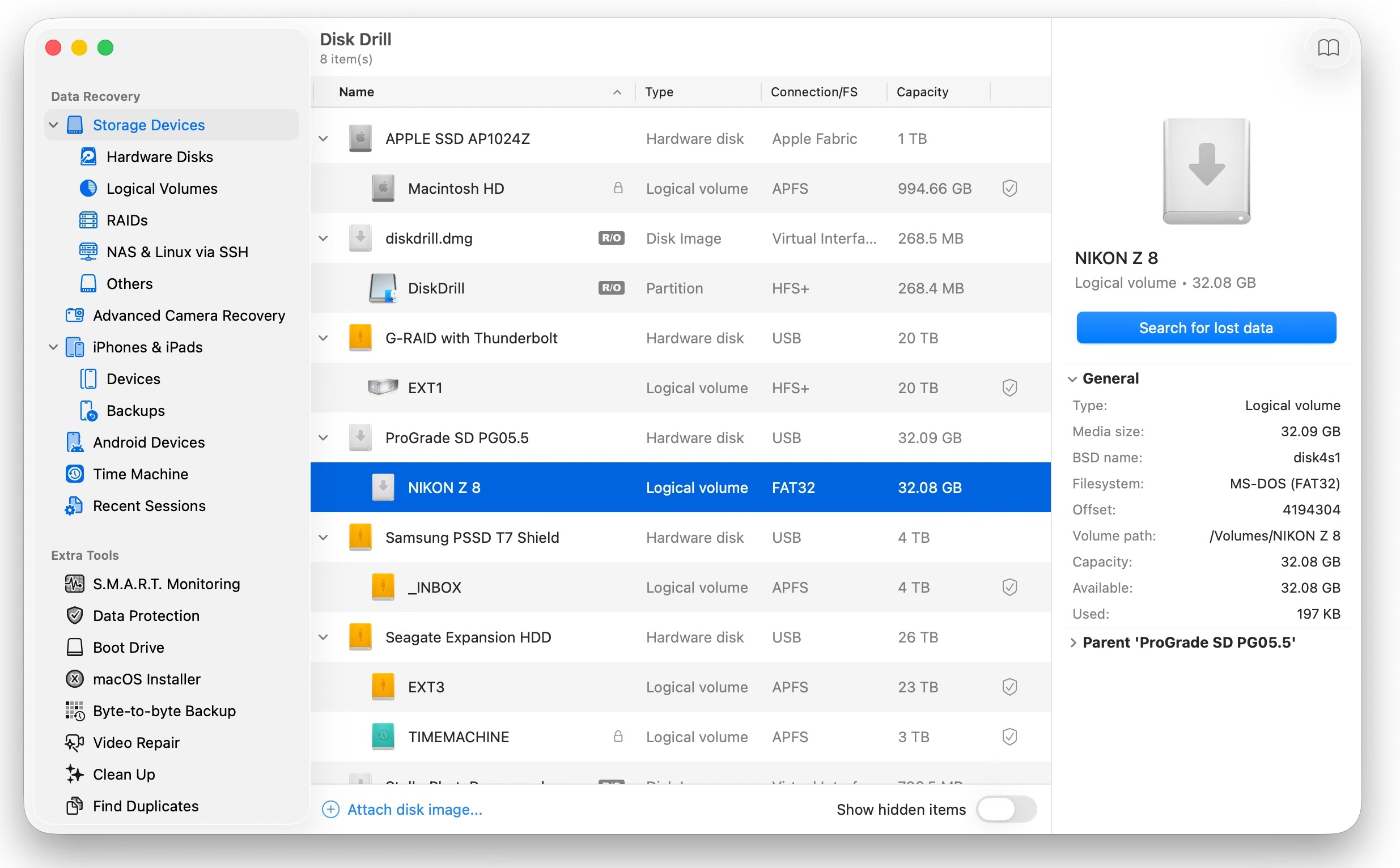
In my recent tests, Disk Drill has stood out clearly as the cleanest and most robust of the graphical recovery apps — the current versions are clearly under active development.
It’s a full-featured data recovery app that can recover photos and videos along with just about any other kind of file format. So it’s a handy app to have available in other situations, not just when you need to recover SD card photos.
It also has a free mode, albeit with a crucial caveat. With that, you can recover up to 100MB of data on Windows (the Mac free version doesn’t let you recover files at all — it only lets you scan and preview, and protect files in advance with Recovery Vault).
The previews are the part worth underlining: when I tested the current version against a camera-formatted SD card, Disk Drill’s free scan rendered proper previews of the recovered-but-nameless RAW files — which none of the other graphical apps here managed.
That makes it the tool I’d use to identify what’s recoverable, even if I planned to do the actual recovery elsewhere.
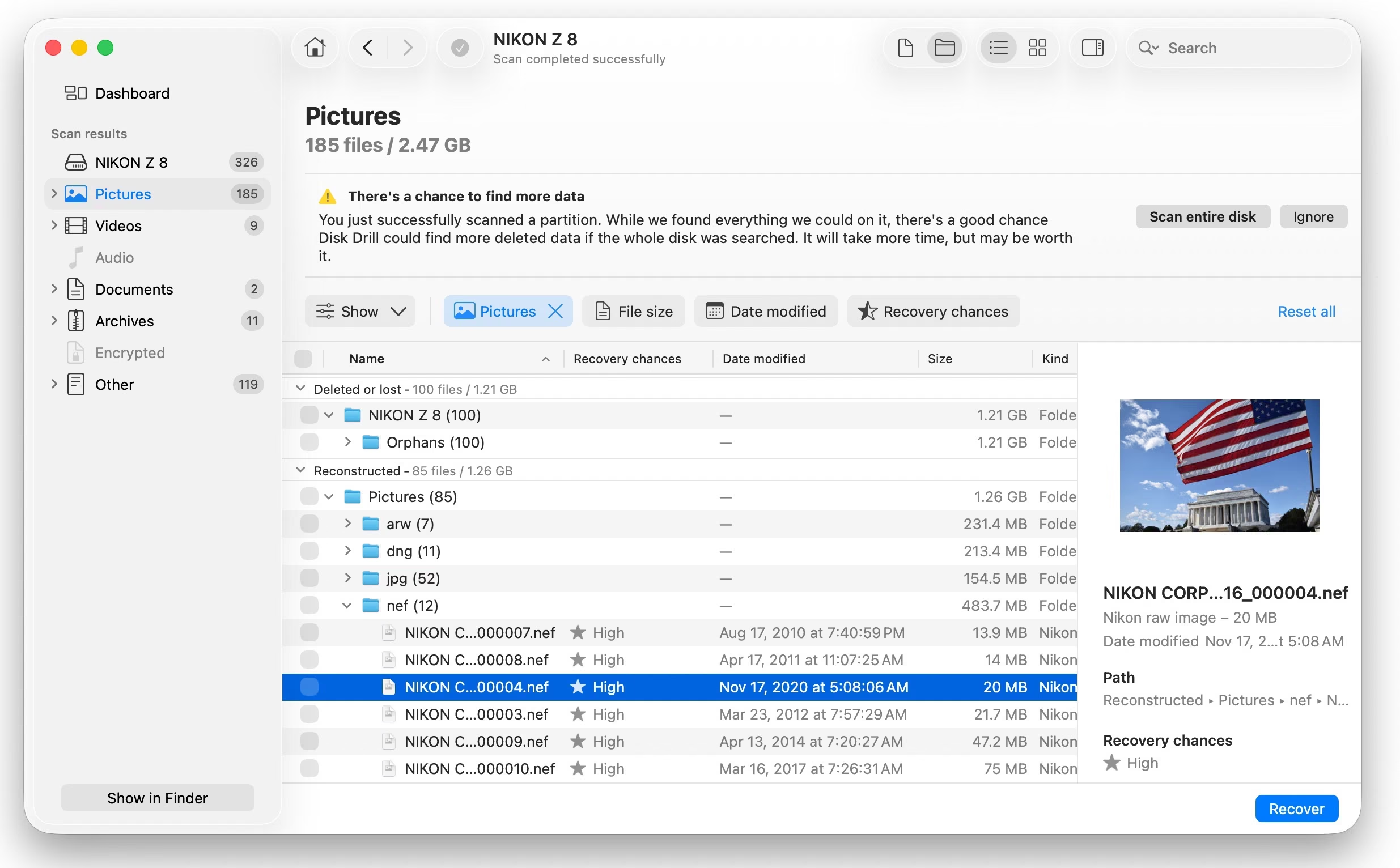
Disk Drill is among the best overall data recovery apps, and the licensed version is one of my go-to data recovery apps. It’s powerful and has a number of very useful extra tools built-in, including features for data recovery from mobile devices. Despite all that extra functionality, the current versions keep the interface clean — noticeably more polished than when I first reviewed it.
Its free tier is the limitation: 100MB of recovery on Windows and none at all on Mac. As a free recovery tool it’s therefore weaker than the others here — but as the free way to find out what’s recoverable before you spend anything, it’s the best of them, and it’s my top pick among the paid options if you decide to buy (see “Which One Should You Use?” above).
To recover more data than that, you’ll need to upgrade to the licensed version.
It’s available for Windows and Mac.
Stellar Photo Recovery
Stellar Photo Recovery is a photo-and-video-focused recovery app rather than a general-purpose one, and that focus shows in its format support — it handles a wide range of camera RAW formats and video files that trip up some of the general tools.
It used to be my first choice for scanning, but what seem like new restrictions on the free trial have hampered its usefulness for that purpose.
On paper, the free version recovers up to 10 photo, video, or audio files (max 100 MB per file), and scanning is unrestricted. Two caveats from my hands-on test of version 12.7 on a camera-formatted card. First, previews in the free version only work for files under 10 MB — JPEGs preview fine, but most current RAW files show up as filenames and sizes only, and on a formatted card those names are meaningless, generated ones.
Second, the 10-file allowance proved fragile: an aborted recovery attempt (too many files selected, upgrade prompt dismissed) consumed the whole allowance without delivering a single file, after which it refused to recover even one. I’d treat the free version as scan-only in practice. The nominal allowance is at least the same on Mac as on Windows — unlike EaseUS and Disk Drill — but given how it behaved in my test, I wouldn’t count on it.
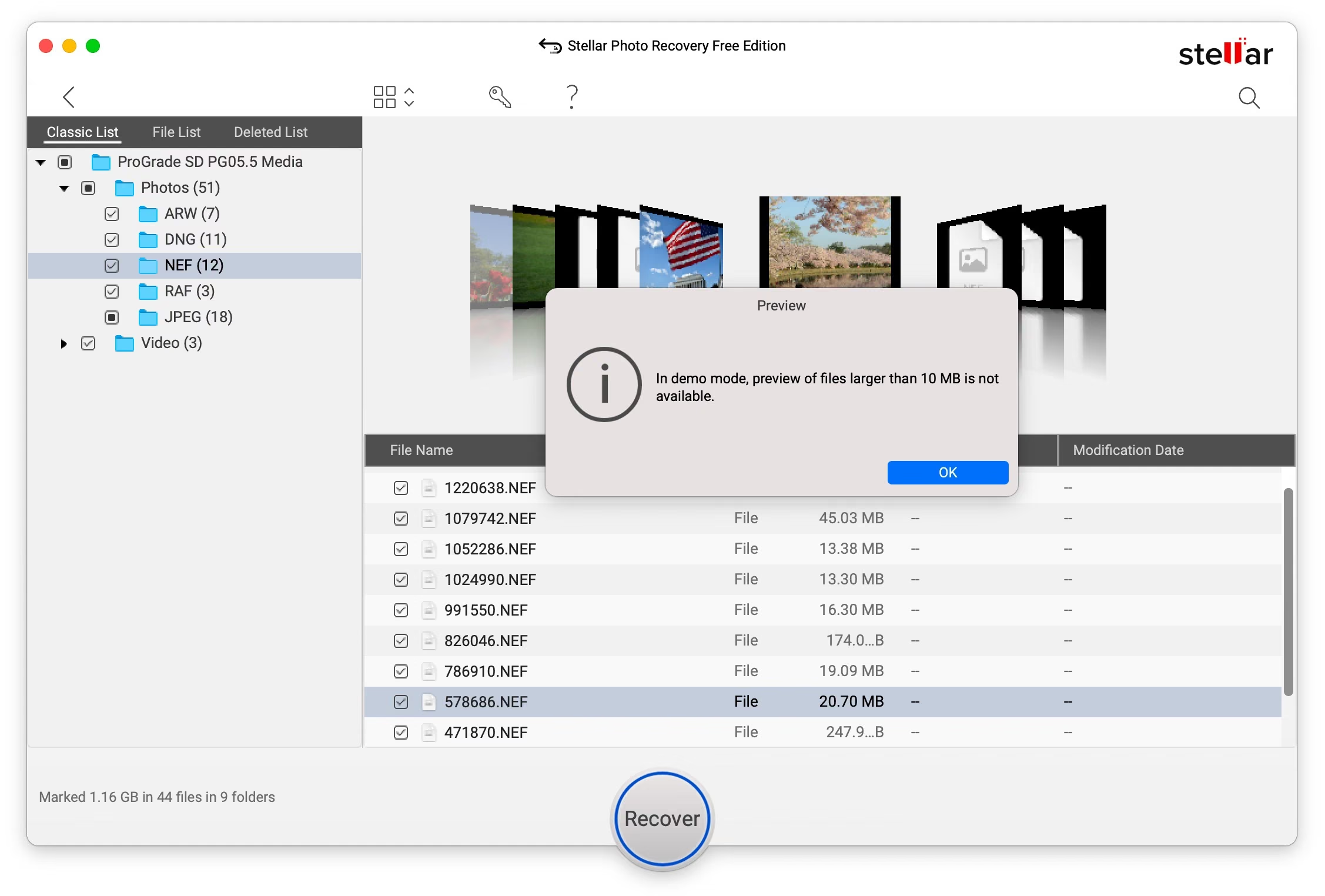
Ten files is the smallest allowance here even when it works as advertised — and in my test it didn’t. If a handful of shots is all you need, it may still be worth a try, and the interface is about as simple as these apps get — but have PhotoRec ready as the fallback. There are versions for Windows and Mac; I have a detailed walkthrough of using it here.
EaseUS Data Recovery Wizard
EaseUS Data Recovery Wizard is the other app in this group worth knowing about, and on Windows it has the biggest genuine free allowance of anything here. You get 500 MB of recovery to start with, and that rises to 2 GB if you use the share button in the app’s toolbar to post about it on social media. Scanning is unlimited either way, so you can see what’s there before deciding.
The Mac version is a different story. EaseUS’s own support documentation states that the free Mac version does not support free recovery from SD cards at all — if the card is your source, you have to buy a license before you can get anything off it. That’s worth knowing before you spend time on a scan that can’t end in a recovery.
Other alternatives
There are plenty of other data recovery apps available. While some offer a so-called “free” version, that’s often only to run a scan and doesn’t let you actually recover any data with the free version. So it’s worth checking what is actually included in the free version. The apps I’m focusing on here allow at least some data recovery without paying for a licensed version.
Recovering SD cards on a Mac
Mac users get the short end of the free tiers: EaseUS’s free version won’t recover from SD cards on a Mac at all, and Disk Drill’s Mac free version only scans and previews.
The one that will reliably recover files for free on a Mac is PhotoRec (no limits, command line).
Stellar’s free version nominally allows 10 files, but see the caveats in its entry above — in my test it never delivered them.
PhotoRec runs fine on Apple silicon Macs. If macOS blocks it with a warning that it “could not verify” the app, that’s Gatekeeper objecting to an unsigned command-line tool, not malware — my step-by-step PhotoRec guide for Mac covers getting past that and the whole recovery process.
What about “Online” SD card recovery?
One thing to clear up, because it’s searched for a lot: there’s no such thing as recovering an SD card “online.” A website running in your browser can’t read the raw contents of a memory card — that requires software running on your computer with direct access to the card.
So anything marketed as online SD card recovery is either going to have you download software anyway or is talking about restoring files from a cloud backup you already had. If your photos were only ever on the card, the recovery has to happen on your computer, with tools like the ones on this page.
How to format SD cards safely
The best practice for formatting memory cards is to do it in the camera and do it regularly. That helps to keep the card’s filesystem healthy to avoid data corruption from happening and sets up any files or folders that the camera might need and expect. It’s not a perfect guarantee against data loss, nor does it ensure that you can recover deleted data, but it’s an easy precaution that helps.
It is, of course, also possible to format cards using a computer. If you’re using an SD or microSD card, a good, free, and pretty much foolproof option is to use the SD Card Formatter app that is put out by the SD Association. I have a guide to using SD Card Formatter here.
You can also use your operating system’s built-in data formatting tools, although, with those, you’ll often have to make sure to pick the correct option among several.
Tips for keeping SD cards healthy
Memory cards are pretty resilient, but there are some precautions you can take that can save a lot of headaches.
- Always format the card in the camera. Format the card regularly.
- Never remove the card while data is being transferred.
- Turn the camera off before removing the card.
- Have a backup card handy, just in case.
The thing that matters most is what you do next. Deleting a photo doesn’t wipe it off the card — it just marks that space as free for something else to be written over. So as soon as you realize files are missing, take the card out of the camera and stop shooting on it. Every new frame you write to that card is a chance to land on top of the files you’re trying to get back.
The same logic applies when the recovery software asks where to save the files it finds. Never point it back at the card you’re recovering from — writing the recovered files onto that card overwrites the free space the rest of your missing photos are still sitting in, and you can destroy files mid-recovery that were perfectly recoverable a minute earlier. Send them to your computer’s internal drive or another external drive instead.
Formatting doesn’t scrub a card clean, though, which is worth knowing if you formatted one by mistake. A normal in-camera format clears the file references and writes a fresh directory structure, but the image data itself sits there untouched until new photos are written over it, so the tools above can often still find it. The exception is a full format on a computer, which writes across the whole card and usually leaves nothing to recover.
If you want to see what the process actually looks like, I’ve put together a step-by-step guide to recovering photos and videos with Disk Drill.
More in this series — memory card recovery: What to do when you’ve lost photos (start here) · Free recovery software compared (this post) · PhotoRec on Mac, step by step · Disk Drill walkthrough · Stellar Photo Recovery walkthrough · SD Card Formatter · Quick vs full format


