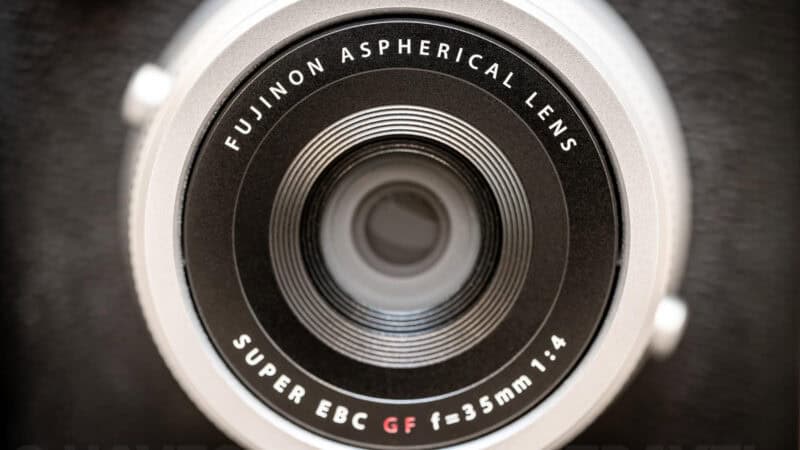
The Fujifilm GFX100RF medium-format camera has a fixed lens, a 35mm f/4 (it’s the equivalent perspective of 28mm when converted to a regular non-medium-format full-frame). So there’s no zoom.
But the GFX100RF does have what it calls a teleconverter. It’s entirely digital — there’s no optical element to it. On some other cameras, it might be called a digital zoom. In actuality, it’s a crop. And on most cameras, it’s mostly a gimmick when shooting photos (it can be more useful when shooting video).
Fujifilm doesn’t make an optical conversion lens for the GFX100RF, so this digital crop is the only way to get a tighter field of view out of the fixed 35mm lens — unlike the X100 series, which has screw-on wide and tele converters. The feature isn’t unique to this camera, either: the X100VI has the same kind of digital teleconverter, where the 1.4x and 2x settings take a 40MP file down to roughly 20MP and 10MP. What’s different on the GFX100RF is simply how much resolution there is to give away.
But in this case, it’s more nuanced than a typical teleconverter. The 102MP sensor is what makes the GFX100RF’s digital teleconverter more than a marketing flourish. A physical selector switch on the front of the camera lets you punch in from the native 28mm equivalent field of view to three preset crops — and because you’re starting from such a high resolution, even the deepest crop produces a file most photographers would consider usable. But I’d argue that it’s really most useful as a composition tool, especially if you’re shooting RAW.
That’s the upside. The downside — and this caught me out a few times in the first week of shooting — is that the selector is easy to bump in the field, and unless you have your displays configured correctly, you might not notice you’ve been shooting cropped frames until you import.
So here’s how the teleconverter actually works, what each crop costs you in resolution, and the configuration that prevents accidental crop-shooting without locking the feature out entirely.
What the selector actually does
These are the four positions on the digital teleconverter selector:
| Selector Position | 35mm Format Equivalent | Crop Factor |
|---|---|---|
| OFF | 28 mm | Native |
| 45 mm | 36 mm | ~1.3× |
| 63 mm | 50 mm | ~1.8× |
| 80 mm | 63 mm | ~2.3× |
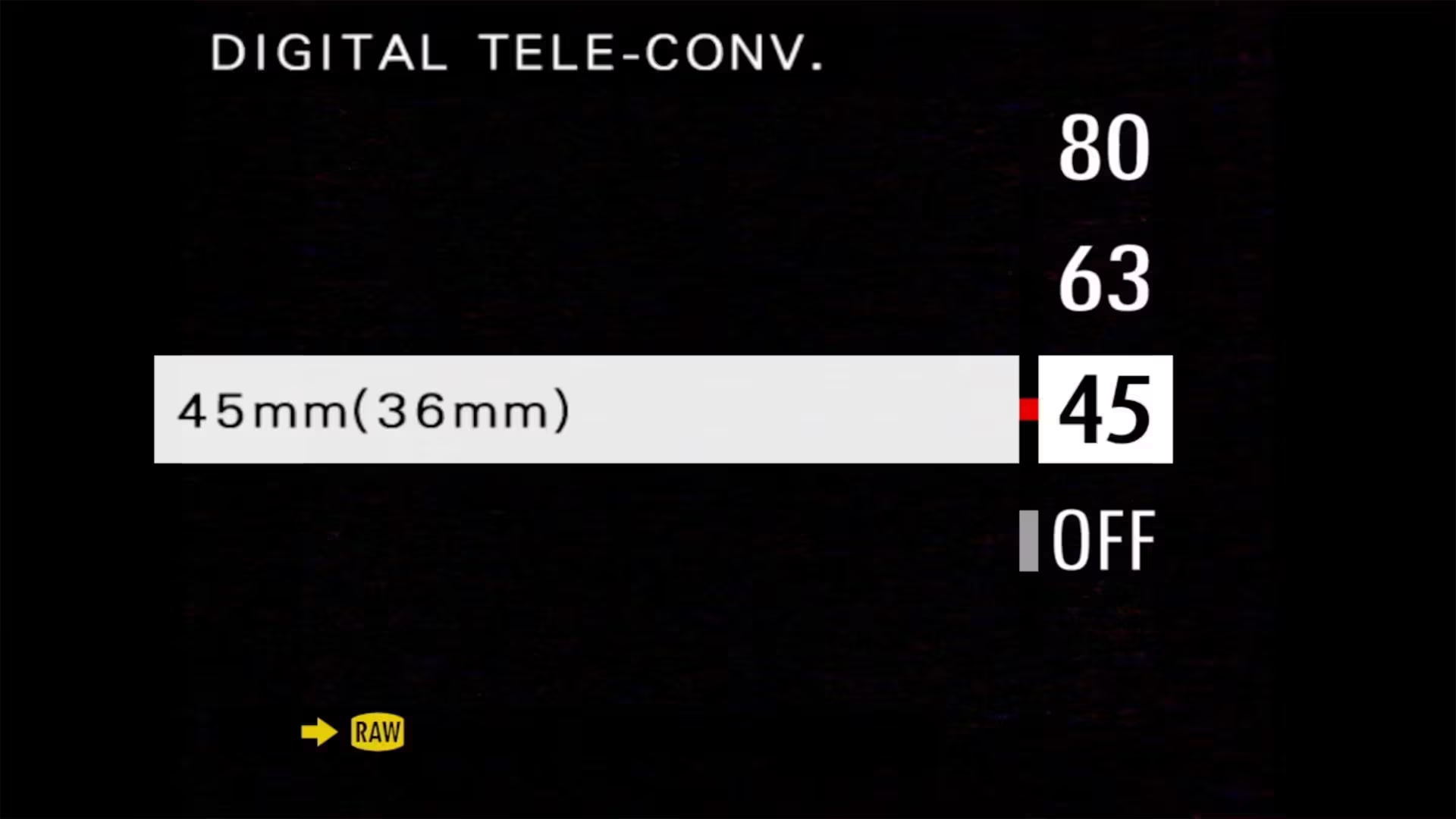
A small but useful precision point: the labels on the selector show the actual lens focal length (45, 63, 80mm), with the 35mm-format equivalent in parentheses. The native focal length of the lens is 35mm — but that’s a medium-format 35mm, which gives you a 28mm equivalent angle of view. So when you flip to the 45mm position, you’re not getting a “35mm equivalent” — you’re getting 36mm equivalent. And that’s enough of a difference to matter, because the difference between 28 and 36 mm is the difference between a wide and a normal-wide.
What each crop costs you in resolution
Working from the camera’s native 4:3 sensor output of 11648 × 8736 pixels (about 102 MP), these are the resolution costs you’ll incur in the various teleconverter steps:


| Equivalent FOV | Approximate Pixel Count |
|---|---|
| 28mm (native) | ~102 MP |
| 36mm (1.3×) | ~60 MP |
| 50mm (1.8×) | ~31 MP |
| 63mm (2.3×) | ~19 MP |
Even at the deepest crop, you’re working with a roughly 19MP file — comparable in resolution to a current full-frame mirrorless body. For online publication, gallery prints up to about 16×20, and most editorial work, even that 80mm crop holds up.
Those figures assume the native 4:3 shape. The crop and the aspect-ratio dial stack, so if you’re also shooting one of the tighter ratios, you’re cutting into the already-cropped file rather than the full 102MP one. The 63mm setting at 65:24, for instance, leaves you around 15MP.
Where it becomes a real consideration is for very large prints, billboard-scale commercial output, or any work where you need extensive cropping flexibility after the crop has already been applied.
One thing the crop doesn’t do is gather more light. The exposure doesn’t change — it’s still an F4 lens — but you’re using less of the sensor, so the noise and dynamic-range headroom that comes with the medium-format area shrinks as you punch in. DPReview points out that at the 45mm setting the GFX100RF is collecting slightly less light across the whole image than the APS-C X100VI does. In good light that’s academic; at high ISO it isn’t.
What the teleconverter does to RAW files
This is worth knowing: RAW files are never actually cropped at capture.
The teleconverter does work in RAW mode, but only in part. When you shoot with the teleconverter engaged, the camera records the full 102MP RAW frame and stores the crop selection as metadata. The crop applies natively only to JPEG, HEIF, and TIFF outputs.
If you want a cropped RAW output, you have a couple of options. Firstly, and probably least conveniently, you can apply the crop in post via in-camera RAW conversion:
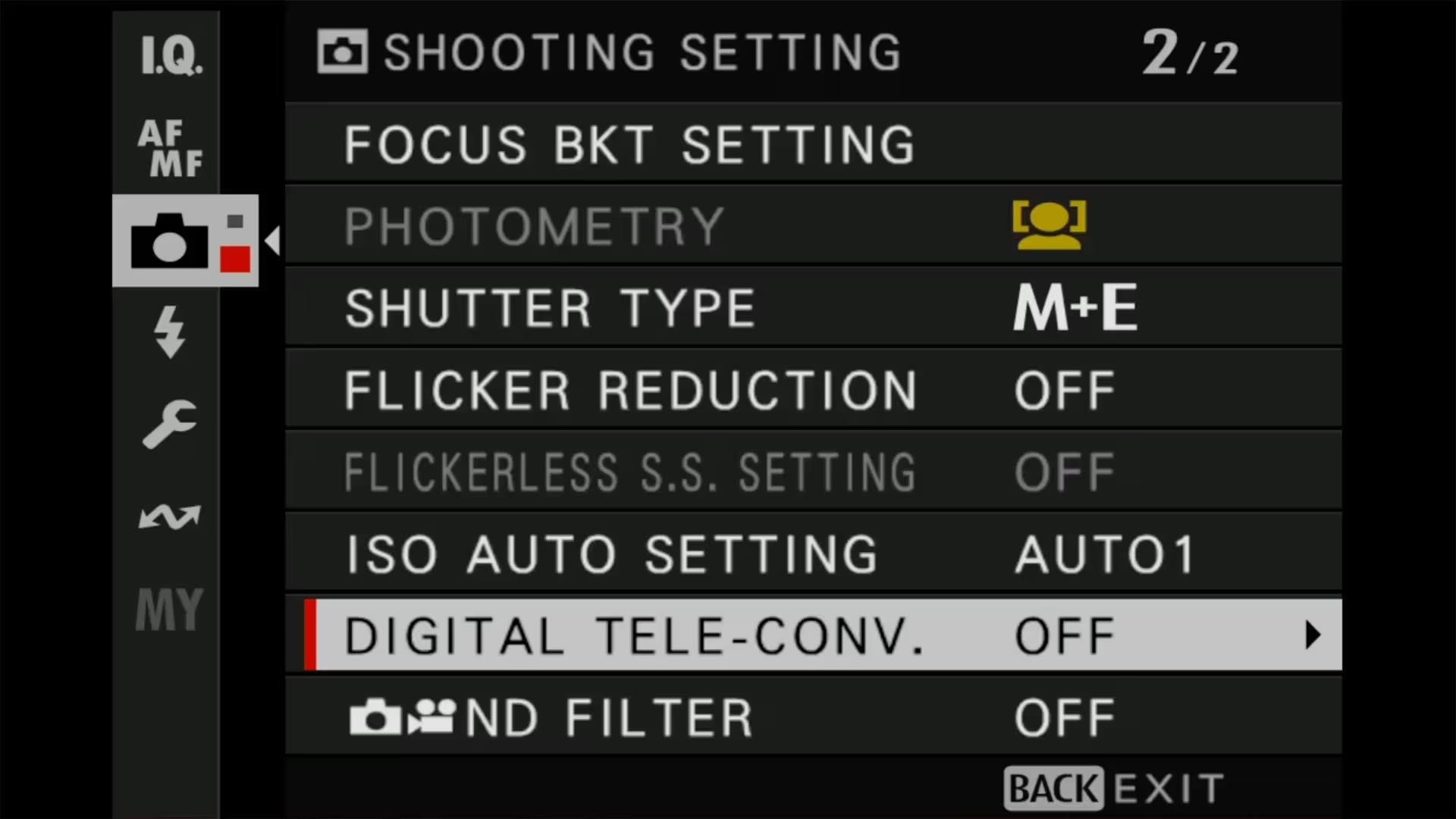
PLAYBACK MENU > RAW CONVERSION > DIGITAL TELE-CONVBut more conveniently, you can also apply it in Lightroom Classic. (I haven’t tested it in Capture One, but there’s a good chance it has the same behavior.) Because when you open the RAW file in Lightroom, it reads the embedded metadata and automatically applies the crop tool.
If that’s what you want to happen, great. But here’s the thing: for me, that actually became a nuisance. I shoot RAW nearly all the time, and there really aren’t any practical situations where I want to shoot with the teleconverter — it’s just not a feature I use.
The reason it can be a nuisance is that engaging the teleconverter isn’t just a menu setting — there’s a physical lever on the front of the camera. And I found it way too easy to bump accidentally. Moreover, it can’t be disabled or reassigned to a different function, unlike many of the other buttons and dials.
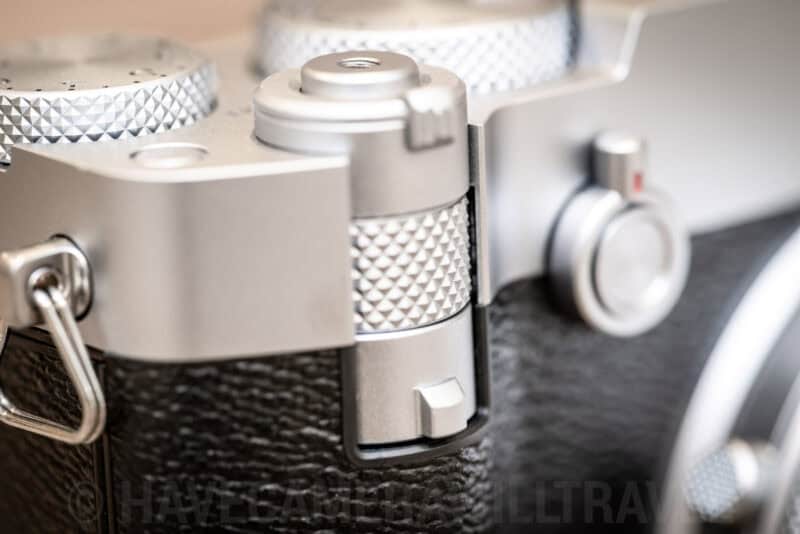
It’s not a big problem, because it’s easy enough to fix in post. But it’s just something that bugged me.
How to stop the teleconverter cropping by accident
The selector itself can’t be locked out or remapped — it’s a dedicated physical switch on the body, not a function button, and as far as I can tell, it doesn’t appear in the LOCK SETTING list of controls that can be disabled — physical selectors generally aren’t lockable. So there’s no menu setting that prevents the camera from changing crop modes.
But there’s a better solution than locking it out, which is to make the crop visible. That won’t stop the teleconverter from being engaged, but it will at least give you a clear visual indication when it’s happening.
The path is:
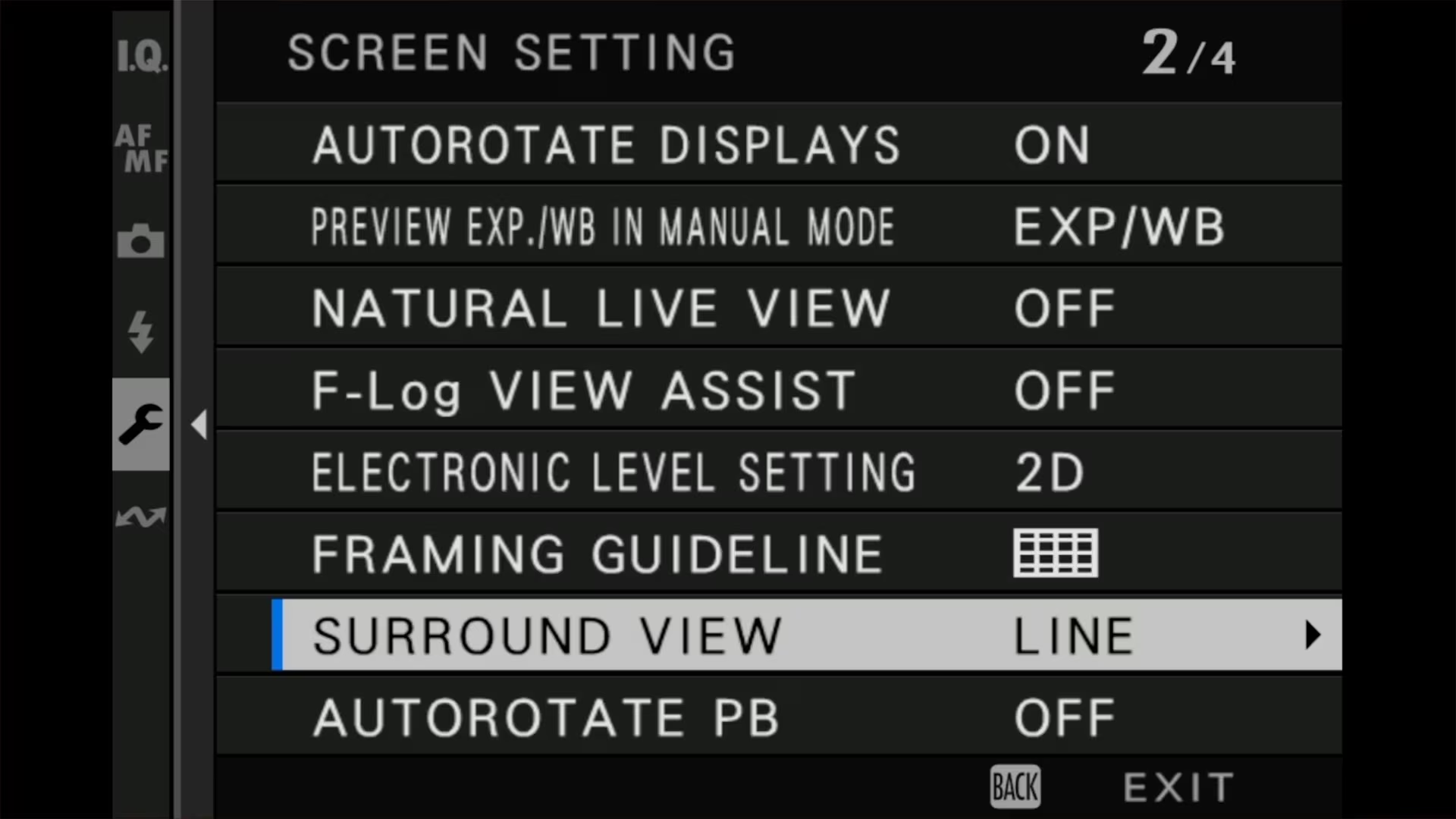
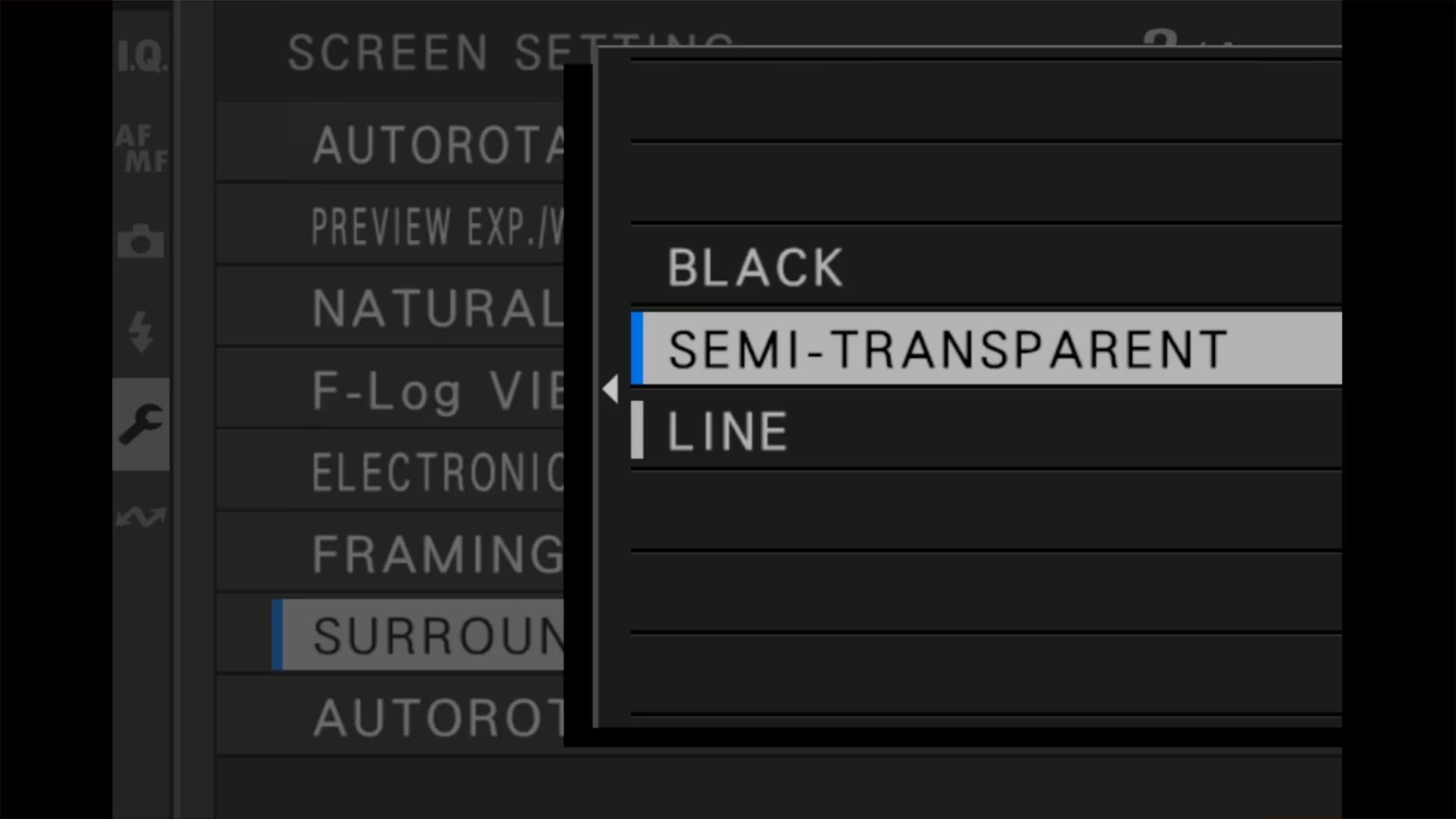
MENU/OK > D SCREEN SET-UP > SURROUND VIEWYou get three options:
- BLACK (default) — the area outside the crop is black; you see only the cropped frame
- SEMI-TRANSPARENT — the area outside the crop is dimmed but still visible
- LINE — the full frame is shown, with a line marking the crop boundary
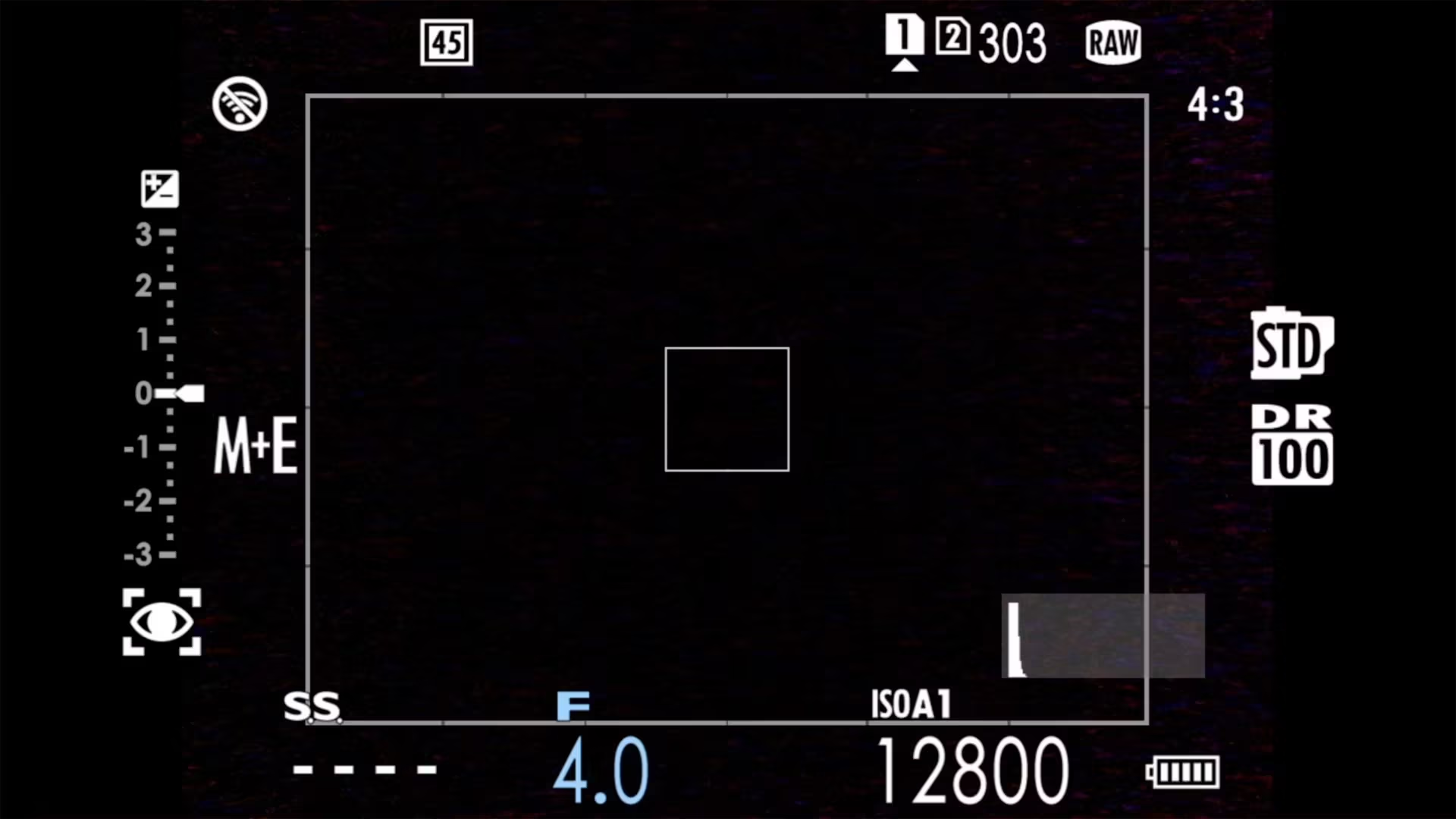
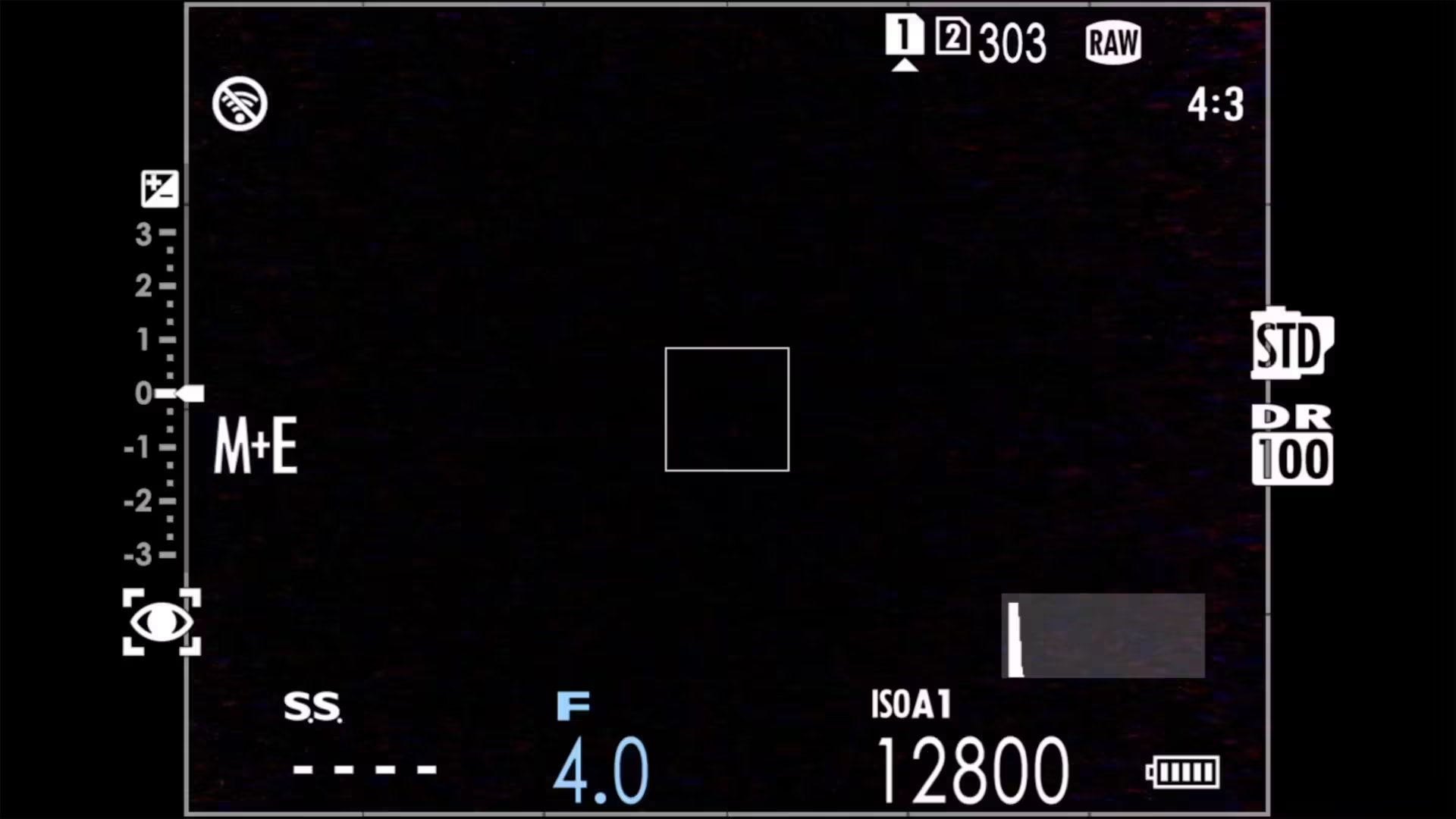
The default BLACK setting is what causes the “didn’t notice I was cropped” problem in the first place — the EVF and LCD show only the cropped frame, so a bumped selector looks just like a normal composition.
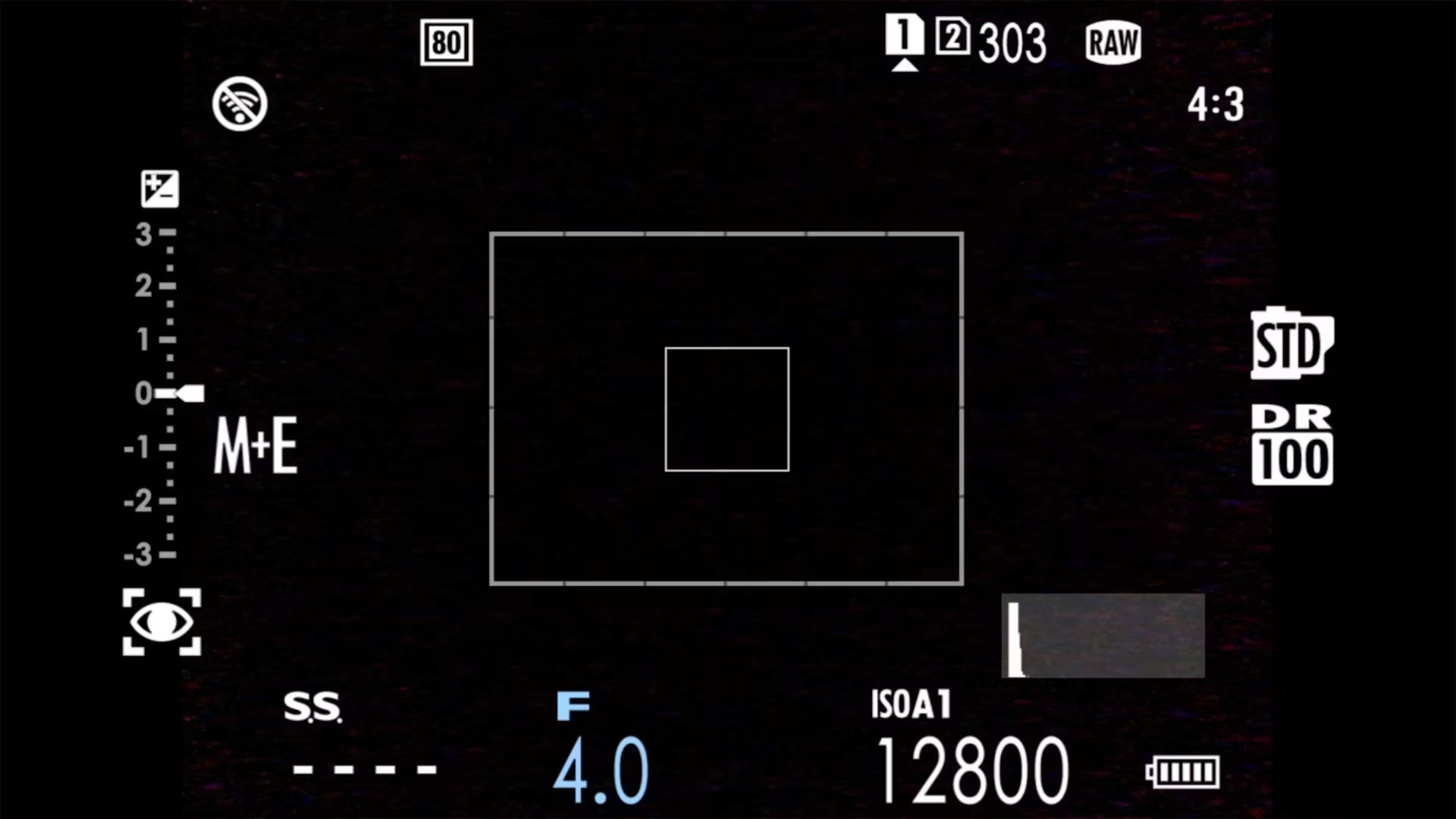
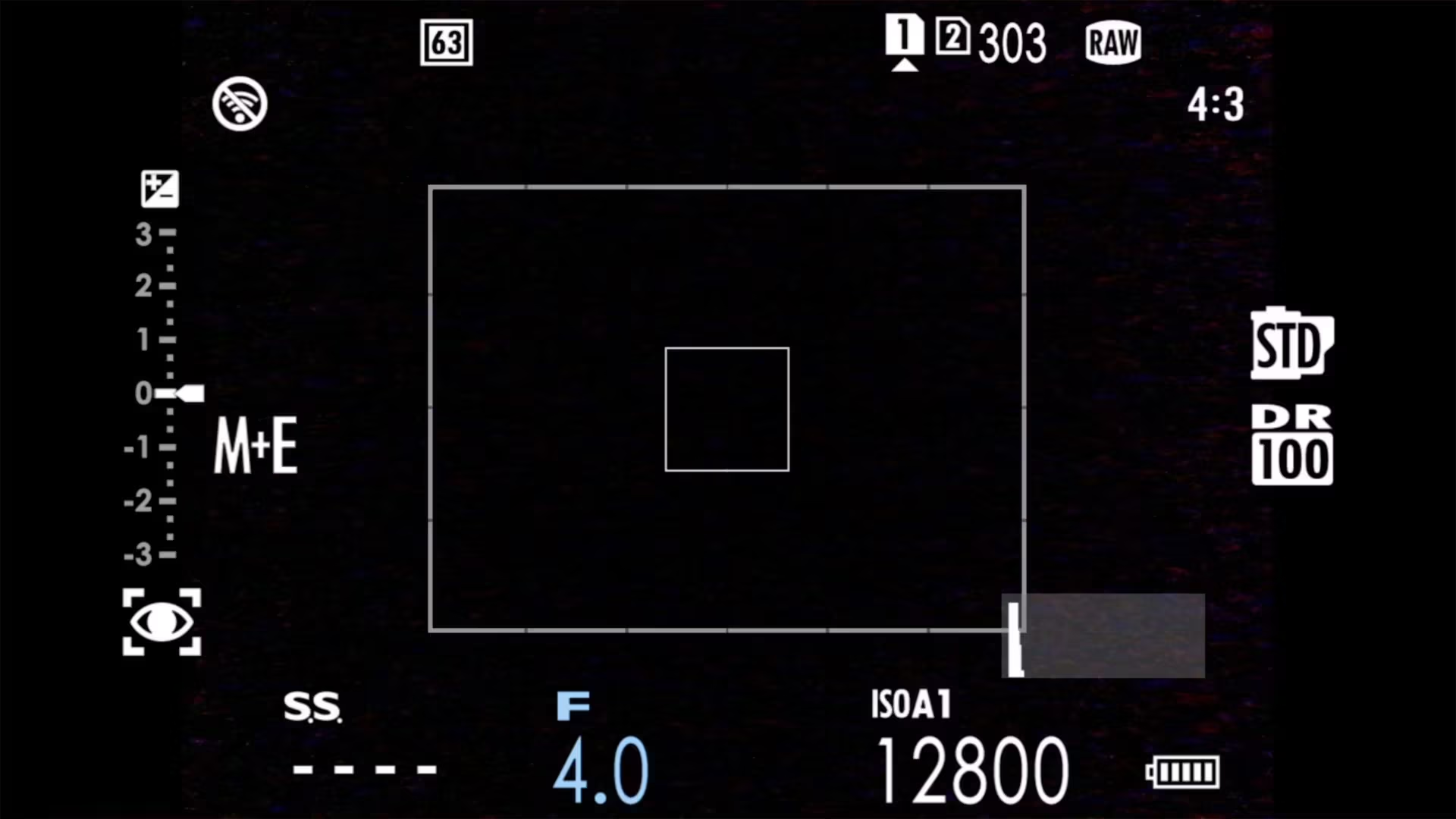
I run LINE as my default, and it’s transformed how I use the teleconverter. The full 28mm frame stays visible in the viewfinder at all times, with a clean line showing the active crop. You can see what’s outside the frame, you immediately notice if the crop has changed without you intending it, and you can use the wider context to compose the cropped shot more deliberately. SEMI-TRANSPARENT works the same way but with a dimmed surround instead of a line — same idea, slightly different visual style.
Screenshot to capture: the D SCREEN SET-UP > SURROUND VIEW menu showing BLACK, SEMI-TRANSPARENT, and LINE.
And you can see the white outlines here showing how much of the frame/sensor the crop is applied to:



Hi David,
This was brilliantly helpful GFX 100RF advice. I have just been hiring one for a job ( I’m a portrait photographer ) with a view to buying.
No one seems to know whether the digital tele converter works in RAW or JPG. If it was just JPG it would make the camera useless professionally. I can’t believe Fuji would such a mistake.
But you have the answers! Thank you.
Laurence, London UK
Hi Laurence, Glad you found it helpful! There’s a lot to love about the GFX 100RF, but the digital teleconverter wasn’t one of them for me.