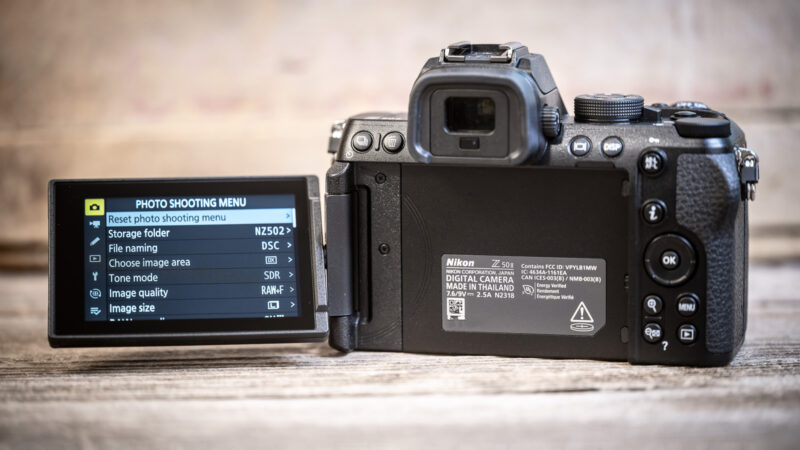
To reset a Nikon Z50 II to its factory settings, go to:
MENU > SETUP MENU > Reset all settings > Reset > YesThat puts every setting back to how it was when the camera shipped, with some notable exceptions: the language, the clock, and the firmware. It also erases your copyright details and saved Wi-Fi connections. And there is no undo.
But the thing is, often you don’t need to go that far. That’s the nuclear option, but the Z50 II also has resets for just one menu, and you can back up your settings first so a full reset isn’t permanent.
So here’s every option and when to use each.
Important: Before you reset, back up your settings
The Z50 II has a feature that lets you save most of your settings to the SD card, so that you can then load them back later.
While not required, it’s a good idea to do this first, so that if the reset doesn’t solve the issue, or you miss your setup, you can restore it quickly.
MENU > SETUP MENU > Save/load menu settings > Save menu settingsTo restore them later, use Load menu settings from the same menu, with the same card in the camera.
It saves most photo and video shooting menu settings and Custom Settings. There’s an exception: Custom Picture Controls you’ve created don’t survive, and they’re saved as Auto.
Which reset do you need?
There are multiple different types of reset on the Z50 II. Here’s a quick guide to which to use when.
| If you want to… | Use |
|---|---|
| Start completely fresh, or fix something you can’t track down | Reset all settings |
| Undo changes to photo settings only (image quality, ISO, white balance, and so on) | Reset photo shooting menu |
| Undo changes to video settings only | Reset video recording menu |
| Undo changes to buttons, displays, focus behavior, and other Custom Settings | Reset custom settings |
| Clear a saved U1, U2, or U3 setup on the mode dial | Reset user settings |
| Put one button back to its original job | Reset it in the custom controls screen (below) |
| Undo just one or two settings you remember changing | Check the default settings list and change them back by hand |
Reset all settings (factory reset)
MENU > SETUP MENU > Reset all settings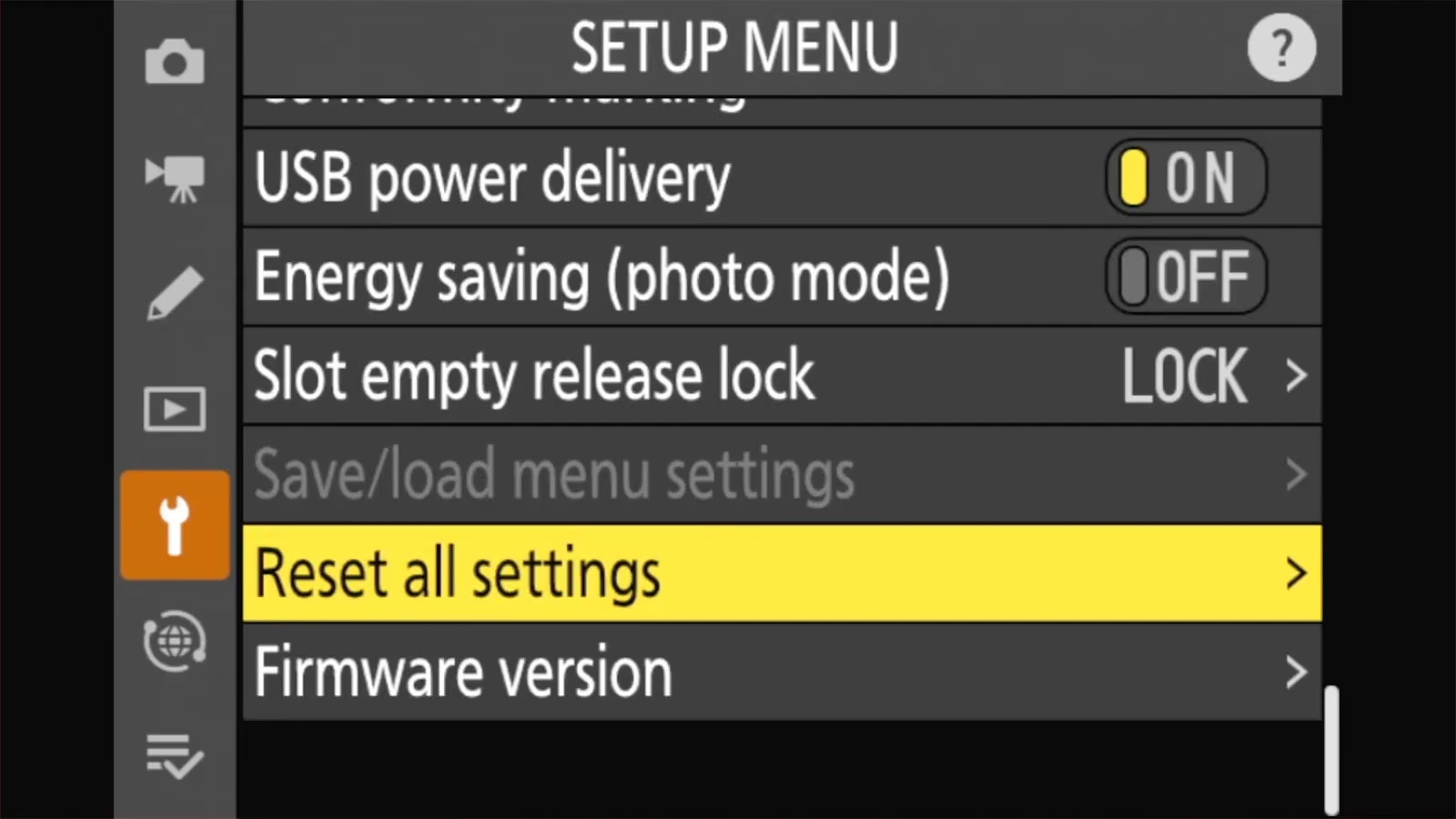
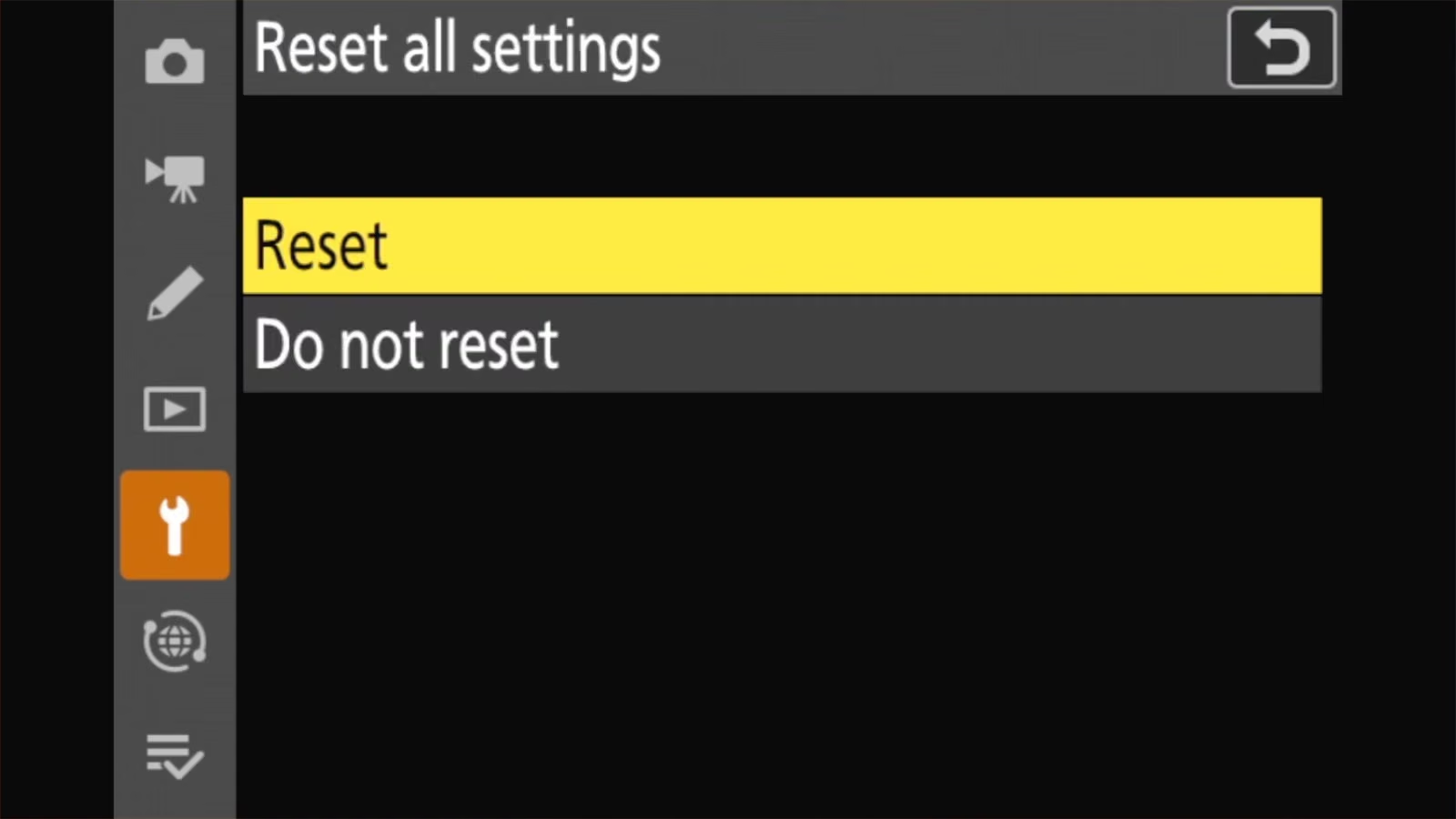
Choose Reset, then Yes to confirm. When the reset is finished, the camera tells you to turn it off.
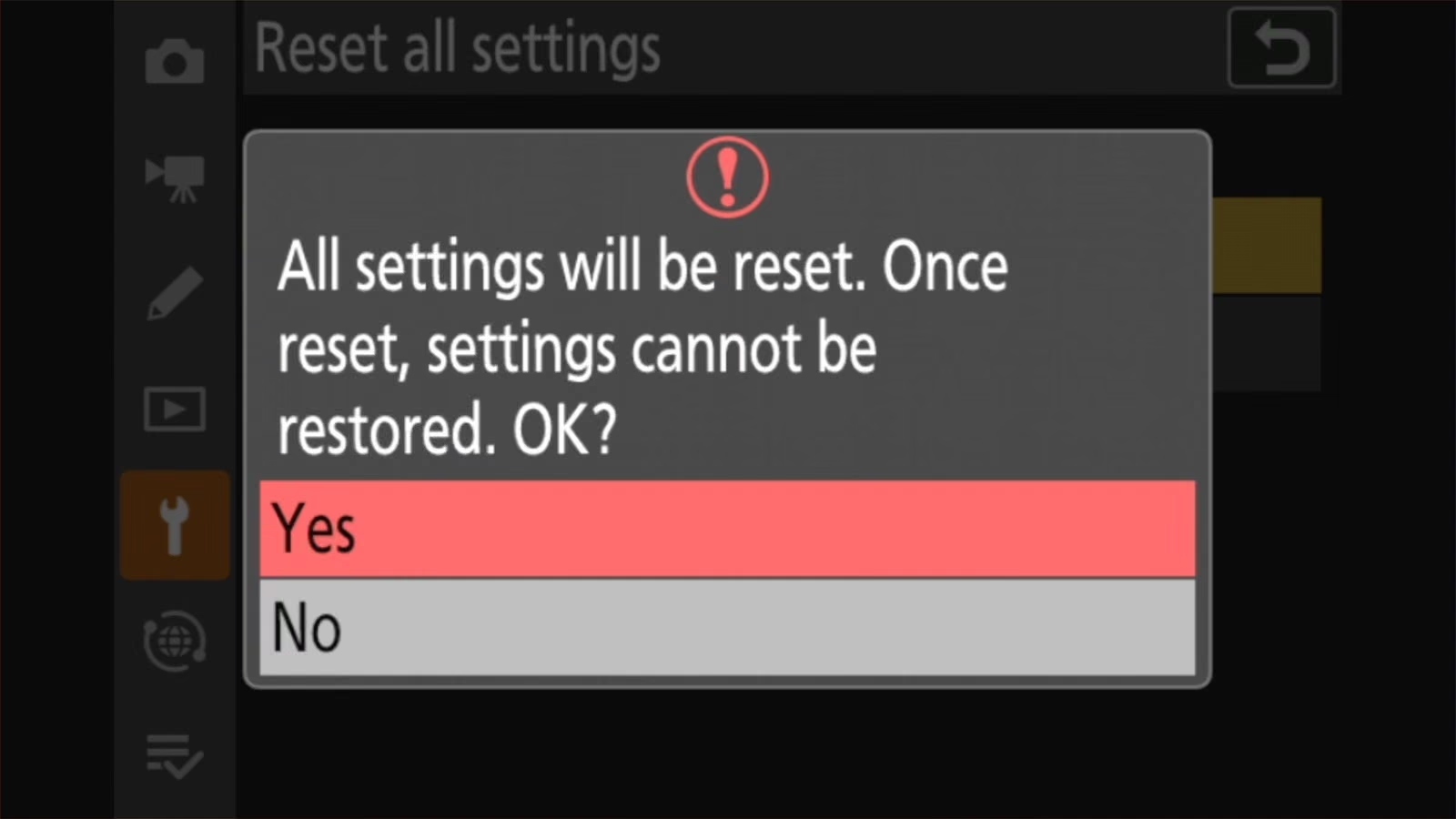
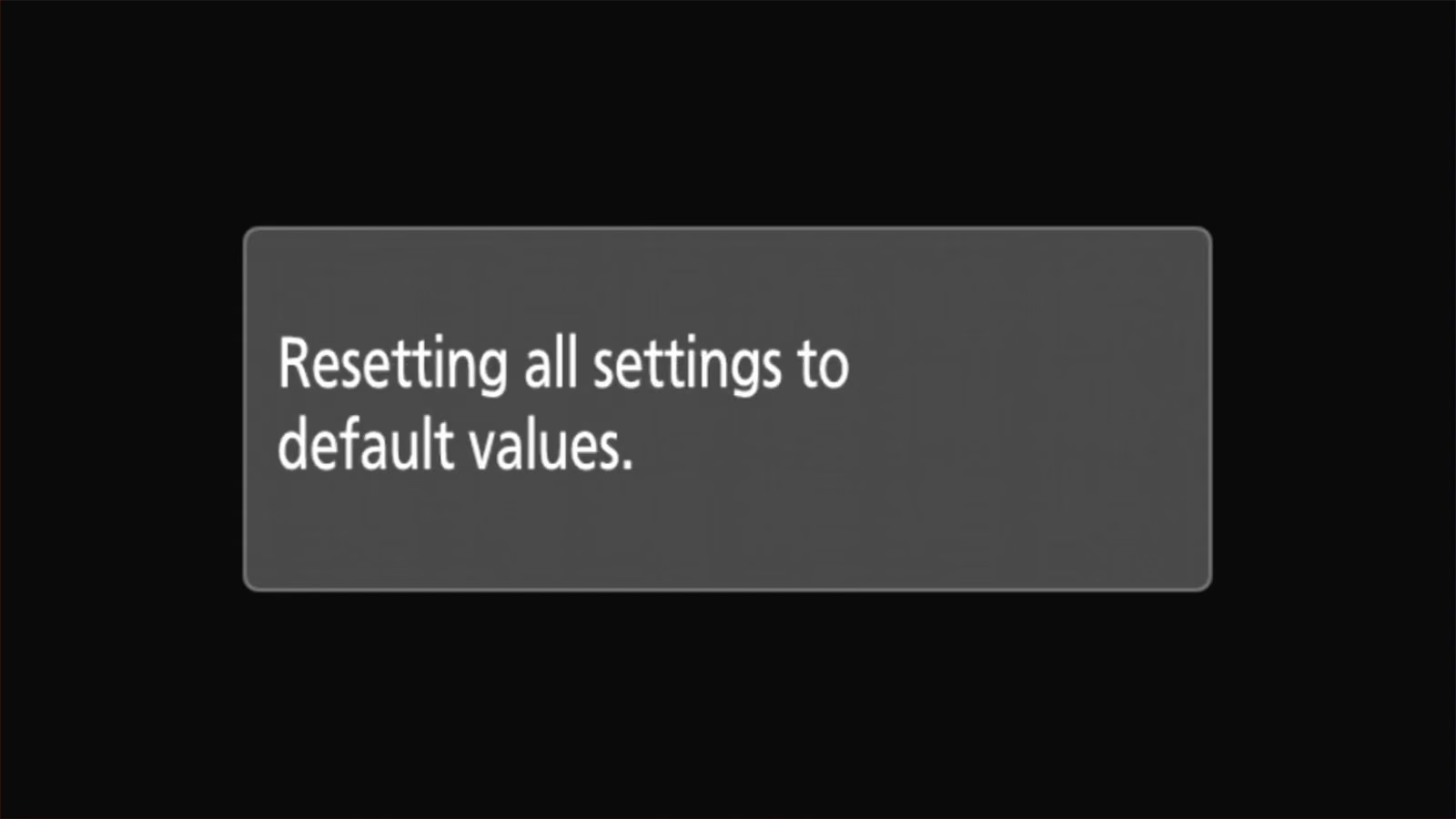
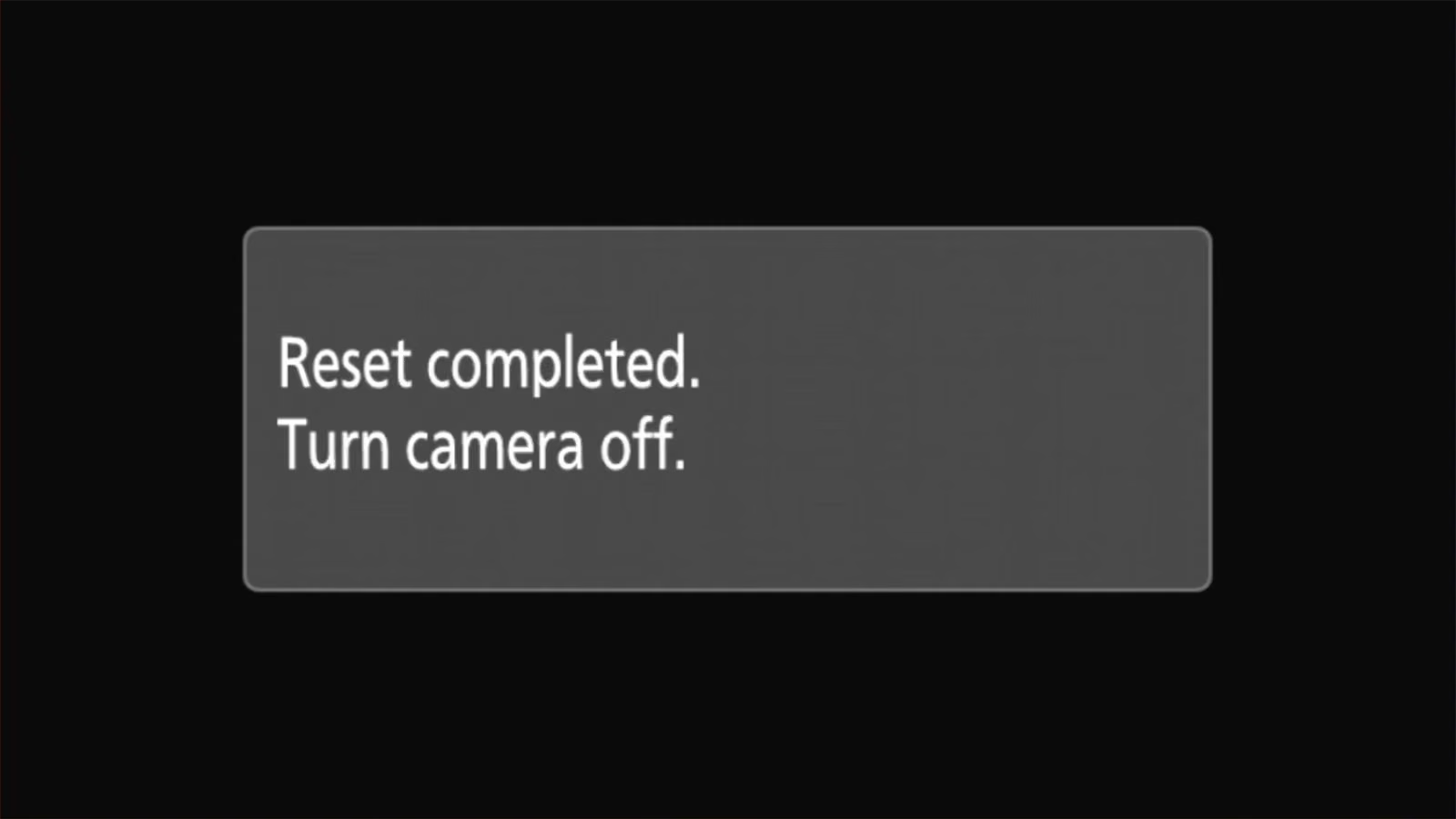
What it resets: every menu setting goes back to its factory default. It also clears copyright information, wireless network profiles, and other details you’ve entered.
What it keeps: the language and the time zone and date.
What it doesn’t touch: photos and videos on the memory card, and the camera’s firmware version. Resetting settings doesn’t erase your card or undo firmware updates. But if you want to be super safe, you can remove the memory card before resetting.
It can’t be undone, which is why saving your settings first is worth it.
Nikon’s manual also suggests a full reset as the fix when menu items are unexpectedly grayed out. That’s because sometimes one setting in one area of the menu can block other items elsewhere, and it can be tricky to track down what’s affecting what.
Before going that far, check the usual suspects. Silent mode disables Long exposure NR and Photo flicker reduction. The C15 and C30 release modes gray out flash, bracketing, HDR overlay, multiple exposure, and focus shift. And in video, the 4K frame rates only appear once Video file type is set to one of the H.265 options.
After a full reset, you’ll need to reconnect Wi-Fi and redo any SnapBridge setup, and re-enter copyright details.
A full reset, or a reset of just the photo shooting menu, also puts RAW recording back to its default of High efficiency★. If you’d switched to Lossless compression because an older version of Lightroom or macOS couldn’t open High efficiency files, go to PHOTO SHOOTING MENU > RAW recording and switch it back.
Reset just one menu
You can also reset individual menus (eg., just the Shooting Menu). It leaves everything else alone.
You’ll find this option as the first item in each menu.

Photo settings:
MENU > PHOTO SHOOTING MENU > Reset photo shooting menu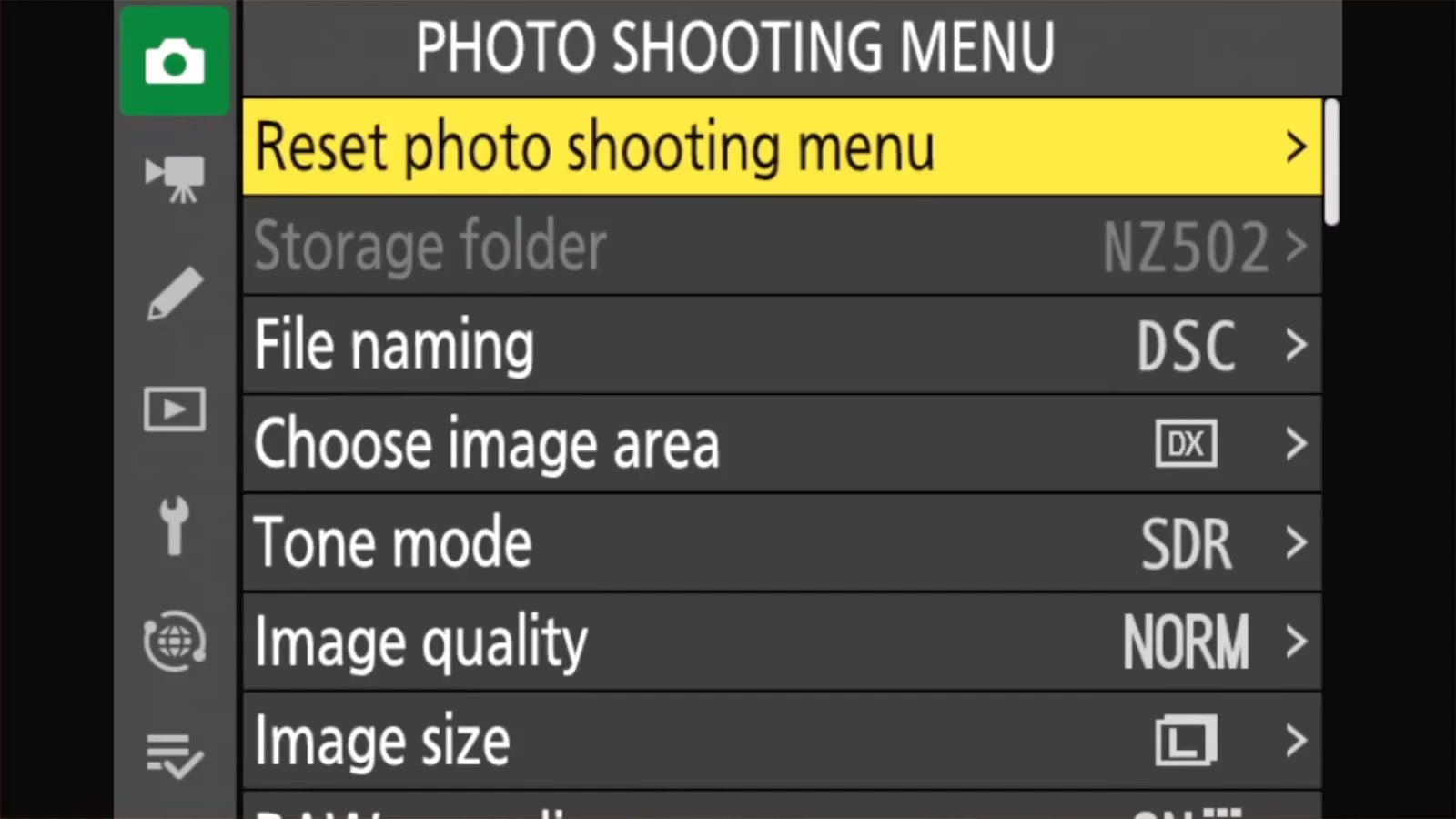
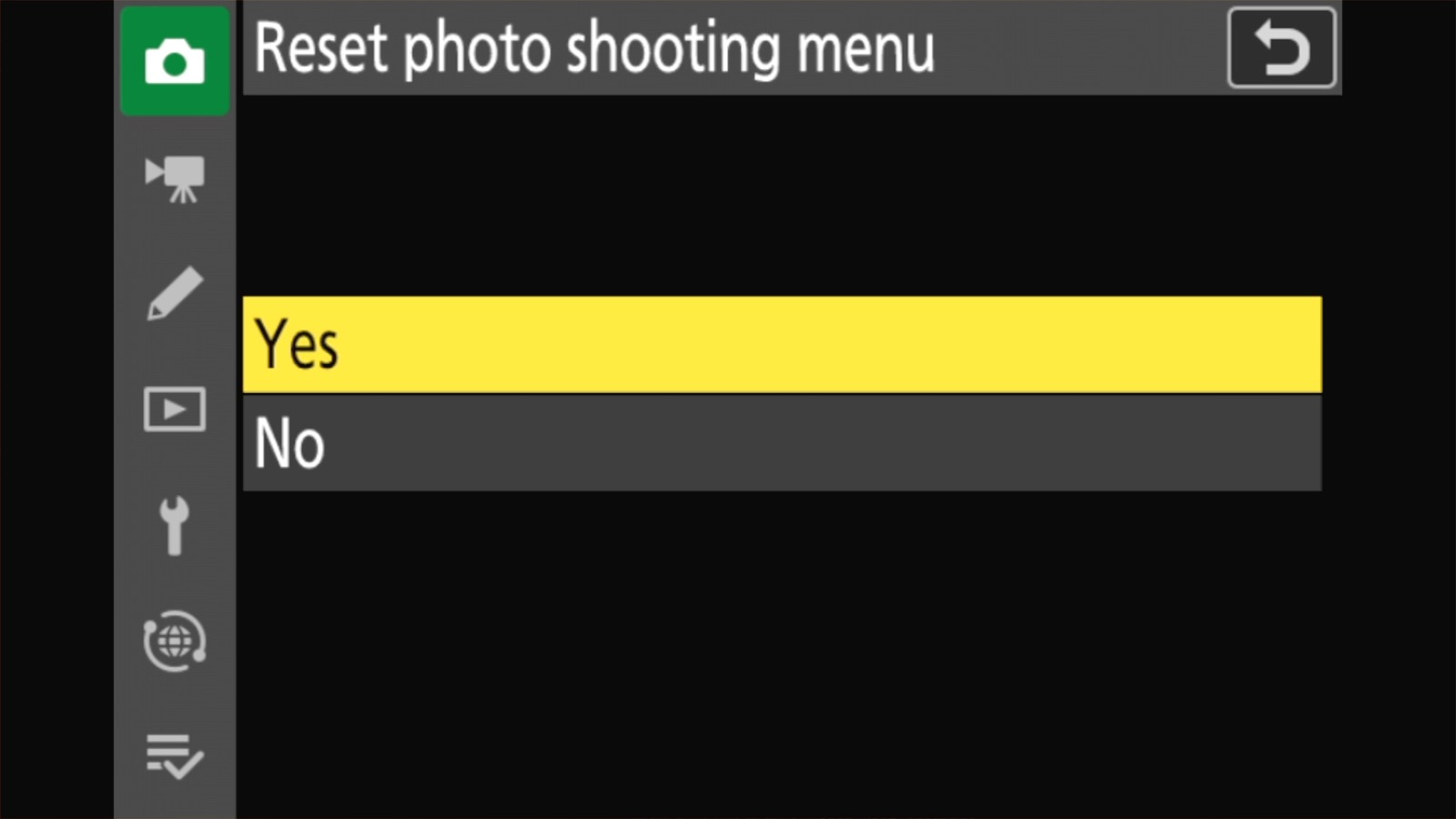
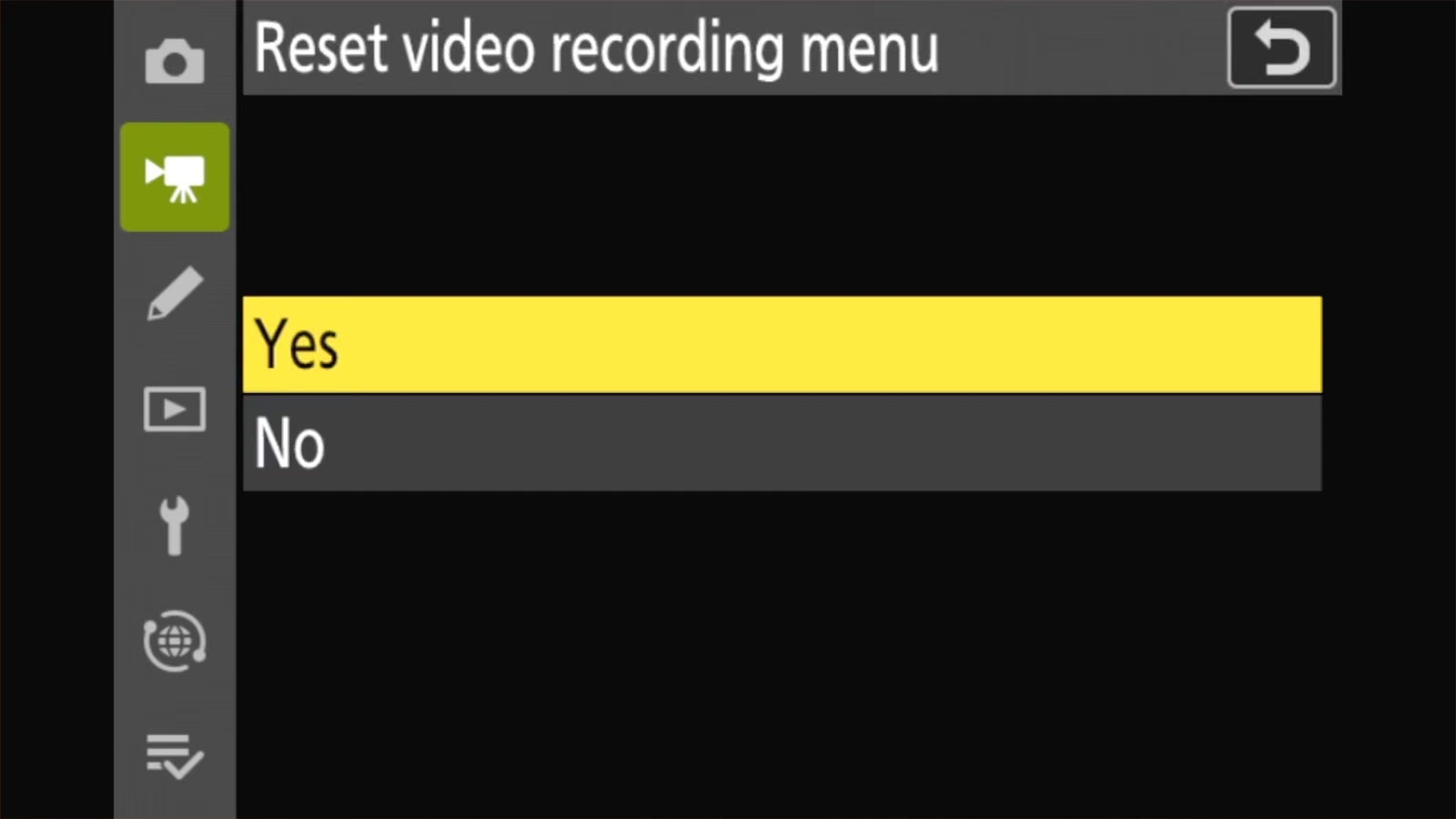
Video settings:
MENU > VIDEO RECORDING MENU > Reset video recording menu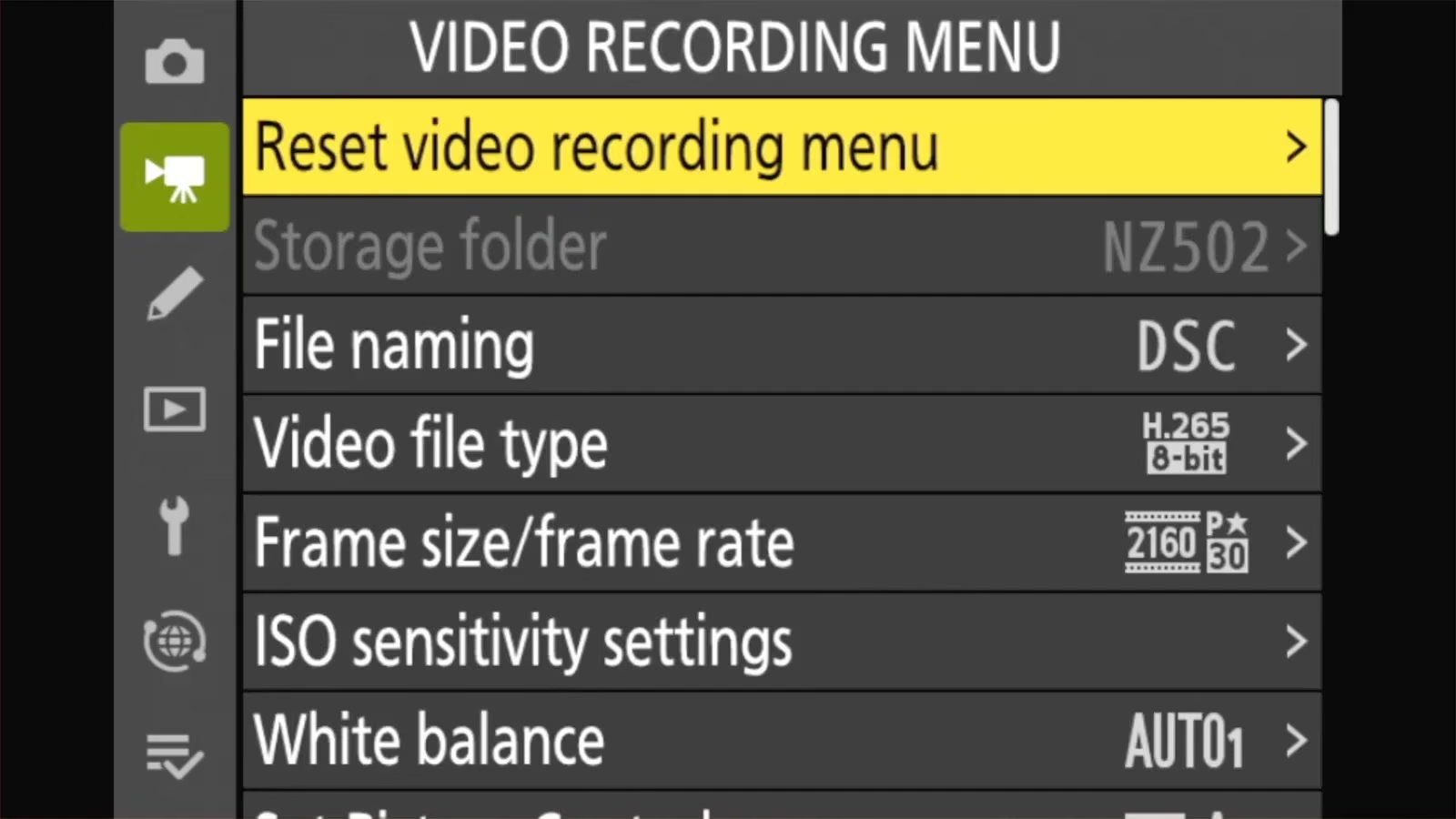
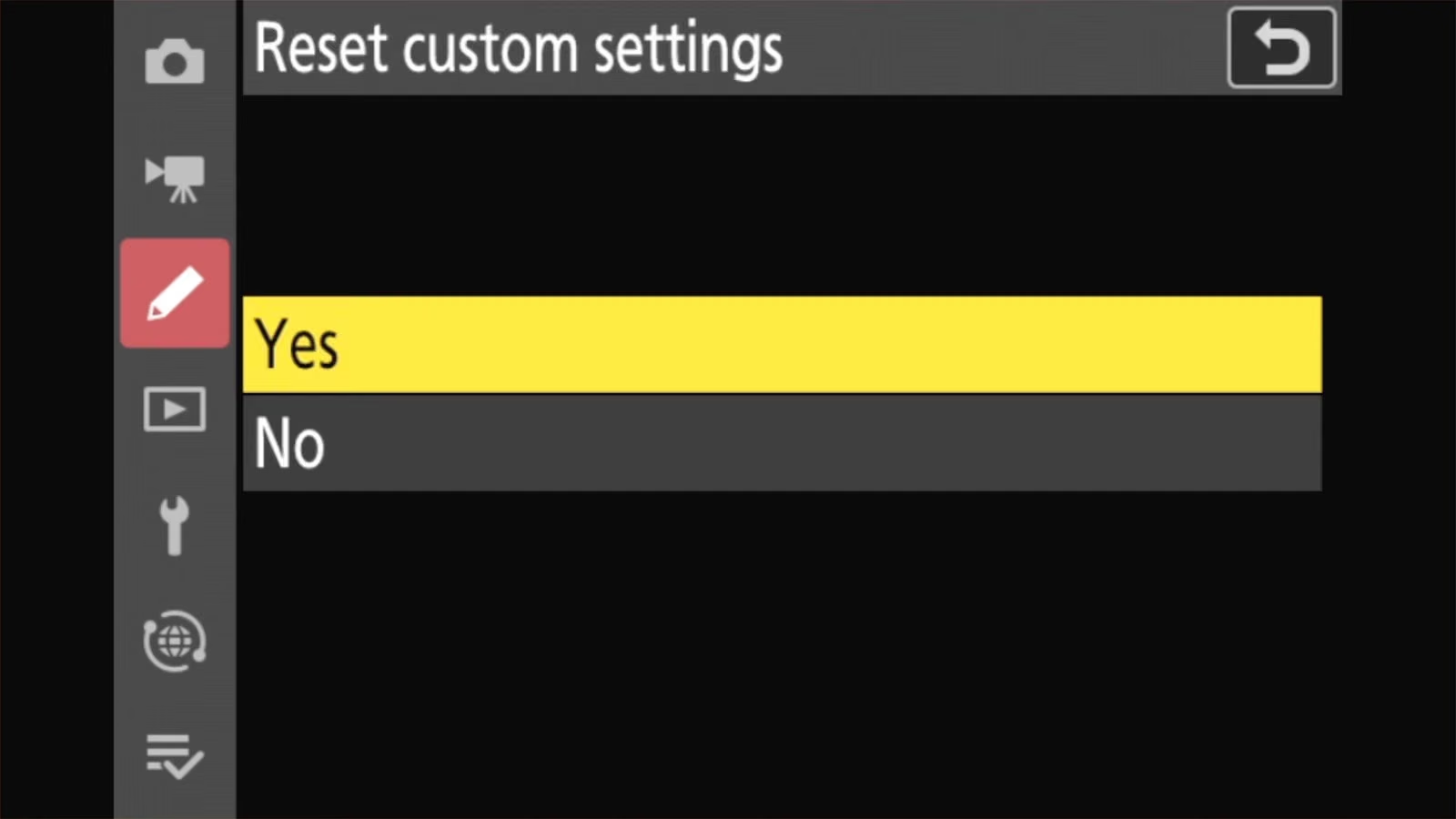
Custom Settings (focus behavior, exposure steps, displays, button assignments, and the rest of the a — g settings):
MENU > CUSTOM SETTINGS MENU > Reset custom settings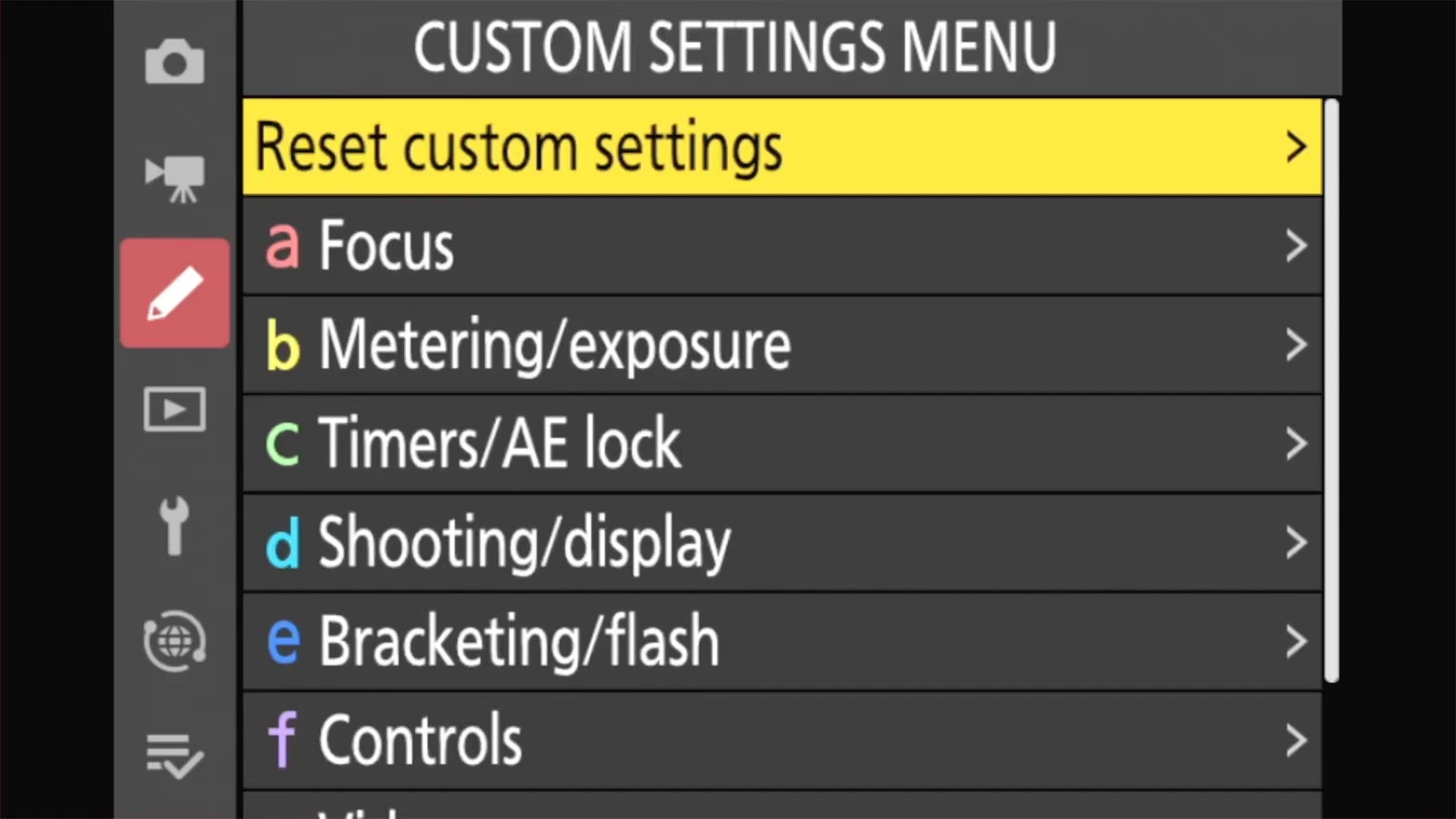
Tip: see what you’ve changed first. In the Custom Settings menu, any setting changed from its default is marked with an asterisk. That can be a quick way to fix individual settings back to default.
Reset U1, U2, or U3
The U1, U2, and U3 positions on the mode dial store complete setups you’ve saved. To clear one:
MENU > SETUP MENU > Reset user settings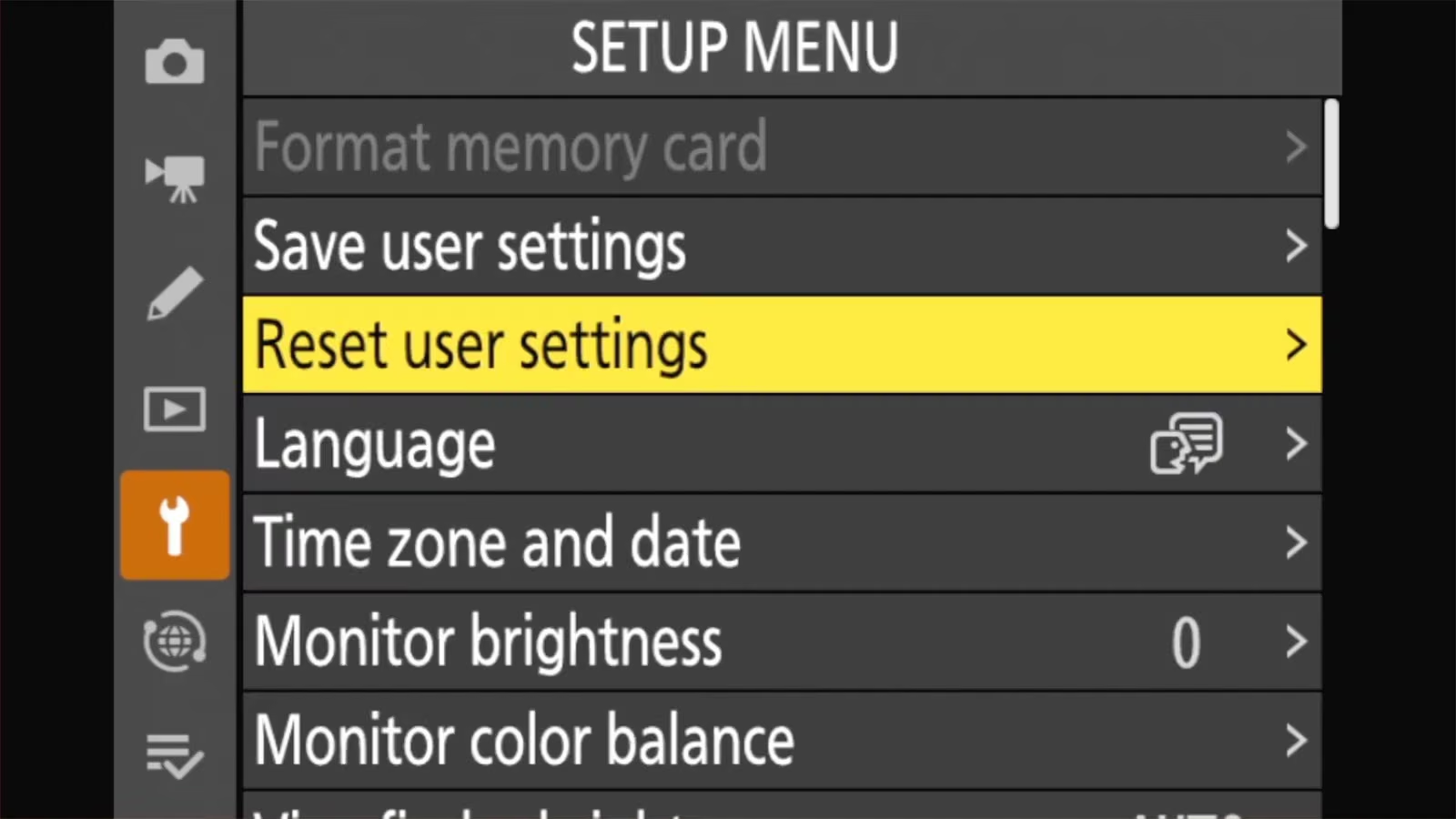
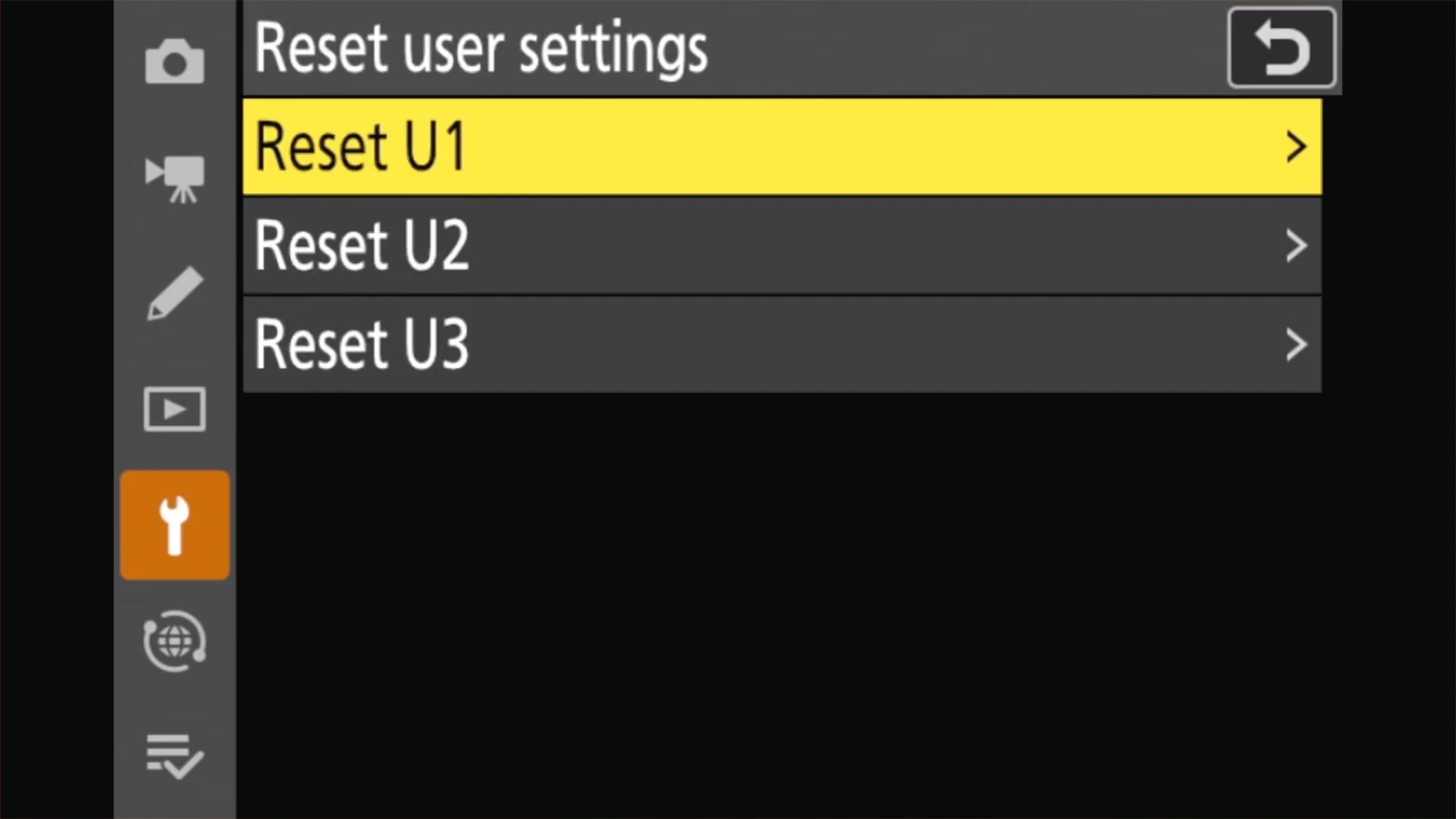
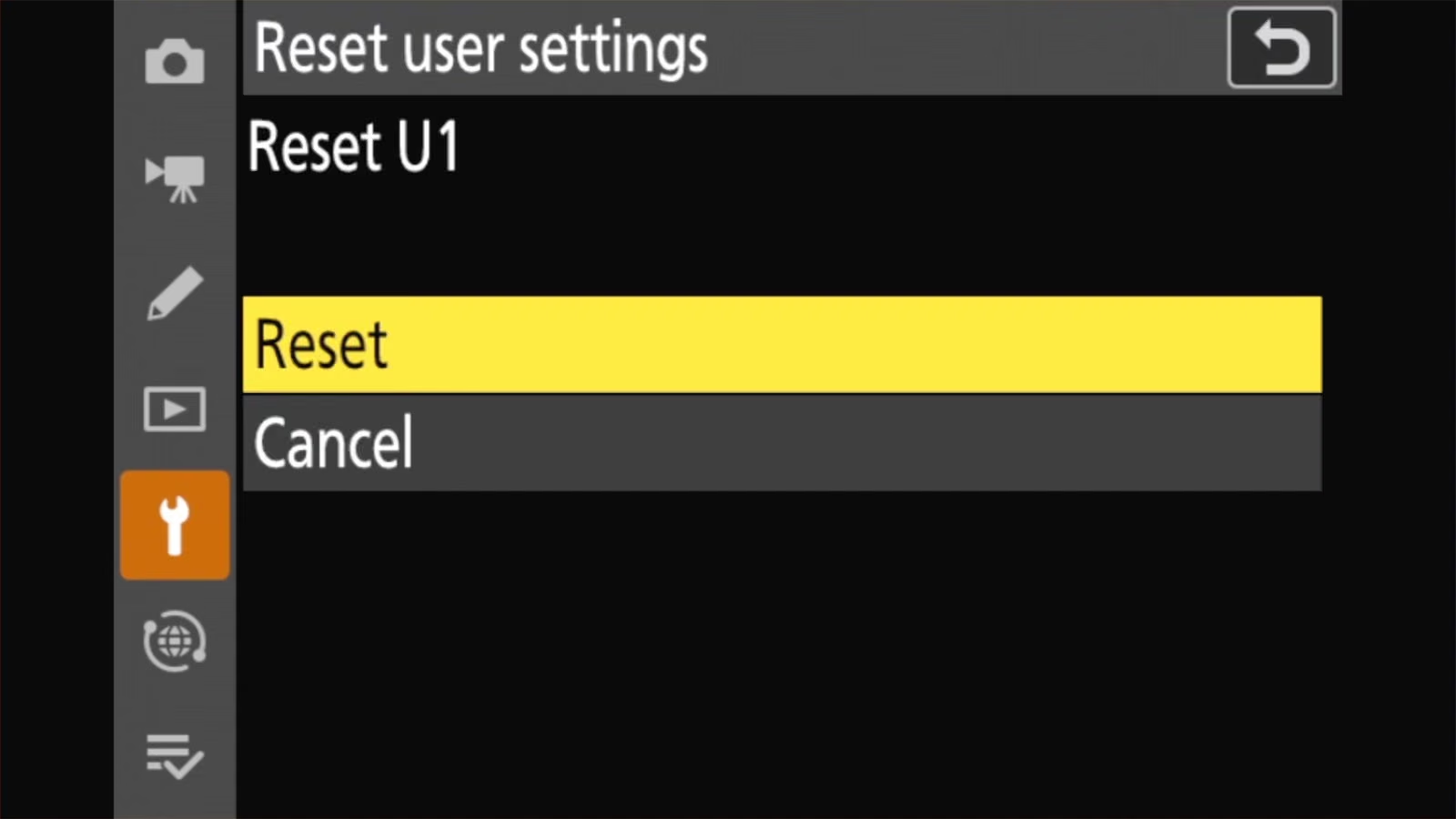
Choose U1, U2, or U3, then Reset. That position goes back to default settings, and the camera behaves as it does in mode P when you turn the dial to it.
Reset just one button or control
If you’ve reassigned buttons and want one back to its original job:
- Go to
CUSTOM SETTINGS MENU > f2 Custom controls (shooting)(or f3 for playback, g2 for video). - Highlight the button you want to reset.
- Press the delete (trash) button, then choose Yes.
To reset every button assignment in that screen at once, highlight any control and hold the delete button for about 3 seconds, then choose Yes.
Reset a Picture Control
If you’ve adjusted a Picture Control, like changing the sharpening or saturation of Standard, open it for editing and press the delete (trash) button to go back to its original settings.
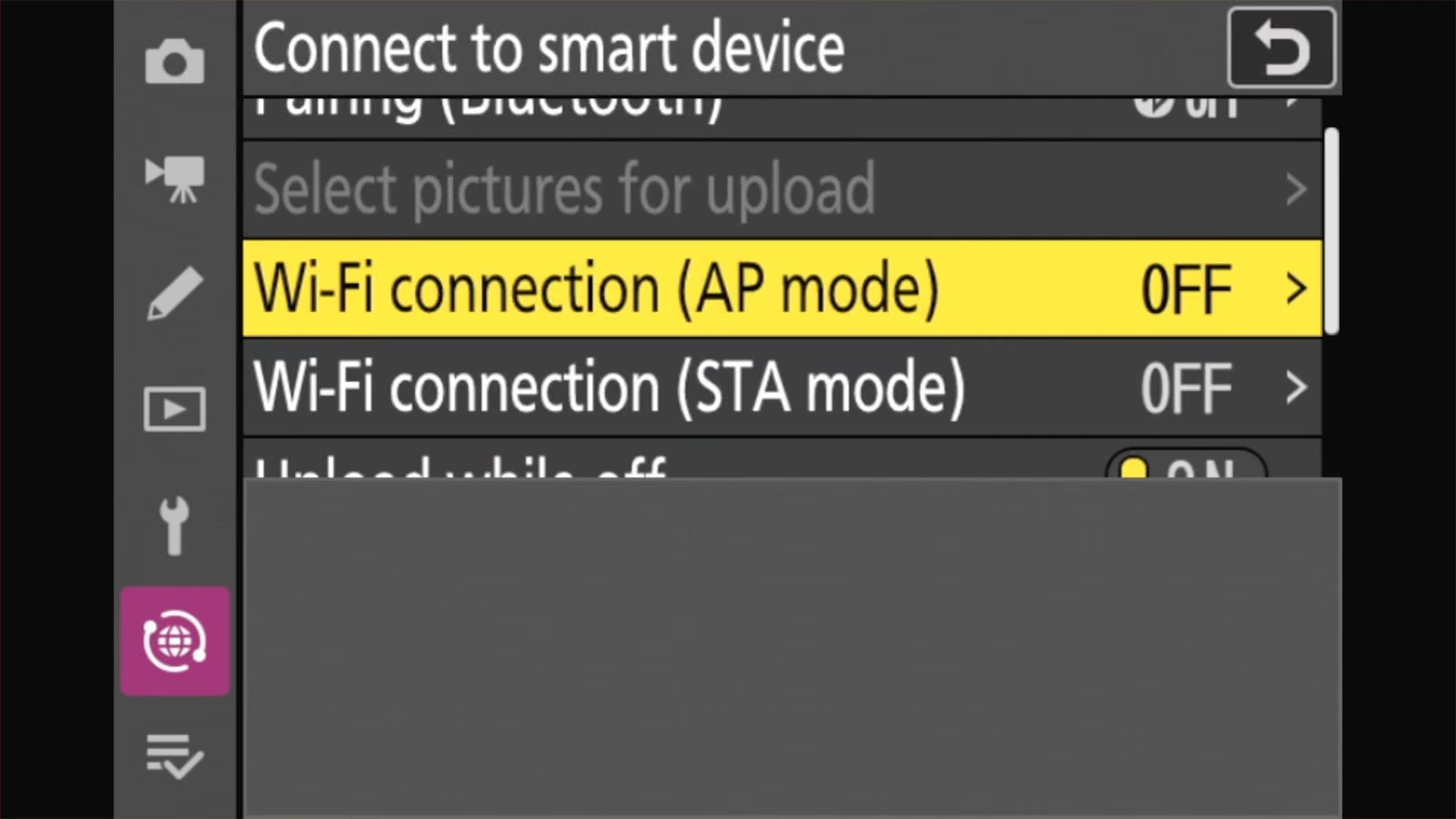
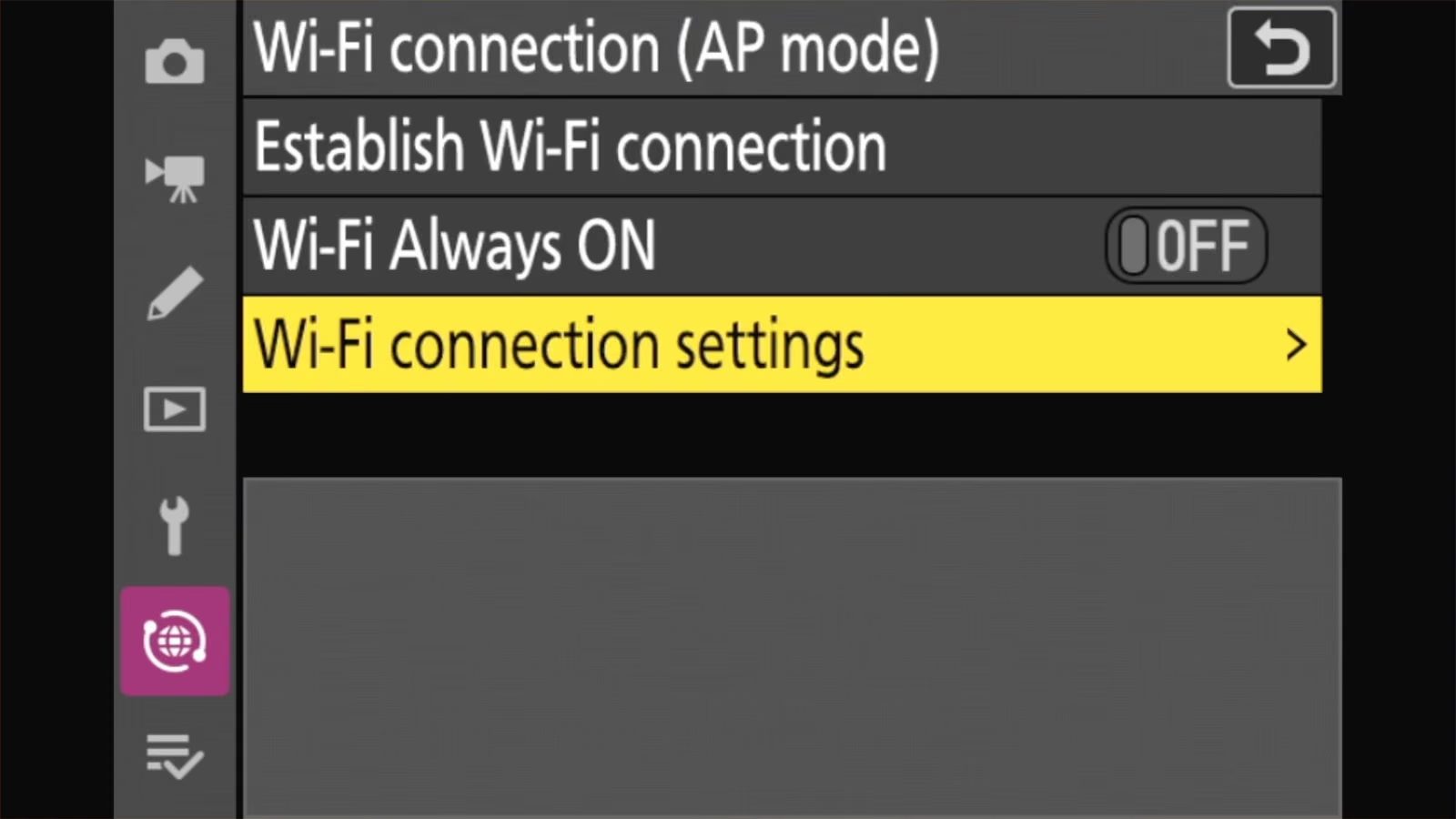
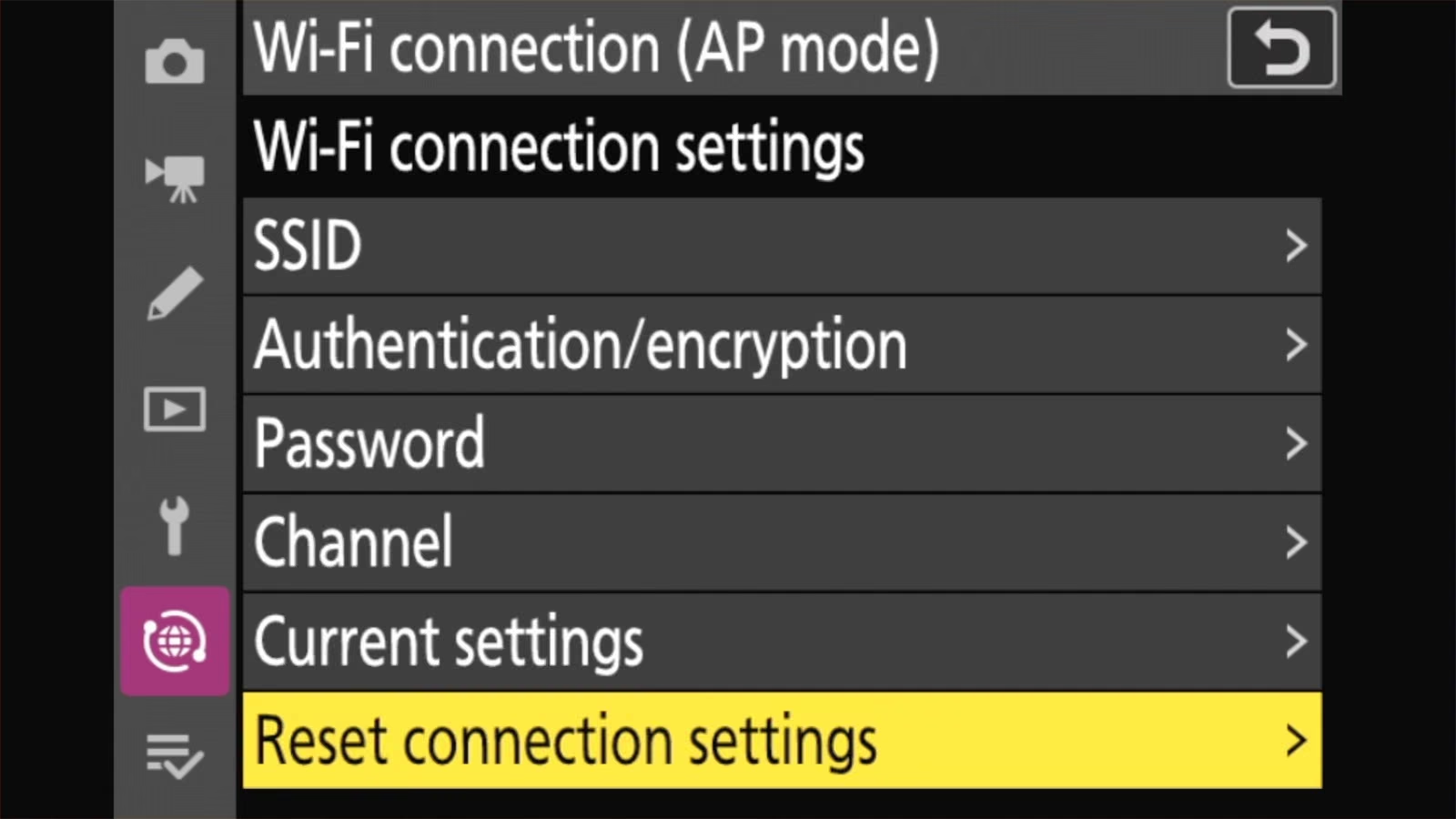
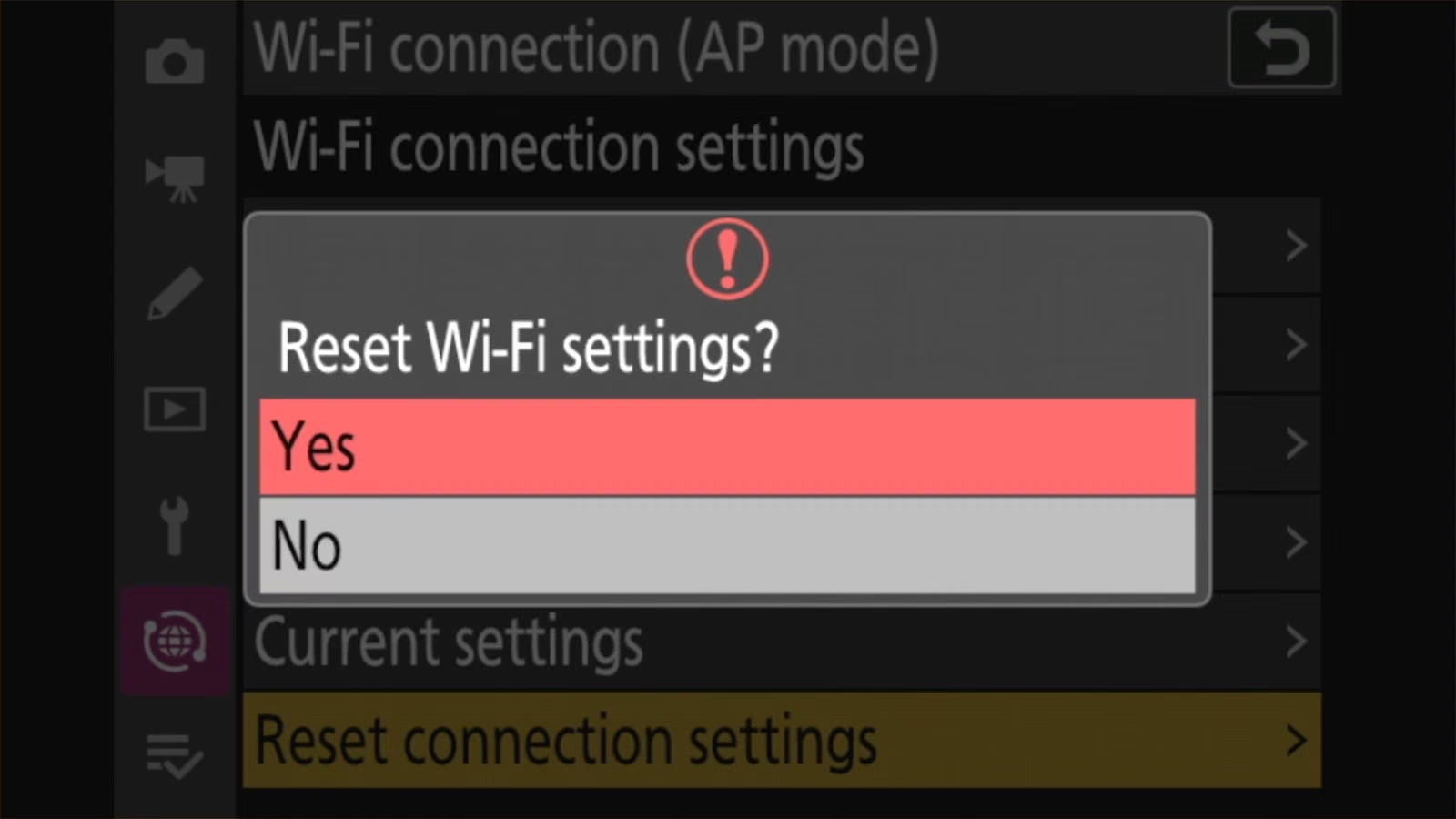
Reset the Wi-Fi connection settings
To reset just the camera’s Wi-Fi settings for connecting to your phone:
MENU > NETWORK MENU > Connect to smart device > Wi-Fi connection (AP mode) > Wi-Fi connection settings > Reset connection settings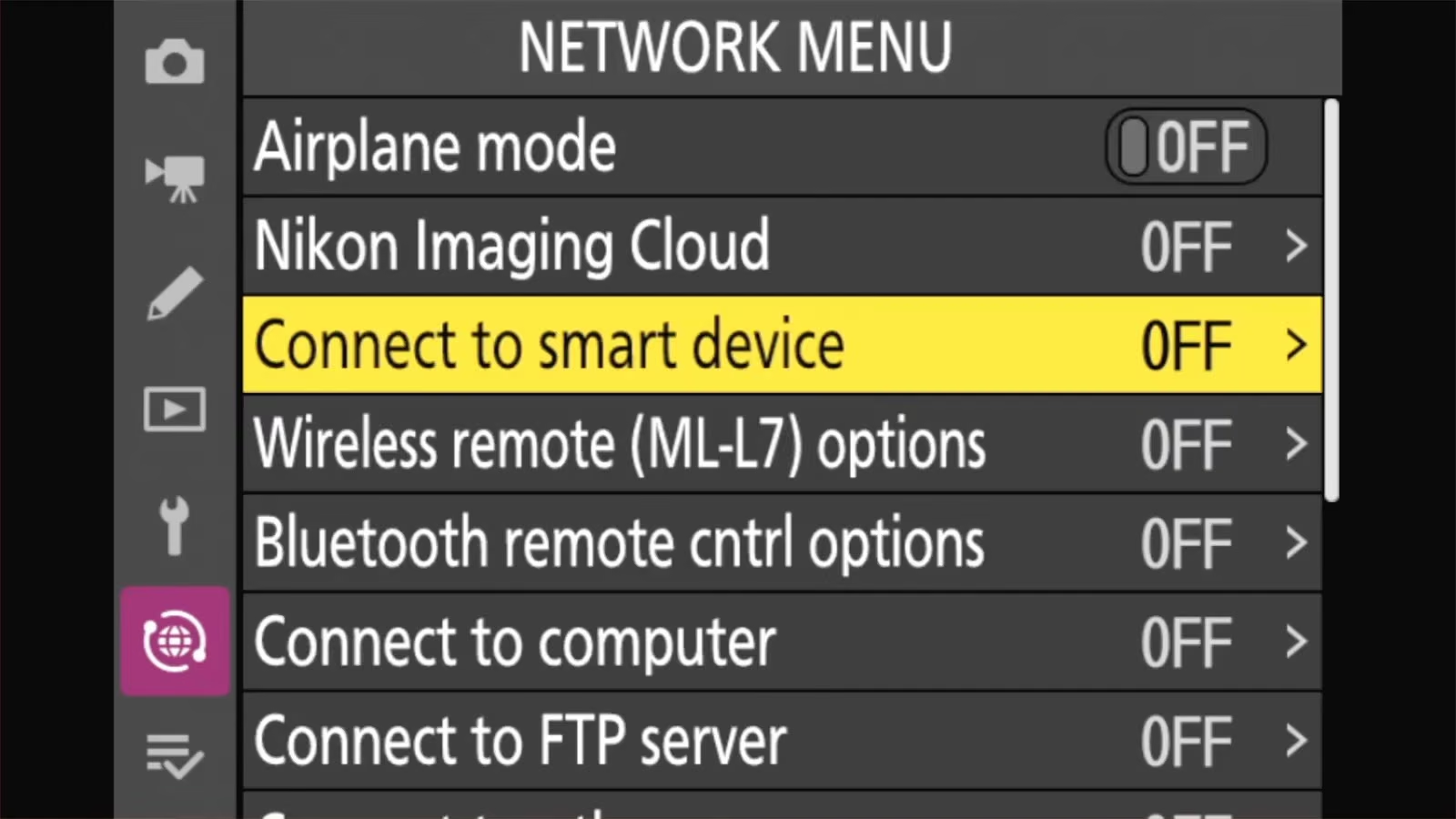
If you’re selling or giving the camera to someone else
- First, download the photos from your memory card. Then format the memory card in the camera, or keep the card. However, it’s worth knowing that formatting in the Z50 II is what’s known as a quick format, which means it’s not a secure wipe. So the data can (usually) be recovered.
- Unlink the camera from Nikon Imaging Cloud, if you used it:
NETWORK MENU > Nikon Imaging Cloud > Unlink Nikon Imaging Cloud. - Remove the camera from SnapBridge on your phone.
- Reset all settings. This clears your copyright details and Wi-Fi profiles, so your name isn’t written into the next owner’s photos.
- Update the firmware to the latest version. It’s just a courtesy, but a nice touch.
Frequently asked questions
How do I factory reset a Nikon Z50 II?
MENU > SETUP MENU > Reset all settings > Reset > Yes. It restores all settings except the language and clock.
Does resetting the Z50 II delete my photos?
No. Resetting only changes settings. Photos stay on the memory card until you delete them or format the card.
Does a reset undo a firmware update?
No. The firmware version stays the same.
Is there a two-button reset on the Z50 II?
No. Nikon’s manual documents only the menu resets above. Older Nikon DSLRs had a two-button reset that used the two buttons marked with green dots, but the Z50 II doesn’t have any green-dotted buttons.
Can I undo a reset?
Only if you saved your settings first with Save/load menu settings. Otherwise, no.


