
The latest firmware for the Fujifilm X100VI is Ver. 1.31, released July 26, 2025. If your camera says Ver. 1.32, you’re not behind: newer bodies ship with it from the factory, and there’s nothing to install.
Below: how to check which version you have, how to install an update from a memory card (my preferred way), the full version history, and what each update changed.
While you can update via the Fujifilm smartphone app, and that’s what Fujifilm is pushing these days, I strongly prefer the manual SD card method. It is faster, more reliable, and less prone to connection errors. Here is how to do it the old-school (and, in my opinion, best) way.
There’s another reason to skip the app route. Since firmware 1.30, the old FUJIFILM Camera Remote app can’t connect on iOS at all — you need XApp and iOS 13 or later — and Android phones have to be on Bluetooth 4.2 or newer to pair. Updating from the card sidesteps all of that.
The gist is that you download the new firmware file, copy to your memory card, then run the update through the camera’s menu system.
I’ve included a more detailed step-by-step guide below along with screenshots of the process.
Method: SD Card (Manual Update)
Why this method: More reliable than the Smartphone App
Requirement 1: Fully charged battery (NP-W126S)
Requirement 2: Formatted SD card
File Name Rule: Must be exactly “FPUPDATE.DAT” (watch out for duplicate numbers!)
Menu Location:Setup > User Setting > Firmware Update
Before you start
Before leaping right in, there are a couple of things to do first. The process of updating the X100VI’s firmware isn’t complicated, but it can go wrong, especially if you don’t follow the second of these preparation steps.
Check your current firmware
Turn the camera on while holding down the DISP/BACK button. The screen shows the installed version.
You’ll get a display something like this:

There’s one catch: Fujifilm’s manual says the camera only displays the firmware version if a memory card is inserted. If nothing appears, put a card in and try again.
Then compare that with the version that’s available on Fujifilm’s website. If the version on the website is the same, there’s no need to update. If it’s newer, it’s generally recommended to update the camera to the latest firmware.
Alternative method
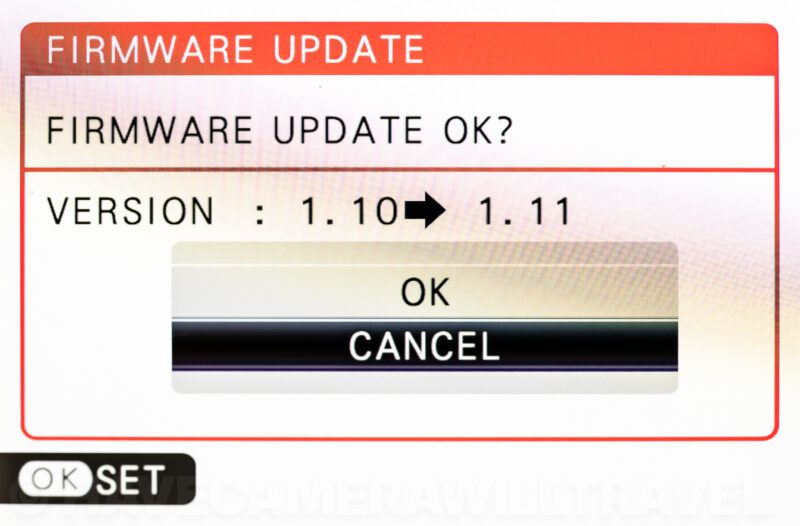
You can also see the current version by starting an update from the menu; the confirmation screen shows the version you have and the one on the card:
SET UP > USER SETTING > FIRMWARE UPDATEThere’s no particular advantage to using one method over the other; they both show the same information.
Make sure your battery is fully charged
If the firmware update gets interrupted, it’s a problem. It can brick your camera, meaning it won’t work and won’t be recoverable. So you obviously want to avoid that.
The most basic precaution is to always start with a fully charged battery so that you don’t risk the camera powering down during the update process. Messages on the camera will remind you about this — these messages are worth taking seriously.
Updating from the memory card
1. Download the file from Fujifilm’s X100VI firmware page:
It’s named FPUPDATE.DAT.
IMPORTANT: Ensure the file is named exactly
FPUPDATE.DAT. If your computer renamed it toFPUPDATE (1).DAT, rename it back or the camera won’t see it.
Rico Pfirstinger points out why that happens: if an older firmware file is still in your downloads folder, your computer may give the new one a different name, and the camera won’t recognize it. He also notes that if Fujifilm’s page doesn’t show a version you know exists, your browser may be showing a cached copy of the page. Force a reload.
2. Format the card in the camera, then copy the file to the ‘Root’ directory of your memory card. By that, I mean do not put it inside the DCIM folder or any other folder. Just drag it right onto the card icon. Eject the card properly before removing it from the computer.
3. Put the memory card back in the camera, with a fully charged battery.

4. Start the update, either way:
- With the camera off, hold DISP/BACK and switch it on.
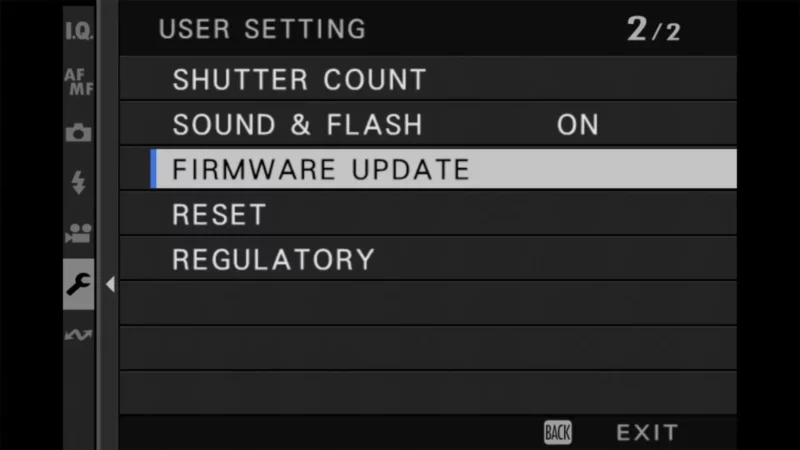
- Or, with the camera on, go to this menu item. FIRMWARE UPDATE is on page 2 of USER SETTING.
SET UP > USER SETTING > FIRMWARE UPDATE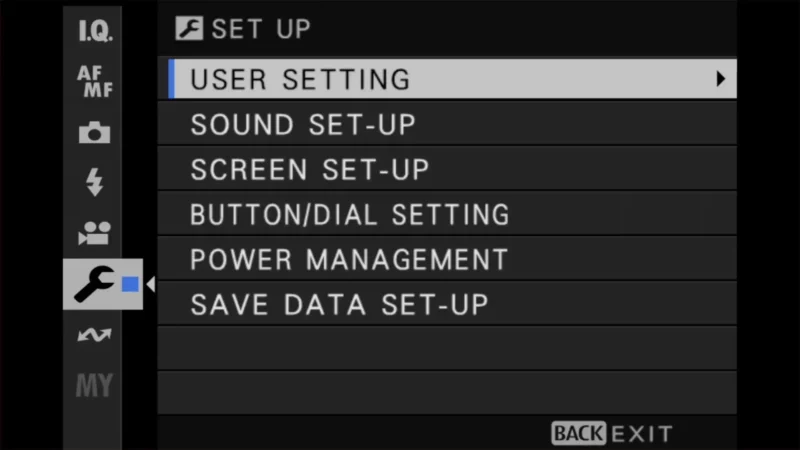
5. Confirm. You’ll get a confirmation screen asking you whether you want to proceed with the update and showing you the before/after firmware version numbers.
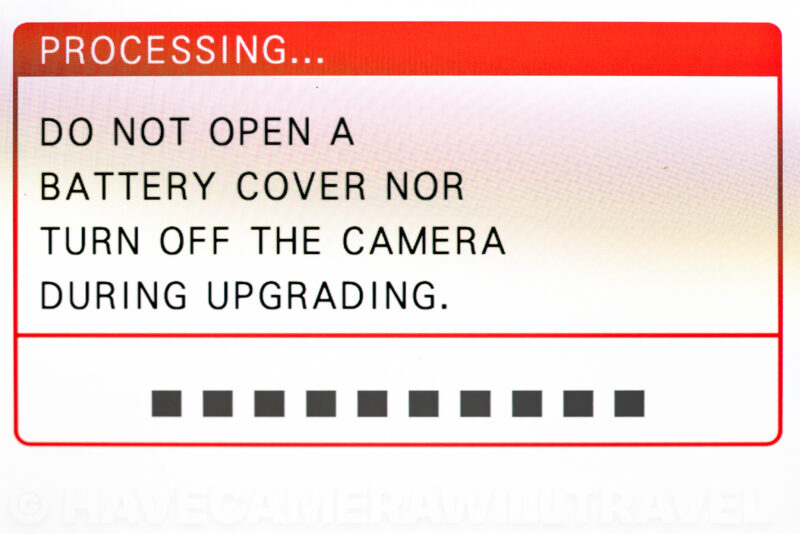
You’ll then get a warning message. It’s very important to take heed of this and not interrupt the camera while it’s updating.

6. Wait. Once you hit OK to proceed, you’ll get a status message and a reminder not to mess with the camera while it’s busy. The blocks at the bottom of the screen make a progress bar. Not the most obvious one you’ll come across, but darker boxes are completed progress at left, and it will work its way from left to right. The process typically takes a minute or two. Fujifilm’s manual says a large update can take up to about 10 minutes.
7. When it says it’s complete, switch the camera off. You’ll get a message that the process was complete, the new firmware number, and an instruction to turn the camera off. Then check the version again.
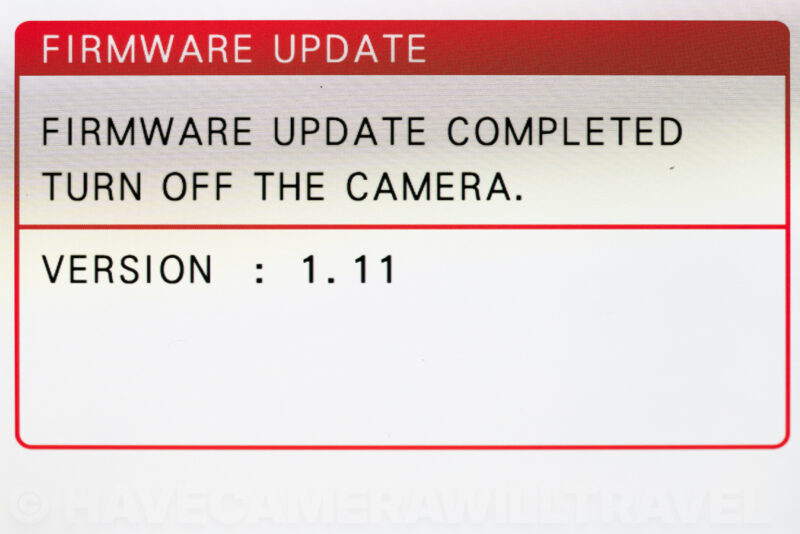
Your camera is now ready to go with the new firmware. I like to format the memory card now to get rid of the old DAT file, but it’s not strictly necessary.
Watch the rear screen, not the viewfinder. Fujifilm’s manual says nothing appears in the electronic viewfinder during a firmware update. If you’re looking through the finder and see nothing, that’s expected. Use the LCD on the back.
A few things Fujifilm’s manual is clear about: use a battery with enough charge, don’t operate the camera during the update, and you can’t go back to an earlier version once you’ve updated. If an error message appears, Fujifilm has an error message recovery page.
If the camera asks to update itself
If you use FUJIFILM XApp (Fujifilm’s phone app) version 2.0.0 or later, the app can download new firmware to the camera automatically. When the update is ready, the camera shows READY FOR FIRMWARE UPDATE. Choose START, then pick from:
- UPDATE NOW
- SCHEDULE DATE AND TIME: the camera turns itself on at that time and updates.
- REMIND ME LATER: asks again in three days.
- TURN OFF NOTIFICATION: stops asking.
If you choose CANCEL, the prompt comes back when you turn the camera on the next day or later. None of this is urgent. If you’d rather use the card, turn the notification off.
X100VI firmware history
| Version | Released | What changed |
|---|---|---|
| 1.00 | Late February 2024 | Launch firmware |
| 1.01 | Date not published | Fixed Wi-Fi connection with FUJIFILM XApp version 1.3.0 and earlier |
| 1.10 | Date not published | XApp linkage, including RAW transfer; autofocus accuracy; Wi-Fi |
| 1.11 | June 27, 2024 | Fixed: face detection focusing on the wrong subject; a freeze with the AF illuminator; a movie-recording freeze (4K 59.94p with an external monitor); a freeze when using the ND filter from the touchscreen |
| 1.12 | Never released | Known only from Fujifilm’s 1.20 notes; probably a factory-installed version |
| 1.20 | December 19, 2024 | Revised autofocus: better accuracy and subject tracking |
| 1.21 | February 27, 2025 | Fewer shutter actuations (see below); fixed custom settings not being kept after power-off when saving ISO or some audio settings; fixed the camera not turning on with certain SD cards; fixed rare WRITE ERROR messages with certain SD cards |
| 1.30 | July 22, 2025 | Wireless security changes that break older connections: new phone pairing procedure; WIRELESS COMMUNICATION menus removed; direct printing to instax SHARE SP-1/SP-2/SP-3 dropped; the iOS FUJIFILM Camera Remote app can no longer connect (XApp and iOS 13 or later required); Android phones need Bluetooth 4.2 or newer |
| 1.31 | July 26, 2025 | “Minor bug” fixes (Fujifilm’s wording). Owners reported that the 1.30 update wouldn’t install on Made-in-Japan bodies; 1.31 installs on them. |
| 1.32 | Factory-installed only | Shipping on new bodies since about late 2025. Never released as a download; no published change list. |
Why 1.21 matters. The X100VI’s leaf shutter (the shutter built into the lens) is the part of this camera most likely to wear out. Before 1.21, it cycled every time you switched to playback, opened the setup menu, connected over USB or to app software, changed the view angle in movie mode, or switched between stills and movies. Version 1.21 stopped that. If you’re still on 1.11 or 1.20, you’re spending shutter actuations for nothing.
Why 1.30 broke some phone connections. It was on purpose. Fujifilm tightened wireless security, and older phones and the old Camera Remote app lost access. Updating to 1.31 doesn’t bring it back, because nothing was broken. If your phone won’t pair, install XApp and check your phone’s Bluetooth version. Some owners still had pairing trouble after 1.31; the fixes that worked for them were removing the camera in the app and pairing again, and updating XApp before updating the camera.
FAQ
What is the latest firmware for the Fujifilm X100VI?
Ver. 1.31, released July 26, 2025. Nothing newer has been published as a download since.
My X100VI says firmware 1.32, but Fujifilm only offers 1.31. What do I do?
Nothing. Newer X100VI bodies have shipped with Ver. 1.32 installed at the factory since about late 2025. It has never been released as a download, and Fujifilm hasn’t published what it changes. Your camera is ahead of the public version, not behind it, so there’s nothing to install.
How do I update the X100VI firmware?
Copy FPUPDATE.DAT from Fujifilm’s site to the root of a card formatted in the camera. Then hold DISP/BACK while switching on, or use SET UP > USER SETTING > FIRMWARE UPDATE.
Can I go back to an older X100VI firmware?
No. Fujifilm’s manual says you can’t return to a previous version after updating.
Things worth knowing
- It’s typically a good idea to keep your camera up to date with firmware. That should address any bug fixes or new features. It is technically possible for new firmware to introduce new problems, but in my experience, that’s rare.
- That said, it’s rarely drop-everything urgent to do so. I mention this because I like to wait until I’m back home and can run the process with no risk of interruptions. It doesn’t take long, but there are things that can go wrong if the process gets interrupted.
- Updating an X100V? The steps are nearly the same: see how to update the X100V’s firmware.
Explore the Fujifilm X100VI
Here’s a tool I created to help identify which buttons and dials are where — and what they’re called, because every brand has their own dialect and jargon.


