The Fujifilm X100VI doesn’t have user-accessible internal memory. So you’re going to have to use a memory card in it.
It’s a single slot, and it’s UHS-I only. So a UHS-II card buys you nothing in this camera — the second row of pins goes unused, and a UHS-II card’s UHS-I fallback speed can actually be slower than a good UHS-I card’s. A reputable UHS-I SDXC card is all the X100VI can make use of.
I’ve put together some recommendations separately on which SD cards to get for the X100VI. But then what?
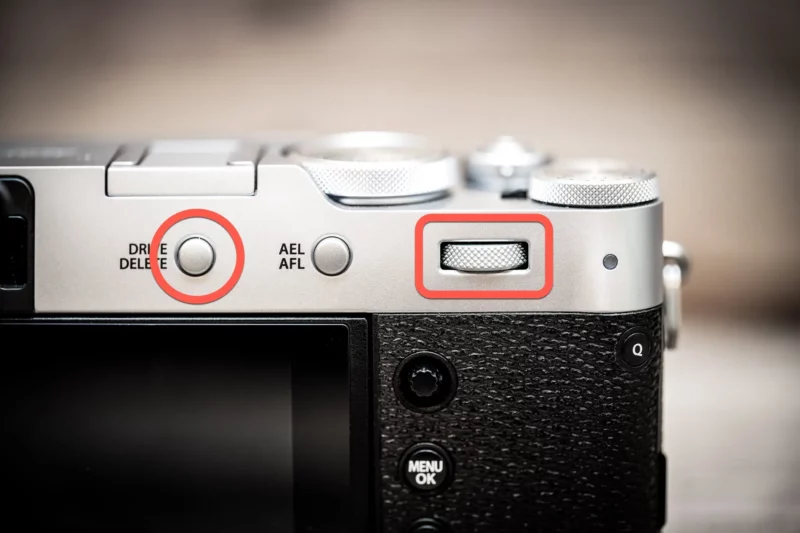
The short answer, if that’s all you came for: the format function is at SET UP > USER SETTING > FORMAT. Or hold down the Drive/Delete button and press the center of the rear command dial to jump straight to it.
While your new SD card might well work fine right out of the box, when you first put a new SD card in the X100VI — or any camera, for that matter — it’s best to format it right away. And it’s something you’re going to have to do regularly to free up space and keep the memory card storage in tip-top shape.
It is best practice to always format memory cards in the camera that you’ll be using them in. That sets the card up with the filesystem, folder hierarchy, and, in some cameras, a database file, so that the card is just how the camera expects. That greatly reduces the risk of unexpected errors and unpleasant surprises.
Always be sure you’ve backed up everything you want from the card, because formatting it will wipe everything. (*Yes, it might technically be possible to still recover files from it, but that’s tedious, and why risk it?)
How to format an SD card on the X100VI: The menu method
This is the basic option that works through the menu system. There’s also a shortcut version that I’ve included further down this page.
On the Fujifilm X100VI, you can find the format function under:
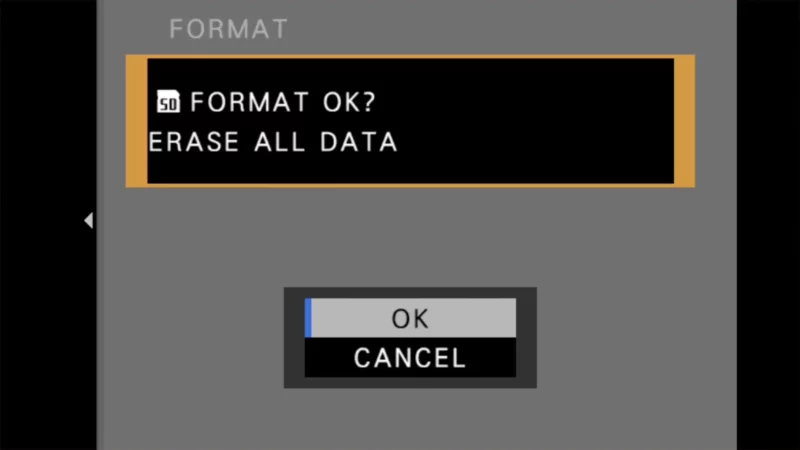
Setup tab (wrench/spanner icon) > User Setting (another wrench icon) > FormatYou’ll be asked to confirm that it’s going to erase all data from the card.

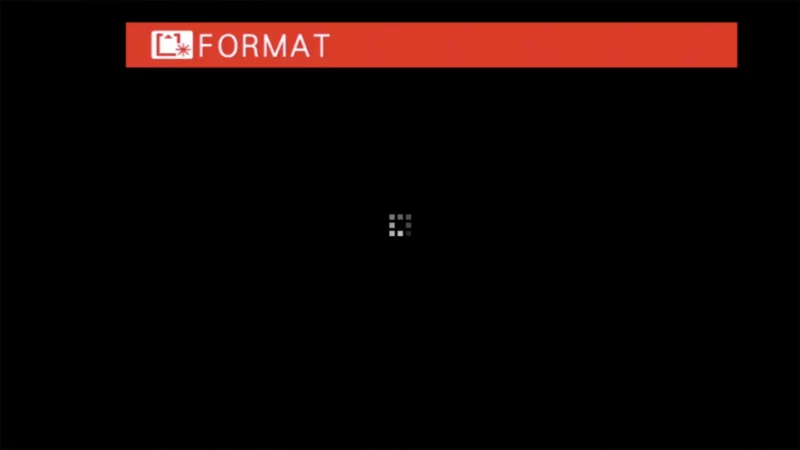
Worth knowing before you hit OK: protecting images doesn’t save them from a format. Fujifilm’s manual is explicit that all data, including protected pictures, is deleted when you format the card — the PROTECT function only guards against deleting individual frames in playback. Fujifilm also warns not to open the battery-chamber cover while the format is running.
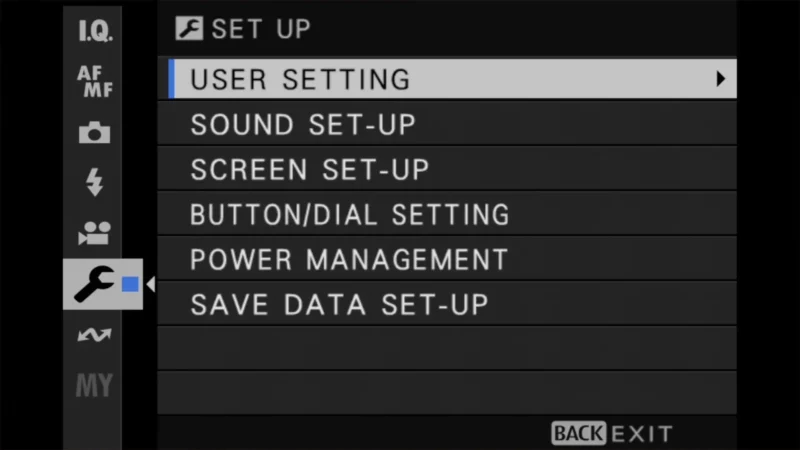
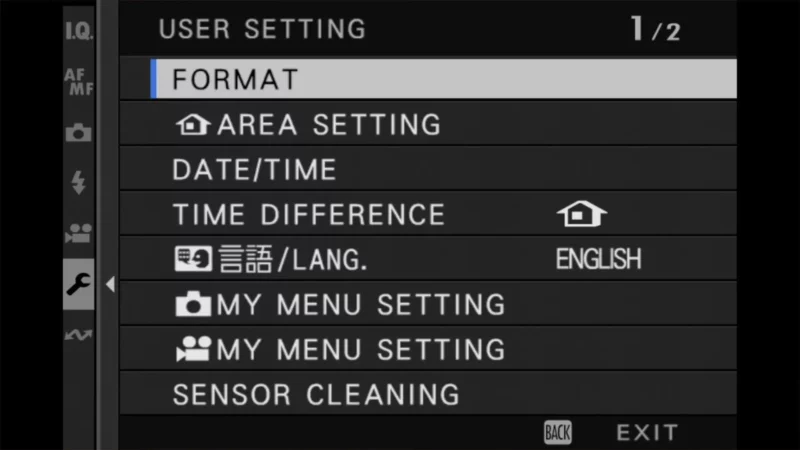
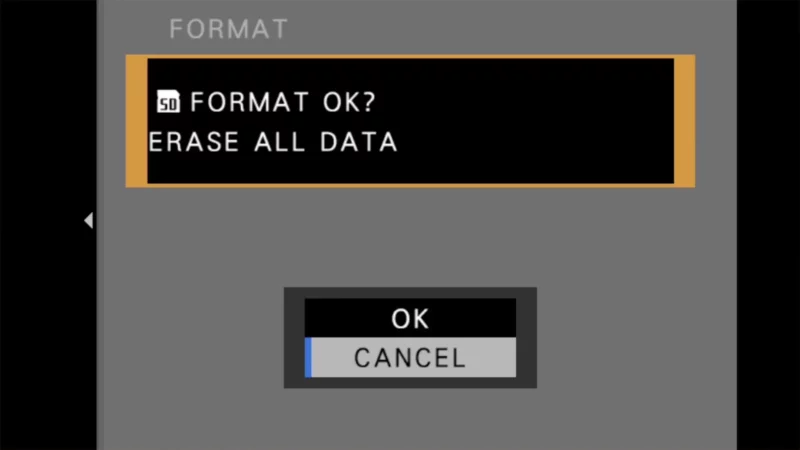
The two-button format shortcut
There’s also a quick shortcut version that saves you searching for it in the menu system. Hold down the Drive/Delete (Trash Can) button and press the center of the Rear Command Dial.
Troubleshooting tip: If the camera says ‘Card Error’ or won’t format, check the tiny lock switch on the side of your SD card to make sure it isn’t in the ‘Lock’ position. I have a separate post on this and what to look for.
If the lock switch checks out and you’re still getting card errors, check the camera’s firmware version. Fujifilm has fixed two separate SD-card bugs on the X100VI in firmware: one where the camera wouldn’t turn on at all with certain cards inserted, and one where a “WRITE ERROR” appeared after shooting with certain cards. If you’re running an early firmware version, updating is the fix. It’s also worth trying a different card — a counterfeit or failing card can throw the same message, and cards from marketplace sellers are where the fakes concentrate.
Things worth knowing
It’s also possible to delete pictures individually or select multiple. That’s handled through the playback system and isn’t the same thing as formatting the memory card.
The X100VI does what’s known as a quick format or high-level format. That basically wipes the references to where the data is, but it doesn’t actually wipe the underlying data itself. On the plus side, it’s quick, and it means that there’s a good chance of being able to recover it if you accidentally format the card before downloading all the photos and video. On the minus side, it means that the data is not truly gone, which might be an issue if you’re shooting sensitive subjects such as for clients that require NDAs (in which case you’ll want a secure wipe instead).
I have more information on the difference between a quick format and a full format separately, but if you need the more thorough full format, you’ll need to use a computer for that.
Explore the Fujifilm X100VI
Here’s a tool I created to help identify which buttons and dials are where — and what they’re called, because every brand has their own dialect and jargon.


